Portal › General Settings
The General Settings section provides centralised controls for configuring how information is displayed and accessed in the Supplier Portal. These settings help businesses manage supplier visibility, streamline collaboration, and ensure secure access to key data.
These configuration options determine what suppliers see when interacting with styles, orders, and planning data through the portal. By tailoring these settings, teams can control pricing transparency, enforce process workflows, and improve communication with supply chain partners.
Quick Check - Before You Start
- Confirm Site Settings › Portal access and coordinate with commercial leads before hiding prices or critical path data.
- Review Supplier Portal Configuration so portal registration and module access match these display rules.
- After changes, log into a representative supplier account (or staging portal) to validate what vendors actually see.
Available Configurations
External Connections
Provides an at-a-glance summary of external business connections managed in Site Settings › Company › External Connections. Use this panel to see how many partners are pending portal setup, actively connected, or kept as PLM-only internal records before opening the full connection list.
| Count | Description |
|---|---|
| Pending | Connections with portal access that are waiting for the external business to complete registration. |
| Connected | Active portal relationships where the external business has linked portal access. |
| Internal | PLM-only connections managed inside your production instance without a linked portal business. |
Click Manage connections to open Site Settings › Company › External Connections, where you can connect businesses, resend invitations, assign profile templates, and enable or disable connections.
General Settings > External Connections 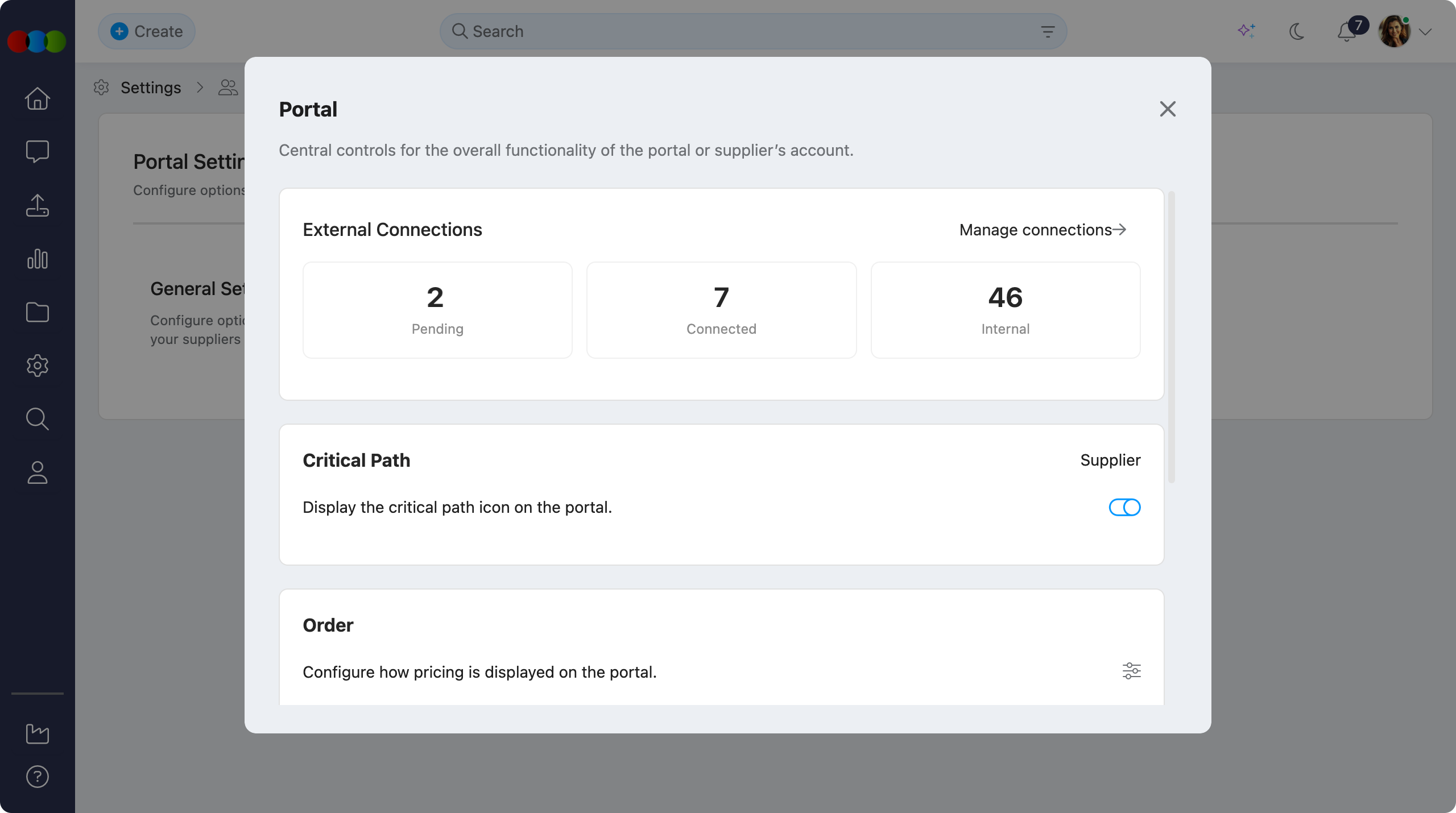
Note
Summary counts include Pending, Connected, and Internal connections only. Disabled connections are managed in Site Settings › Company › External Connections but are not shown in these totals.
Critical Path
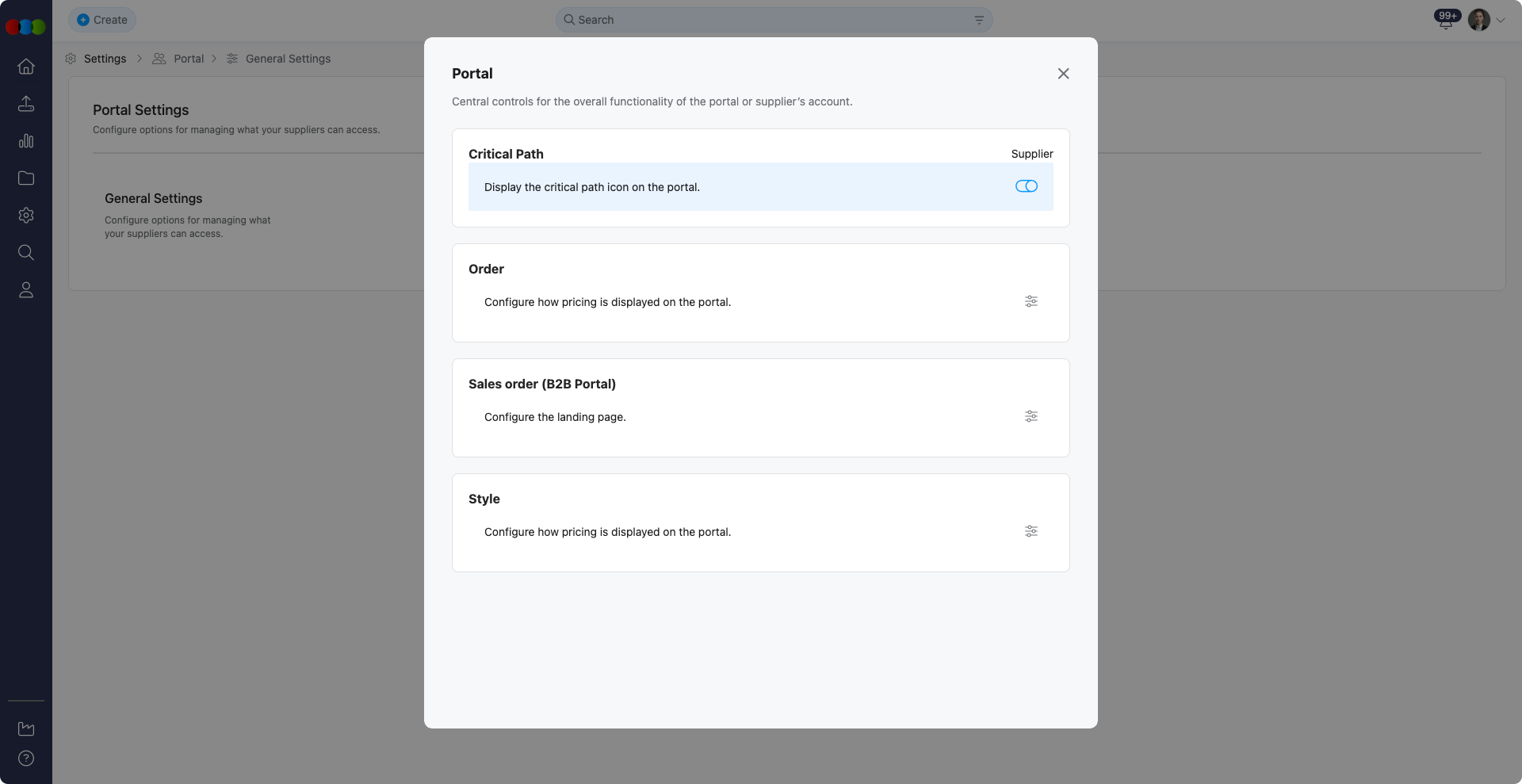
Enable this option to display the full critical path of assigned styles or orders to suppliers.
This allows suppliers to track milestones and meet deadlines collaboratively, improving transparency and accountability throughout the production process.
Order
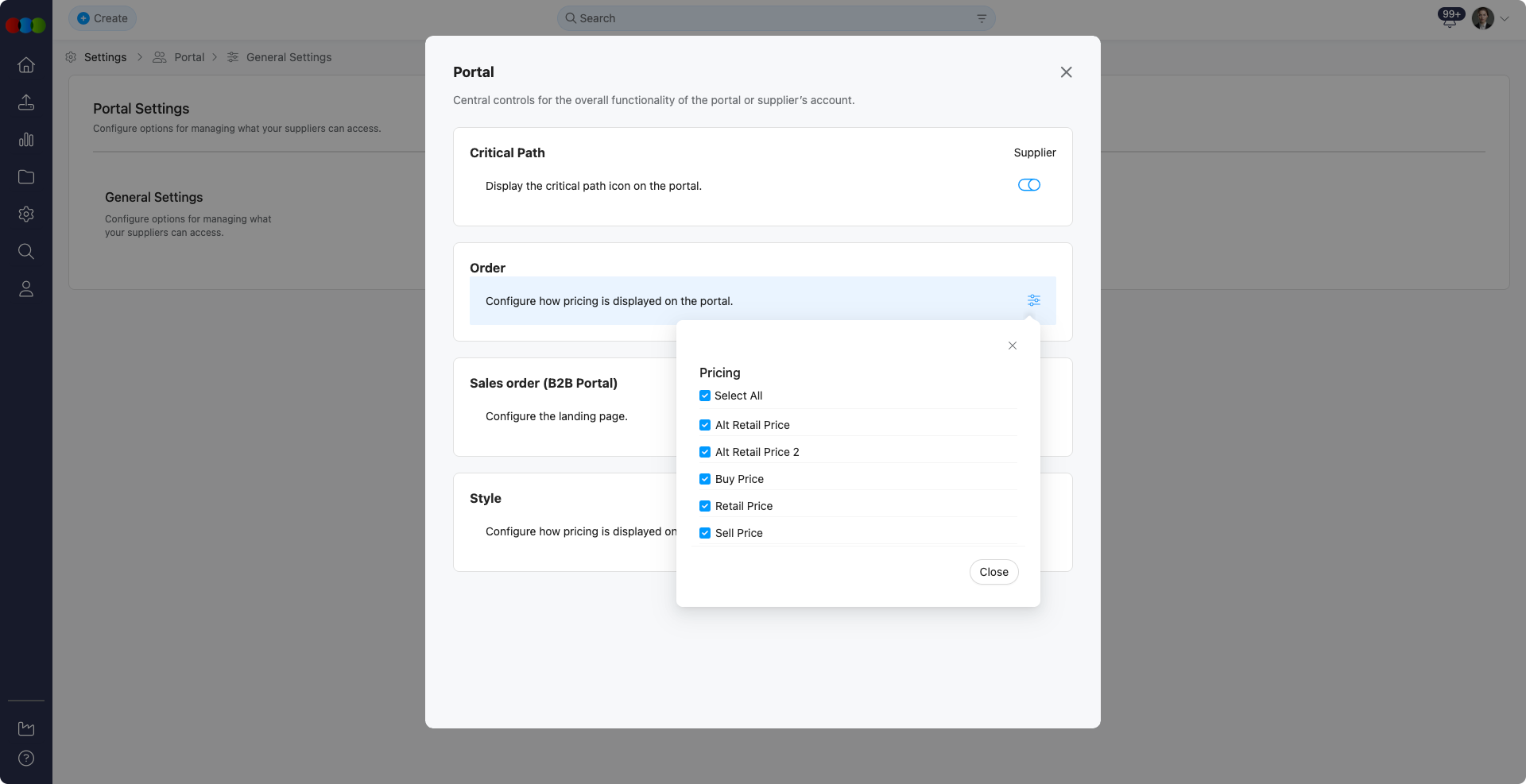
Control how much pricing detail (e.g., buy price, sell price, retail price) is shared with suppliers on purchase orders.
This setting helps protect sensitive financial information while maintaining necessary transparency for order fulfilment.
Sales Order (B2B Portal)
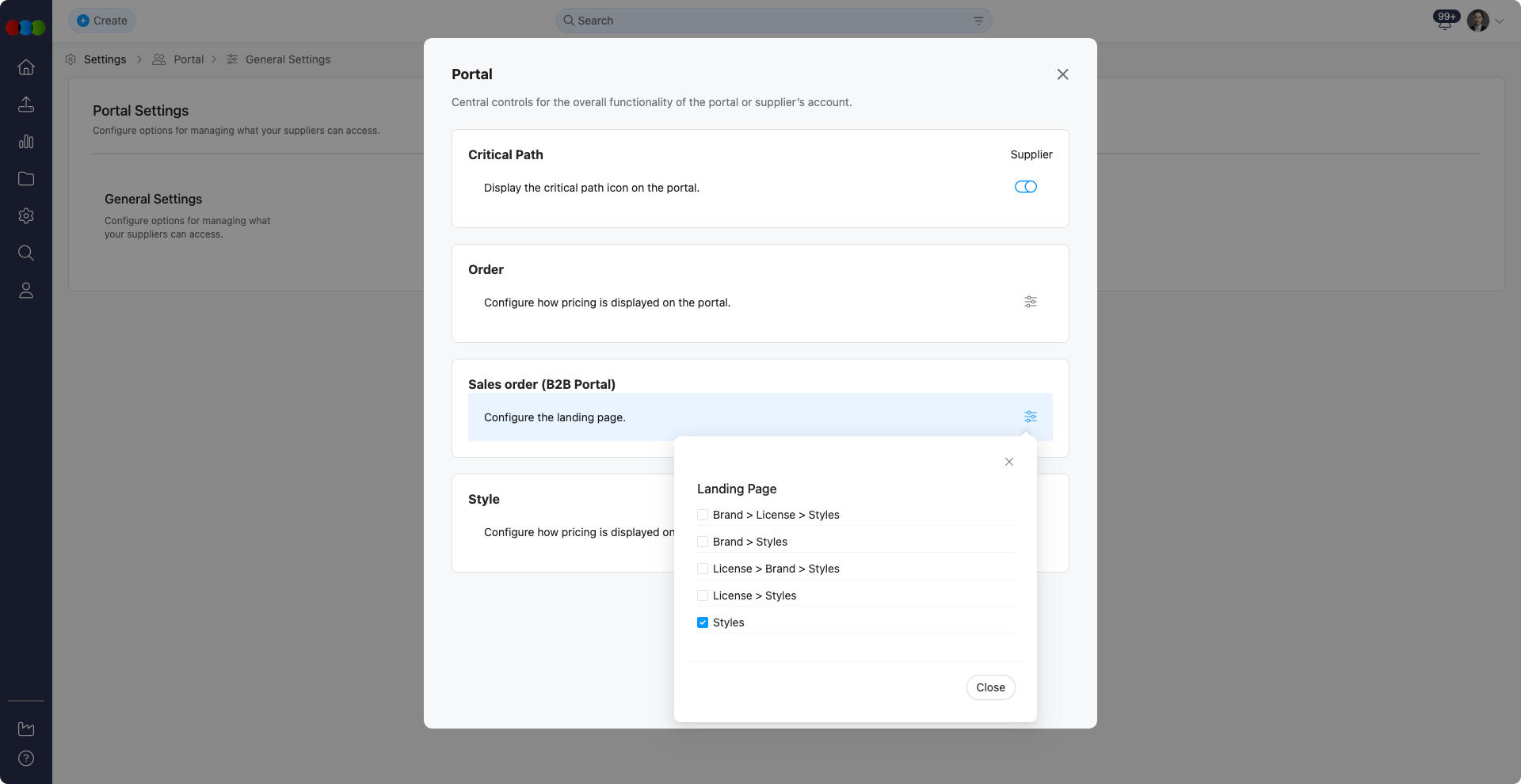
Set the default landing screen for suppliers when accessing the Supplier Portal. Choose between styles, orders, or dashboards depending on your workflow and the primary focus of your supplier interactions.
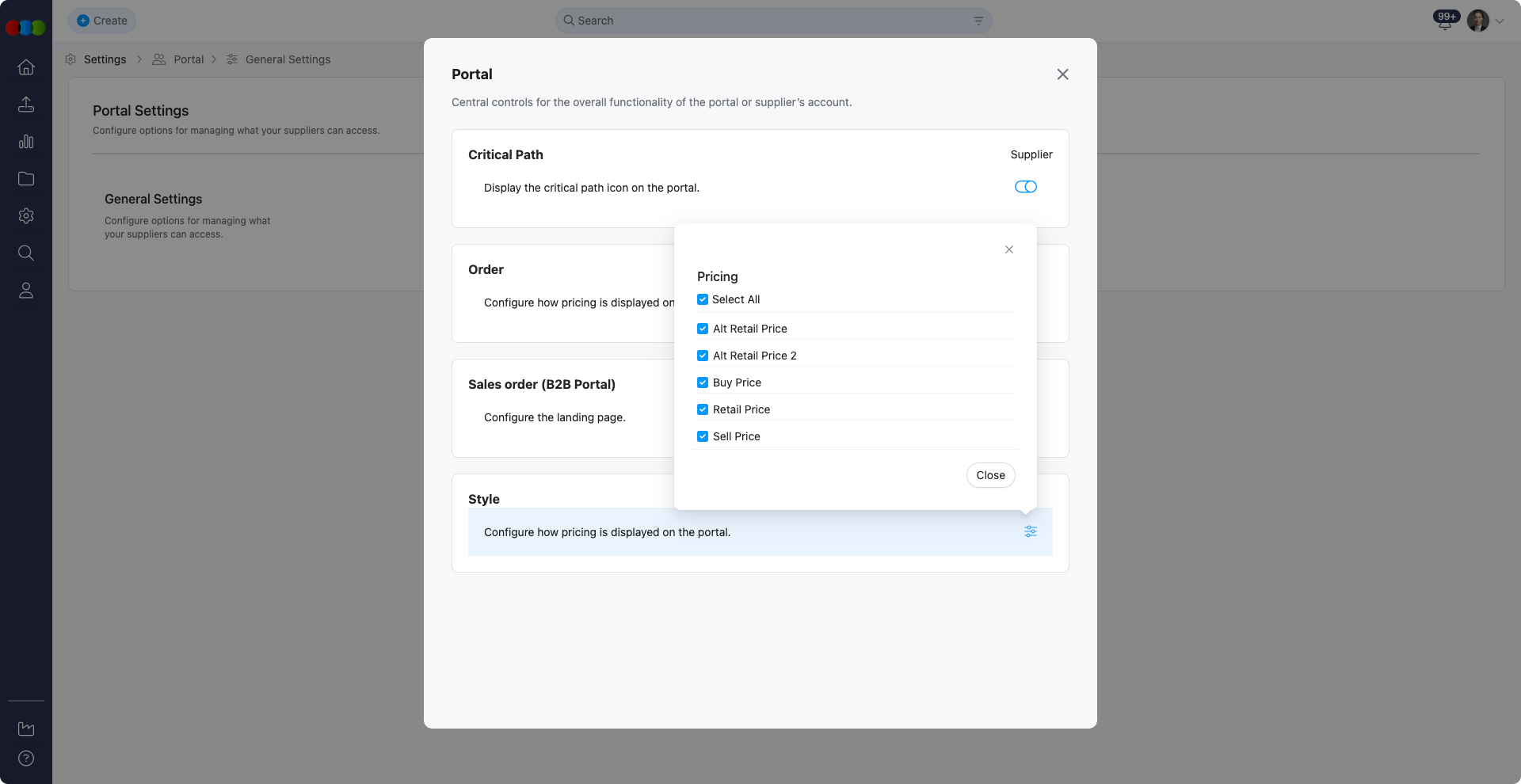
Style Pricing
Control which pricing elements related to styles are visible to suppliers.
This is particularly helpful for protecting margin information or staging price releases according to your business strategy.
Portal display tips
- If working with cost-sensitive suppliers, restrict pricing visibility while maintaining visibility on critical path and documentation to balance transparency with commercial confidentiality.
- Adjust the Supplier Portal landing page to prioritise the most relevant content for your vendors (e.g., styles for development partners, orders for shipping partners) to improve their user experience and efficiency.
- Periodically review Supplier Portal role assignments and View permissions in line with security and privacy best practices, especially when supplier relationships change or new compliance requirements are introduced.
Related Actions
- Site Settings › Company › External Connections
- Supplier Portal Configuration
- Supplier Portal > Critical Path
- Supplier Portal Registration
Troubleshooting
Why do the External Connections counts not match the full connection list?
The summary on Portal › General Settings shows totals for Pending, Connected, and Internal statuses only. Disabled connections and other filters on the main list are not included in these numbers.
Steps to resolve:
- Click Manage connections to open Site Settings › Company › External Connections.
- Use the All, Pending, Connected, or PLM only filters to reconcile each status with the summary counts.
- Review Site Settings › Company › External Connections for column and filter definitions.
Why can suppliers still see pricing we intended to hide?
Order and Style Pricing settings here layer on top of record sharing; other modules or documents may still expose values if those channels are enabled.
Steps to resolve:
- Revisit Order and Style Pricing toggles on this page and save.
- Check Supplier Portal Configuration for additional layout or field rules.
- Verify purchase orders or shared documents do not include buy or sell columns your policy restricts.
Why does the Supplier Portal landing page not match what we selected under Sales Order (B2B Portal)?
Suppliers may cache sessions or use bookmarks that bypass the default landing experience, and some roles may have different entry URLs.
Steps to resolve:
- Confirm the Sales Order (B2B Portal) option is saved in General Settings.
- Ask the supplier to log out, clear cache, and log back in.
- Align expectations in Supplier Portal Registration communications so users start from the correct entry point.
Why is the critical path missing for a supplier who should see it?
Critical Path visibility must be enabled here, and the supplier needs access to the underlying style or order record with milestones populated.
Steps to resolve:
- Enable Critical Path under Portal › General Settings and save.
- Confirm the supplier is a member or invited collaborator on the relevant style or order.
- Review Supplier Portal > Critical Path for workflow-specific requirements.