Market Custom Fields
Market Custom Fields let you define extra data fields for eCommerce market descriptions. Each field appears when editors work on a market under Style > eCommerce > Markets, so you can capture regional or commercial attributes alongside short and long descriptions.
Fields are grouped into sections and support several input types. Once configured, values are stored per style and per market, and can support consistent reporting and filtering alongside your standard description content.
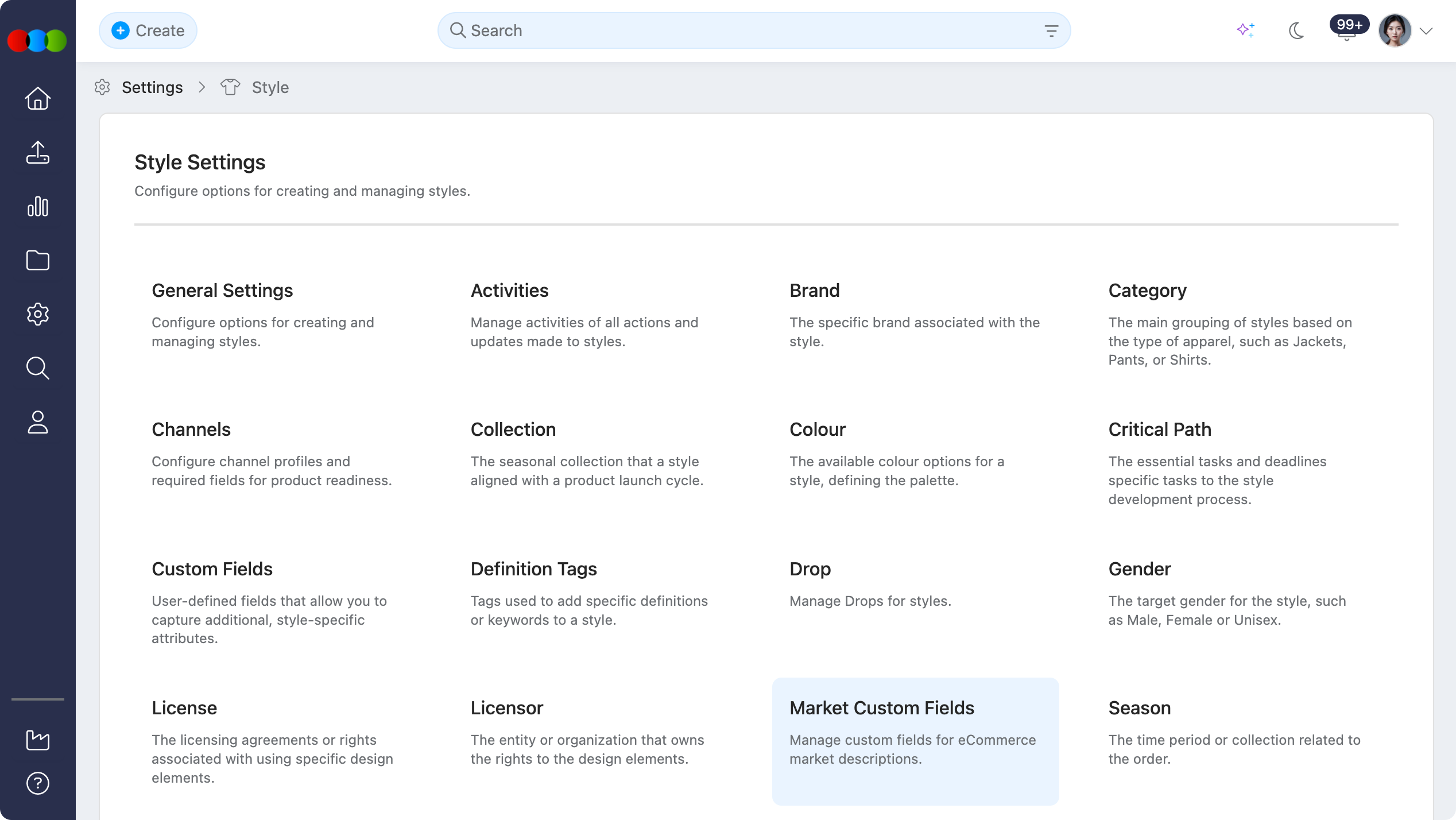
Quick Check - Before You Start
- Markets must be available on the style (Style > Details > Additional Markets) before users can enter market-level content, including custom fields.
- For Tags fields, confirm company tags are maintained where you rely on predefined values — see Site Settings > Company > Tag.
Field Types
When you add or edit a field, choose one of the following:
| Field Type | Description |
|---|---|
| Text | Single-line or short free-text entry. |
| Date | A calendar date value. |
| Dropdown | One option chosen from a list you define on the field. |
| Multi-select dropdown | Multiple options from the same defined list. |
| Rich text | Formatted content (headings, lists, emphasis, links, etc.). |
| Tags | Tag-style values, typically aligned with your organisation’s tag configuration where applicable. |
For Dropdown and Multi-select dropdown, configure the selectable values on the field definition before users fill them in on a market.
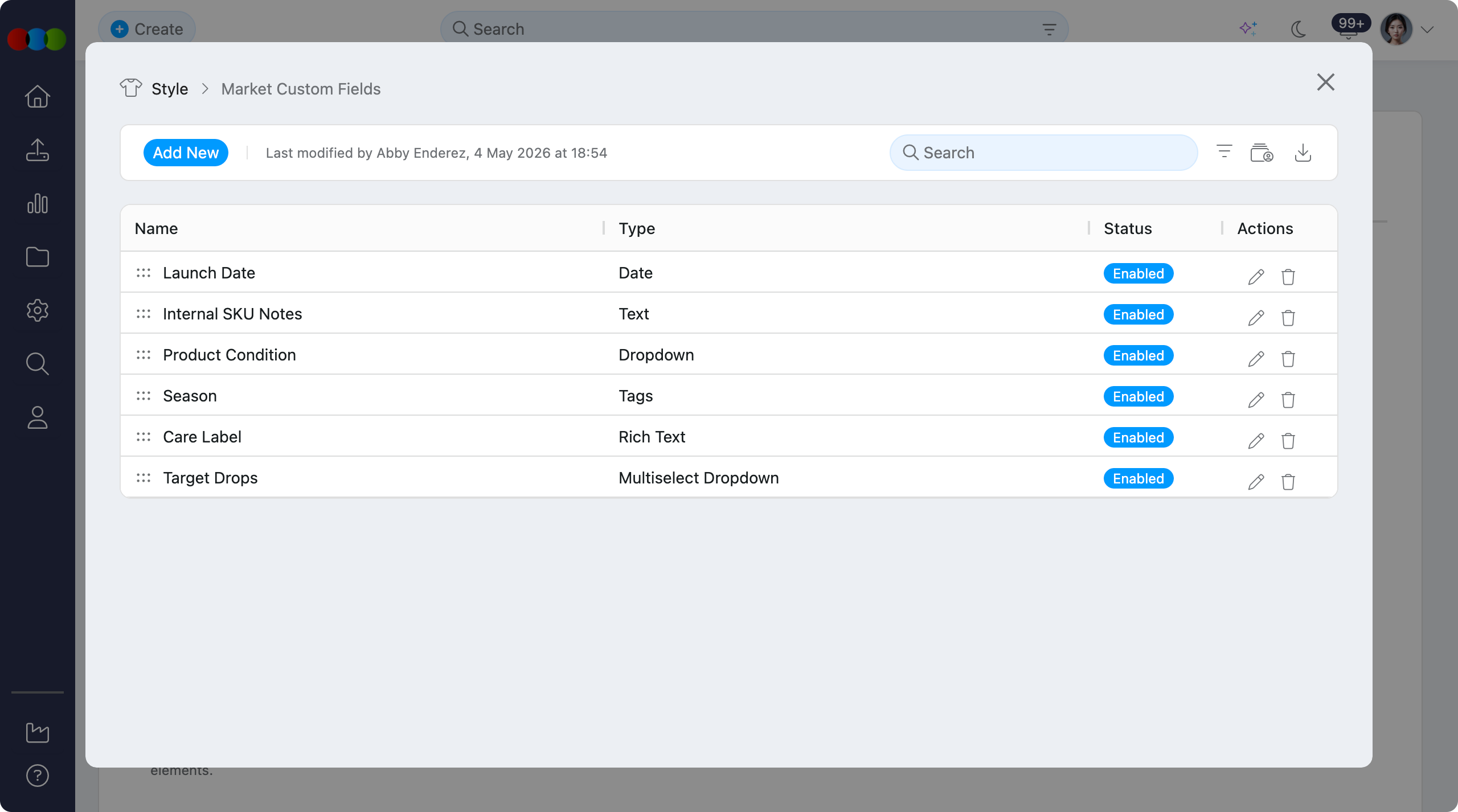
Managing Market Custom Fields
You can add, edit, delete, or disable fields to match how your teams describe products by market.
Add a Market Custom Field
- Click Add New in the top left corner.
- Enter a Section Name to group related fields (e.g. Regional compliance, Local marketing).
- Enter the Field Name (the label shown to users).
- Choose the Field Type (text, date, dropdown, multi-select dropdown, rich text, or tags).
- For dropdown types, add the allowed values.
- Click Save.
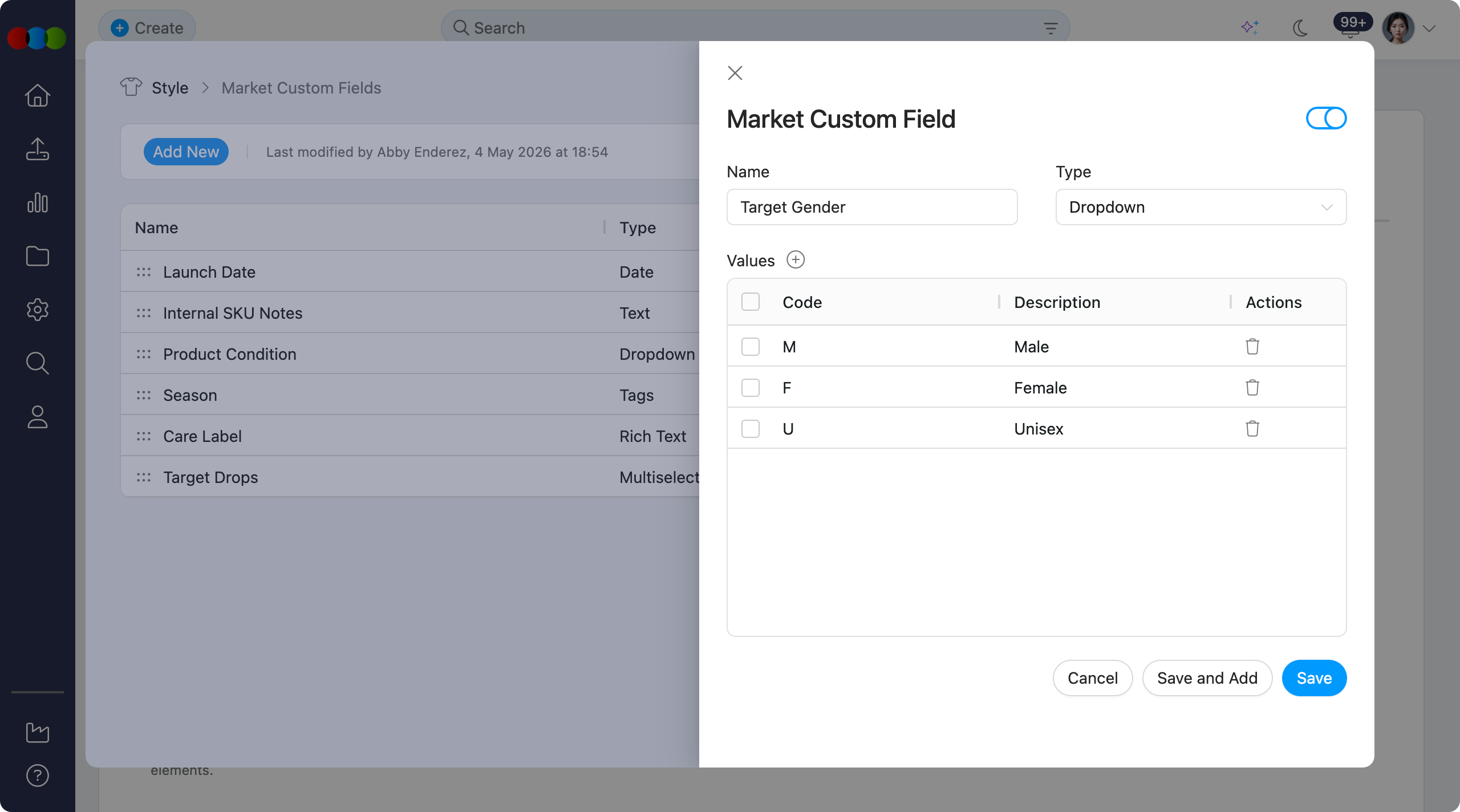
Edit a Market Custom Field
- Click the pencil icon next to the field.
- Update the name, type, or values as needed.
- Click Save.
Delete Market Custom Fields
Common Pitfall
Deleting a market custom field removes all values stored on eCommerce market descriptions. Disable the field when you need to hide it but keep historical answers.
Market custom fields can be deleted even when already in use. Deletion removes associated data so definitions stay consistent.
Click the trash can icon next to a field and confirm.
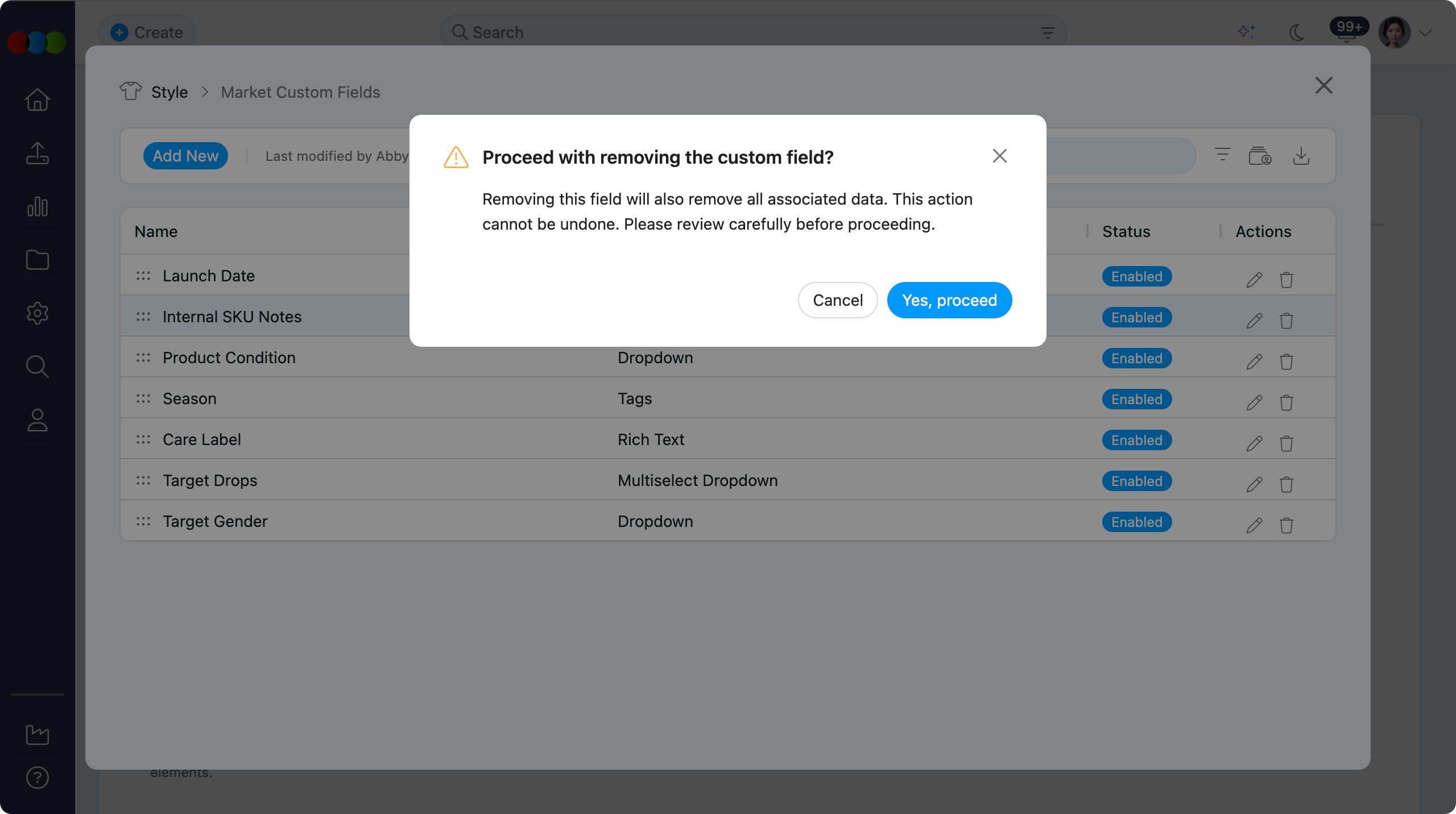
Disable a Market Custom Field
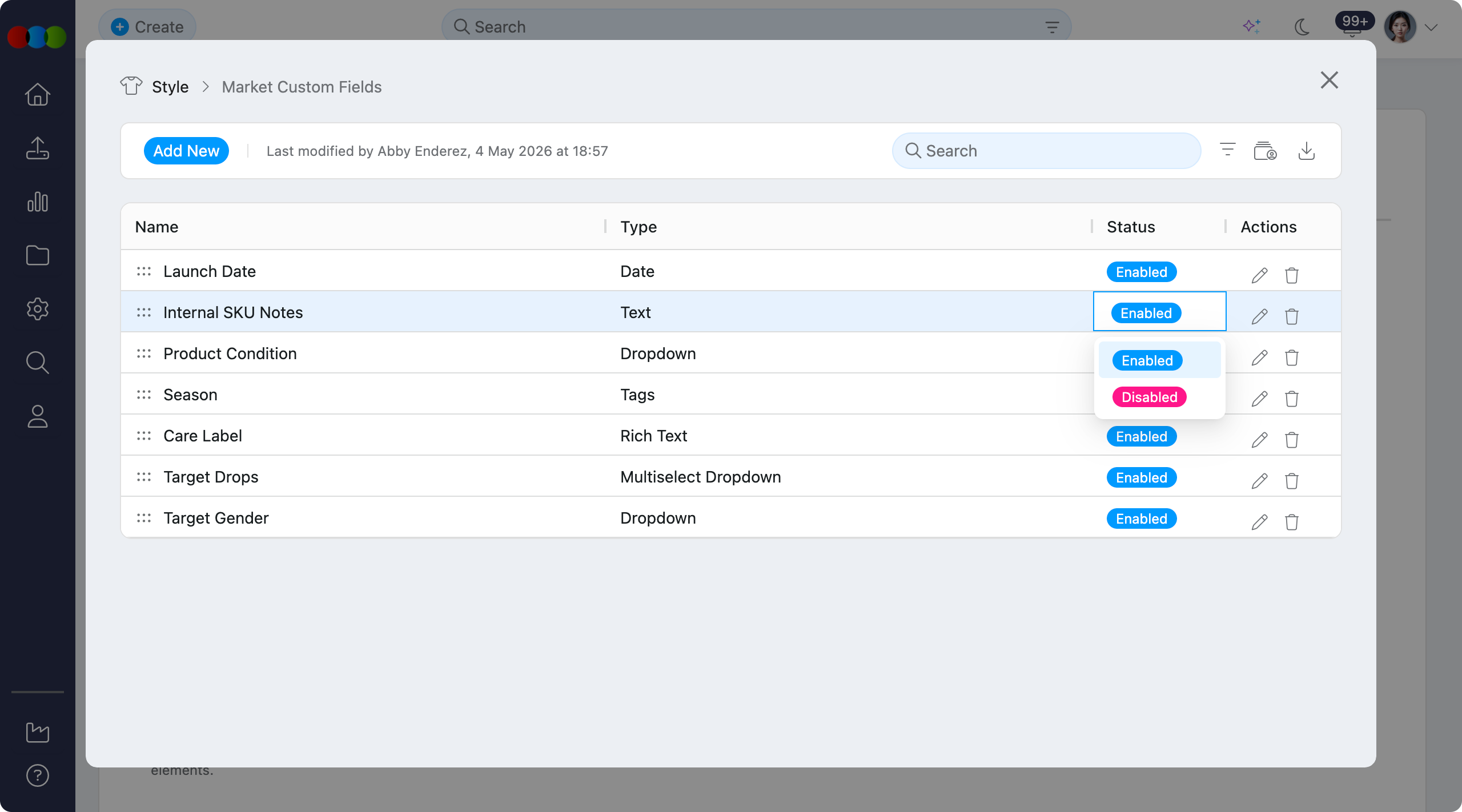
Disable a field to hide it from users without removing stored data.
- Use the status toggle on the row to switch Enabled to Disabled.
- Or change status inside the edit dialog.
Toolbar Actions
- Export: Download all market custom field definitions in
.xlsxformat. - History: Export a log of additions, edits, and deletions for auditing.
Customising the Table View
| Feature | Description |
|---|---|
| Sort by | Order fields alphabetically or by creation date. |
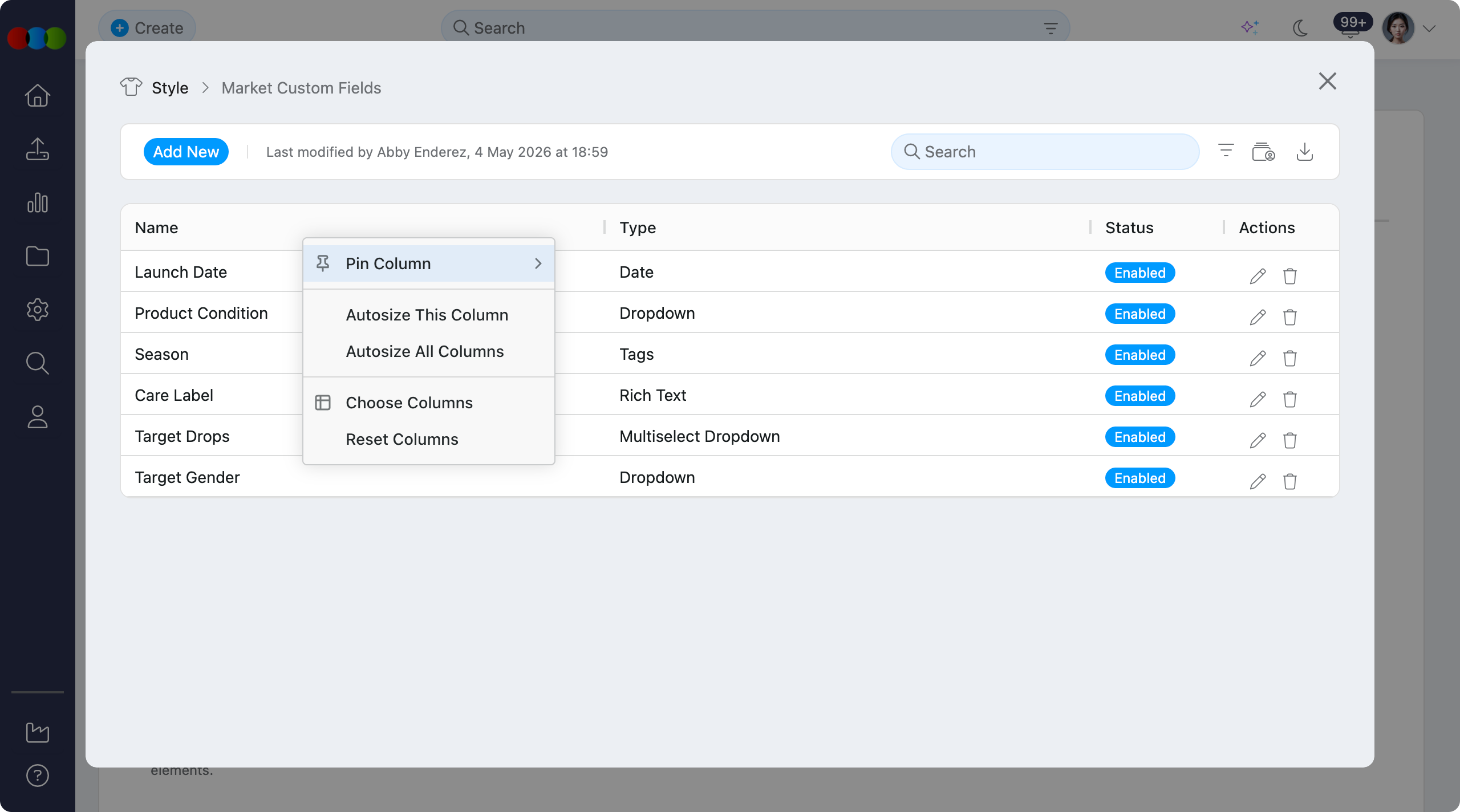
| Pin Column | Keep key columns visible while scrolling horizontally. |
| Autosize Column | Fit column widths to content. |
| Show/Hide Columns | Choose which columns are visible. |
| Reset Columns | Restore the default table layout. |
Pro tips
- Dropdowns for consistency: Use Dropdown or Multi-select dropdown when answers must be standardised (e.g. regulatory labels, fixed merchandising attributes). That reduces typos and keeps exports clean.
- Sections: Use clear Section Names so Style > eCommerce > Markets stays easy to scan when many fields exist.
- Disable, don’t delete: Prefer Disable for retired fields until you are certain historical market data can be discarded.
Related Settings
- Site Settings > Style > Custom Fields — custom fields on the main style record (separate from market descriptions).
- Style > eCommerce — where Markets and market descriptions (including these fields) are edited.
Troubleshooting
Why did my market custom field values disappear?
The field may have been deleted, which removes stored values on markets.
Steps to resolve:
- Restore from backup if your organisation retains one.
- Prefer Disable instead of delete until you accept permanent data loss.
Why is a dropdown missing an option users need?
Options are defined on the field itself.
Steps to resolve:
- Edit the field and add the missing value.
- Ask users to reopen the market on Style > eCommerce > Markets so the latest definition loads.
Why are market custom fields not showing when editing a market?
The field may be Disabled, or grouped in a section users collapsed.
Steps to resolve:
- Open Site Settings > Style > Market Custom Fields and confirm the field is Enabled.
- On the style, confirm the market exists under Style > eCommerce > Markets and expand the relevant sections.