Shopify
Use Site Settings > Style > Shopify to configure Shopify as a native sales channel for the 3 Clicks PIM. This replaces customer-specific scheduled scripts with an admin-managed connection that can sync products, variants, images, inventory, and pricing to Shopify through the Shopify Admin API.
Each Shopify store connection is linked to a 3 Clicks channel profile, so channel-specific eCommerce overrides, enabled coloursizes, and pricing rules are applied before data is sent to Shopify. Administrators can configure store credentials, mappings, sync triggers, and monitoring from one place instead of relying on tenant-specific automation outside the platform.
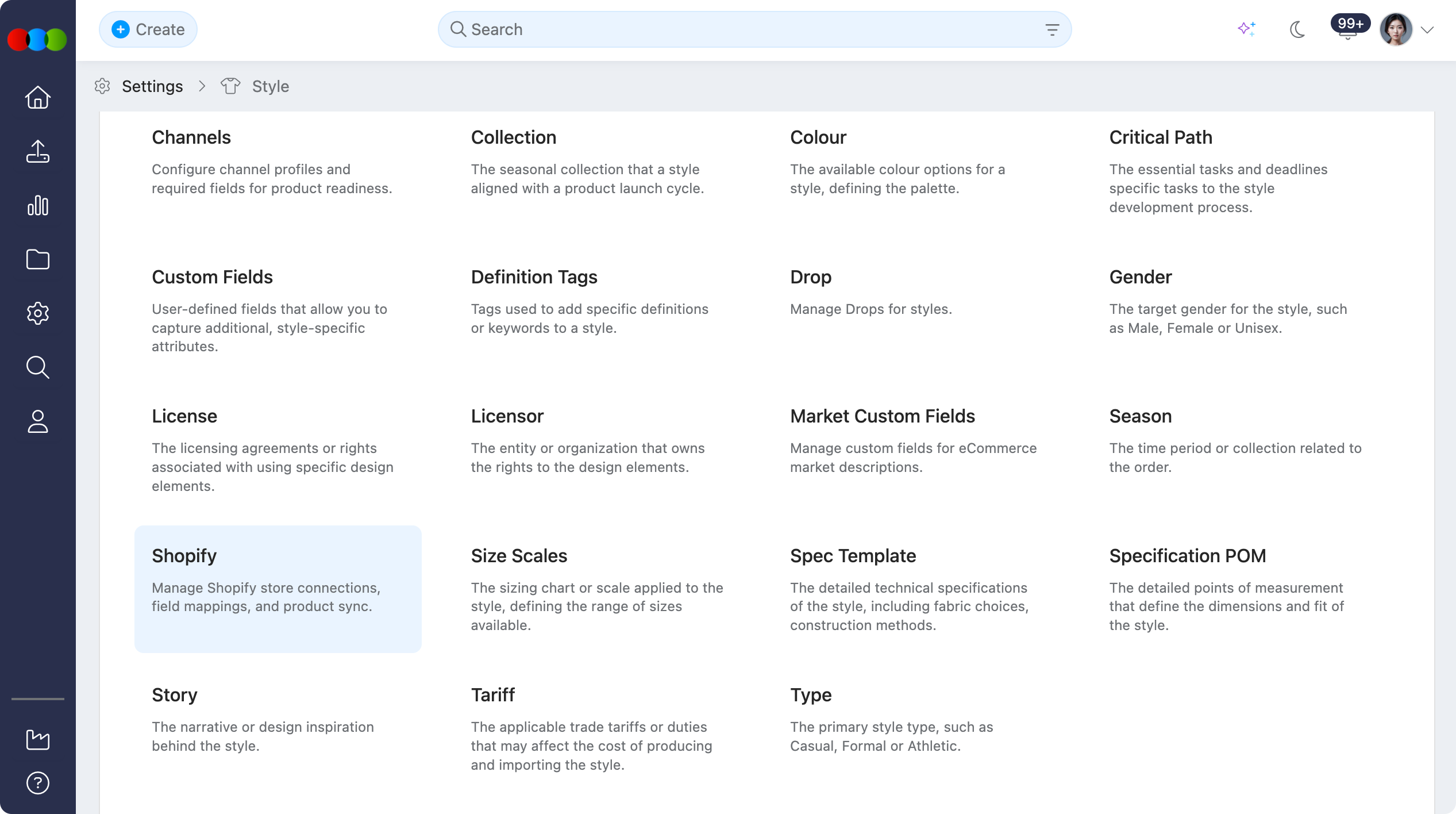
Quick Check - Before You Start
- A channel profile exists in Site Settings > Style > Channels for each Shopify route you want to manage.
- Style eCommerce data is ready to publish, including images, enabled coloursizes, prices, and required identifiers.
Store Connections
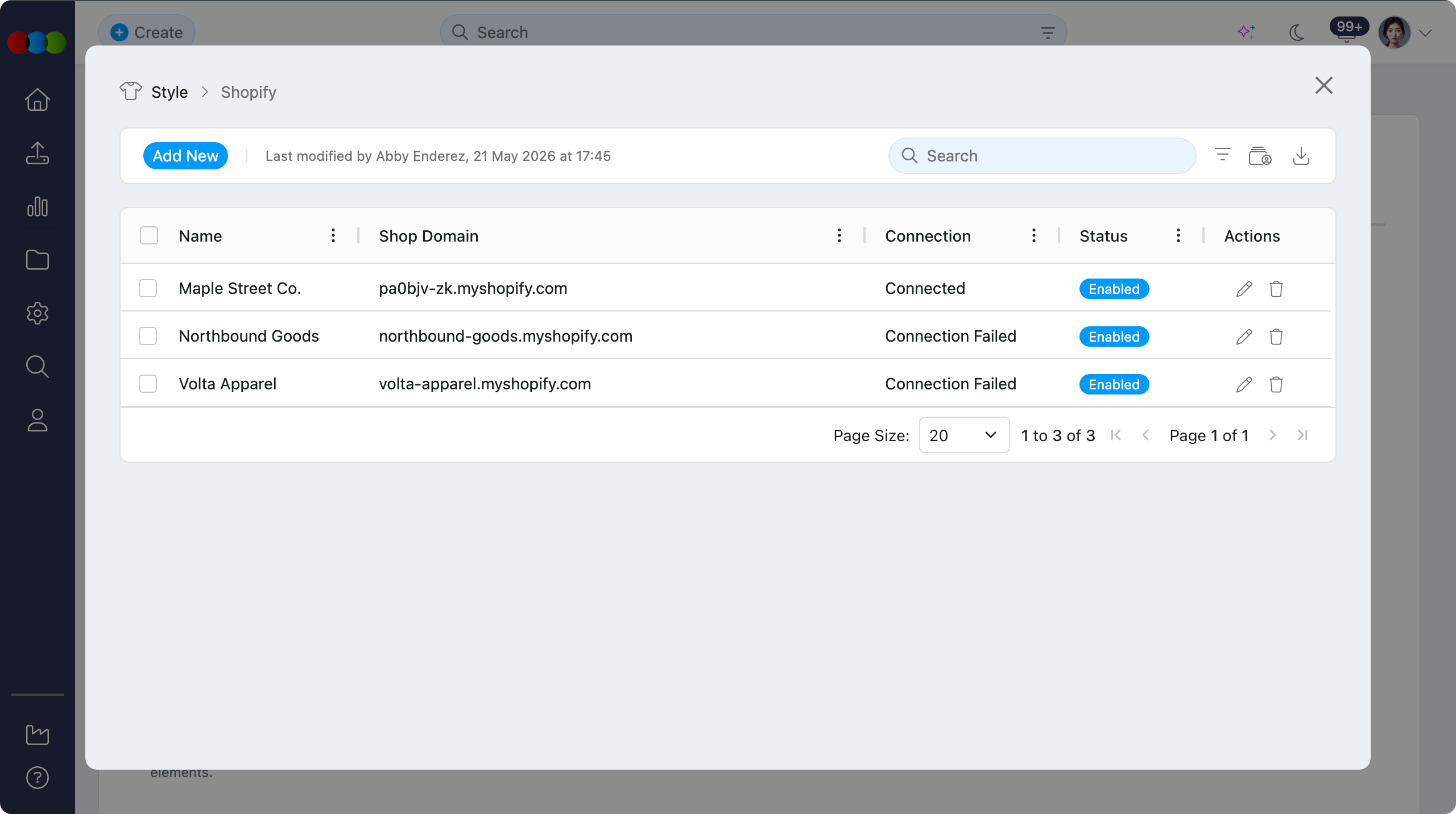
The Store Connections list shows every Shopify store configured for the tenant. Use this grid to check whether a store is active, when it last synced, and which store needs attention.
| Column | Description |
|---|---|
| Name | The internal name for the Shopify connection, such as a store, region, or brand route. |
| Shop Domain | The Shopify store domain, for example your-store.myshopify.com. |
| Connection | Shows whether such account is connected or not. |
| Status | Shows whether is enabled or disabled. |
Add or Edit a Store Connection
- Open Site Settings > Style > Shopify.
- Click Add New, or select the pen icon beside an existing connection.
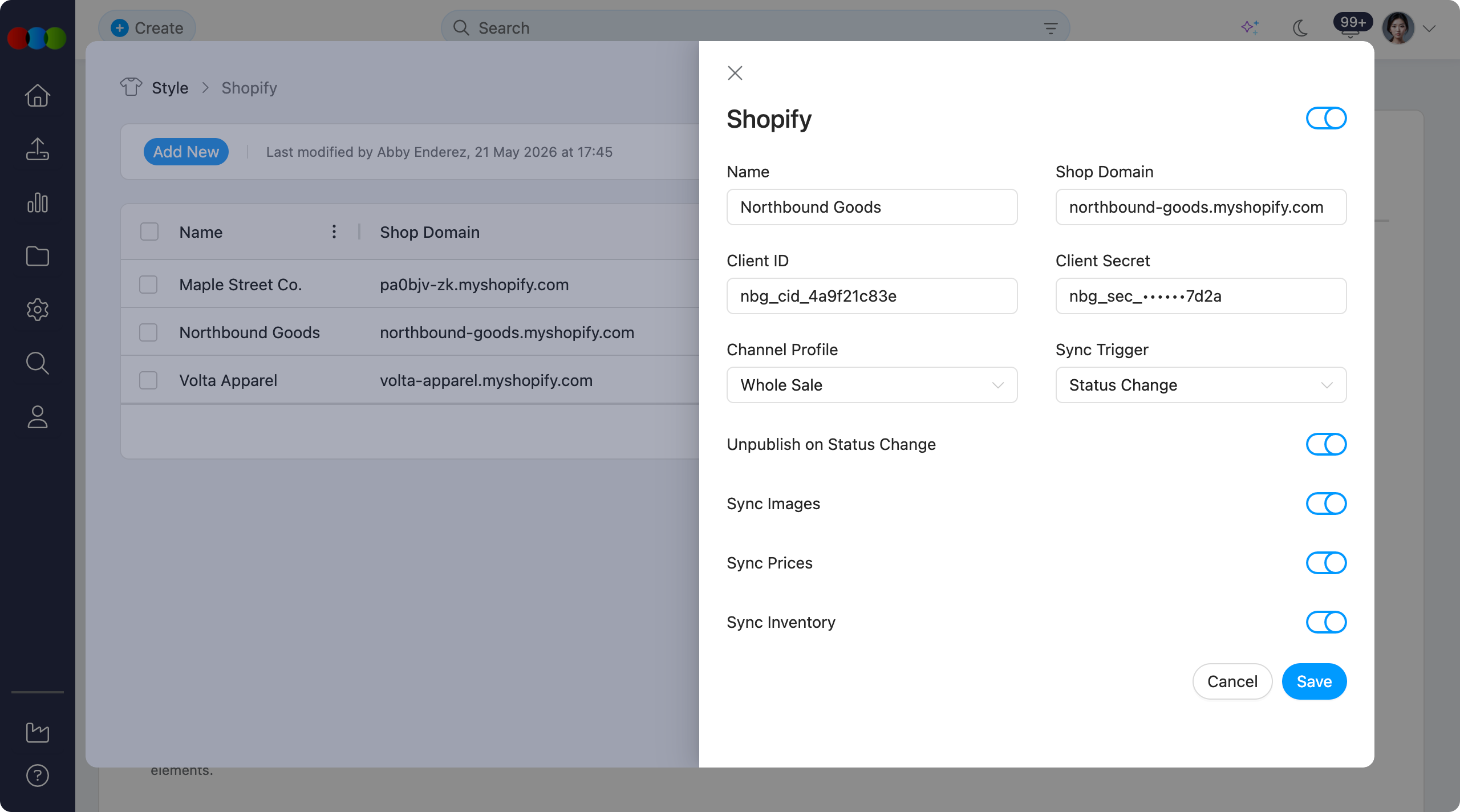
- Complete the store connection fields.
- Choose the sync trigger and toggle the required sync options on or off.
- Click Save.
| Field | Description |
|---|---|
| Name | A clear internal name for the connection. Use a naming convention that distinguishes region, brand, or environment. |
| Shop Domain | The Shopify .myshopify.com domain for the store. |
| Client ID | The Shopify app client ID for the connected store. |
| Client Secret | The Shopify app client secret for the connected store. This field is masked after saving. |
| Channel Profile | Links the store to an existing profile from Site Settings > Style > Channels. This profile controls Shopify-specific readiness, overrides, and coloursize enablement. |
| Sync Trigger | Controls when products sync. Choose Status Change or Manual Only. |
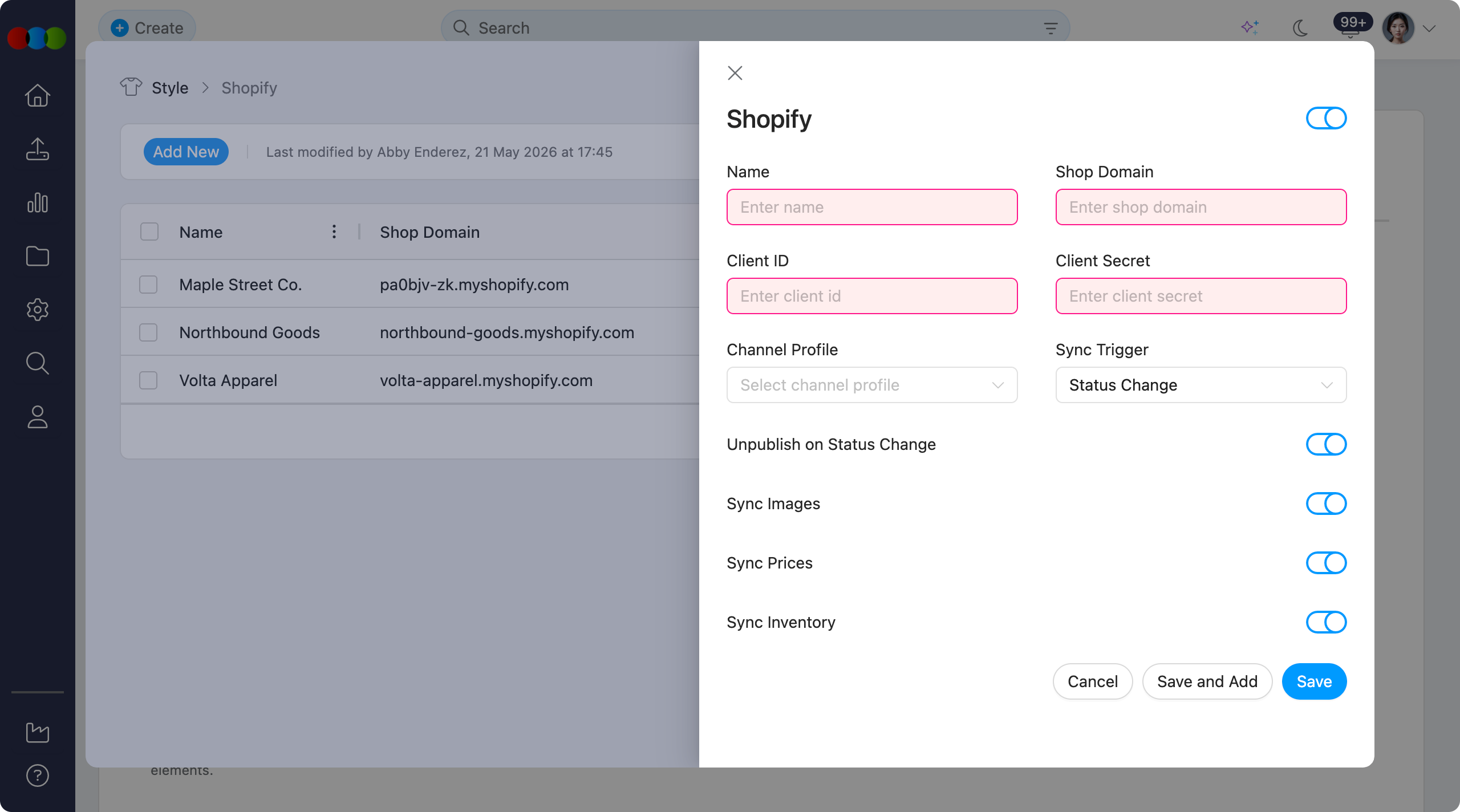
The following options can be toggled on or off for each Shopify connection.
| Toggle | Description |
|---|---|
| Unpublish on Status Change | Unpublishes the Shopify product when the linked 3 Clicks status changes away from the publishable state. |
| Sync Images | Sends configured style and colourway images to Shopify. |
| Sync Prices | Sends sell price and compare-at price values to Shopify variants. |
| Sync Inventory | Sends inventory quantities when inventory sync is enabled for the tenant. |
Protect Shopify credentials
Shopify credentials grant API access to the connected store. Store them only in the approved Shopify connection fields and rotate credentials immediately if they are exposed outside approved administration workflows.
Sync Triggers
Choose the sync trigger that matches how the Shopify store should receive product updates.
| Trigger | Behaviour |
|---|---|
| Status Change | Syncs a style when its eCommerce status changes from Draft to Published, or when the Publish button is clicked. |
| Manual Only | Syncs only when an administrator clicks Sync All Now or a user clicks Sync Now for a style. |
Field Mapping Editor
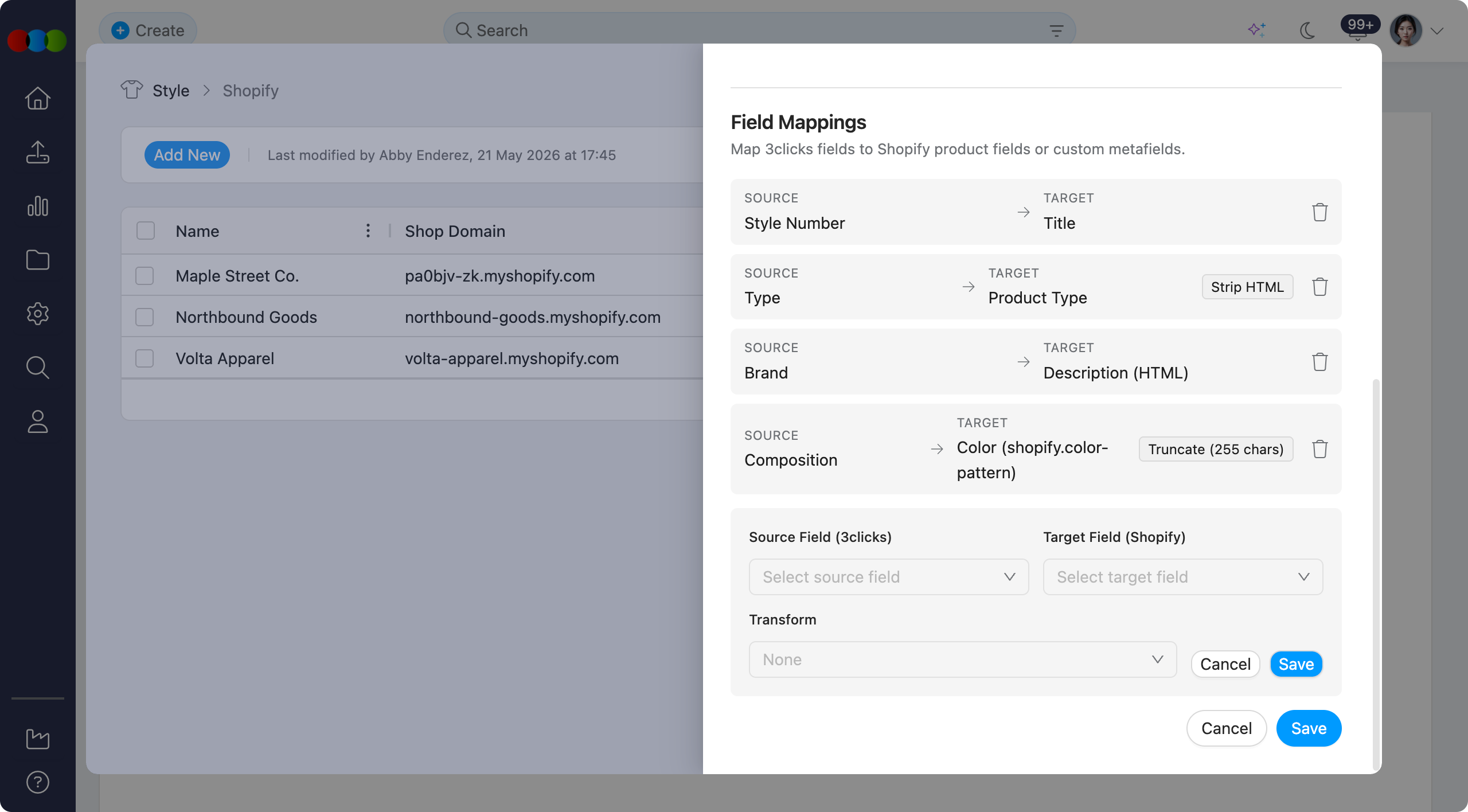
After a Shopify connection is connected, the Field Mappings section is displayed in the connection pop-up. Use this section to map 3 Clicks fields to Shopify product fields or Shopify custom metafields.
| Column | Description |
|---|---|
| Source Field (3 Clicks) | Select the 3 Clicks field to send to Shopify. |
| Target Field | Select the Shopify standard field or metafield that receives the value. |
| Transform | Optionally transform the value before it is sent to Shopify. |
Available Source Field (3 Clicks) options are:
- Description
- Composition
- Brand
- Brand Code
- Type Code
- Category
- Sub Category
- Sub Type
- Gender
- Season
- Story
- Designer
- Customer
- Department
- Collection
- Cost Center
- Critical Path
- Design Number
- Size Scale
- Tariff
- License
- Licensed Sub No.
- Agent
- Factory
- eCommerce Description
- eCommerce Short Description
- eCommerce Collection
Available target fields include standard Shopify product fields and Shopify metafields.
| Target Type | Target Field |
|---|---|
| Standard Field | Description (HTML) |
| Standard Field | Vendor |
| Shopify Metafield | Top length type (shopify.top-length) |
| Shopify Metafield | Neckline (shopify.neckline) |
| Shopify Metafield | Color (shopify.color-pattern) |
| Shopify Metafield | Size (shopify.size) |
Available transforms are:
- Strip HTML
- Truncate to 255 characters
Users can delete field mappings that are no longer required.
Sync Dashboard
The Sync Dashboard provides operational visibility for each Shopify connection.
| Area | Description |
|---|---|
| Last Sync Summary | Shows total, successful, failed, and skipped records from the last run. |
| Sync Log | Lists product sync attempts with filters for status, style, date, and store. |
| Sync All Now | Starts a manual sync for all eligible published styles on the selected connection. |
| Per-product Re-sync | Re-runs sync for a single style without waiting for the next status-change event. |
Use failed and skipped log rows to confirm whether an issue is caused by missing 3 Clicks data, disabled channel variants, Shopify API validation, or authentication.
Variant Filtering
Shopify variants are created or updated only for coloursizes that are enabled on the linked Shopify channel profile. The sync reads the Shopify profile's coloursize channel settings and includes only enabled rows.
| Coloursize State | Shopify Action |
|---|---|
| Enabled and new | Create the Shopify variant using resolved channel data. |
| Enabled and existing | Update the Shopify variant and reactivate it if it was previously disabled. |
| Disabled and new | Skip the variant entirely. |
| Disabled and existing | Set the existing Shopify variant to Draft, or delete it if the tenant configuration uses deletion. |
| Re-enabled after draft | Reactivate the Shopify variant to Active and update it with current data. |
| Re-enabled after deletion | Recreate the Shopify variant with current resolved data. |
Disabled variants
Shopify product status applies at product level, while variant availability is controlled through the integration's disabled-variant handling. Where the tenant uses Draft behaviour, existing disabled variants are removed from sale according to the configured Shopify handling. Where the tenant uses deletion, the variant is recreated if it is later enabled again.
Example Variant Scenario
In this example, the style has five colours but only three are enabled for the Shopify channel profile.
| Colour | Shopify Enabled | Shopify Price | Action |
|---|---|---|---|
| Navy | Yes | $54.95 override | Create or update variant. |
| Black | Yes | $54.95 override | Create or update variant. |
| White | Yes | $49.95 base price | Create or update variant. |
| Red | No | Not synced | Skip if new, or draft/delete existing variant. |
| Green | No | Not synced | Skip if new, or draft/delete existing variant. |
Testing a Shopify Connection
Use these checks after adding or changing a Shopify connection.
Status Change Trigger
- Open Site Settings > Style > Shopify and confirm the connection uses Status Change as the sync trigger.
- Open a style that is linked to the Shopify channel profile.
- Confirm required eCommerce details, enabled coloursizes, prices, and images are complete.
- Change the style eCommerce status from Draft to Published, or click Publish.
- Confirm the style appears under Shopify > Products.
- Check Style > eCommerce > Channels and the Sync Dashboard for a Synced status and current timestamp.
Manual Trigger
- Open Site Settings > Style > Shopify and confirm the connection uses Manual Only as the sync trigger.
- Open a style that is linked to the Shopify channel profile.
- Click Sync Now on the Shopify channel row, or use Sync All Now from the Shopify sync dashboard.
- Confirm the style appears under Shopify > Products.
- Review the sync log for successful, failed, or skipped variants.
Related Settings
Troubleshooting
Why did the style not sync after publishing?
The Shopify connection may not use Status Change as its trigger, the style may not be linked to the Shopify channel profile, or required eCommerce data may be incomplete.
Steps to resolve:
- Open Site Settings > Style > Shopify and confirm the store connection is active.
- Check that Sync Trigger is Status Change if the style should sync when published.
- Open Style > eCommerce > Channels and confirm the style is linked to the Shopify channel profile.
- Confirm the style has enabled coloursizes, prices, and required mapped fields.
- Review the Sync Dashboard log for failed or skipped rows.
Why are some Shopify variants missing?
Shopify only receives coloursizes where is_enabled = 1 for the linked Shopify channel profile. Disabled coloursizes are skipped if they do not exist in Shopify, or drafted/deleted when they already exist.
Steps to resolve:
- Open Style > eCommerce > Channels for the style.
- Select the Shopify channel profile and confirm the required coloursizes are enabled.
- Check whether the missing variant has a valid resolved sell price and barcode where required.
- Click Sync Now to re-sync the style after enabling the coloursize.
Why is the wrong price, barcode, or description showing in Shopify?
Shopify uses channel-resolved values first. If a Shopify channel override exists, it is sent instead of the base Style > eCommerce value.
Steps to resolve:
- Review the Shopify channel profile values on the style.
- Check whether
override_sell_price,override_compare_at_price,override_barcode, title, or description overrides are populated. - Clear or update incorrect overrides, then run Sync Now.
- Review the sync log to confirm the updated values were sent to Shopify.
Why is the Shopify connection failing authentication?
The Shopify client credentials may be invalid, revoked, expired, or missing required Shopify Admin API scopes.
Steps to resolve:
- In Shopify Admin, confirm the custom app is installed for the correct store.
- Confirm the app has the required product, variant, image, inventory, and price scopes for the enabled sync options.
- Generate or copy valid Shopify app credentials.
- Update the Client ID and masked Client Secret fields in Site Settings > Style > Shopify.
- Save the connection and run a manual sync test.