Style Create Order
The Create Order functionality within the Style module enables users to initiate an order directly from a style record. This streamlines the workflow for both single-item and bulk order creation processes. It is the typical entry point for placing production orders from a style when you are ready to move from development into buy or manufacturing.

Order creation is accessible from the style detail page via the Create Order button in the side widget. Depending on the selection, users can generate individual or multiple-item orders efficiently. The pop-up window prompts you to complete the required fields before finalising the order.
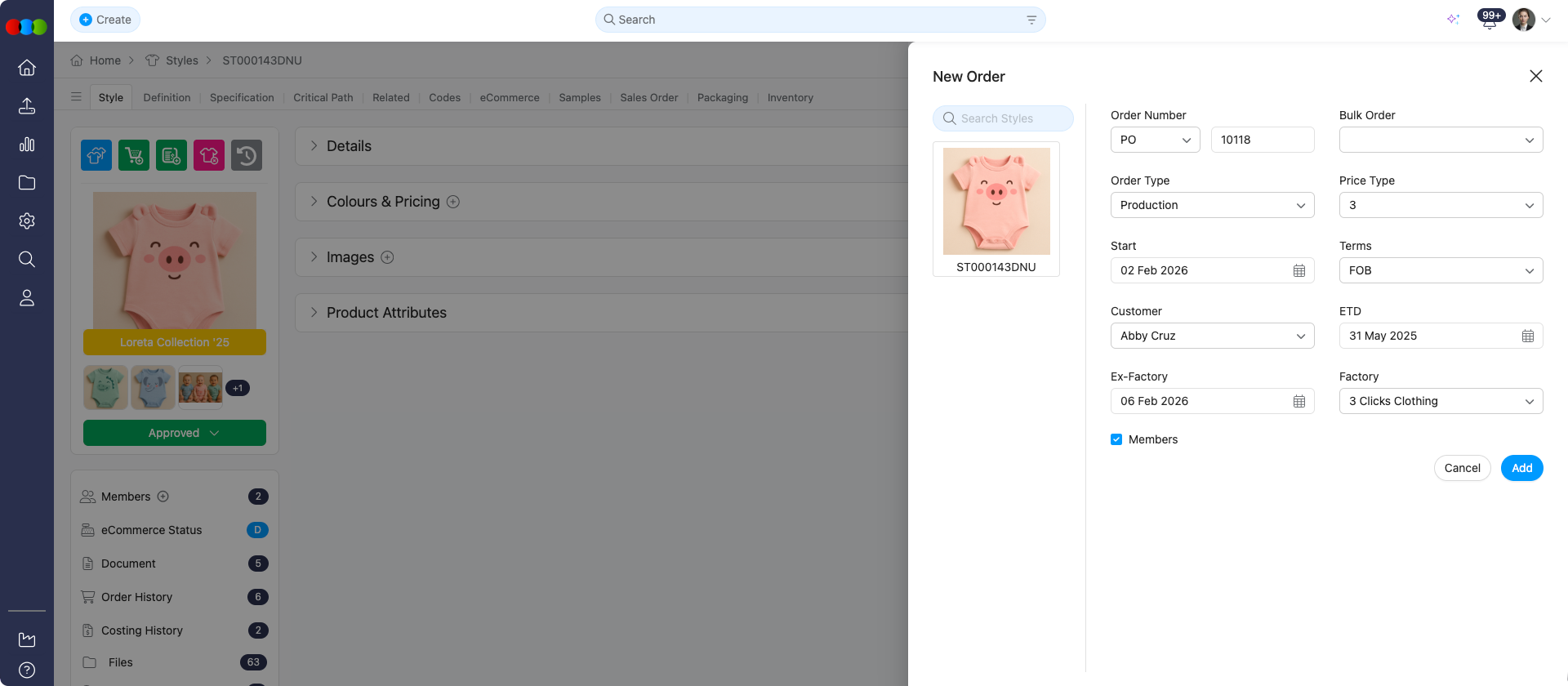
How to Create an Order
| Step | Action |
|---|---|
| 1 | Go to the style record you want to order. |
| 2 | Click the Create Order button in the side widget. |
| 3 | A pop-up window will appear. Complete the required fields as configured in Site Settings. |
| 4 | Single item: The current style is pre-selected. Review the details and click Add to create the order. |
| 5 | Bulk order: Use the Bulk Order field to select the item type (e.g., Styles or Components). Search and select multiple items, then click Add to complete the order setup. |
| 6 | Add any required members to the order's Members section if needed (style members are not automatically carried over). |
Style status when an order is created
If the style’s Status is Draft, it automatically updates to Approved when an order is created for that style.
Order Types
| Type | Description |
|---|---|
| Single Item | Ideal for ordering one style at a time. The current style is pre-populated in the creation form. |
| Bulk | Ideal for managing multiple related styles at once, reducing the need for repetitive order entries. Use the Bulk Order field to define the item type (e.g., Styles or Components). The search results will dynamically filter based on the selected type. Select multiple styles/components and click Add to complete the order setup.  |
Member Assignment
When creating an order from a style, supplier members assigned to the style are not automatically included as members in the new order. Order members remain independent from style member assignments, ensuring you have full control over who has access to each order.
Admin Configuration Required
The required fields for order creation are configured within Site Settings. Ensure these are properly maintained to avoid missing inputs.
Best Practices
Site Settings: Ensure Site Settings include necessary dropdowns and item type configurations before creating orders.
Bulk Ordering: Use bulk ordering to save time when managing large collections or multiple variants.
Data Consistency: Regularly audit your item types and required fields to maintain data consistency and system accuracy.
Member Assignment: After creating an order from a style, remember to add any required members to the order's Members section if needed.