Style eCommerce Status
The eCommerce Status side widget on a style record controls whether the style is treated as Draft or Published for the B2B Store, and it is where merchandising usually aligns visibility with imagery, costing, and approvals. The same widget exposes Version History for eCommerce publish snapshots: after someone uses Publish on Style > eCommerce > Details, you can see which version went live, who published it, and when, then view, compare, rollback, or republish a snapshot without leaving the style.
Quick Check - Before You Start
- Publish (which creates a new eCommerce version snapshot) is on Style > eCommerce > Details—see Style eCommerce and the Publish field description there.
- Draft / Published here controls B2B intent; the style can still be hidden from the Customer Portal if required eCommerce tab data, including Available Until and Sell Prices, is incomplete.
- After a publish, use Version History below to audit releases; confirm the correct row before Rollback or Publish Version, especially when several people edit the same style.
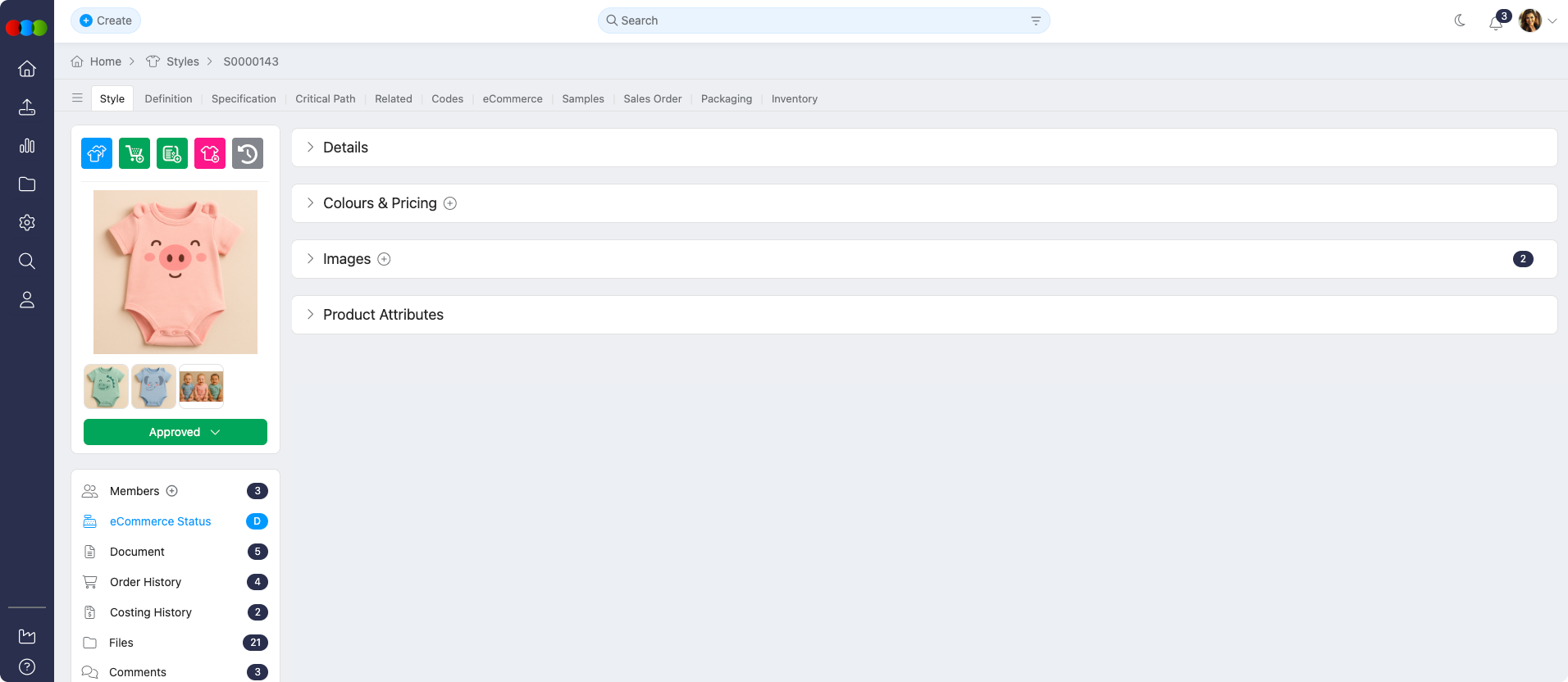
Use Draft while the range is still internal, and move to Published when the style is cleared for customer-facing channels. The toggle works together with the rest of Style > eCommerce (images, Colours & Pricing, Available Until, Sell Prices, channels, and so on).
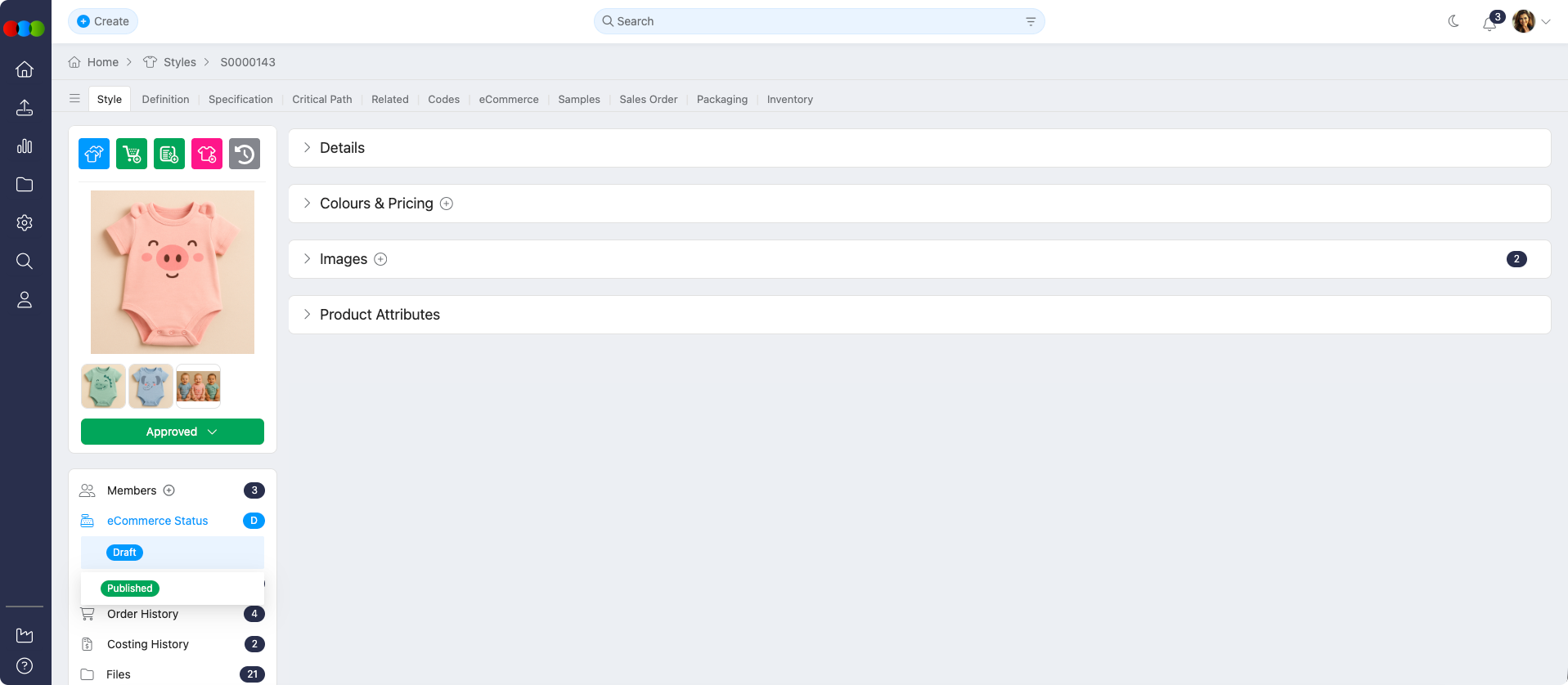
Status options
| Status | Description |
|---|---|
| Draft | The style is not offered as published for the B2B Store in this workflow. It remains internal until your process moves it forward. |
| Published | The style is available for the B2B Store for external customers when all eCommerce requirements for your site are completed. |
How to change eCommerce status
- Open the style record.
- In the side widget, locate eCommerce Status.
- Change the value from Draft to Published when the style is ready for external viewing (or back to Draft when you need to pull it from that intent).
Version History
After a snapshot is created with Publish on Style > eCommerce > Details, open Style > eCommerce > Side Widgets > eCommerce Status and use Version History to see which version went out, which staff member published it, and the date and time. From the history you can:
- View — opens Version Detail (version, status, published by, date).
- Compare with current — side-by-side sections for General (Field, Version A, Version B), Markets (additions and removals), Colours (colour and size edits by field), Sell Prices (currency and field columns), and Channels (including removed channel names).
- Compare with previous — same column layout as Compare with current.
- Rollback — confirms restoring a chosen published version. Current unpublished edits are overwritten, and a new version is recorded in Version History so the rollback itself stays auditable.
- Republish older versions. Publish on a historical row opens Publish Version (for example, publishing an older snapshot makes it live again and marks the previously current published row as Draft—wording in the dialog reflects the versions involved).
Note
Rollback and Publish Version replace in-progress (unpublished) eCommerce edits with the data from the selected snapshot. Confirm the correct version before you proceed, especially on styles with concurrent editors.
Customer Portal visibility
Even when eCommerce Status is Published, the style will not appear in the Customer Portal unless required fields on Style > eCommerce are properly completed. Confirm Available Until, Sell Prices, Images, Colours & Pricing, sizes, and any style details your administrator requires.
Common Pitfall
Treat Draft vs Published as a deliberate hand-off: use Draft for styles still in development or awaiting internal review, and Published only when the style is fully ready for external customers and downstream checks pass.
Best practices
Verify before publishing: Confirm eCommerce tab requirements for your organisation, especially Available Until and Sell Prices, before setting Published.
Regular audits: Periodically review published styles and Version History so data, pricing, and channel readiness stay consistent with what buyers see.
Related Actions
- Style eCommerce
- Style Details
- Style Comments
- Style Dates
- Style Delete
- Style Documents
- Style Files
- Style History
- Style Members
- Preview Style Image
- Style Status
Troubleshooting
Where do I find Version History after I publish?
Version History lives on the style’s eCommerce Status side widget (from Style > eCommerce, open Side Widgets > eCommerce Status). Publishing itself is triggered from Style > eCommerce > Details using Publish.
Steps to resolve:
- Open Style > eCommerce > Details and use Publish when you are ready to snapshot the current eCommerce data.
- Open Side Widgets > eCommerce Status and expand Version History to review the new row.
Will Rollback or Publish Version keep my unpublished edits?
No. Both actions replace in-progress (unpublished) eCommerce edits with the snapshot you select. A rollback also adds a new auditable entry so the change is traceable.
Steps to resolve:
- Use Compare with current or Compare with previous to confirm the snapshot matches what you want.
- If you need to keep current draft work, copy or record it elsewhere before you Rollback or run Publish Version on an older row.