Style Codes
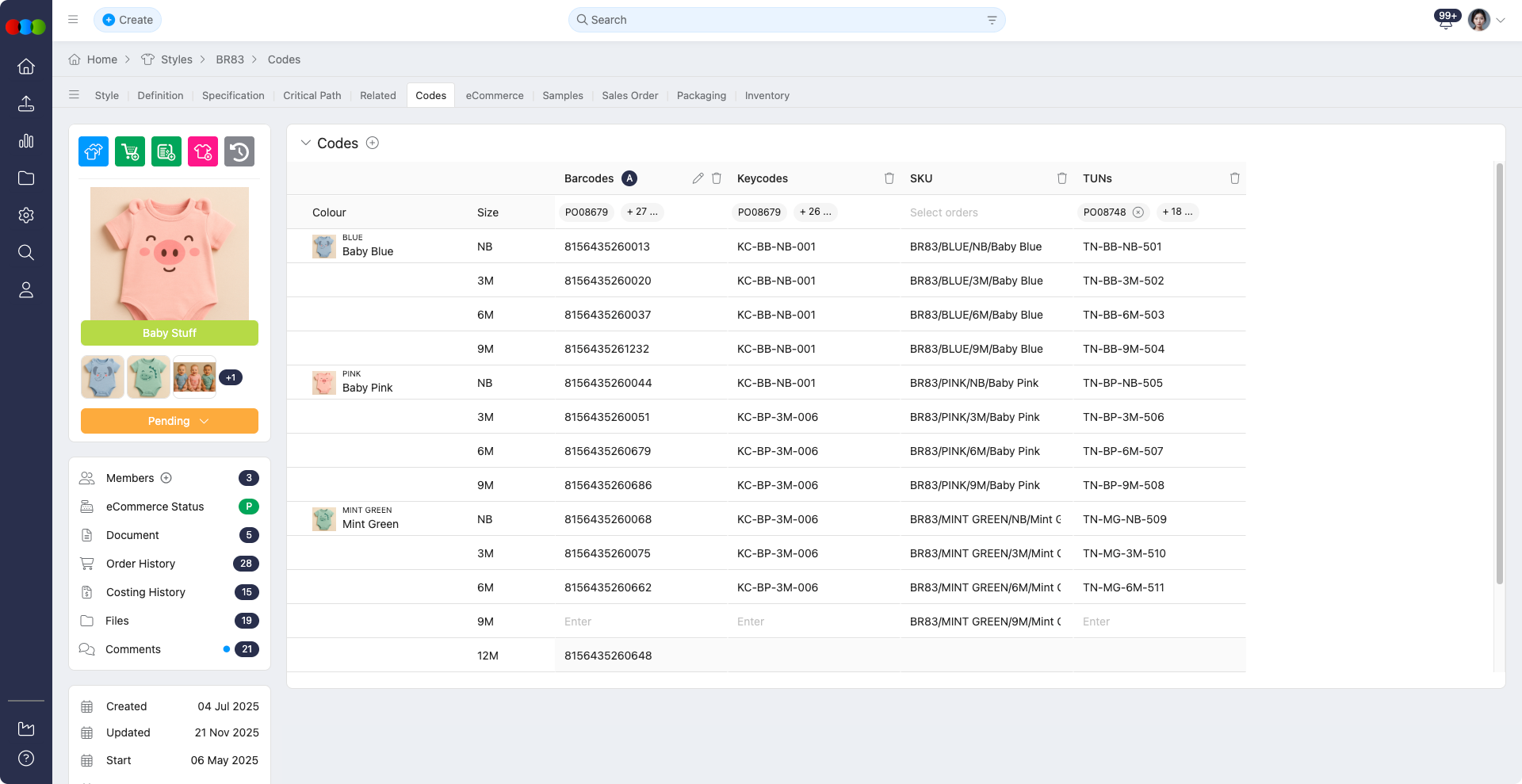
The Codes tab in the Style module covers barcode generation and code management at both unit (colourway) level and colour pack level. Pack Barcodes extend Style and Order workflows so packs align with the style’s size scale, improve flexibility for pack configurations, and support accurate order-level tracking. Code configuration may involve both automated and manual entries, depending on the selected method and site settings.
Unit Codes (formerly the single Codes section) remain where you define barcodes, keycodes, TUNs, and SKUs linked to selected colourways. Pack Barcodes are managed in a separate collapsible section with add/edit flows, and links to orders.
Quick Check - Before You Start
- Add and save colourways under Style > Colours & Pricing so code types can be assigned per colourway.
- If you plan to use Auto barcodes or pack barcodes, confirm barcode templates are set up in Site Settings > Company > Barcode and SKU rules are configured under Style General Settings > SKU if you will add SKUs.
- For Pack Barcodes, ensure the style uses a Size Scale with appropriate pack definitions in Site Settings > Style > Size Scales; size columns and pack structure follow that scale.
Sections
The Codes tab is split into two collapsible sections:
| Section | Default state | Header actions |
|---|---|---|
| Unit Codes | Collapsed (chevron closed) | Plus circle (⊕) — add a new unit code column (e.g. barcode, keycode). |
| Pack Barcodes | Expanded (chevron open) | Plus circle (⊕) — add a new pack barcode column or flow as offered in the UI. |
Each section header includes the ⊕ control to add columns or pack barcodes as applicable.
When no pack barcodes exist, the expanded Pack Barcodes section shows No data, centred in the section.
Unit Codes
The Unit Codes section is where you define and manage code types linked to a style’s selected colourways. Codes become accessible only after selecting colourways in Style > Colours & Pricing.
This area supports product traceability, inventory handling, and order referencing through key code types.
Code Types
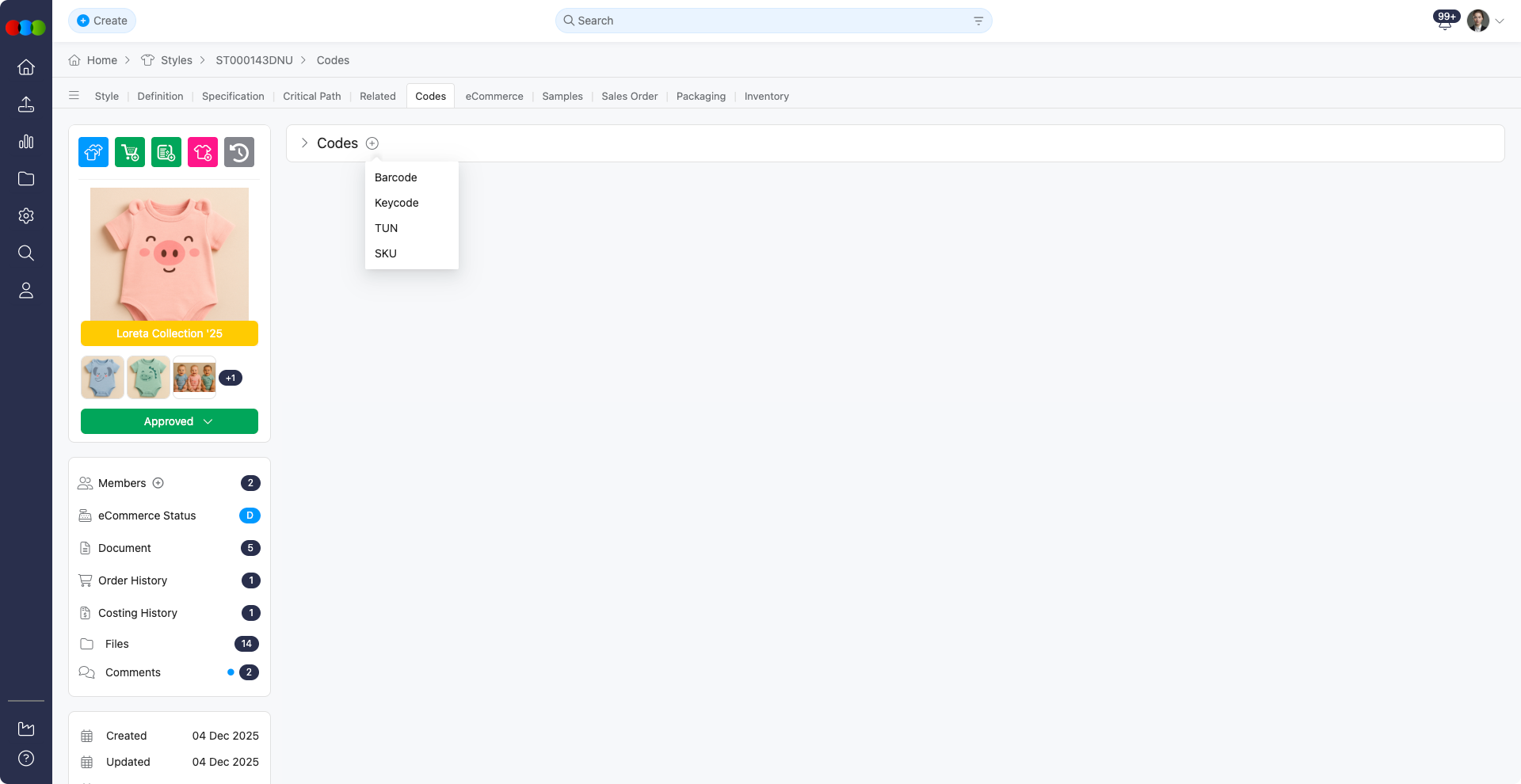
The following code types are available:
- Barcodes
- Keycodes
- TUN
- SKU
Each can be added per colourway and may be associated with orders for visibility.
View Codes in Search
Barcodes, SKU, Keycode, and TUN can also be displayed as columns in Search > Style. Add these columns via Choose Columns to view and report on product identifiers directly from search results without opening each style record. Use the Style by Colour by Size view for a granular breakdown by colourway and size.
Barcodes
Barcodes are identifiers often linked to stock-keeping and scanning processes. It supports both auto-generated and manually entered formats.
Add Barcodes
- Expand Unit Codes, click the plus circle (⊕) on the section header, and select Barcode.
-
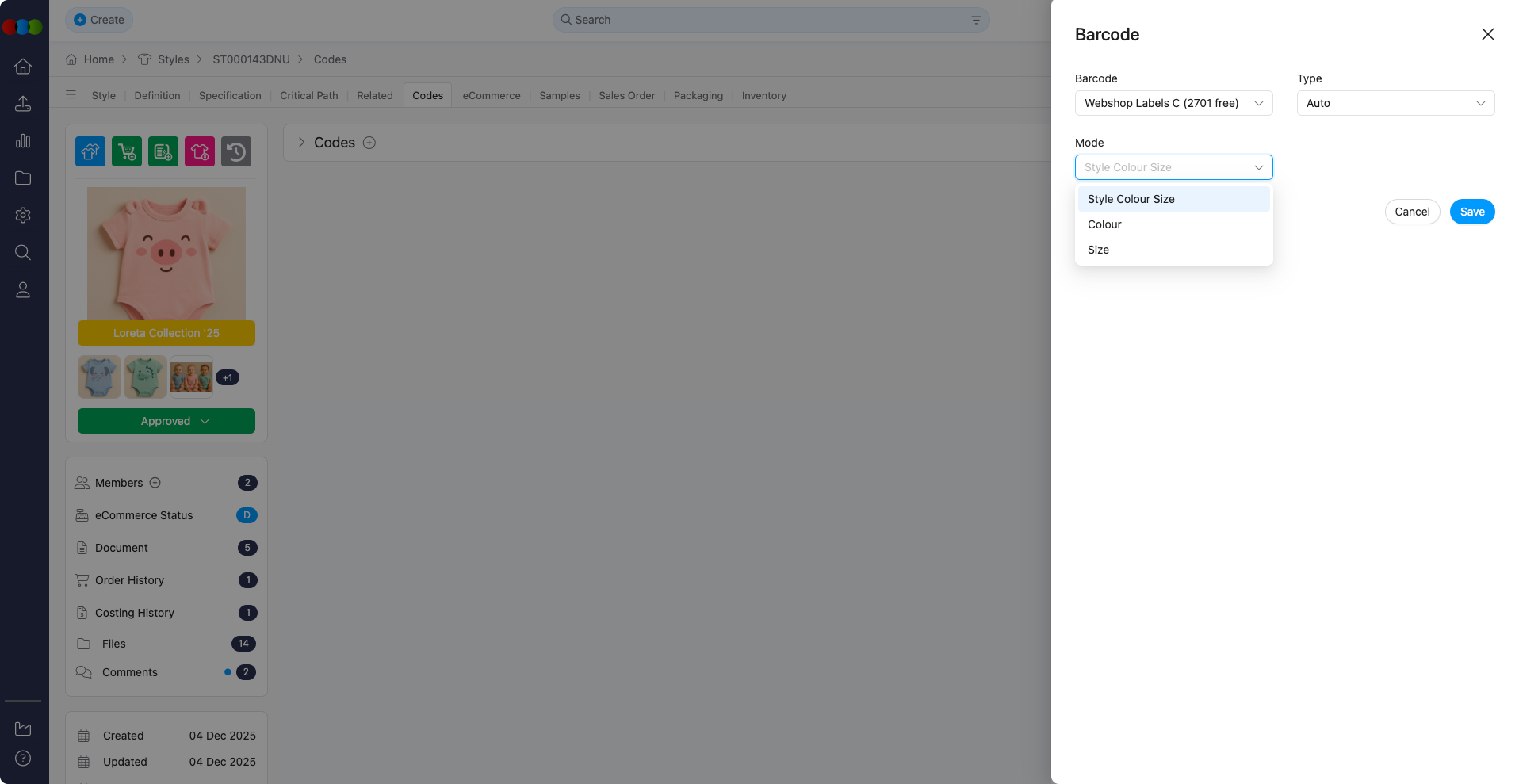
In the pop-up window, complete the fields as follows:
Field Description Barcode Specifies which barcode definition to use for generating or assigning the barcode. This dropdown can be configured in Barcode. Type Determines how the barcode value is populated. Choose from these types:
• Auto - The system automatically generates the barcode using the template or rules defined. No manual input is required.
• Manual - Enter a custom barcode manually. This is not generated by the system.Mode Determines how the barcode is applied across style, colour, and size levels. Choose from:
• Size - One barcode per size, shared across colours.
• Colour - One barcode per colourway, shared across all sizes.
• Style Size Colour - A unique barcode for every size within each colourway of the style. -
Click Save to apply the barcode.
Admin Configuration Required
Barcode templates must be configured in Site Settings > Company > Barcode to enable auto-generation.
Edit Barcodes
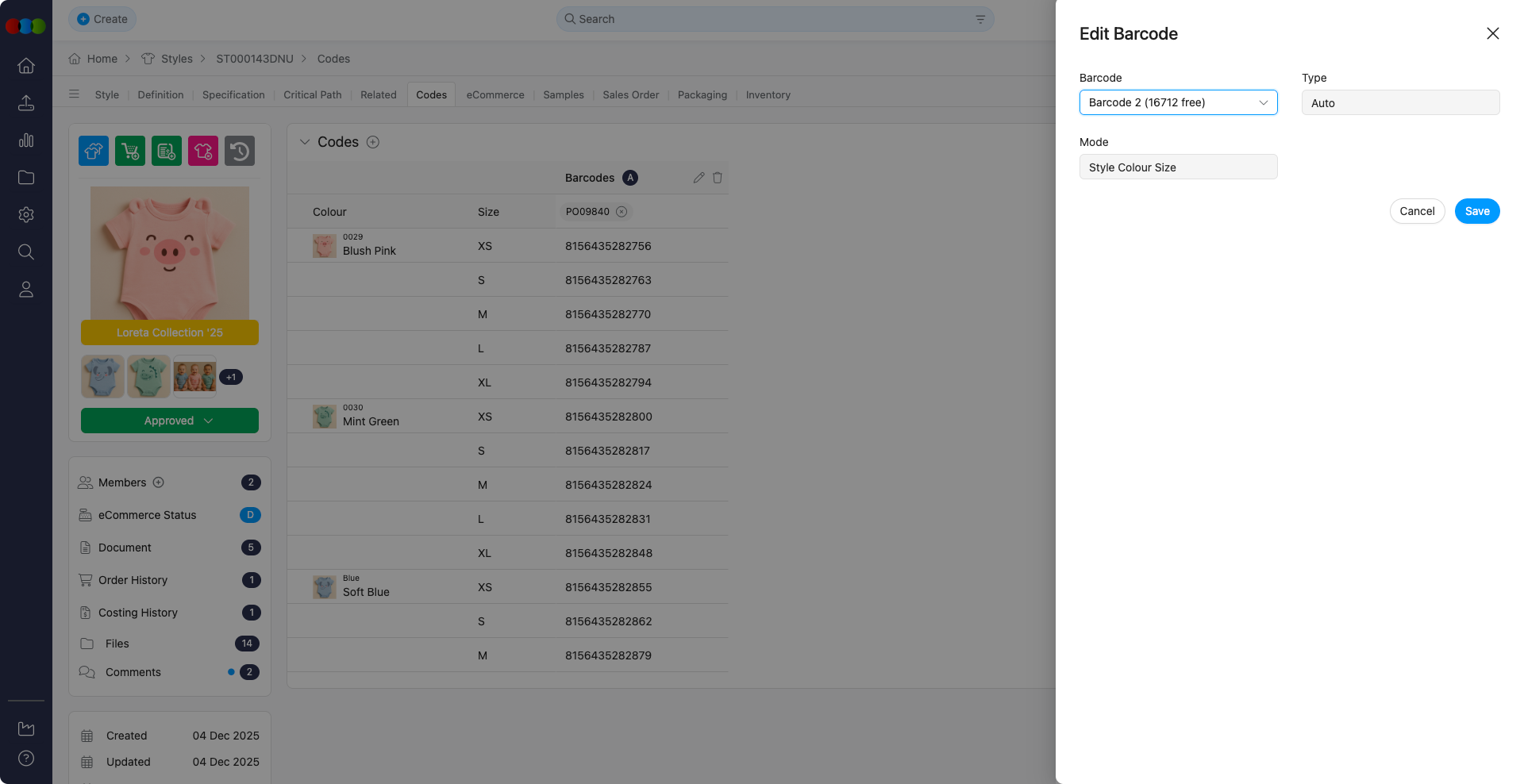
- Use the pen icon beside any barcode to open the popup window.
- Select a new barcode template.
- Click Save to complete changes.
Additional Notes
- Orders automatically associate barcodes once a style is added, though users can deselect manually.
- Deletion is restricted for barcodes that are already linked to existing orders. To remove a barcode column, you must first remove the associated order.
- Barcode template is the only editable field in the Edit Barcode pop-up.
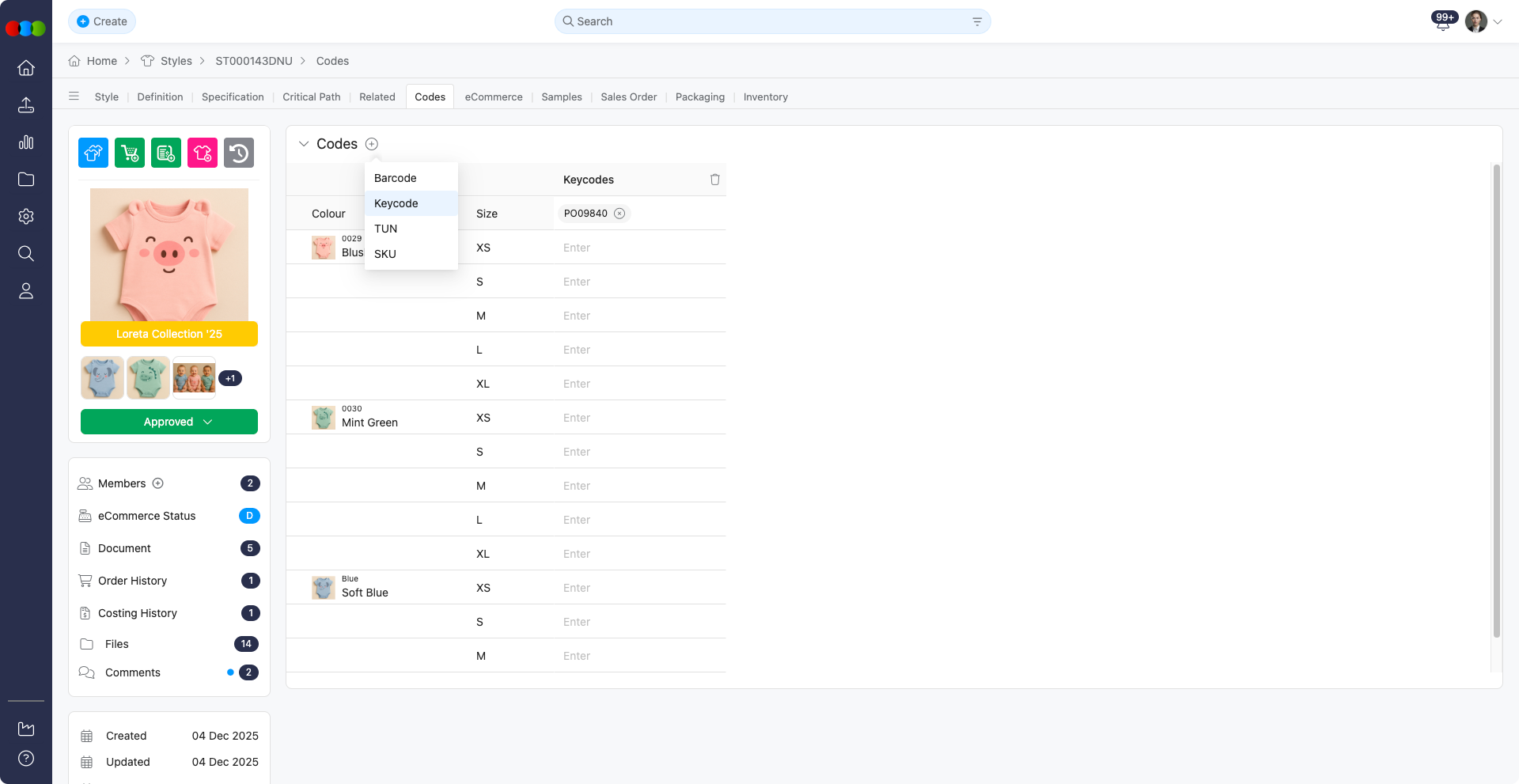
Keycodes
Keycodes provide a flexible manual entry option for internal or customer-defined product references. These codes are typically used for custom identification systems, customer-specific part numbers, or internal tracking codes that don't follow standard barcode or SKU formats. Unlike barcodes, keycodes are always manually entered and offer complete flexibility in naming conventions, making them ideal for scenarios where organisations need to maintain their own reference systems or comply with customer-specific coding requirements.
Add Keycodes
- Click the plus (+) icon and select Keycode.
- Enter the keycode value manually in the field.
- Inline editing is supported for quick modifications.
Additional Notes
- Multiple keycode columns can be added per style.
- Keycodes can be linked to orders for tracking purposes. Once an order is assigned to a Keycode column, it cannot be selected for another Keycode. Each order can only be associated with one Keycode.
- Deletion is restricted for keycodes that are already linked to existing orders. To remove a keycode column, you must first remove the associated order.
TUN
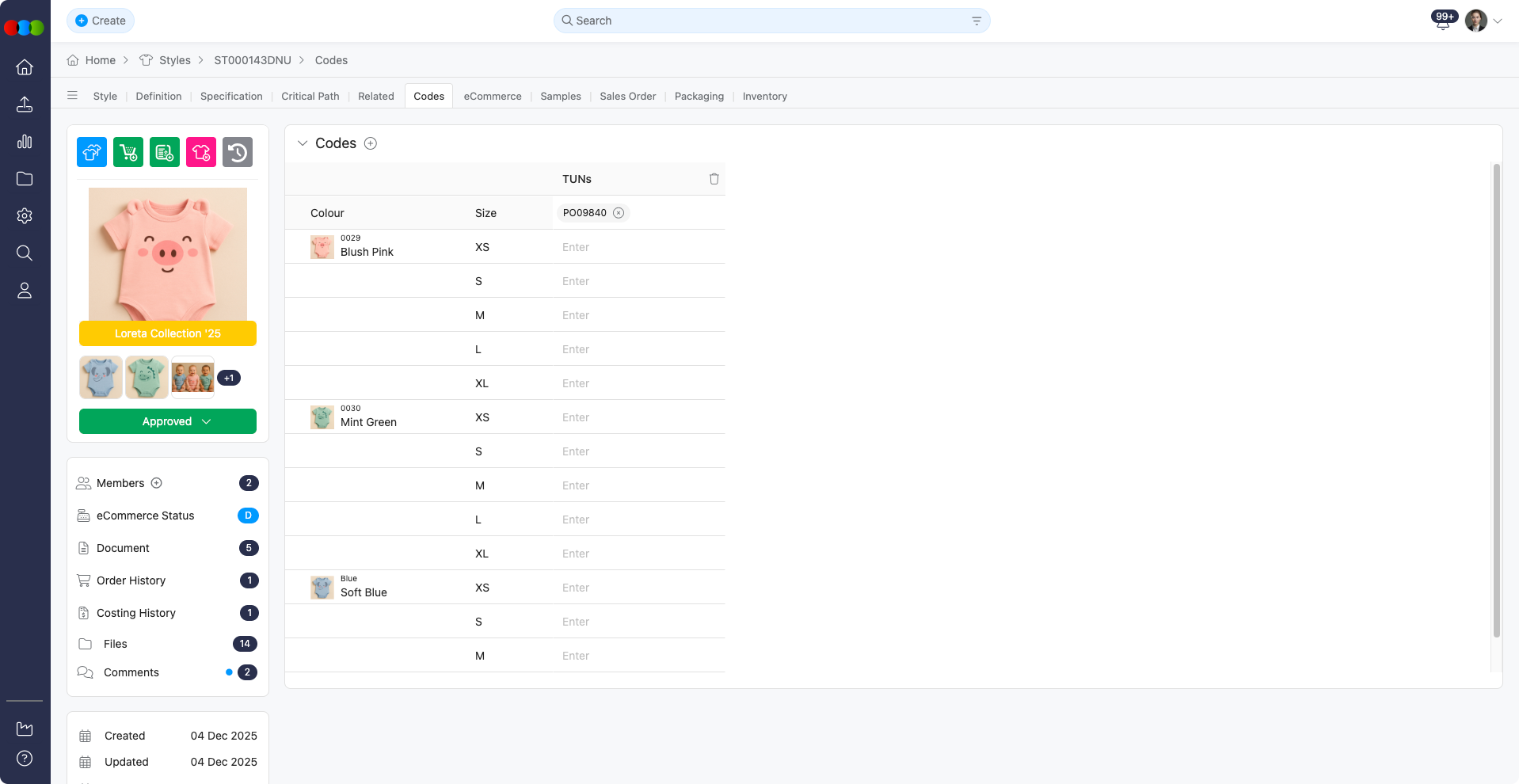
TUNs (Trade Unit Numbers) support order traceability similar to keycodes. These identifiers are commonly used in trade and distribution environments to track product units through supply chains. TUNs help maintain visibility of products as they move between trading partners, warehouses, and distribution centres. They are particularly useful for managing inventory across multiple locations and ensuring accurate order fulfilment and tracking throughout the distribution network.
Add TUN
- Click the plus (+) icon and select TUN.
- Enter the TUN value manually in the field.
- Editing is supported for quick modifications.
Additional Notes
- TUNs can be associated with orders for downstream visibility.
- Deletion is restricted for TUNs that are already linked to existing orders. To remove a TUN column, you must first remove the associated order.
SKU
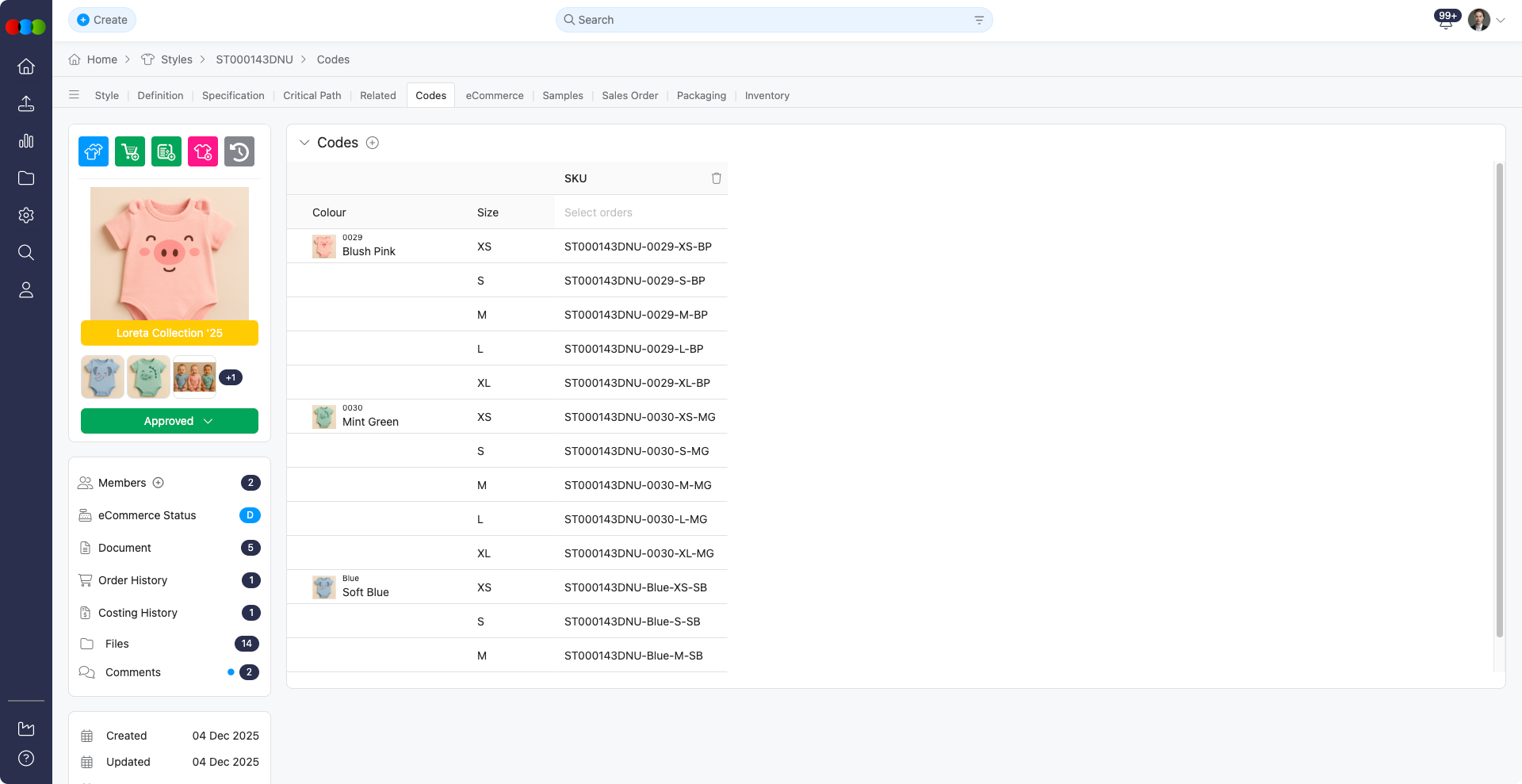
Stock Keeping Units (SKUs) are system-generated identifiers used across warehousing and sales systems. SKUs serve as unique product identifiers that enable efficient inventory management, stock tracking, and sales reporting. Unlike other code types, SKUs are automatically generated by the system based on configurations defined in Style General Settings > SKU, ensuring consistency and standardisation. They are essential for warehouse operations, inventory counts, and sales analysis, but unlike barcodes, keycodes, and TUNs, SKUs cannot be associated with orders for tracking purposes.
Add SKU
- Click the plus (+) icon and select SKU.
- SKUs are automatically generated using configurations in Style General Settings > SKU
- Editing is supported for manual adjustments if required.
Additional Notes
- SKUs cannot be associated with orders.
- SKUs can be deleted at any time without restrictions.
Helpful Tips
- Configure barcode templates and dropdown values before adding codes to styles.
- Use consistent naming conventions across SKUs, barcodes, and keycodes to maintain clarity and prevent confusion.
Pack Barcodes
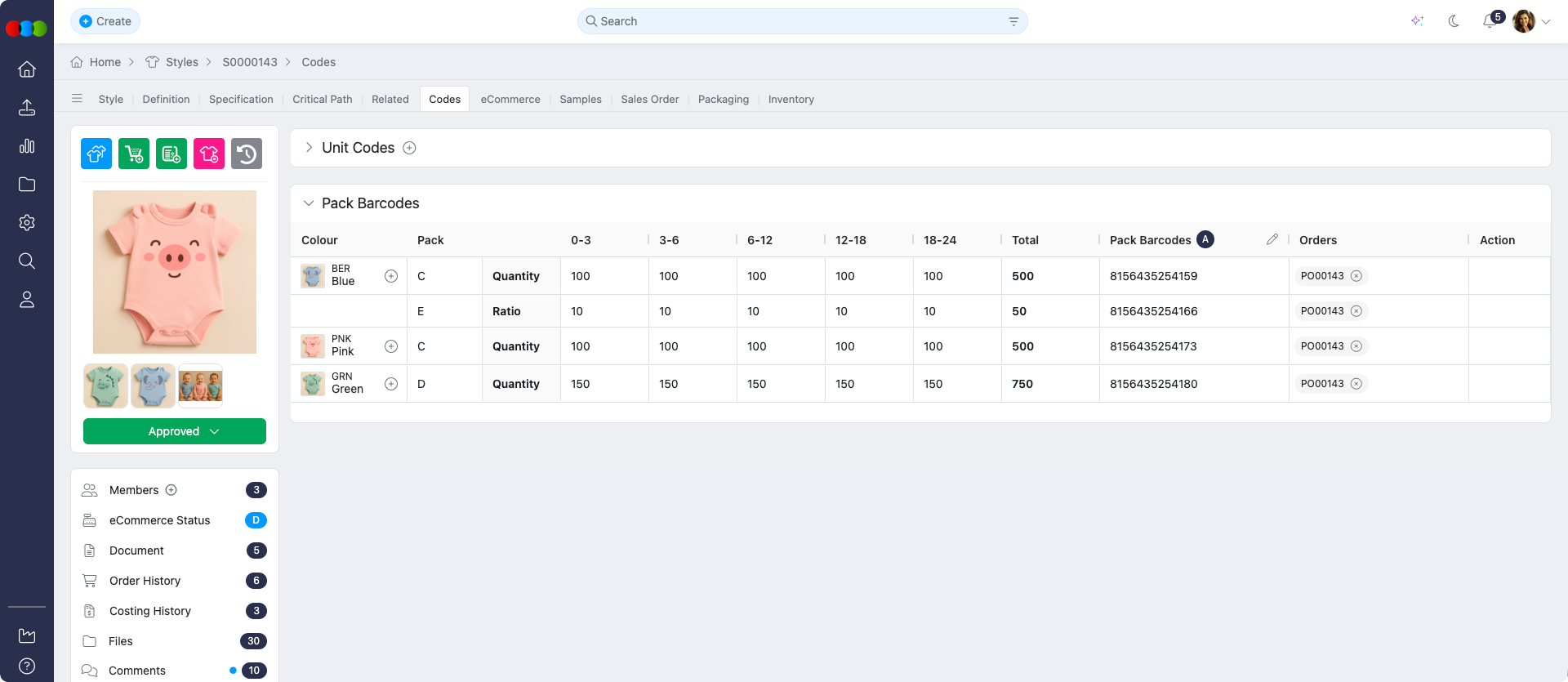
Pack Barcodes manage barcode generation and assignment at the colour pack level. Pack definitions and size columns are driven by the style’s Size Scale, configuration in Site Settings > Style > Size Scales. Pack barcode values are auto-generated from a barcode range you select; ranges are maintained in Site Settings > Company > Barcode.
Columns
| Column | Content | Notes |
|---|---|---|
| Colour | Colour swatch, colour code, name, and ⊕ | ⊕ on the first row of each colour group adds packs for that colour. |
| Pack | Pack letter identifier (e.g. A, B, C) | Each colour can have multiple packs. The column label shows either Ratio or Quantity depending on selected pack. |
| Size columns (e.g. XS, S, M, L, XL, XXL) | Numeric quantity per size | Columns match the style’s Size Scale. |
| Total | Sum of all size quantities | Not editable. |
| Pack Barcodes | Auto-generated from the selected barcode range. | Barcode can be editable. |
| ✏️ (Edit) | Pencil icon | Opens the Edit Pack Barcodes drawer for that column. |
| Orders | Shows associated orders | ⓧ is the remove icon on each order (where your permissions allow). |
| Action | 🗑️ trash icon | Shown only when no orders are associated with that pack row; removes the pack row when allowed. |
Areas to Check
| Area | What changes |
|---|---|
| Style > Codes tab | Pack Barcodes section Edit Pack Barcodes drawer 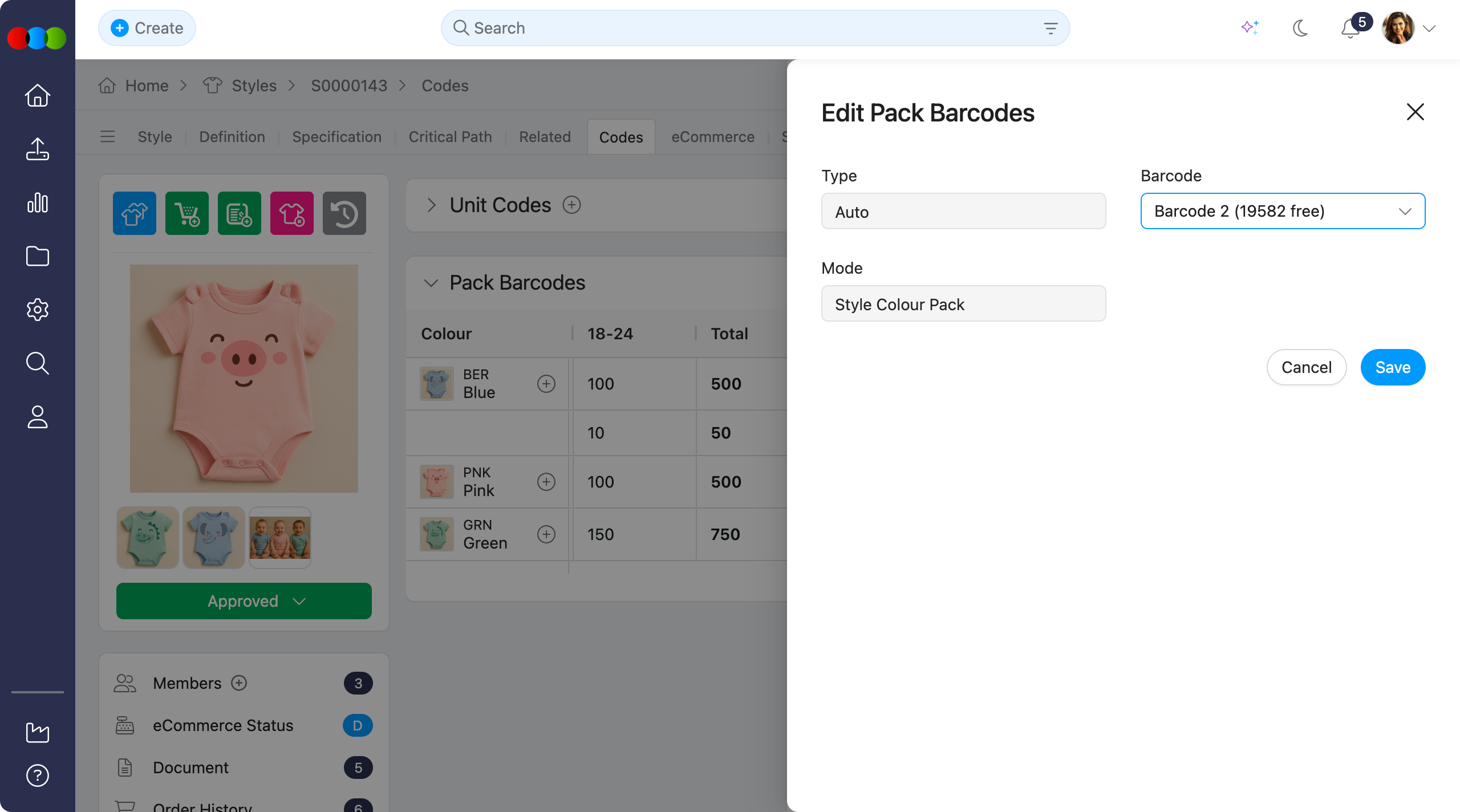 Add packs pop-up 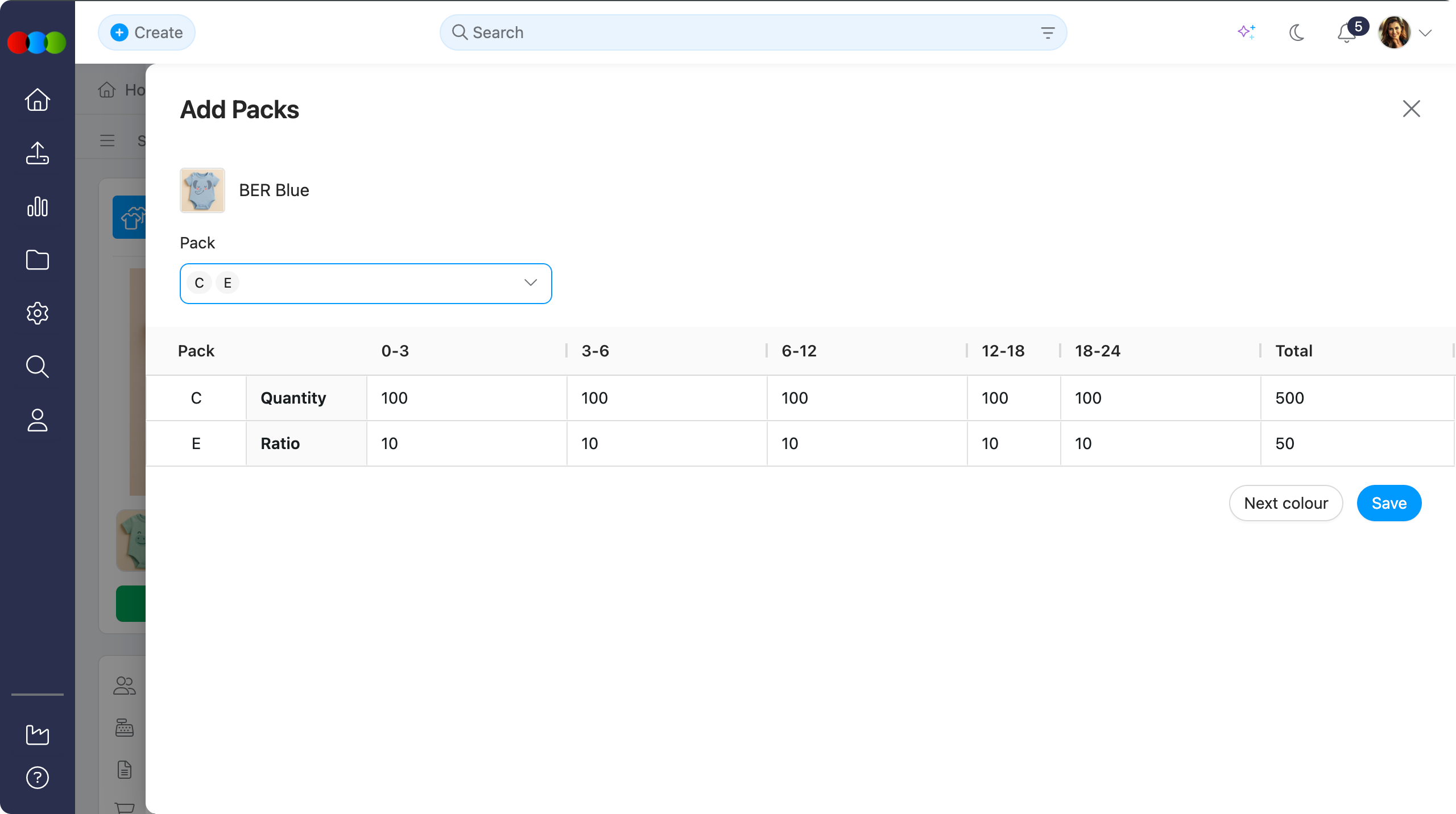 |
| Order > Colour Quantity & Pricing | Pack rows show a barcode icon only when that pack has a pack barcode on the style; rows without a pack barcode show no icon. 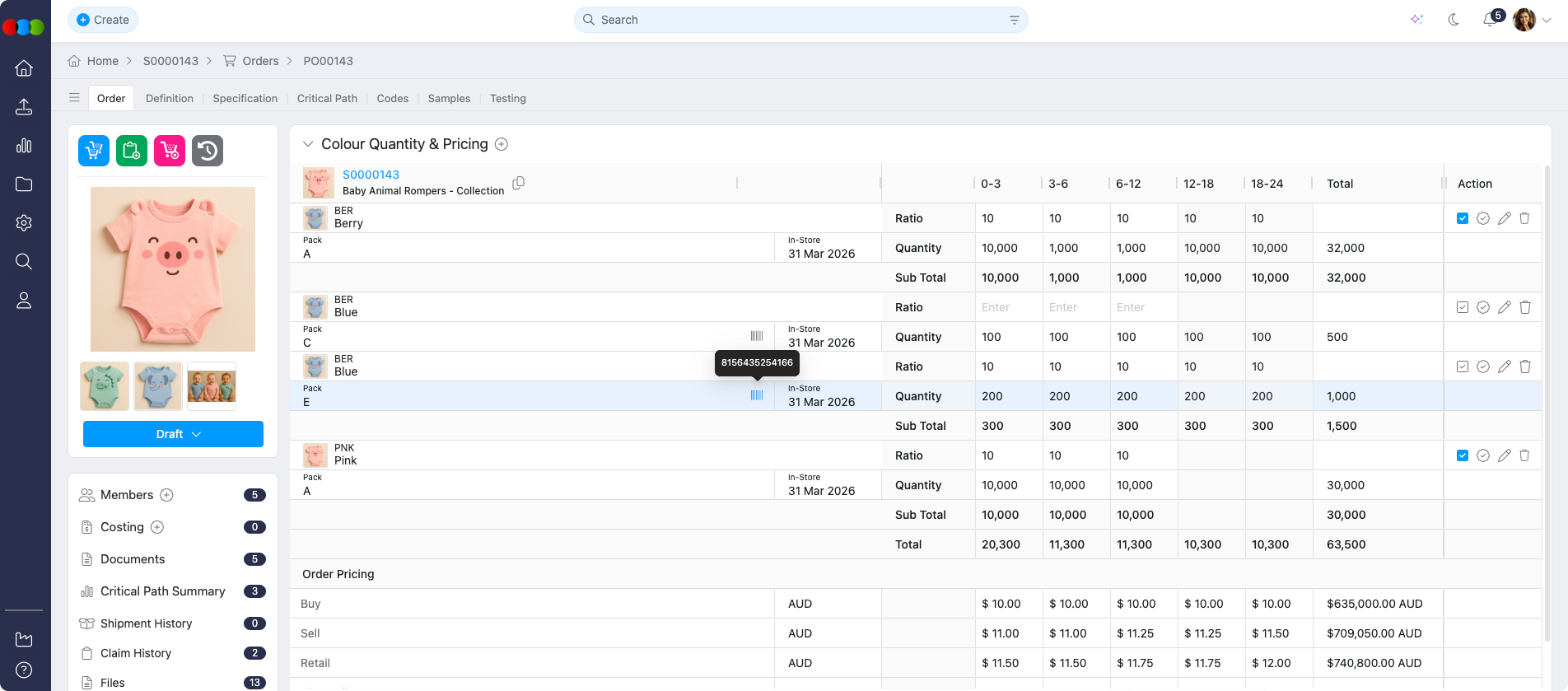 |
| Site Settings > Company > Barcodes | Existing barcode ranges supply selectable ranges for pack barcode generation. |
| Site Settings > Style > Size Scale | The size scale drives pack definitions and size columns for the grid. 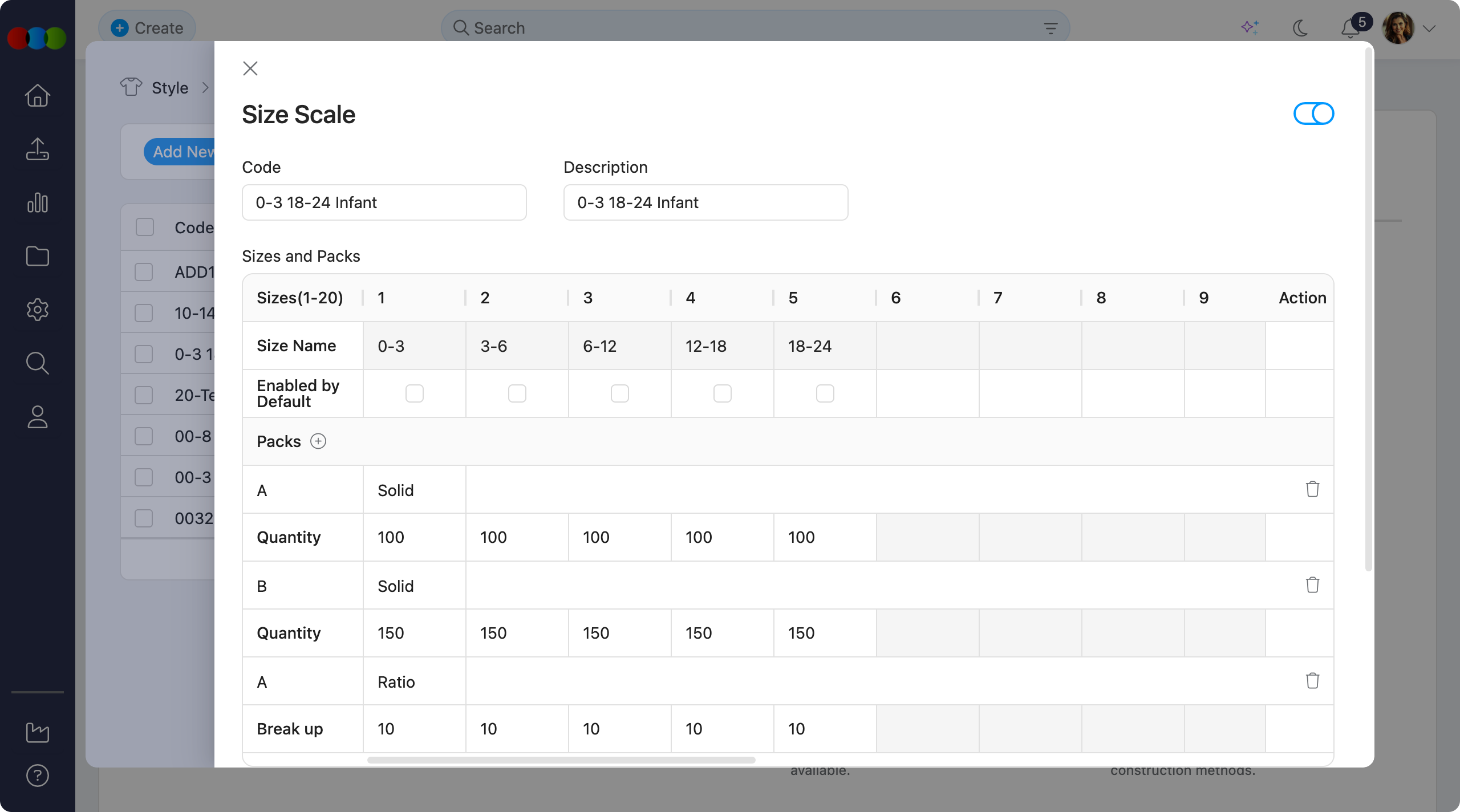 |
Related Actions
- Add Barcodes in Site Settings
- Size Scales and pack configuration
- Add Style Colours & Pricing
- Search › Style › Codes Columns & Views
Troubleshooting
Why can I not add or edit codes under Unit Codes on the Codes tab?
Unit Codes are only available after colourways exist on the style. Without colourways, there is nothing to attach codes to.
Steps to resolve:
- Open Style > Colours & Pricing and add the required colourways.
- Save the style, then return to Codes, expand Unit Codes, and add barcodes, keycodes, TUNs, or SKUs as needed.
Why does Pack Barcodes show “No data”?
The section is empty until pack barcode rows exist for your colourways and size scale packs.
Steps to resolve:
- Confirm the style has a Size Scale with the packs you need in Site Settings > Style > Size Scales.
- Use ⊕ on a colour’s first row or the section header to add packs / columns and complete the add-pack or barcode-range steps.
Why is the Delete (trash) action missing on a pack row?
The Action column only shows 🗑️ when no orders are linked to that pack row. Orders appear as chips in the Orders column.
Steps to resolve:
- Remove order associations from that pack row (via the chip remove control where available), then retry delete if your process allows.
- If the row must stay for traceability, leave it linked to orders and adjust packs on new rows instead.
Why is the Delete option blocked for my barcode (or keycode / TUN) column?
Deletion is blocked when a code column is linked to existing orders for that style.
Steps to resolve:
- Remove or change the association between that column and the linked order(s) as your process allows.
- Once no orders reference that column, remove the column from the style if still required.
Auto barcode is not generating—what should I verify?
Auto generation depends on Barcode definitions in Site Settings and the Type set to Auto in the add-barcode pop-up.
Steps to resolve:
- Confirm templates and rules in Site Settings > Company > Barcode.
- When adding a barcode, pick the correct Barcode definition and set Type to Auto, then save.
- Check Mode (Size, Colour, Style Size Colour) matches how you expect barcodes to apply across variants.