Style Import Fields and Rules
The Fields and Rules section defines the structure and validation requirements for importing Style data. The import function enables users to add or update styles in bulk using structured templates, making it easier to set up and modify styles on a large scale.
The Style Import tool helps product teams, merchandisers, and data administrators add or update styles quickly. Each field must follow specific rules, especially those that rely on values configured in Site Settings. By managing these fields through the import template, teams can standardise how styles are identified and categorised, improve data consistency across the catalogue, and ensure that key metadata aligns with configured options for reporting and eCommerce.
Quick Check - Before You Start
- Download the latest import template from the Style Import page
- Verify all dropdown field values match your Site Settings configuration (Type, Brand, Season, etc.)
- For multi-price styles, prepare separate rows per price type in your template
- When Use market pricing layout is enabled, structure Additional Markets and regional Sell and RRP rows as described in Market pricing import below
- Enter Size Scale Code for each style — it must match the Code of an enabled size scale in Site Settings > Style > Size Scales
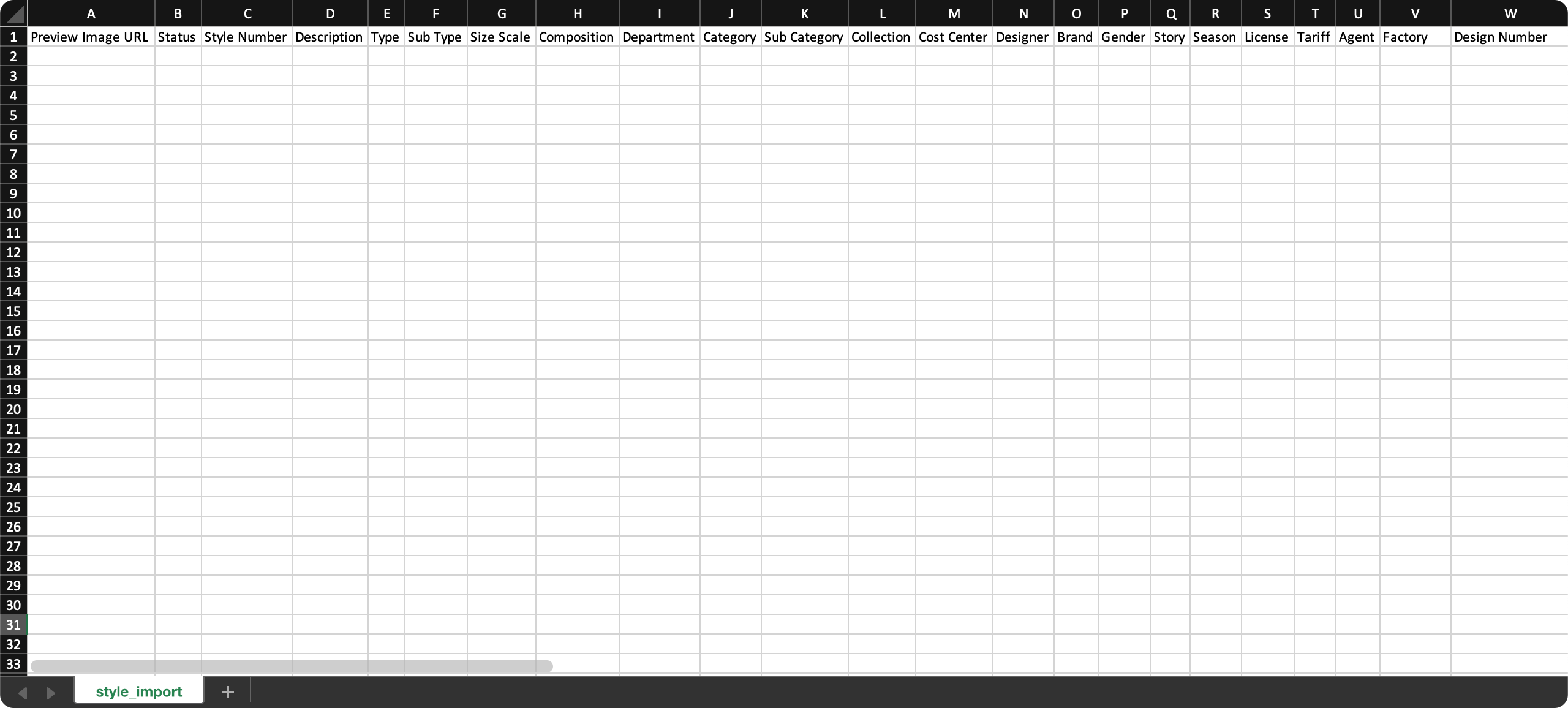
Fields and Descriptions
| Field | Description |
|---|---|
| Preview Image URL | The web address (URL) of an image that appears as a preview when a link to a webpage is shared. |
| Status | Current status of the style (e.g., Draft, Approved, Cancelled). Must match values in Site Settings. |
| Style Number | A unique identifier for the style. |
| Description | Style description. |
| Type | Style type. Ensure that it matches your configuration in Site Settings › Style › Type. |
| Sub Type | Sub-category of the style. Must match Site Settings. |
| Size Scale Code | This is required. The size scale’s Code as defined in Site Settings › Style › Size Scales. Enter the code exactly (matching is by code, not by description alone). Only enabled size scales are recognised, disabled scales are ignored and will not be applied. Note: When updating existing styles, the size scale cannot be changed if the style has associated Orders or if barcode, keycode, or tuncode are associated with the style. |
| Composition | Fabric or material composition. |
| Department | Linked department. Ensure that it matches your configuration in Site Settings › Order › Department. |
| Category | Product category. Ensure that it matches your configuration in Site Settings › Style › Category. |
| Sub Category | Further product classification. Must match a sub category linked to the Category in Site Settings › Style › Category › Sub Category. |
| Collection | Seasonal or thematic grouping. Ensure that it matches your configuration in Site Settings › Style › Collection. |
| Cost Centre | Linked financial cost centre. Ensure that it matches your configuration in Site Settings › Company › Cost Centre. |
| Designer | Assigned designer. Must match staff records in Site Settings › Company › Staff. |
| Brand | Brand name. Ensure that it matches your configuration in Site Settings › Style › Brand. |
| Gender | Intended target gender. Ensure that it matches your configuration in Site Settings › Style › Gender. |
| Story | Product story or narrative. Ensure that it matches your configuration in Site Settings › Style › Story. |
| Season | Assigned season. Ensure that it matches your configuration in Site Settings › Style › Season. |
| Licence | Licensing classification. Ensure that it matches your configuration in Site Settings › Style › Licence. |
| Tariff | Tariff classification for export/import. Ensure that it matches your configuration in Site Settings › Style › Tariff. |
| Additional Markets | Country name or code for regional markets (e.g. New Zealand, AU). Enter multiple values separated by commas or semicolons. When Use market pricing layout is enabled in site settings, this column drives which markets receive imported Sell and RRP values. The first listed market becomes the primary market. |
| Price Type (One Price, Price By Size, Price By Colour) | Pricing layout when market pricing is enabled. Must be One Price, Price By Size, or Price By Colour. Matches the layouts in Style > Colours & Pricing. |
| Agent | Sales or sourcing agent. Ensure that it matches your configuration in Site Settings › Company › Suppliers. |
| Factory | Linked factory. Must match existing factory records in Site Settings › Company › Suppliers. |
| Design Number | Internal design reference number. |
| Colour Code | Code used for colour identification. Ensure that it matches your configuration in Site Settings › Style › Colour. |
| Colour Description | Colour description. Must match defined options. |
| Colour Tags | Colourway tags applied to each colour. Enter multiple values separated by commas or semicolons. Must match Site Settings › Company › Tags. |
| Drop | Product drop or release phase for the colourway. Must match Site Settings › Style › Drop. Ensure Drop is enabled in Site Settings › Style › General Settings › User Interface Layout. |
| Size | Size value. Must match sizes from the selected size scale. |
| Size Enabled | Use Yes to enable or No to disable a size. |
| eCommerce Size Enabled | Use Yes or No to control size visibility in B2B. Colour Code or Colour Description must also be present in the same row — the system uses the colour to identify which colourway the size setting applies to. Rows with eCommerce Size Enabled but no colour data will be skipped. |
| Price Type | Pricing structure when market pricing is disabled. Must be One Price or Price By Size. If using Price By Size, the Size column must also be filled in for each price entry. When Use market pricing layout is enabled, use Price Type (One Price, Price By Size, Price By Colour) instead. |
| Price Type (Buy, Sell, RRP, Alt RRP, Alt RRP 2, eCommerce) | Price category for each pricing row. Each category is typically entered on a separate row. When market pricing is enabled, Sell and RRP rows require a market via Additional Markets. Buy rows do not require a market. Alt RRP, Alt RRP 2, and eCommerce are not supported when market pricing is enabled. |
| Currency | Currency code. Ensure that it matches your configuration in Site Settings › Company › Currency. Alt RRP prices should have different currencies. |
| Price | Price value. |
| eCommerce Status | Set to Draft or Published. A published style still requires complete eCommerce data, including Available Until and Sell Prices, before it can display in the Customer Portal. |
| eCommerce Short Description | Title for eCommerce display. |
| eCommerce Collection | Grouping used in B2B store. |
| eCommerce Long Description | Full product description for eCommerce. |
| eCommerce Available Until | Style-level end date for B2B ordering. Enter dates as dd/MM/yyyy (for example, 30/05/2024). Optional — leave blank to skip updating this field on existing styles. Maps to Style > eCommerce > Details > Available Until. |
| eCommerce Available From | Colour-level start date for B2B availability. Enter dates as dd/MM/yyyy. Optional and independent of eCommerce Available To — you may populate either date, both, or neither. Colour Code or Colour Description must also be present in the same row so the system knows which colourway to update. Maps to Available From on Style > eCommerce > Colours & Pricing. |
| eCommerce Available To | Colour-level end date for B2B availability. Same format and rules as eCommerce Available From. Maps to Available To on Style > eCommerce > Colours & Pricing. |
| Tags | Product tags. Ensure that it matches your configuration in Site Settings › Company › Tags. |
| Weight Unit | Accepted units: Gram or Kg. Colour Code or Colour Description must also be present in the same row — the system uses the colour to determine which style context to apply the weight to. Rows with Weight Unit but no colour data will be skipped silently. |
| Weight | Numeric weight of the product. Colour Code or Colour Description must also be present in the same row (see Weight Unit above). |
| Custom Fields | Custom-configured fields in the platform. Ensure that it matches your configuration in Site Settings › Style › Custom Fields. Leave blank if unused. |
Market pricing import
When Use market pricing layout is enabled in Site Settings › Style › General Settings › Default › Configure the default market pricing, Style Import supports full regional pricing through the Additional Markets column. You can import Sell and RRP values in bulk using the same pricing layouts as Style > Colours & Pricing:
- One Price - one Sell and RRP per market for the colourway.
- Price by Size - Sell and RRP per size and market.
- Price by Colour - Sell and RRP per colourway and market. Requires Colour Code or Colour Description on the row.
Multiple markets per row
List several markets on Sell and RRP rows by entering comma- or semicolon-separated country names or codes in Additional Markets (for example, Australia, New Zealand).
Import order sequencing
Markets display in the same sequence as your imported file. In the example above, Australia appears before New Zealand. The first listed market becomes the primary market.
Market pricing layout (Use market pricing layout enabled)
- Additional Markets — lists the markets for the style (comma- or semicolon-separated country names or codes). The first market becomes the primary market.
- Price Type (One Price, Price By Size, Price By Colour) — the pricing layout for the row.
- Price Type (Buy, Sell, RRP, Alt RRP, Alt RRP 2, eCommerce) — the price category for the row.
Rules:
- Sell and RRP rows require a market via Additional Markets.
- Buy rows do not require a market.
- Price By Colour rows require Colour Code or Colour Description.
- Price By Size rows require Size for each price entry.
- Alt RRP, Alt RRP 2, and eCommerce are not supported when market pricing is enabled.
When market pricing is disabled, the legacy Price Type, Currency, and Price columns continue to work as before.
Related Actions
Troubleshooting
How do I import regional Sell and RRP prices for multiple markets?
When Use market pricing layout is enabled, use Additional Markets with Price Type (One Price, Price By Size, Price By Colour) and separate rows for each Price Type (Buy, Sell, RRP, …) category.
Steps to resolve:
- Read Market pricing import on this page and confirm your site has Use market pricing layout enabled.
- List markets in Additional Markets using commas or semicolons (for example,
Australia, New Zealand). The first market becomes the primary market. - Add Sell and RRP on separate rows with the required Colour Code, Colour Description, or Size for your pricing layout.
- Re-import and review the Import Summary for validation messages.
A field value is rejected even though it looks correct—what should I verify?
Most rejections on coded fields mean the value is not an exact match for an active option in Site Settings, or the related Site Settings record was changed after the spreadsheet was prepared.
Steps to resolve:
- Open the linked Site Settings page for that field (from the table above) and compare spelling, casing, and availability of the option.
- Update the cell to match the current configuration and re-import.
- Use the Import Summary to confirm the error category for that row.
How do I structure prices when a style has several price types (RRP, Alt RRP, eCommerce, etc.)?
Each price type is typically entered on its own row, and Price By Size requires a Size for each price row.
Steps to resolve:
- Review the Price Type and related columns in the table on this page.
- Add one row per price type (and per size if using Price By Size).
- Confirm Currency values match Site Settings and re-run the import if the summary reports structure errors.
Why can I not change Size Scale on an existing style via import?
The platform blocks size scale changes when the style has Orders or when barcode, keycode, or tuncode associations exist, to protect order and identification data.
Steps to resolve:
- Read the restriction details in Update Existing Styles through Import.
- Check the Import Summary for the logged skip reason.
- Engage your administrator if a scale change is required despite these associations.
I provided Weight and Weight Unit but the import summary shows no weight update — why?
Weight data requires Colour Code or Colour Description to be present in the same row. If both colour fields are blank, the weight update step is skipped entirely with no error logged in the Import Summary — the row will show only a style details update message.
Steps to resolve:
- Add the Colour Code or Colour Description (or both) for the relevant colourway to each row that includes weight data.
- Re-import the file and check the Import Summary for an eCommerce weight size updated successfully entry per row.
Why is my Size Scale Code rejected or the wrong size scale applied?
The import requires Size Scale Code and resolves the scale using that code. Disabled size scales are not applied. If several scales share the same Description in Site Settings, only the Code identifies the correct row — ensure the code matches an enabled scale.
Steps to resolve:
- Open Site Settings › Style › Size Scales and confirm the scale’s Code (not only the description).
- Ensure the scale is enabled in the list (use the toolbar filter if needed).
- Copy the Code into the Size Scale Code column exactly and re-import.
I provided eCommerce Available From or Available To but the colour dates did not update — why?
Colour-level availability dates require Colour Code or Colour Description in the same row, the same as Weight, Weight Unit, and eCommerce Size Enabled.
Steps to resolve:
- Add Colour Code or Colour Description for the colourway on each row that includes eCommerce Available From and/or eCommerce Available To.
- Use dd/MM/yyyy date format (for example,
01/06/2024). - Re-import and check the Import Summary for colour available date update messages.
Why was my eCommerce date rejected during import?
Date columns must use dd/MM/yyyy. Extra spaces around the date are trimmed automatically, but invalid formats (such as 2024-06-01 or 06/01/2024) are rejected.
Steps to resolve:
- Reformat the cell to dd/MM/yyyy.
- Leave the cell blank if you do not want to change that date on an existing style.
- Re-import and review the Import Summary for validation errors on that row.
Tip
- Always validate your data against Site Settings before importing—all field values must match configured values.
- For multi-select fields such as tags or custom fields, use commas (,) or semicolons (;) to separate values in the template.
- For multi-price styles (e.g., with Alt RRP or eCommerce price), enter each price type as a separate row in your import file.
- eCommerce Available Until, eCommerce Available From, and eCommerce Available To are optional. Use dd/MM/yyyy; blank cells leave existing values unchanged on update.
- Download the import summary after upload to check for errors or confirm successful processing.