Style Import Style Files
The Style File Import feature allows you to upload files in bulk and automatically associate them with existing styles. This can be done by naming individual files or by organising files into folders named after the corresponding Style Number. The uploaded files can then be viewed in the Files section of the style.
Quick Check - Before You Start
- You need Edit permission for Style to use Import Style Files. See Site Settings › Company › Roles & Permissions › Import.
Import Methods
By File Name
To link a single file to a specific style, the filename must contain the Style Number.
Format: [Style Number]_[your_file_name].[extension]
- [Style Number]: The unique identifier of the style.
- [your_file_name]: A descriptive name for your file.
- [extension]: The file type (e.g., .pdf, .jpg, .ai).
Example
ST-00123_techpack.pdfwill be uploaded to styleST-00123.ST-00456_preview_image.jpgwill be uploaded to styleST-00456.
By Folder Name
This method is ideal for uploading multiple files to a single style at once.
- Create a folder on your computer.
- Rename the folder to match the exact Style Number (e.g.,
ST-00123). - Place all the files for that style inside this folder.
When you upload this folder, the system will identify the folder's name as the Style Number and upload all of its contents to that style's Files section.
Steps to Import Files
- Click the Import icon in the left-side menu and select Import Style Files
- Prepare your files or folders according to one of the methods described above.
- Drag and drop your files or folders into the upload area.
- The system will process the items and link them to the matching styles.
- Once the import is complete, you can view the uploaded files in the Files section of the corresponding style.
Example
Upload Files 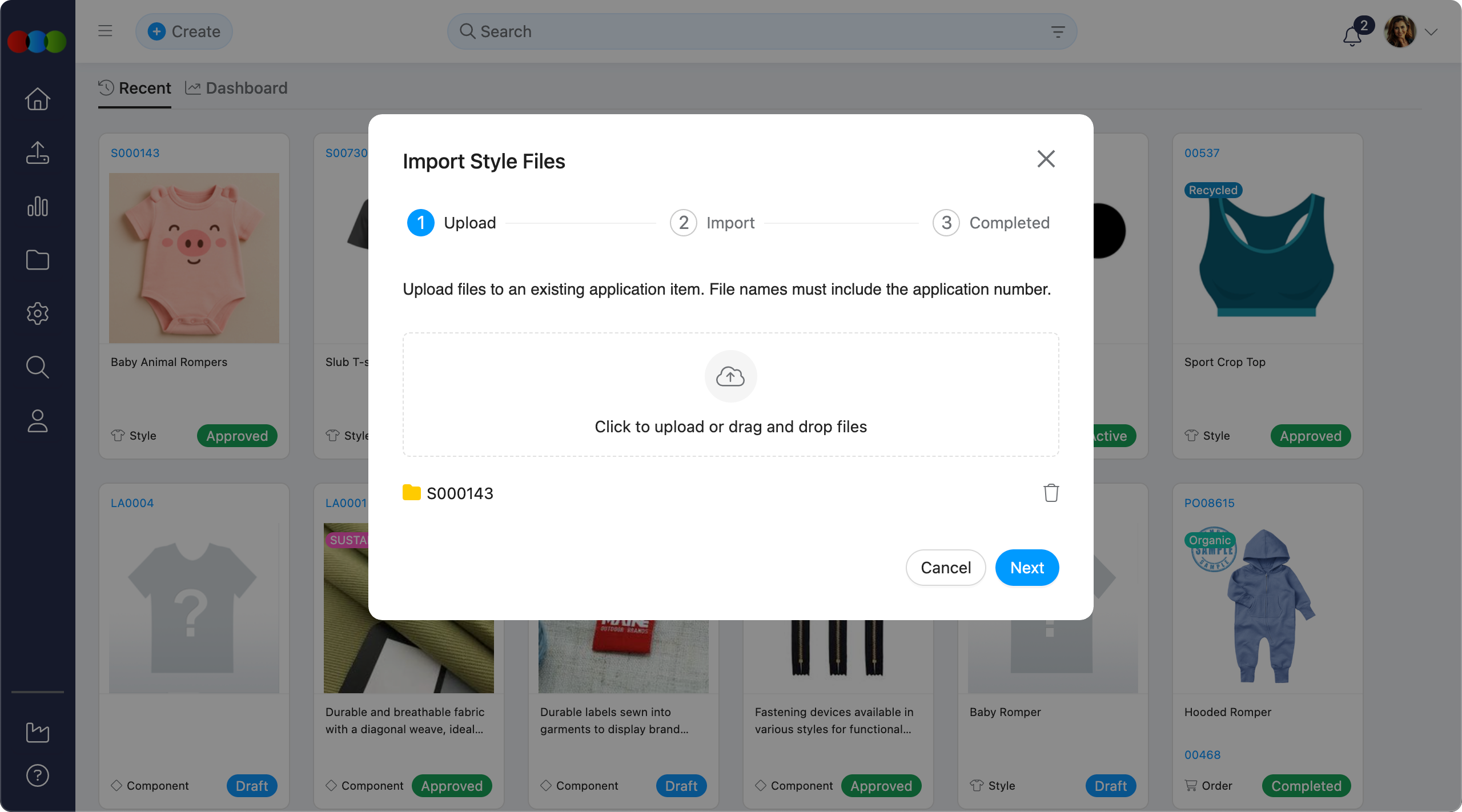
Preview and Confirm 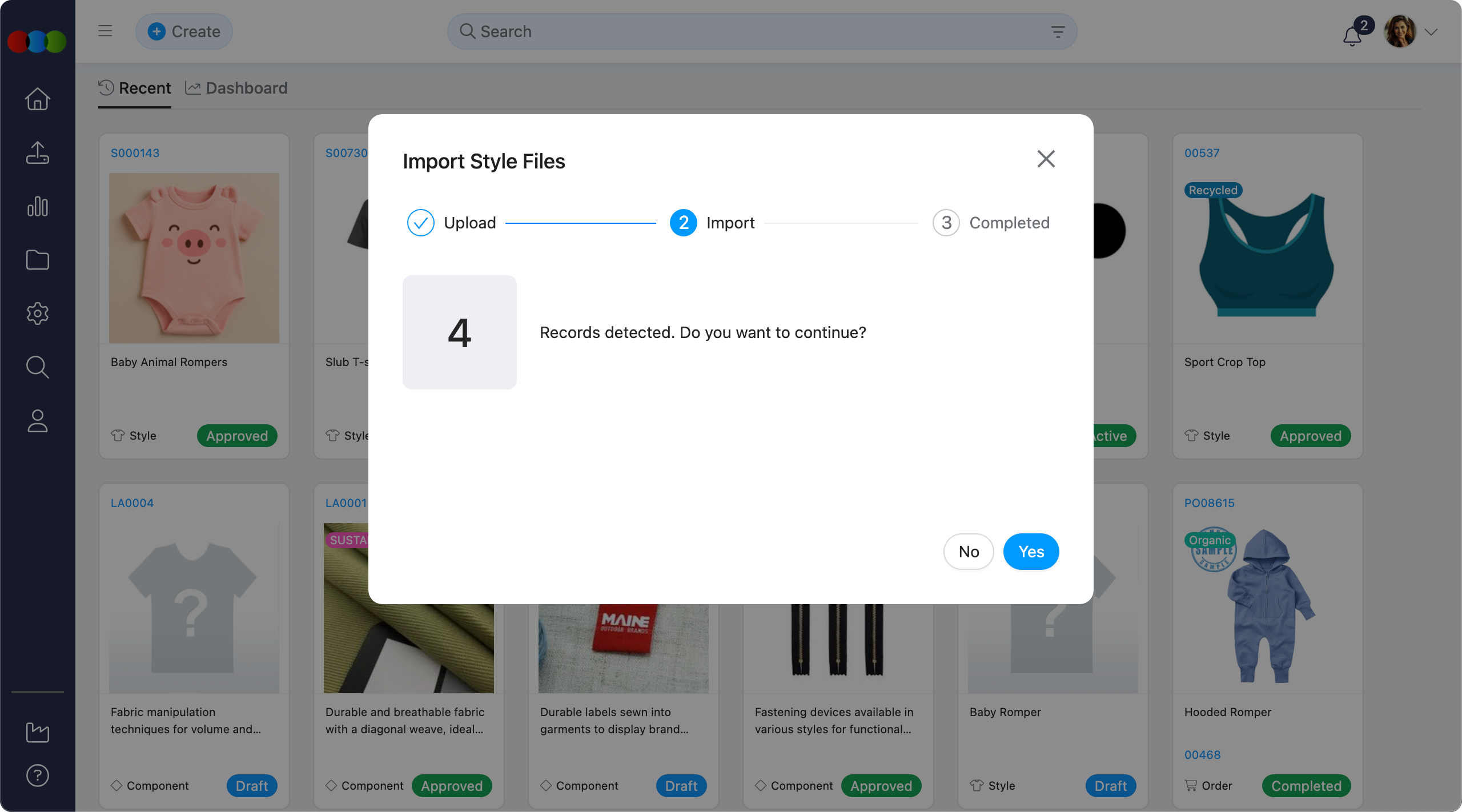
Completed 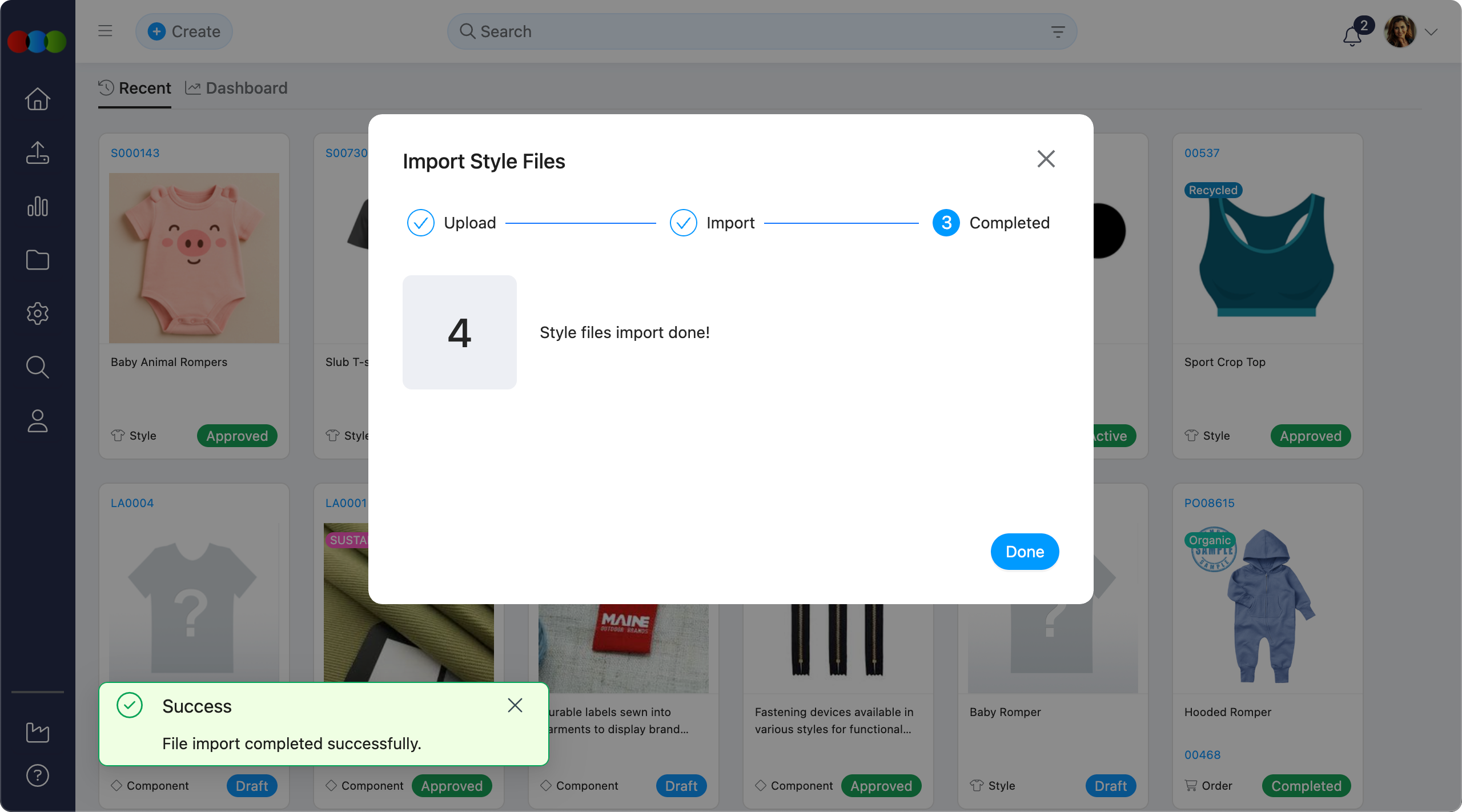
Important Tips
- This feature is for adding files to existing styles only.
- If a Style Number in a filename or folder name does not match an existing style, the item will be skipped, and a "no match" notification will appear in the import summary.
- There is no limit to the number of files you can upload at once, but be mindful of total file size for a faster experience.