Media Library
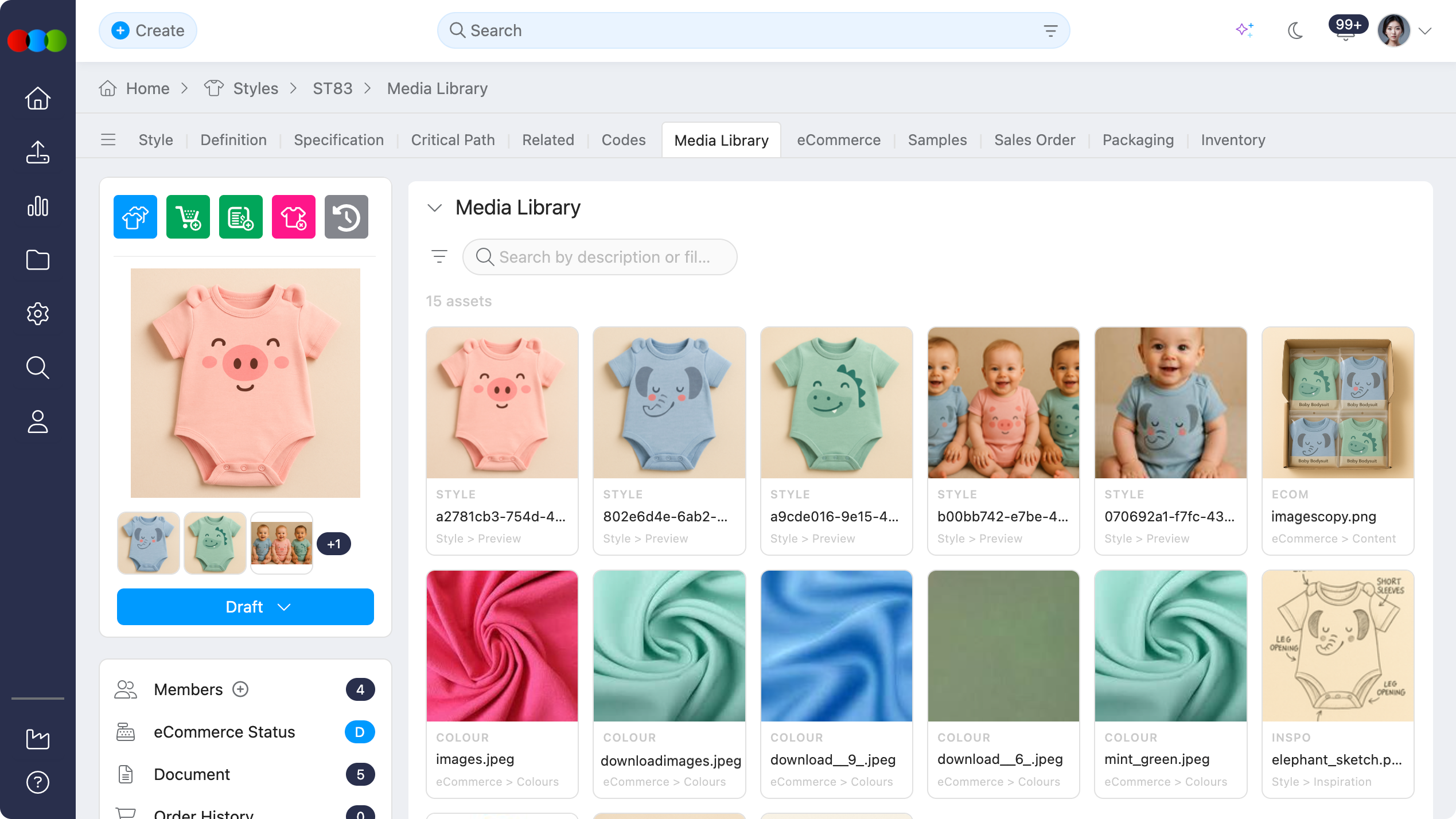
The Media Library gives you a unified gallery of all digital images attached to a style. It brings together preview images, eCommerce images, colour images, inspiration images, specification images, and file attachments so product, design, merchandising, and eCommerce teams can find and review images from one place.
Use this section to search across file names and descriptions, filter images by their source, open a full-size preview, and check where each image is used before making updates.
Quick Check - Before You Start
- Open the required style and go to Style > Media Library.
- Confirm you have permission to view the source areas you need, such as Style > eCommerce, Style > Specification, and Style > Side Widgets > Files.
- Add clear descriptions to images and files in their source sections so they are easier to find in the Media Library.
What the Media Library Shows
The Media Library displays style images in a searchable gallery view. Each display includes a preview, a source badge, and key file information so you can quickly understand what the image is and where it came from.
| Source | Description |
|---|---|
| Style > Preview Images | Preview images used for identifying the style in cards, dashboards, and other style views. |
| eCommerce Images | Product images managed under Style > eCommerce > Images for B2B or sales channel presentation. |
| Colour Images | Images attached to specific colourways in Style > eCommerce > Colours & Pricing > Colourway Images, including colour and size level imagery used for product presentation. |
| Inspiration | Images stored under Style > Images for visual references, inspiration, marketing review, or product development. |
| Specification | Sketches and images used under Style > Specification to support measurements, construction notes, and technical communication. |
| Files | File attachments from Style > Side Widgets > Files, including documents, CADs, references, and other uploaded images. |
Search and Filter Images
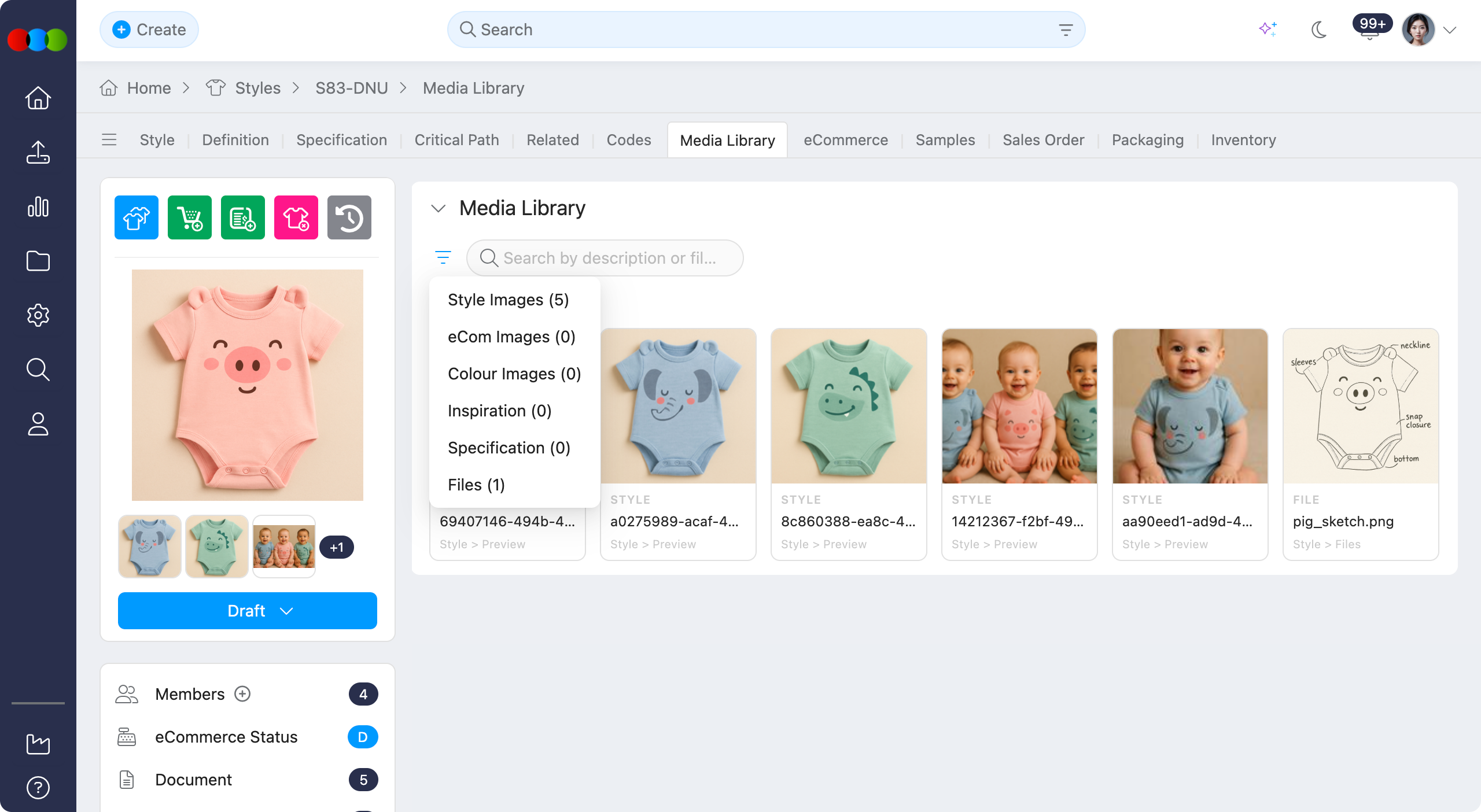
Use search and filters to reduce the gallery to the images you need.
- Open Style > Media Library.
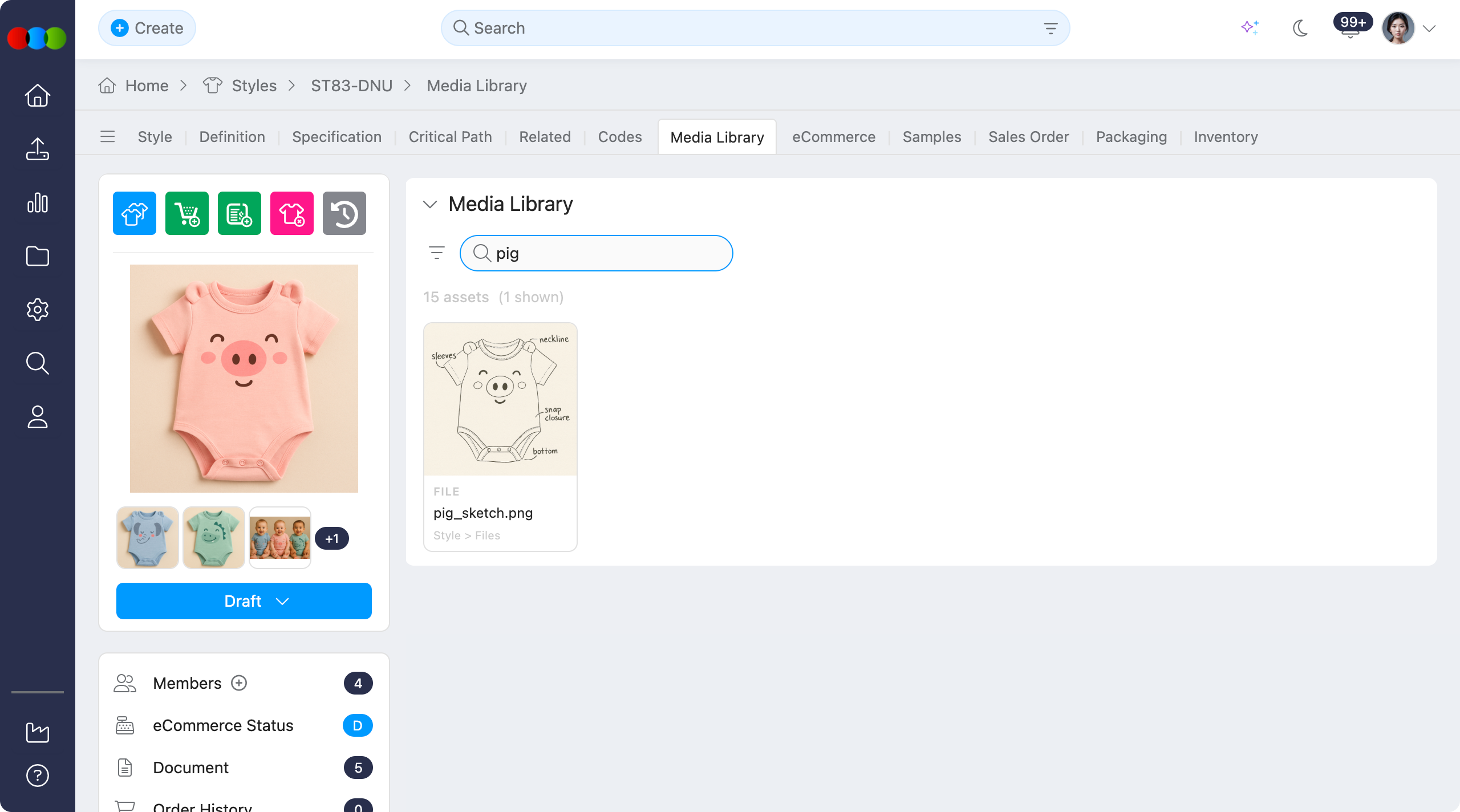
- Use Search to find an image by description, filename, or other available asset text.
- Use the source filters to show one or more image types, such as Style Images, eCommerce Images, Colour Images, Inspiration, Specification, or Files.
- Review the source badges on each card to confirm where the image is currently used.
Filtering is useful when a style has many attachments across several areas. For example, select Specification to review only technical reference images, or select eCommerce Images before checking sales channel readiness.
View Image Details
| Metadata | Description |
|---|---|
| File name | The uploaded file name. |
| Description | The description entered against the image or file, where available. |
| Source | The section where the images is located. |
| Image path | The style sections that reference the image, such as Style > eCommerce > Images, Style > Specification > Images, or Style > Side Widgets > Files. |
Note
The Media Library is a consolidated view of images. If an image or file needs to be uploaded, reordered, edited, or deleted, use the source section shown in the metadata panel unless your organisation has enabled direct media management from this view.
Image Path
Usage tracking helps prevent accidental changes to images that are reused across style sections. Check the Image path and Usage information before editing or deleting images, especially when an image is used for eCommerce, specification documentation, or style preview purposes.
Use usage tracking to answer questions such image: - Which sections currently reference this image? - Is this image used in customer-facing eCommerce content? - Is this file a general attachment or part of a technical specification? - Will changing or removing this image affect another team’s workflow?
An example on how Media Library can help you
A designer is preparing a new seasonal range for internal review and needs to confirm that every image attached to a style is correct before the product is shared with sales and eCommerce teams.
Instead of checking each section separately, they open Style > Media Library to review all related images in one place. They can quickly compare inspiration images, specification sketches, colourway images, eCommerce product shots, and uploaded reference files. If they need to confirm whether a product image is customer-facing or only used for internal development, they check the image source badge and image path.
This helps the designer avoid accidentally changing or deleting an image that is already being used by another team, such as an eCommerce image required for online selling or a specification sketch used by the technical team.
Related Actions
- Style > Images to manage inspiration and product image galleries
- Style > eCommerce to manage customer-facing eCommerce images
- Style > Colours and Pricing to manage colourway and colour-size imagery
- Style > Specification to manage specification sketches and images
- Style > Side Widgets > Files to manage uploaded file attachments and folders
- Style > Side Widgets > Preview Image to manage the main preview image for the style
Troubleshooting
Why can I not find an image in the Media Library?
The image may be hidden by a source filter, missing a searchable description, stored in a source section you do not have permission to view, or not yet uploaded to the style.
Steps to resolve:
- Clear the search field and remove source filters.
- Check the image in its source section, such as Style > Images, Style > eCommerce, Style > Specification, or Style > Side Widgets > Files.
- Add or update the description in the source section if the image should be easier to find by search.
- Ask an administrator to confirm your role can access the relevant style sections.