Active Instance
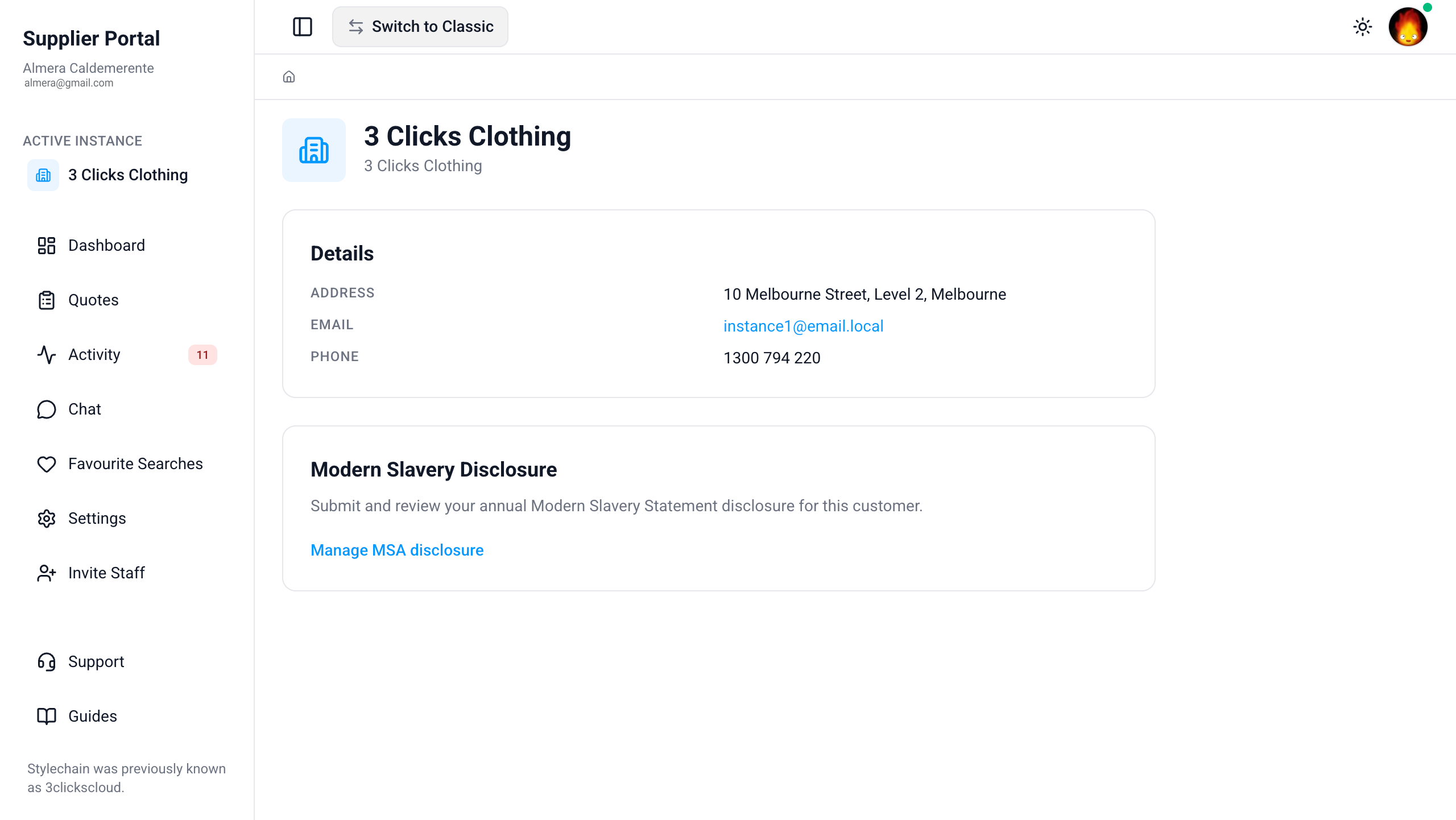
The Active Instance page shows which supplier connection you are currently working with in the Supplier Portal. It displays the supplier's portal name and contact details, and provides access to Modern Slavery Disclosure so you can submit and review your annual Modern Slavery Statement for that supplier.
Quick Check - Before You Start
- Confirm you are viewing the correct supplier, because many suppliers work with more than one brand in the Supplier Portal
- Have factory details, risk ratings, and any audit certifications ready before starting a new disclosure
- Check whether your supplier requires a disclosure for the current Statement Year before you submit
Accessing Active Instance
Open Active Instance from the left navigation menu. The page header shows the name of the Supplier Portal connection for your supplier.
Supplier Details
The Active Instance page displays summary contact information for the supplier you are connected to.
| Detail | Description |
|---|---|
| Address | The supplier's registered business address. |
| The primary contact email for this supplier connection. | |
| Phone | The contact phone number for this supplier connection. |
Use these details to confirm you are submitting disclosures and compliance information to the correct supplier.
Modern Slavery Disclosure
The Modern Slavery Disclosure section lets you submit and review your annual Modern Slavery Statement disclosure for the active supplier.
Click Manage MSA disclosure to open the disclosure workspace, where you can create a new statement, upload supporting certifications, and review previously submitted disclosures.
Modern Slavery Disclosure View 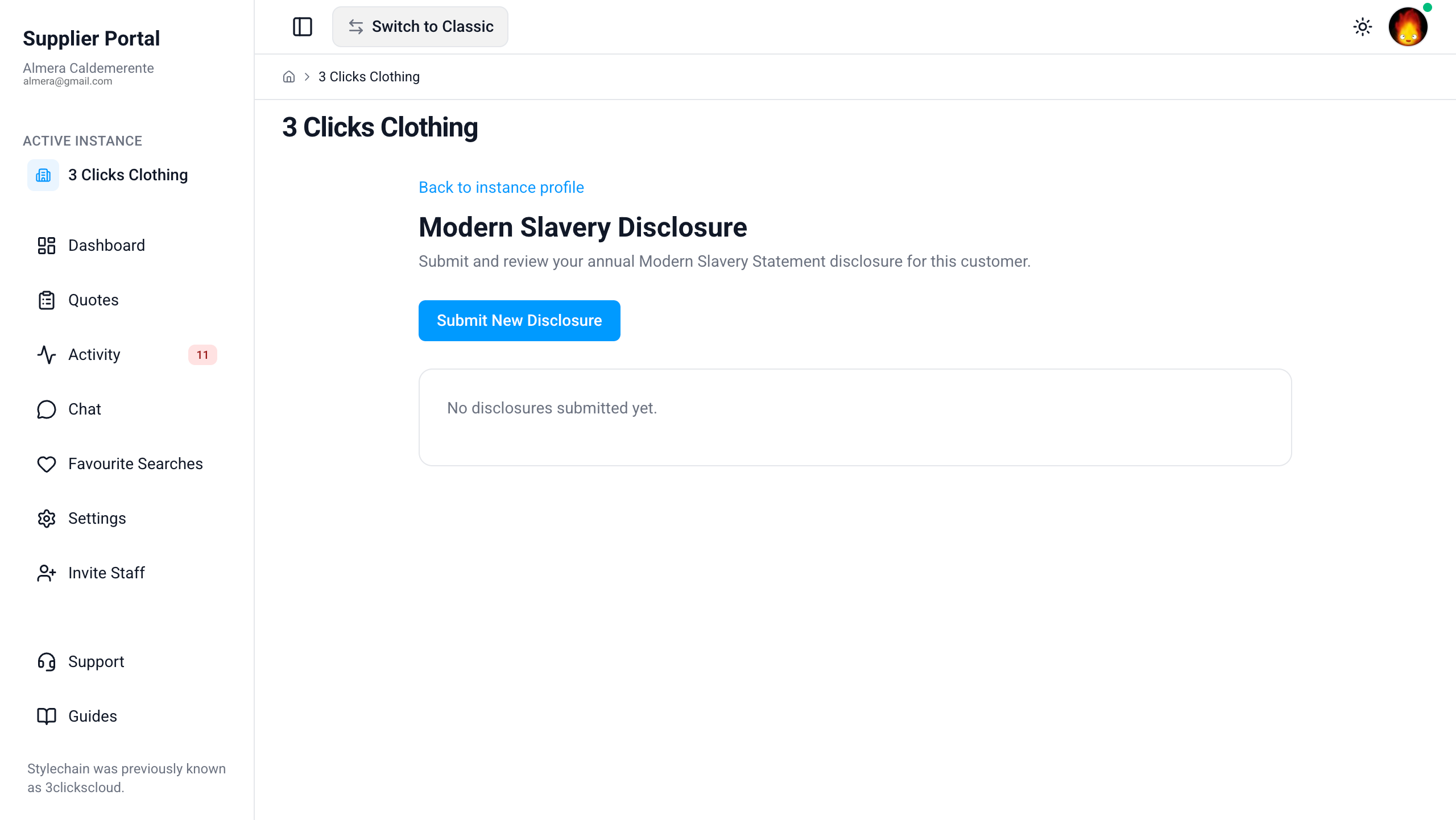
Supplier-Specific Disclosures
Each Active Instance represents a separate supplier connection. Submit disclosures separately for each supplier you work with. A disclosure submitted for one account does not apply to another.
Submit a New Disclosure
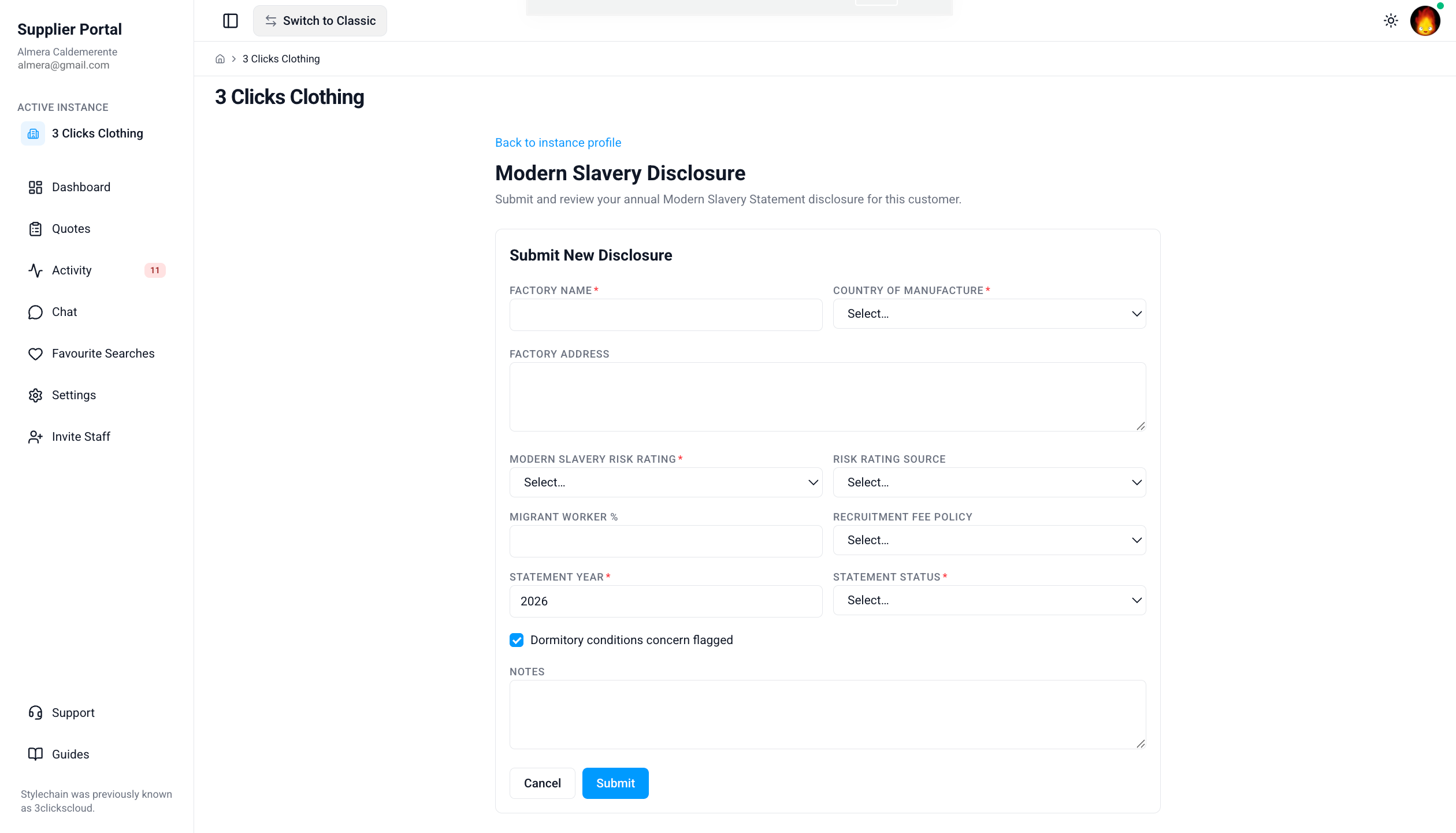
When you create a new disclosure, complete the factory and risk fields below. Save or submit when all required information is entered.
| Field | Description |
|---|---|
| Factory Name | The name of the manufacturing facility covered by this disclosure. |
| Country of Manufacture | The country where the factory operates. |
| Factory Address | The full address of the manufacturing facility. |
| Modern Slavery Risk Rating | The assessed risk level for this factory: High, Medium, or Low. |
| Risk Rating Source | How the risk rating was determined: Manual (entered by your team) or UN Country Risk (derived from UN country risk data). |
| Migrant Worker % | The percentage of migrant workers at the factory, if known. |
| Recruitment Fee Policy | Whether recruitment fees apply: No Fee, Worker Paid, or Unknown. |
| Statement Year | The reporting year this disclosure covers. |
| Statement Status | The current progress of the statement: Not Started, In Progress, or Submitted. |
| Dormitory Conditions concern flagged | Check this box if there are concerns about dormitory or accommodation conditions at the factory. |
| Notes | Optional free-text notes with additional context for your supplier. |
Common Pitfall
Creating a new disclosure for the same Statement Year marks any previously submitted disclosure for that instance as Superseded. Review existing records before submitting a replacement so you do not lose track of which version your supplier is reviewing.
Upload Certification
Use the certification upload section to attach audit or compliance certificates that support your Modern Slavery disclosure.
Modern Slavery Disclosure > Upload Certification 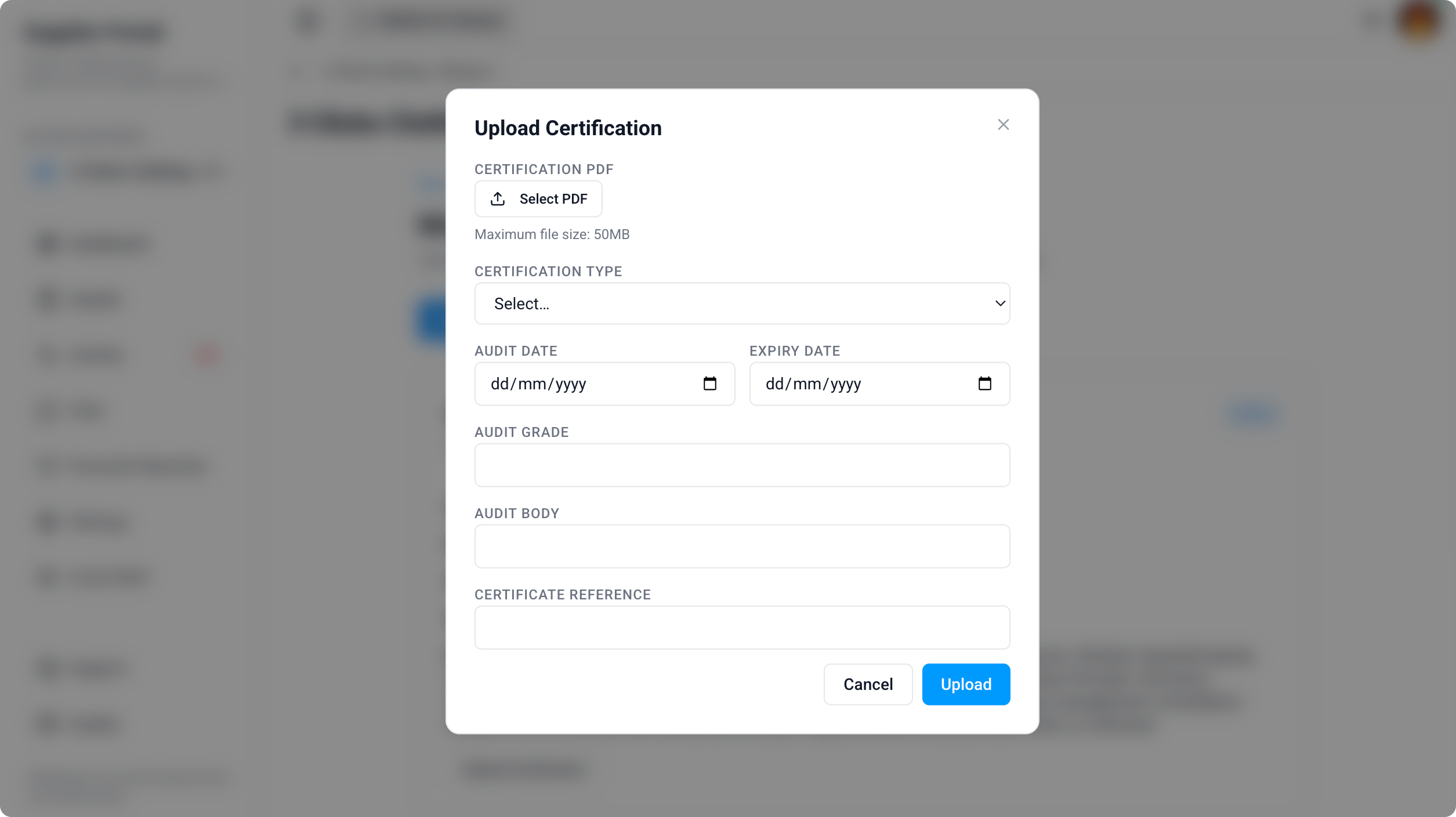
| Field | Description |
|---|---|
| Certification Type | The audit or certification scheme. Options include SEDEX, BSCI, OTHER, SMETA, SA8000, and WRAP. |
| Audit Date | The date the audit was conducted. |
| Expiry Date | The date the certification or audit report expires. |
| Audit Grade | The grade or outcome assigned by the audit body, if applicable. |
| Audit Body | The organisation that performed the audit. |
| Certificate Reference | The reference number or identifier on the certificate. |
Attach the certificate file when prompted so your supplier can review the supporting documentation alongside your disclosure.
Submitted Disclosures
After a disclosure is submitted, the Active Instance page displays a record of the submission.
| Detail | Description |
|---|---|
| Date and time | When the disclosure was submitted. |
| Statement Year | The reporting year covered by the submission. |
| Statement Status | The status at the time of submission (for example, Submitted). |
Previously submitted disclosures remain visible for reference. When you create a new disclosure for the same instance, earlier submissions are marked as Superseded so your supplier can identify the current version.
Sample of Modern Slavery Disclosure for a Supplier
- This is a sample of a Modern Slavery Disclosure for a supplier with high risk rating, without a certification:
[Modern Slavery Disclosure](images/supplier_portal_modern_slavery_disclosure_sample.png){:target="_blank"}

- When uploading a certification form, these fields are duly filled in:
[Modern Slavery Disclosure > Uploaded Certification Form](images/supplier_portal_modern_slavery_disclosure_upload_certification.png){:target="_blank"}

- After completing the certification, it will then appear in the Modern Slavery Disclosure view page:
[Modern Slavery Disclosure Sample](images/supplier_portal_modern_slavery_sample_with_uploaded_certification.png){:target="_blank"}

Related Actions
- Supplier Portal › Overview
- Supplier Portal › Dashboard
- Supplier Portal › Guides
- Supplier Portal › Settings
Troubleshooting
How do I confirm I am working with the correct supplier?
The Active Instance page shows the supplier portal name and contact details for your current connection.
Steps to resolve:
- Open Active Instance from the left navigation menu
- Check the portal name and Address, Email, and Phone details match the supplier you intend to work with
- If the details do not match, switch to the correct supplier connection or ask your supplier's instance user to confirm your supplier account is linked to the right organisation
What happens when I submit a new disclosure?
A new submission replaces the active disclosure for that Active Instance. Earlier submissions are retained but marked as Superseded.
Steps to resolve:
- Review existing disclosures on the Active Instance page before creating a new one
- Open Manage MSA disclosure and complete the required fields
- Submit the disclosure and confirm the Statement Year and Statement Status on the summary view
- Check that the previous disclosure now shows as Superseded if a replacement was intended
Which certification type should I select?
Choose the option that matches the audit scheme your factory holds. Select OTHER if your certification is not listed.
Steps to resolve:
- Open the certification upload section within Manage MSA disclosure
- Select the matching Certification Type (SEDEX, BSCI, SMETA, SA8000, WRAP, or OTHER)
- Enter Audit Date, Expiry Date, Audit Grade, Audit Body, and Certificate Reference from your certificate
- Upload the certificate file and save
Why is my Statement Status still Not Started or In Progress?
Statement Status reflects how far through the disclosure workflow you are. It updates as you complete and submit the form.
Steps to resolve:
- Open Manage MSA disclosure and confirm all required fields are completed
- Upload any supporting certifications before submitting
- Submit the disclosure — the status should change to Submitted and the submission date and time will appear on the Active Instance page
- If the status does not update after submission, refresh the page or contact your supplier's instance user to confirm they received the disclosure