Claim
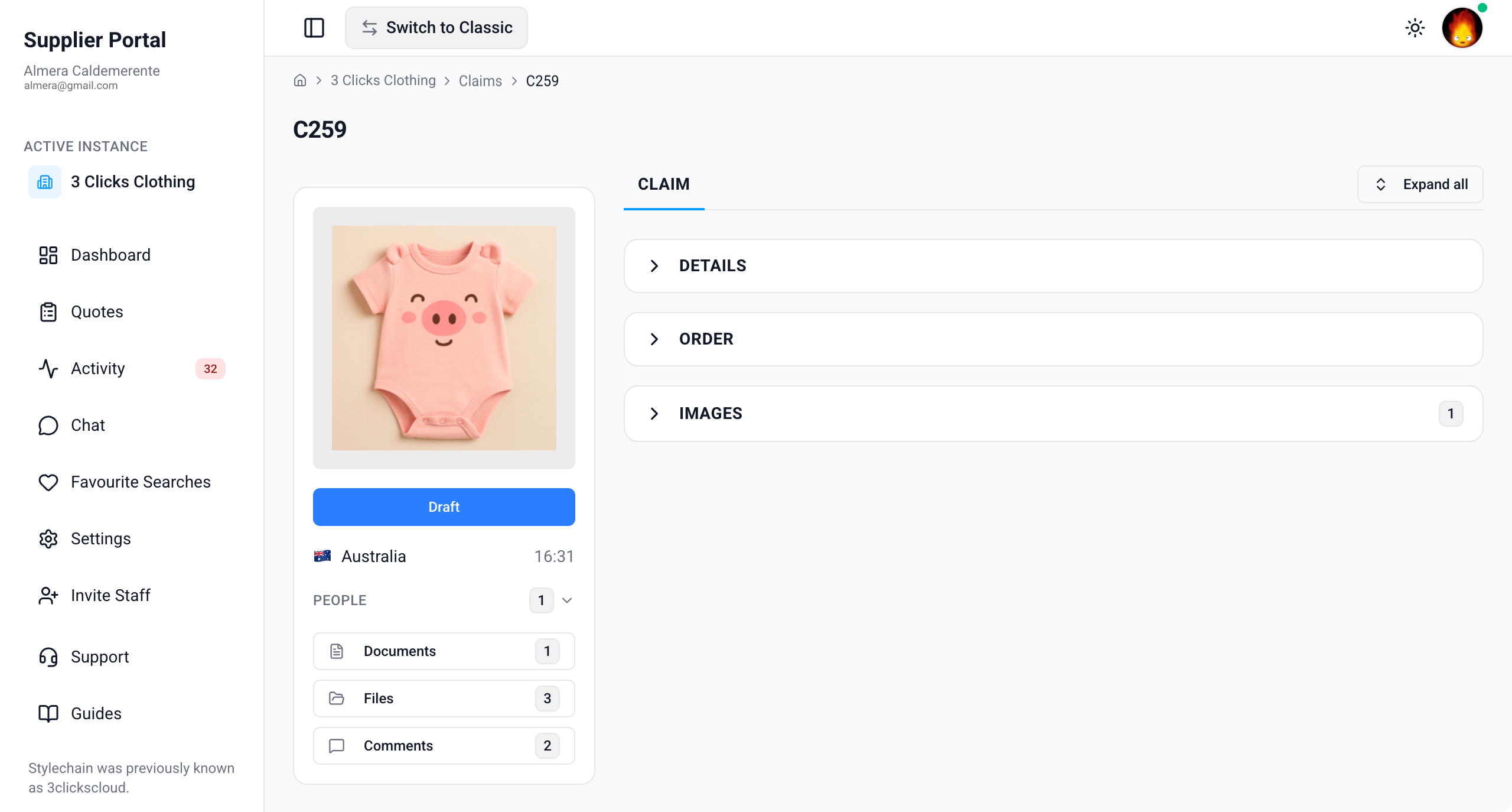
The Claim record in the Supplier Portal is where you review quality, delivery, and commercial claims your customer has shared with your supplier account. It brings together Details, Order, and Images in one view so you can confirm claim attributes, linked order context, financial value, and visual evidence before you respond or resolve the case with your customer's team.
The claim card also includes side widgets for preview images, status, documents, files, and collaboration context. Details and Order are view-only. You can upload images in the Images section and reply through Comments on the side widget when your customer has shared the claim with your account.
Quick Check - Before You Start
- See Supplier Portal › Claims for search, filters, and export.
- Confirm you are on the correct customer connection in Active Instance if you work with more than one brand.
- If sections are missing or empty, ask your instance user to verify the claim is shared with your factory or agent and that your Supplier Portal role includes Claim View access.
- Enable Shared Claim Notification in Profile › Notification Preferences so you are alerted when a new claim is shared with your company.
- Treat Status, Description, and shared files as authoritative communication from your customer. Claims often involve financial recovery or quality remediation.
View-Only Access by Default
Details and Order are read-only in the Supplier Portal. Instance users create and manage claims in the Production Portal. You can upload evidence in Images, download shared documents and files, and collaborate through Comments and Chat when the claim is shared with your supplier account.
Side Widgets
The claim includes side widgets that give quick context and access to shared files and documents.
| Widget | Description |
|---|---|
| Image Preview | Displays the preview image linked to the claim — typically the style or product image associated with the linked order. Use it to identify the product at a glance. |
| Status | Displays the current claim status (for example, Draft, Pending, Cancelled, or Completed). Status reflects the workflow stage your customer's team is managing on the claim. |
| Country and Time | Shows the country of the instance user who created the claim, together with their current local time in their own timezone. Use this when coordinating resolution deadlines or hand-offs across regions. |
| People | Lists the instance users who are members of this claim. These are your customer's internal contacts assigned to the record — not supplier staff accounts. |
| Documents | Provides a downloadable copy of the system-generated Claim Sheet when your customer's team has generated it from the Production Portal. Use it as a single summary document for internal finance or quality review. |
| Files | Opens the Files pop-up, where you can browse uploaded files and folders for the claim. Files here are downloadable when your customer has shared them with your supplier account. |
| Comments | Lets you read and reply to messages from your customer's team on the claim record. Use Comments for questions about defects, short shipments, payment recovery, or resolution steps. This is the primary two-way collaboration channel on the claim. 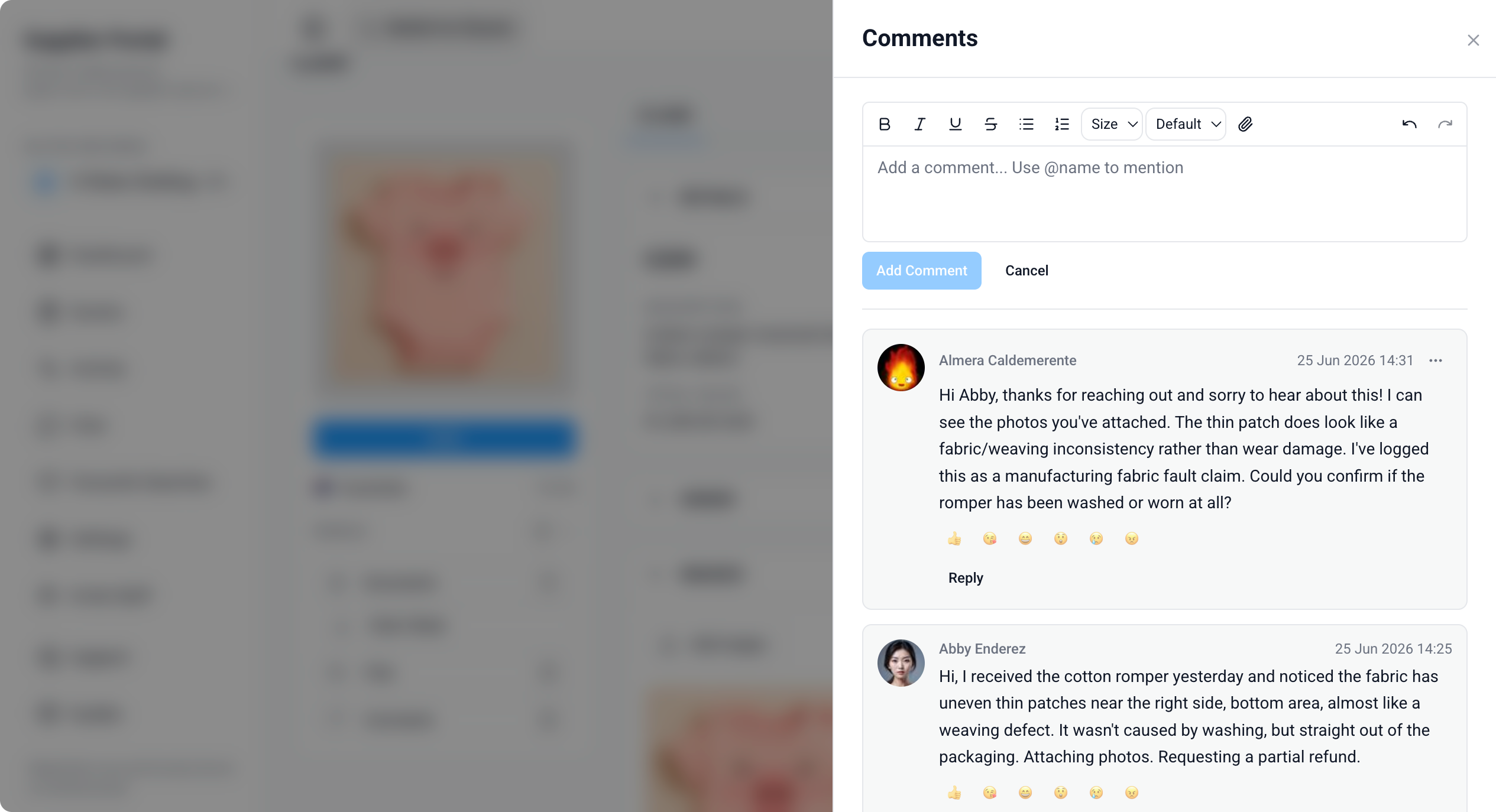 |
Details
The Details section is view-only. It displays core claim information your customer's instance users maintain on the Production Portal.
At the top of the section, the claim number, Created By, and creation date stamp help you confirm you are reviewing the correct record.
Supplier Portal > Claim > Details 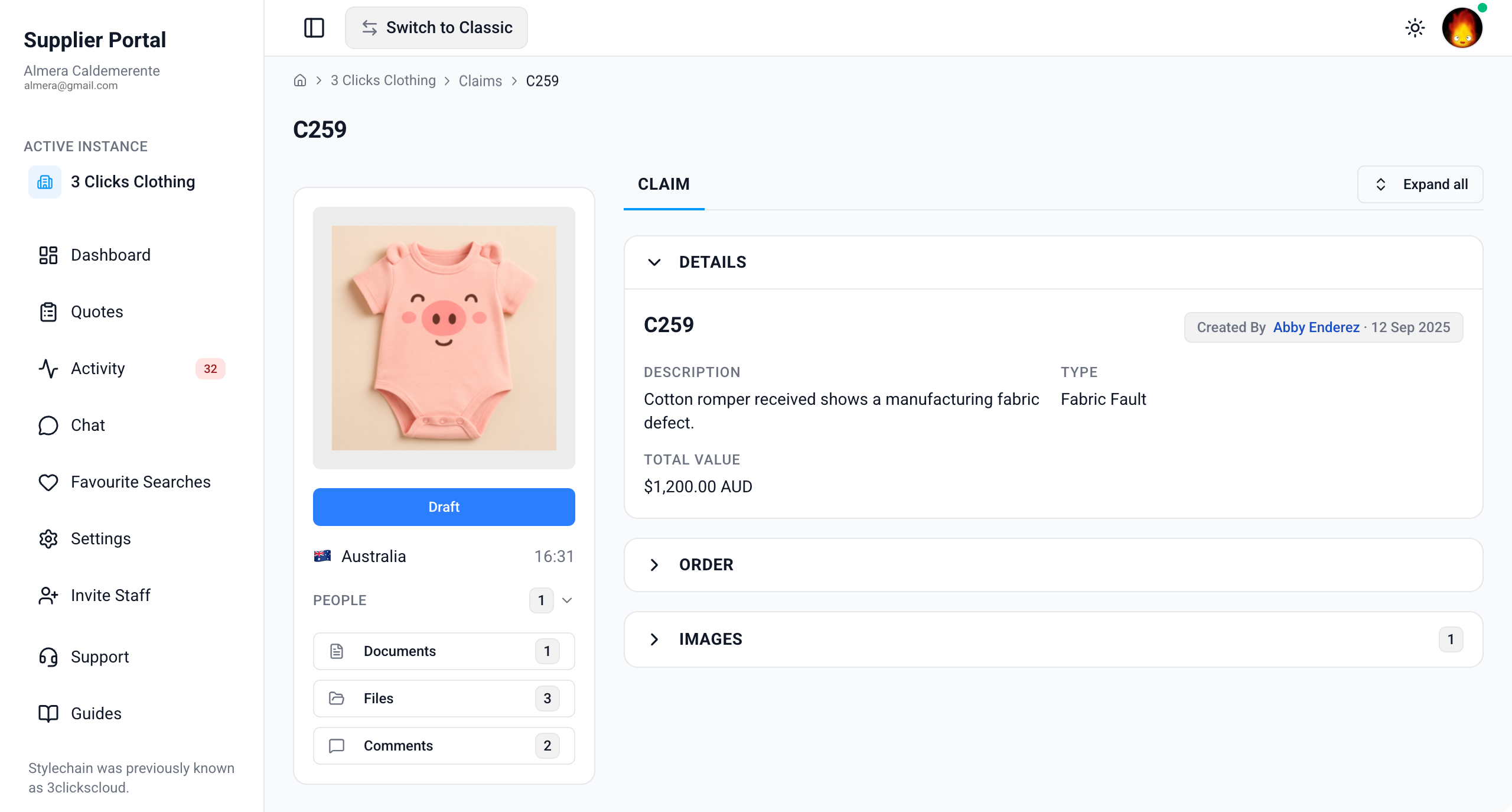
| Field | Description |
|---|---|
| Claim No. | The unique claim identifier assigned by your customer's system. |
| Description | A brief summary explaining the nature of the claim (for example, Wrong fabric supplied or Short shipment). |
| Type | The categorisation of the claim (for example, Fabric Fault or Quality Issue). Options are configured by your customer in Site Settings › Claim › Type. |
| Total Value | The total financial amount being claimed, shown in the site-configured currency. |
Confirm the Right Claim
You only see claims your customer has shared with your supplier account and assigned to your organisation as the Factory or Agent. If a field looks incorrect, contact your instance user because you cannot edit Details directly in the Supplier Portal.
Order
The Order section is view-only. When your customer raised the claim from an order, this section displays key order context so you can trace the issue back to the original transaction without leaving the claim record.
Use Order together with Details to confirm which style, factory, agent, and buy price apply to the dispute or recovery request.
Supplier Portal > Claim > Order 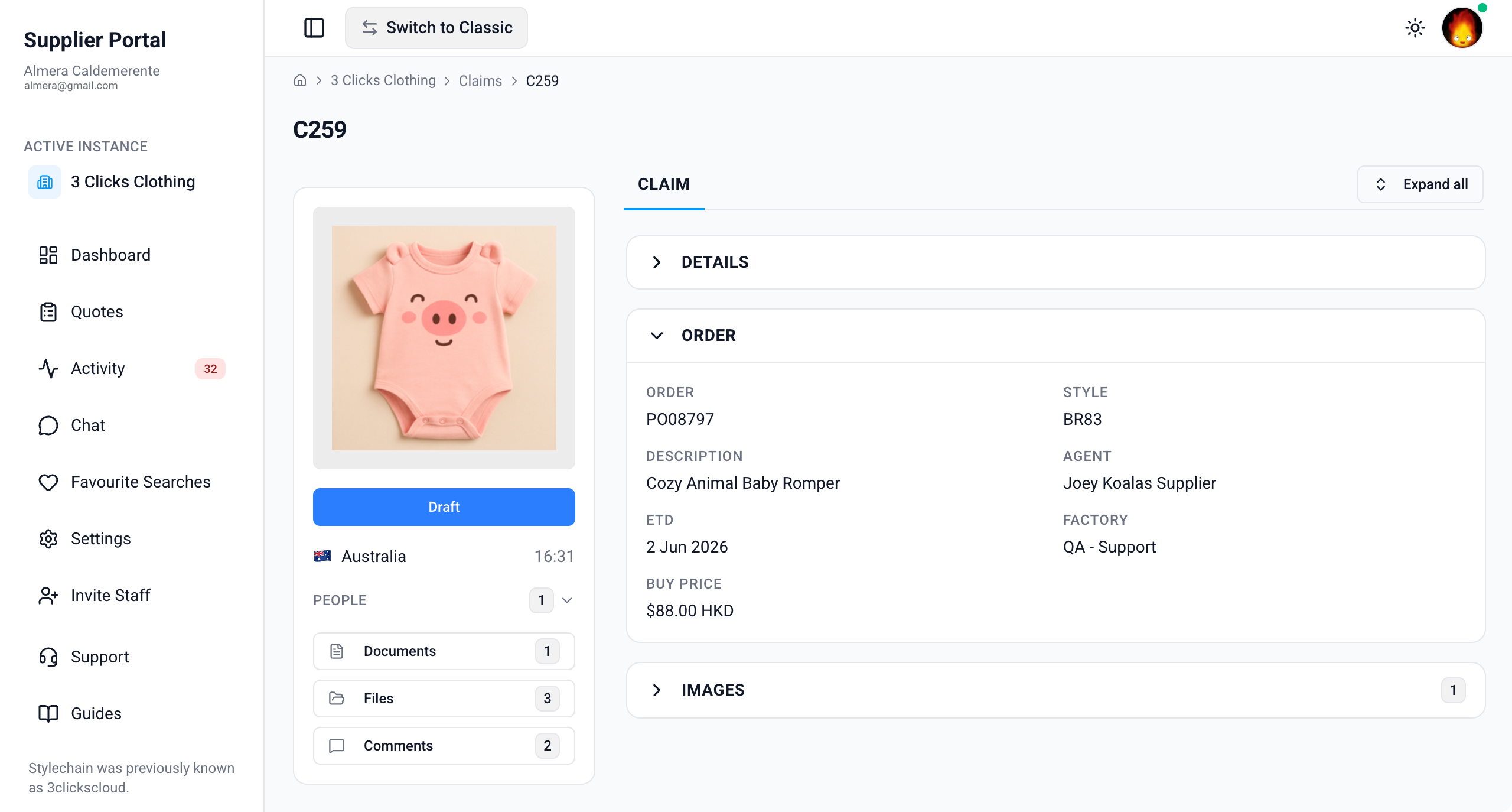
| Field | Description |
|---|---|
| Order | The order name or number linked to the claim. |
| Style | The style name or number included on the linked order. |
| Description | The description from the linked order or style context. |
| Agent | The agent supplier assigned to the linked order. |
| Factory | The factory supplier assigned to manufacture the linked order. |
| ETD | Estimated time of departure for the linked order. Use this to align claim discussions with the original shipment timeline. |
| Buy Price and Currency | The original buy price and currency from the linked order. |
Order Section May Be Empty on Manual Claims
The Order section is populated when your customer created the claim from an order in 3 Clicks Cloud. For manually created claims with no order link, order fields may not appear. Ask your instance user for order or style references if you need additional context.
Images
The Images section lets you upload visual evidence to support the claim and review images your customer's team has already attached. Unlike Details and Order, suppliers can add images here when the claim is shared with your account.
Use this section to document defects, quantity shortfalls, labelling issues, or packaging damage with clear photos. Uploaded images support your position in Comments and give your customer's quality or commercial team immediate visual context.
Supplier Portal > Claim > Images 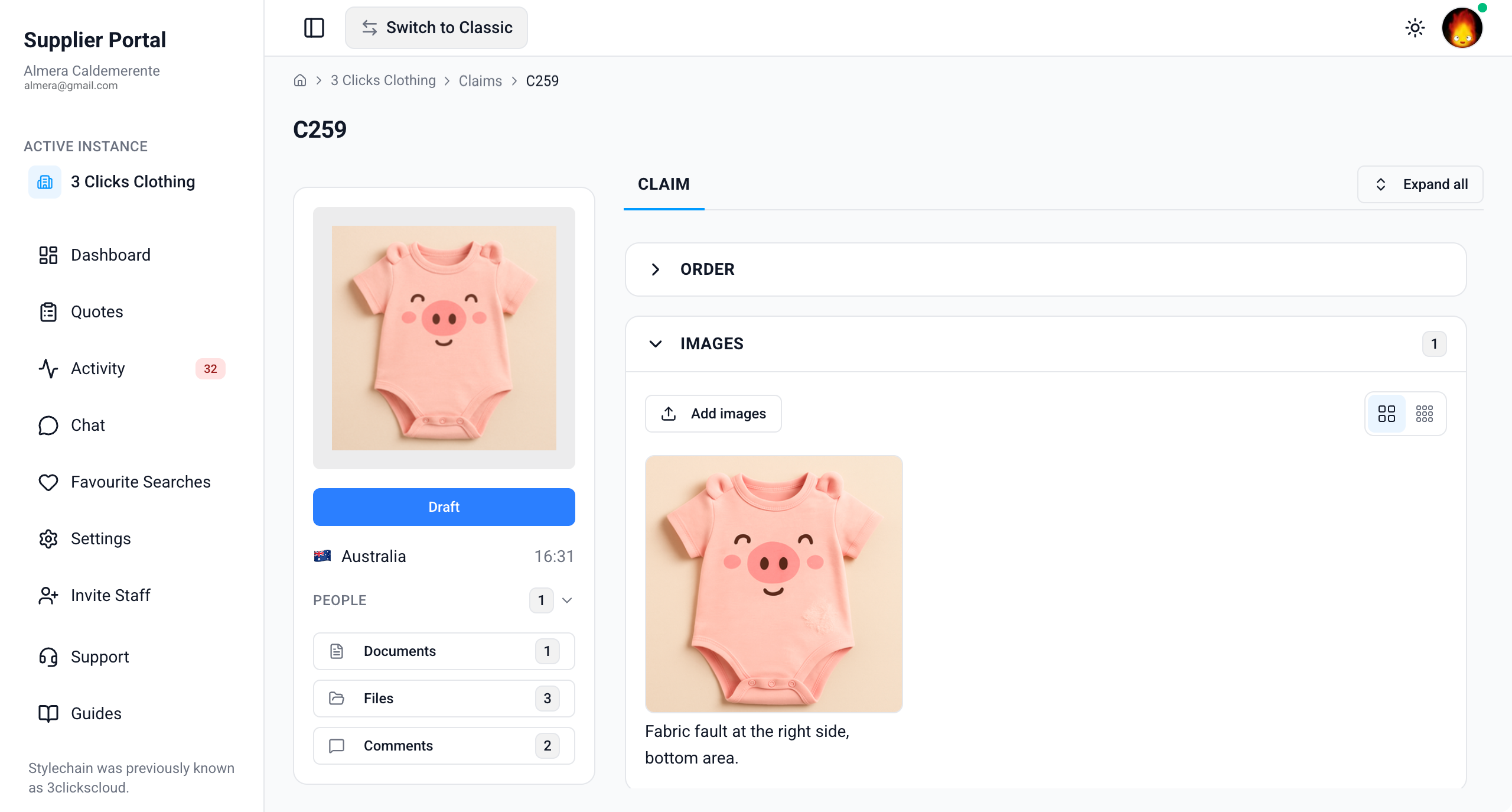
| Action | Description |
|---|---|
| Upload images | Click the Add Images to add one or more image files from your device. Upload clear, high-resolution photos that show the issue. |
| View customer images | Displays images your customer's instance users uploaded on the claim. Review these alongside your own uploads before you respond. |
| Small or large display | Switch between small and large icon views to inspect images the way you prefer. Your preferred display setting is remembered across all applications. |
Strong Visual Evidence
Crop or rotate images before you upload when needed so reviewers can see the defect immediately. Add a short note in Comments referencing which image supports each point in your response.
Sample Scenarios
Refer to these scenarios to understand how suppliers use the Claim record in the Supplier Portal. Each scenario links to related documentation in this portal.
Scenario 1: Quality manager reviewing a new fabric fault claim
A quality manager opens a shared claim to confirm the issue description and linked order before arranging an internal inspection.
| Step | What to do | Related documentation |
|---|---|---|
| 1 | Open the claim from Claims search or Activity and confirm the claim number and Status on the side widget. | Supplier Portal › Claims |
| 2 | Review Details for Description, Type, and Total Value. | Details |
| 3 | Check Order for Style, Factory, Agent, and Buy Price and Currency. | Order |
| 4 | Download the Claim Sheet from Documents when available. | Side Widgets |
| 5 | Ask clarifying questions through Comments if the brief does not match the claim data. | Supplier Portal › Activity |
Scenario 2: Factory uploading defect photos and responding
A factory user documents a workmanship issue with photos and posts a resolution proposal in Comments.
| Step | What to do | Related documentation |
|---|---|---|
| 1 | Open the claim and review images your customer has already uploaded in Images. | Images |
| 2 | Click plus (+) in Images and upload clear photos of the defect from production or inspection. | Images |
| 3 | Switch to large view to verify each image before you post your response. | Images |
| 4 | Post your assessment and proposed remedy in Comments. | Side Widgets |
| 5 | Download supporting files from Files if your customer shared inspection reports or packing lists. | Side Widgets |
Scenario 3: Finance coordinator confirming claim value against the linked order
A finance coordinator cross-checks Total Value on the claim with the original order buy price before approving an internal credit note.
| Step | What to do | Related documentation |
|---|---|---|
| 1 | Review Total Value on Details and note the claim Type. | Details |
| 2 | Compare Buy Price and Currency on Order with the claimed amount. | Order |
| 3 | Export the claim list from Claims search for your finance pack if needed. | Supplier Portal › Claims |
| 4 | Download the Claim Sheet from Documents for audit records. | Side Widgets |
| 5 | Confirm resolution steps with your customer's team in Comments or Chat. | Supplier Portal › Activity |
Next Steps
- Search and monitor shared claims
- Review linked orders
- Review linked styles
- Monitor claim activity and notifications
- Download shared files from the Dashboard
- Configure claim notifications
Related Settings
These Site Settings pages are maintained by your customer's administrators. Share them with your instance user contact if claim visibility, types, or sharing does not match expectations.
- Site Settings › Company › Suppliers
- Site Settings › Claim › General Settings
- Site Settings › Claim › Type
Troubleshooting
Why can I open a claim but not see Details, Order, or Images?
Section visibility depends on your Supplier Portal role, portal display settings, and what your customer has shared on the claim record.
Steps to resolve:
- Confirm whether the section is missing entirely or visible but empty.
- Ask your instance user to verify your Supplier Portal role in Site Settings › Company › Suppliers includes Claim with View enabled.
- Ask them to confirm the claim is assigned to your factory or agent and that an order link exists when you expect Order fields to appear.
- Click Refresh or reopen the claim from Activity after your customer confirms updates.
Why is the Order section empty on my claim?
The Order section is populated when your customer created the claim from an order in 3 Clicks Cloud. Manually created claims may not include order context.
Steps to resolve:
- Confirm the claim Type on Details — Manual claims often have no linked order.
- Ask your instance user for the order or style reference if you need commercial context.
- Check whether a related order is shared separately in Supplier Portal › Orders.
Why can I not download the Claim Sheet or files?
Documents and Files only include outputs and uploads your customer has shared with your supplier account.
Steps to resolve:
- Confirm the Claim Sheet row or Files folder exists on the claim — if it is missing, the summary may not have been generated or shared yet.
- Ask your instance user to generate the claim summary on the Production Portal and confirm file sharing settings.
- Check the Dashboard for files shared at the customer level if the file is not attached to the individual claim.
Why can I not upload images to the claim?
Image upload depends on the claim being shared with your supplier account and your Supplier Portal role including appropriate Claim access.
Steps to resolve:
- Confirm you can open the claim and see the Images section with an upload control.
- Verify the image is in a supported format (for example, JPEG or PNG) and within upload size limits.
- Ask your instance user to confirm the claim is shared with your factory or agent and that your role includes Claim access.
- Refresh the page and retry the upload if a network error interrupted the transfer.
Why can I reply in Comments but not change Status or Details?
Comments support two-way collaboration with your customer's team. Status and Details are maintained by instance users on the Production Portal and are read-only for suppliers.
Steps to resolve:
- Post your resolution, payment confirmation, or questions in Comments.
- Upload supporting photos in Images when visual evidence strengthens your response.
- Ask your instance user to update Status or claim fields after they verify your settlement or investigation outcome.
Why is the Style link on Order not clickable?
Style links are only active when that style is also shared with your supplier account on the same customer connection.
Steps to resolve:
- Confirm the style number matches what your customer referenced on the claim.
- Ask your instance user to share the linked style with your factory or agent if you need the full style record.
- Use Order and Details on the claim for read-only context when the style record is not shared separately.
Why do I not appear under People on the claim card?
People lists instance users — your customer's internal team members assigned to the claim — not supplier portal users.
Steps to resolve:
- Use Comments or Chat to reach your customer's team; supplier staff are not listed in People.
- Ask your instance user contact which internal owner manages the claim if you are unsure who to message.
- Ensure your own team has portal logins via Invite Staff so multiple supplier users can access the shared record.