Compliance
The Compliance record in the Supplier Portal is where you review audits, licences, certifications, and other compliance items your customer has shared with your supplier account. It brings together Details, Audit, and Corrective Action Plan (CAP) in one view so you can confirm compliance attributes, audit context, validity dates, and open remediation items before renewals or production milestones.
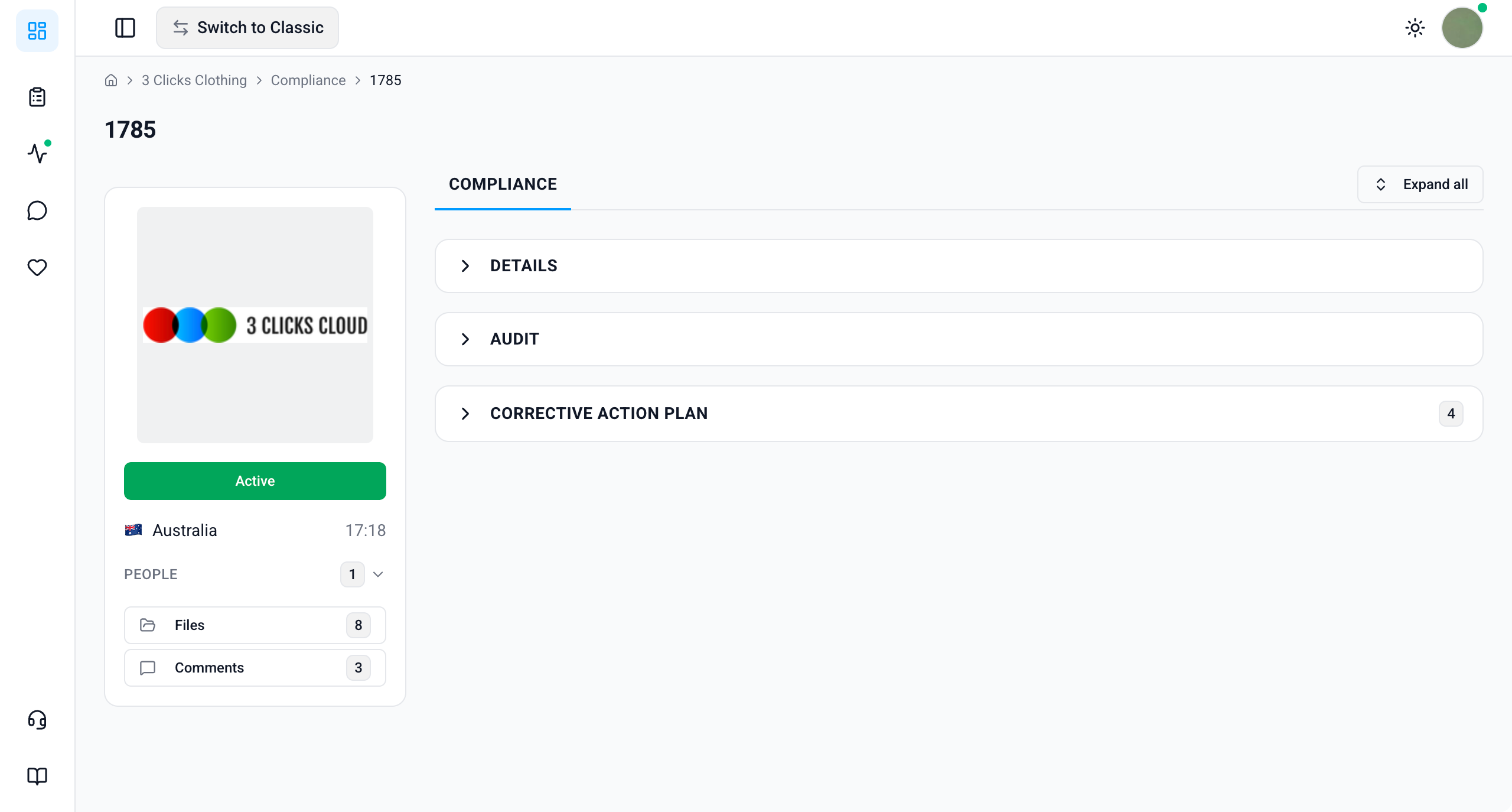
The compliance card also includes side widgets for preview images, status, files, and collaboration context. Details and Audit are view-only. You can mark CAP items complete when your customer has assigned remediation work to your team, and you can reply through Comments on the side widget when the record is shared with your supplier account.
Quick Check - Before You Start
- See Supplier Portal › Compliance for search, filters, and export.
- Confirm you are on the correct customer connection in Active Instance if you work with more than one brand.
- If sections are missing or empty, ask your instance user to verify the compliance record is shared with your factory or agent and that your Supplier Portal role includes Compliance View access.
- Enable Shared Compliance Notification and Compliance Expiration Notification in Profile › Notification Preferences so you are alerted when records are shared or nearing Valid To.
- Treat Status, Valid From, Valid To, and open CAP items as authoritative for audit readiness and whether your customer may share related orders.
View-Only Details and Audit
Details and Audit are read-only in the Supplier Portal. Instance users create and manage compliance header and audit data in the Production Portal. You can mark eligible CAP items complete, download shared files, and collaborate through Comments and Chat when the record is shared with your supplier account.
Side Widgets
The compliance record includes side widgets that give quick context and access to shared files.
| Widget | Description |
|---|---|
| Image Preview | Displays the preview image linked to the supplier on the compliance record — typically your factory or agent logo or profile image. Use it to confirm which supplier organisation the compliance item applies to at a glance. |
| Status | Displays the current compliance status (for example, In Progress, Active, Expired, Cancelled, Terminated, or Disabled). Status reflects the workflow stage your customer's team is managing on the record. |
| Country and Time | Shows the country of the instance user who created or manages the compliance record, together with their current local time in their own timezone. Use this when coordinating audit deadlines, renewal evidence, or CAP remediation across regions. |
| People | Lists the instance users who are members of this compliance record. These are your customer's internal contacts assigned to the record — not supplier staff accounts. |
| Files | Opens the Files pop-up, where you can browse uploaded files and folders for the compliance record. Files here are downloadable when your customer has shared them with your supplier account — for example, audit reports, certificates, or remediation evidence. |
| Comments | Lets you read and reply to messages from your customer's team on the compliance record. Use Comments for questions about audit findings, renewal documentation, CAP timelines, or validity dates. This is the primary two-way collaboration channel on the compliance record. |
Details
The Details section is view-only. It displays core compliance information your customer's instance users maintain on the Production Portal.
At the top of the section, the compliance number, Created By, and creation date stamp help you confirm you are reviewing the correct record.
Supplier Portal > Compliance > Details 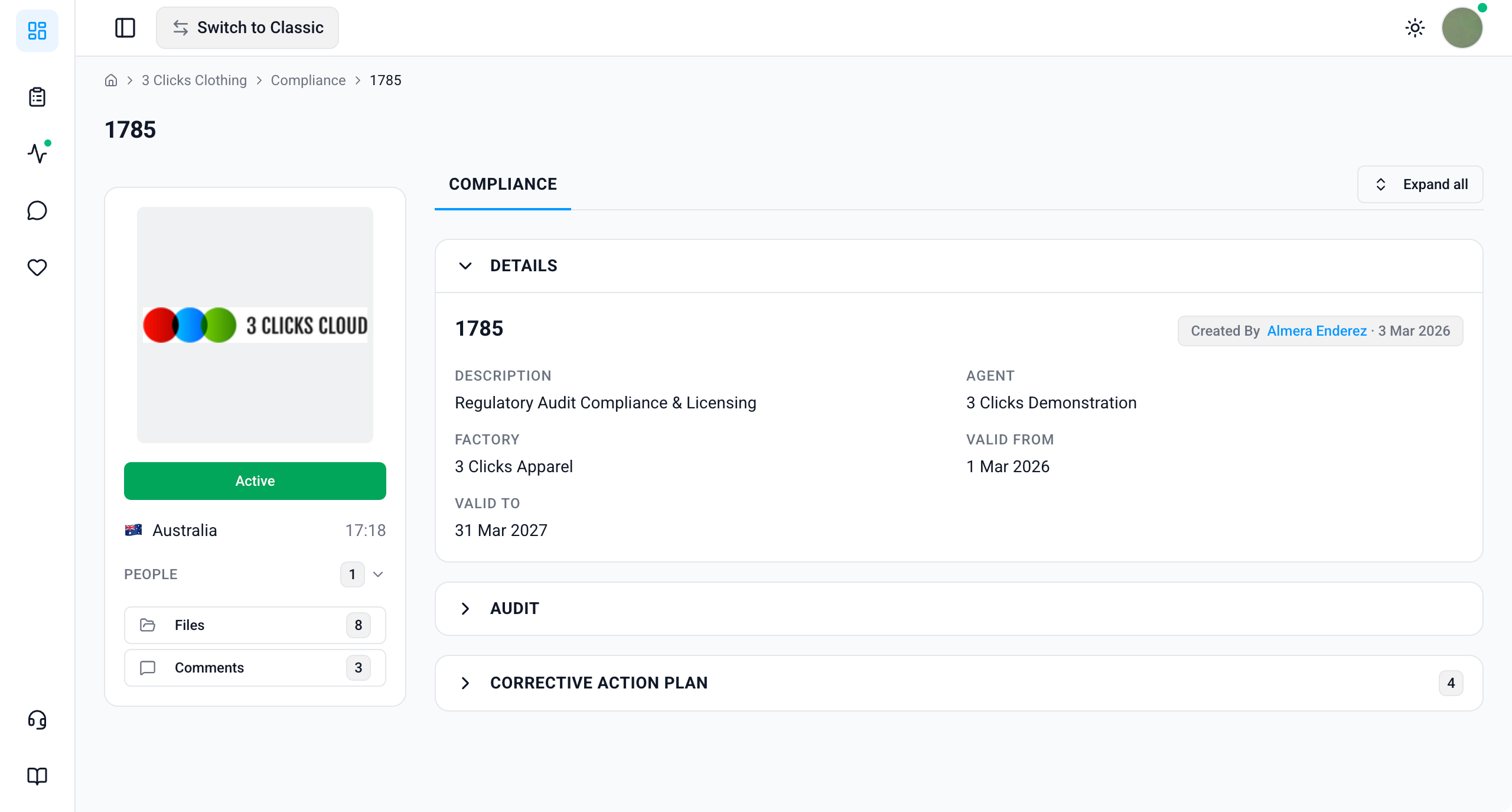
| Field | Description |
|---|---|
| Compliance No. | The unique compliance identifier assigned by your customer's system. |
| Description | A brief summary describing the compliance item (for example, Annual social audit or OEKO-TEX certification). |
| Agent | The agent supplier assigned to the compliance record. |
| Factory | The factory supplier the compliance item applies to — usually your organisation or a specific facility when the record is shared with your supplier account. |
| Valid From | The date from which the compliance item is considered valid. Use this with Valid To to plan renewals before records expire. |
| Valid To | The expiry date for the compliance item. When this date passes, your customer may update Status to Expired and apply order-sharing rules that affect production workflows. |
Confirm the Right Record
You only see compliance records your customer has shared with your supplier account and assigned to your organisation as the Factory or Agent. If a field looks incorrect, contact your instance user because you cannot edit Details directly in the Supplier Portal.
Audit
The Audit section is view-only. When the compliance record is an audit type, this section displays audit metadata your customer's team maintains on the Production Portal so you can trace the audit back to the correct customer, auditor, and audit code without leaving the compliance record.
Use Audit together with Details to confirm which factory, validity window, and audit reference apply before you respond to findings or close CAP items.
Supplier Portal > Compliance > Audit 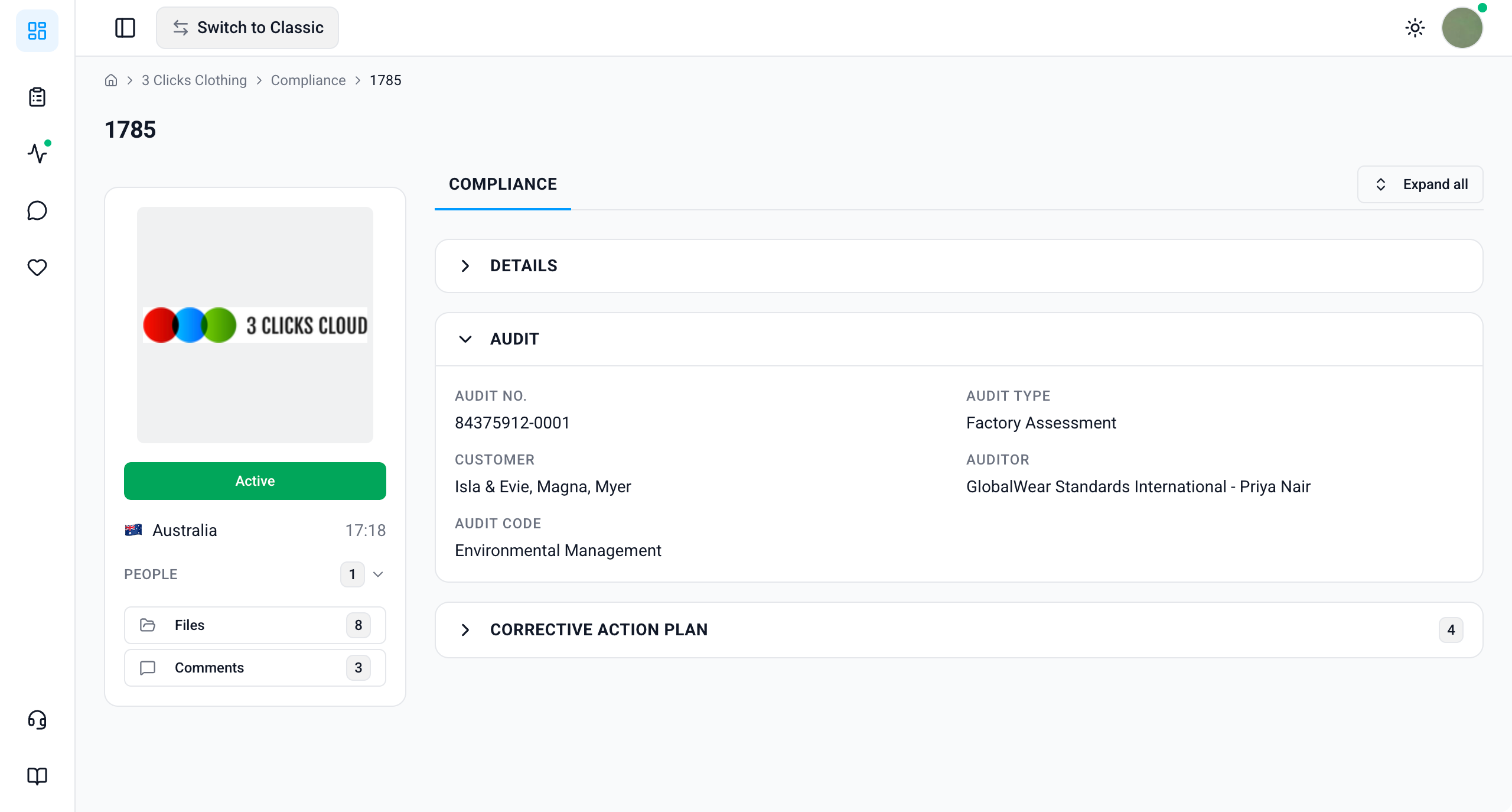
| Field | Description |
|---|---|
| Audit No. | The audit reference number for the compliance record. |
| Audit Type | The type of audit (for example, Social, Technical, or Environmental). Options are configured by your customer. |
| Customer/s | The customer or customers the audit applies to on your customer's instance. |
| Auditor | The auditor or auditing organisation assigned to the audit. |
| Audit Code | The audit code used to classify or report the audit within your customer's compliance framework. |
Audit Section May Not Appear on All Record Types
The Audit section is shown for audit-type compliance records. Licence, certification, or other compliance types may not display every audit field. Ask your instance user for audit context if you expected fields that are not visible on the record.
Corrective Action Plan
The Corrective Action Plan (CAP) section lists remediation items your customer's team raised from audit findings or compliance gaps. Each row describes what must be fixed, how severe the issue is, and whether the action has been completed.
Unlike Details and Audit, you can mark CAP items complete in the Supplier Portal when your customer has shared the record with your supplier account and assigned remediation work to your team. When you mark an item complete, the Completed column records who closed the action and the date stamp.
Supplier Portal > Compliance > Corrective Action Plan 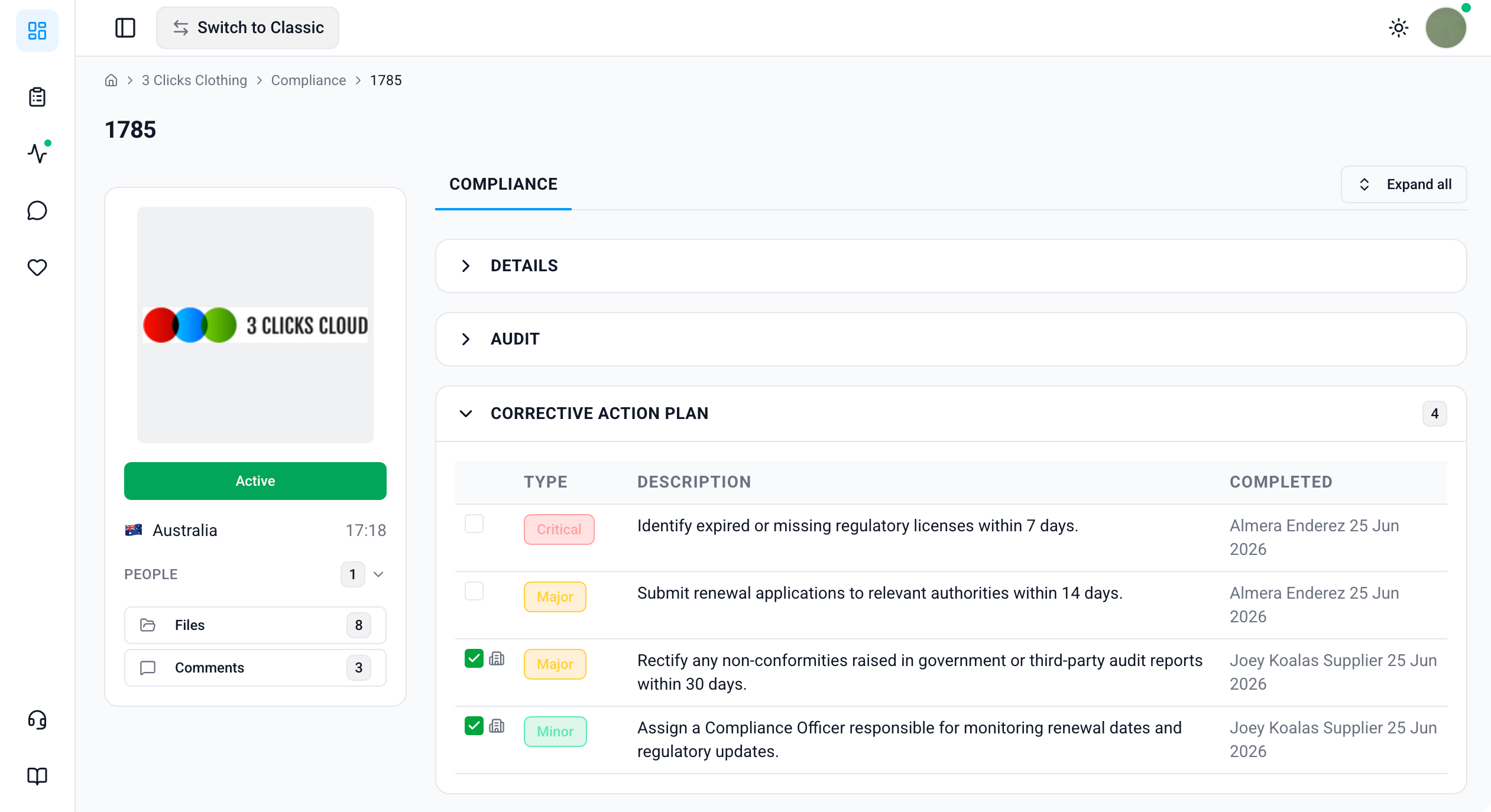
| Column | Description |
|---|---|
| Type | The severity of the finding: Critical, Major, or Minor. Prioritise Critical and Major items before lower-severity actions when planning remediation. |
| Description | A summary of the issue or the corrective action required. Read each description carefully before you mark an item complete or post evidence in Comments. |
| Completed | Shows who marked the item complete and the completion date stamp. Empty until the action is closed. |
| Action | Description |
|---|---|
| Mark complete | Click the completion control on a CAP row when remediation is finished and verified on your side. The Completed column updates with your user name and the date. |
| Post evidence in Comments | When you cannot mark an item complete yet, upload supporting files through Files (when shared) and describe progress in Comments so your customer's compliance team can review before closure. |
Only Mark Complete When Remediation Is Done
Marking a CAP item complete tells your customer's team the corrective action is finished. Do not close items prematurely — confirm the finding is resolved, evidence is available if requested, and your internal sign-off is complete before you tick the row.
Sample Scenarios
Refer to these scenarios to understand how suppliers use the Compliance record in the Supplier Portal. Each scenario links to related documentation in this portal.
Scenario 1: Compliance coordinator reviewing a shared audit before renewal
A compliance coordinator opens a shared audit record to confirm validity dates and audit references before arranging renewal documentation.
| Step | What to do | Related documentation |
|---|---|---|
| 1 | Open the compliance record from Compliance search or Activity and confirm the compliance number and Status on the side widget. | Supplier Portal › Compliance |
| 2 | Review Details for Factory, Agent, Valid From, and Valid To. | Details |
| 3 | Check Audit for Audit No., Audit Type, Auditor, and Audit Code. | Audit |
| 4 | Download audit reports or certificates from Files when your customer has shared them. | Side Widgets |
| 5 | Ask clarifying questions through Comments if validity or audit data does not match your records. | Supplier Portal › Activity |
Scenario 2: Factory closing CAP items after remediation
A factory user completes on-site corrective work and marks CAP rows complete after internal verification.
| Step | What to do | Related documentation |
|---|---|---|
| 1 | Open the compliance record and review open CAP rows sorted by Type — address Critical and Major items first. | Corrective Action Plan |
| 2 | Confirm each Description matches the remediation your team completed. | Corrective Action Plan |
| 3 | Upload remediation evidence to Files or reference existing shared documents when your customer requires proof. | Side Widgets |
| 4 | Mark each resolved row complete so Completed shows your user name and date stamp. | Corrective Action Plan |
| 5 | Post a summary in Comments when all assigned CAP items for your factory are closed. | Side Widgets |
Scenario 3: Quality manager monitoring expiry and order impact
A quality manager checks whether an approaching Valid To date and open CAP items may affect order sharing with the factory.
| Step | What to do | Related documentation |
|---|---|---|
| 1 | Filter shared compliance records by Status in Compliance search and note any Expired or soon-to-expire items. | Supplier Portal › Compliance |
| 2 | Open the record and confirm Valid To on Details. | Details |
| 3 | Review the CAP column summary in search, then open the full Corrective Action Plan for open items. | Corrective Action Plan |
| 4 | Contact your instance user through Comments or Chat if renewal or remediation is still in progress near the expiry date. | Supplier Portal › Activity |
| 5 | Cross-check related shared orders if production timing depends on compliance validity. | Supplier Portal › Orders |
Next Steps
- Search and monitor shared compliance records
- Review linked orders
- Monitor compliance activity and notifications
- Download shared files from the Dashboard
- Configure compliance notifications
What to Ask Your Instance User
If compliance visibility, sharing, or CAP access does not match expectations, share these configuration areas with your customer's administrators. They manage these in Site Settings on the Production Portal:
- Site Settings › Company › Suppliers — Supplier Portal roles and Compliance View access
- Site Settings › Compliance › General Settings — compliance workflow, sharing, and validity rules
- Site Settings › Portal › General Settings — which compliance sections and documents appear in the Supplier Portal
Troubleshooting
Why can I open a compliance record but not see Details, Audit, or Corrective Action Plan?
Section visibility depends on your Supplier Portal role, portal display settings, and what your customer has shared on the compliance record.
Steps to resolve:
- Confirm whether the section is missing entirely or visible but empty.
- Ask your instance user to verify your Supplier Portal role includes Compliance with View enabled.
- Ask them to confirm the record is assigned to your factory or agent and that audit metadata and CAP rows exist on the Production Portal record.
- Click Refresh or reopen the record from Activity after your customer confirms updates.
Why is the Audit section empty on my compliance record?
The Audit section is populated for audit-type compliance records. Other compliance types may not include audit fields.
Steps to resolve:
- Confirm the record Type with your instance user if you expected audit metadata.
- Review Details for Description, Factory, and validity dates for context when audit fields are not shown.
- Ask for audit reference numbers or reports through Comments if the portal record is incomplete for your review.
Why can I see CAP items but not mark them complete?
CAP completion in the Supplier Portal depends on the record being shared with your supplier account and your role including permission to update remediation items.
Steps to resolve:
- Confirm you can open the Corrective Action Plan section and see a completion control on each open row.
- Post progress updates in Comments if rows are read-only on your account.
- Ask your instance user to confirm CAP items are assigned to your factory or agent and that your Supplier Portal role allows CAP updates.
- Refresh the page and retry after your customer confirms permission changes.
Why can I reply in Comments but not change Details, Audit, or Status?
Comments support two-way collaboration with your customer's team. Details, Audit, and Status are maintained by instance users on the Production Portal and are read-only for suppliers.
Steps to resolve:
- Post questions, renewal evidence, or remediation updates in Comments.
- Mark resolved CAP items complete when your role allows it.
- Ask your instance user to update Status, validity dates, or audit fields after they verify your submission.
Why does Status show Expired when I thought the certificate was still valid?
Your customer may set Expired automatically when Valid To has passed, even if renewal work is already underway.
Steps to resolve:
- Open Details and confirm Valid From and Valid To.
- Contact your instance user to confirm whether a replacement record will be created or dates will be extended.
- Do not assume an Expired record still satisfies your customer's order-sharing rules — ask whether shared orders are affected.
Why can I not download files from the compliance record?
Files only include uploads your customer has shared with your supplier account.
Steps to resolve:
- Confirm the Files folder or document exists on the record — if it is missing, the audit report or certificate may not have been uploaded or shared yet.
- Ask your instance user to upload the document on the Production Portal and confirm file sharing settings.
- Check the Dashboard for files shared at the customer level if the file is not attached to the individual compliance record.
Why do I not appear under People on the compliance card?
People lists instance users — your customer's internal team members assigned to the compliance record — not supplier portal users.
Steps to resolve:
- Use Comments or Chat to reach your customer's team; supplier staff are not listed in People.
- Ask your instance user contact which internal owner manages the compliance record if you are unsure who to message.
- Ensure your own team has portal logins via Invite Staff so multiple supplier users can access the shared record.