Costing
The Costing record in the Supplier Portal is where you review cost sheets and quote requests your customer has shared with your supplier account. It brings together Details, Style, and Notes in one view so you can confirm costing attributes, style context, colourway quantities, component breakdowns, and buy prices before your customer reviews or awards the quote.
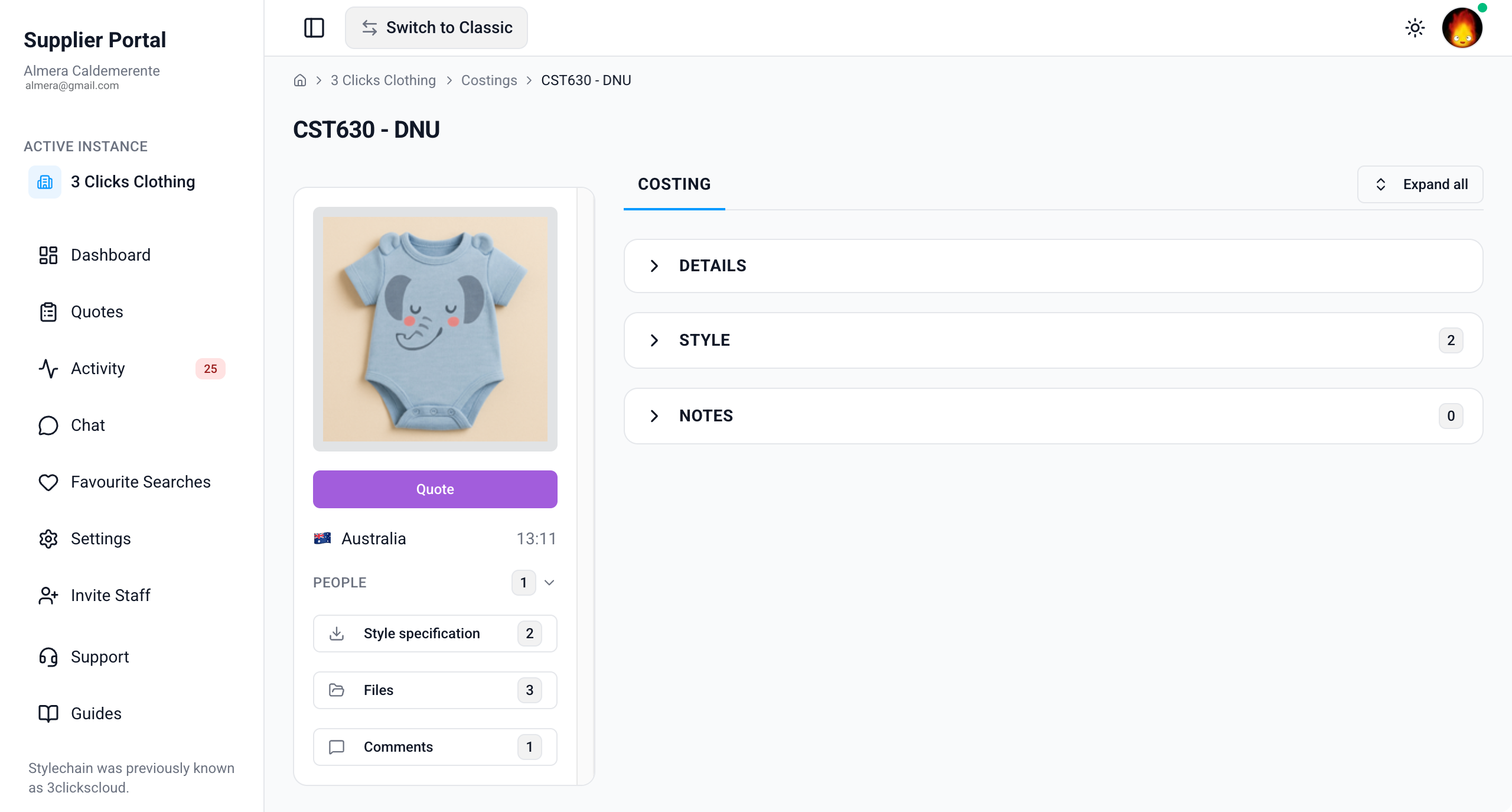
The costing card also includes side widgets for preview images, status, documents, files, and collaboration context. Details and Notes are view-only. Your customer may enable component and price editing on the Style section so you can enter unit costs, quantities, and buy prices directly on the costing record, or direct you to the Quotes workspace instead.
Quick Check - Before You Start
- See Supplier Portal › Costings for search, filters, and export.
- Confirm you are on the correct customer connection in Active Instance if you work with more than one brand.
- If sections are missing or empty, ask your instance user to verify the costing is shared with your factory or agent and that your Supplier Portal role includes Costing View access.
- Understand the difference between Comments on the side widget (two-way collaboration) and Notes on the costing record (read-only messages from your customer's team).
Editing Depends on Your Customer's Configuration
Details and Notes are read-only in the Supplier Portal. Instance users create and update costing header data in the Production Portal. Component and buy-price entry may be available on the Style section when your customer enables supplier editing — otherwise use Supplier Portal › Quotes for quote entry.
Side Widgets
The costing includes side widgets that give quick context and access to shared files and documents.
| Widget | Description |
|---|---|
| Image Preview | Displays the style preview image linked to the costing. Use it to identify the product at a glance. |
| Status | Displays the current costing status (for example, Draft, Quote, or Completed). |
| Country and Time | Shows the country of the instance user who created the costing, together with their current local time in their own timezone. Use this when coordinating quote deadlines or hand-offs across regions. |
| People | Lists the instance users who are members of this costing. These are your customer's internal contacts assigned to the record, not supplier staff accounts. |
| Style Specification | Provides a downloadable copy of the Style Specification document when your customer's team has generated it from the Production Portal. |
| Files | Opens the Files pop-up, where you can browse uploaded files and folders for the costing. Files here are downloadable when your customer has shared them with your supplier account. |
| Comments | Lets you read and reply to messages from your customer's team on the costing record. Use Comments for questions about pricing, MOQs, lead times, or component assumptions. This is separate from the Notes section. |
Comments vs Notes
Comments on the side widget support two-way collaboration between your supplier account and your customer's team. Notes on the costing record are written by instance users and displayed read-only. You cannot reply in Notes. Use Comments when you need a response.
Details
The Details section is view-only. It displays core costing information your customer's instance users maintain on the Production Portal.
At the top of the section, the costing number, Created By, and creation date stamp help you confirm you are reviewing the correct record.
Supplier Portal > Costing > Details 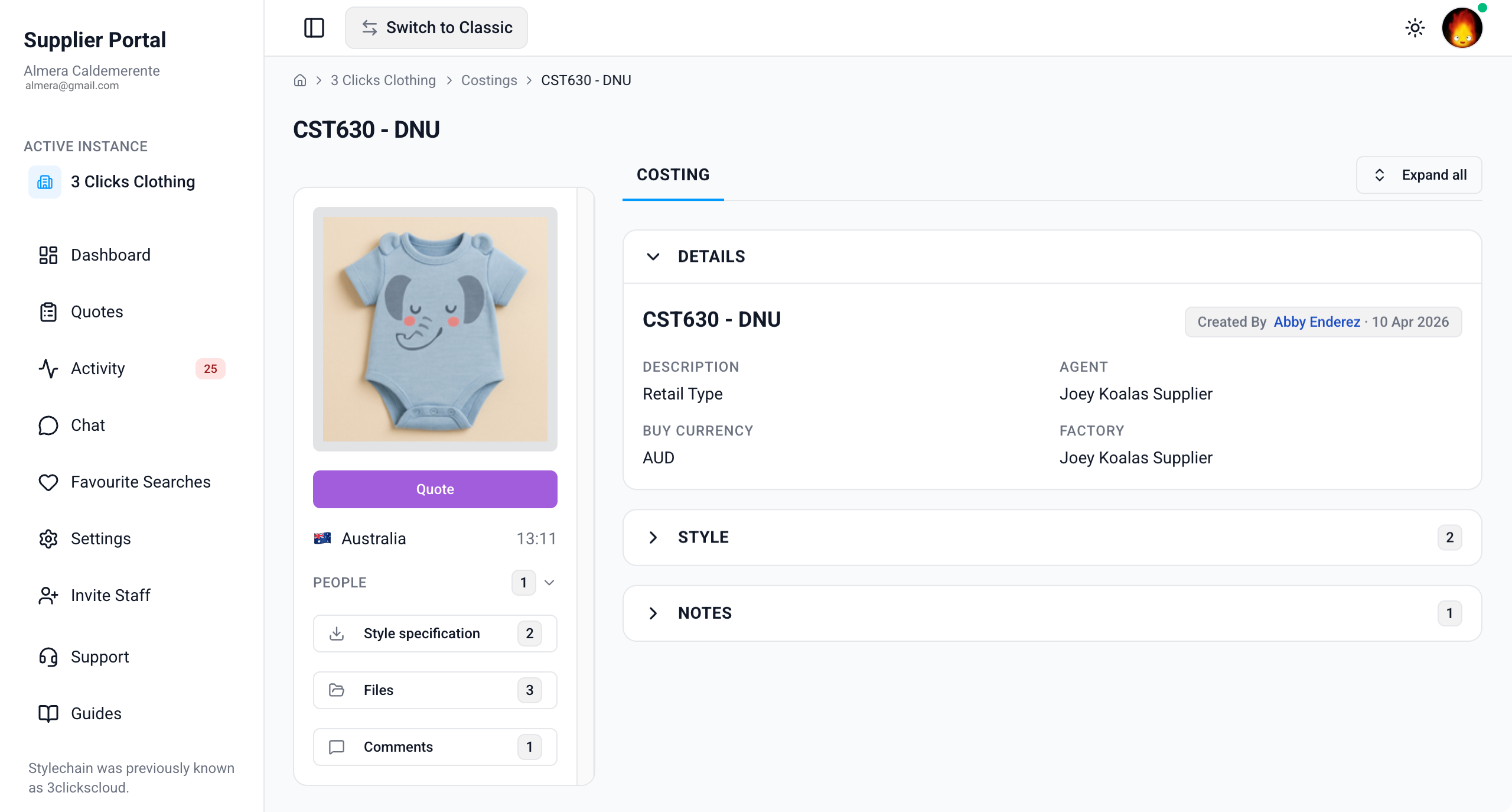
| Field | Description |
|---|---|
| Costing No. | The unique costing identifier assigned by your customer's system. |
| Description | A brief description of the costing or quote request. |
| Agent | The agent supplier assigned to help coordinate the costing. |
| Factory | The factory supplier assigned to quote and manufacture the linked styles. |
| Buy Currency | The currency your customer expects buy prices to be entered in for this costing. |
Confirm Your Assignment
You only see costings your customer has shared with your supplier account and assigned to your organisation as the Factory or Agent. If a field looks incorrect, contact your instance user because you cannot edit Details directly in the Supplier Portal.
Style
The Style section displays each style linked to the costing. Data is pulled from the styles your customer has added to the costing on the Production Portal. Switch between List and Grid views to review styles as a table or as visual cards.
Use this section to confirm style context, estimated quantities, target buy values, colourway breakups, component costs, and entered buy prices before you submit or revise a quote.
Supplier Portal > Costing > Style 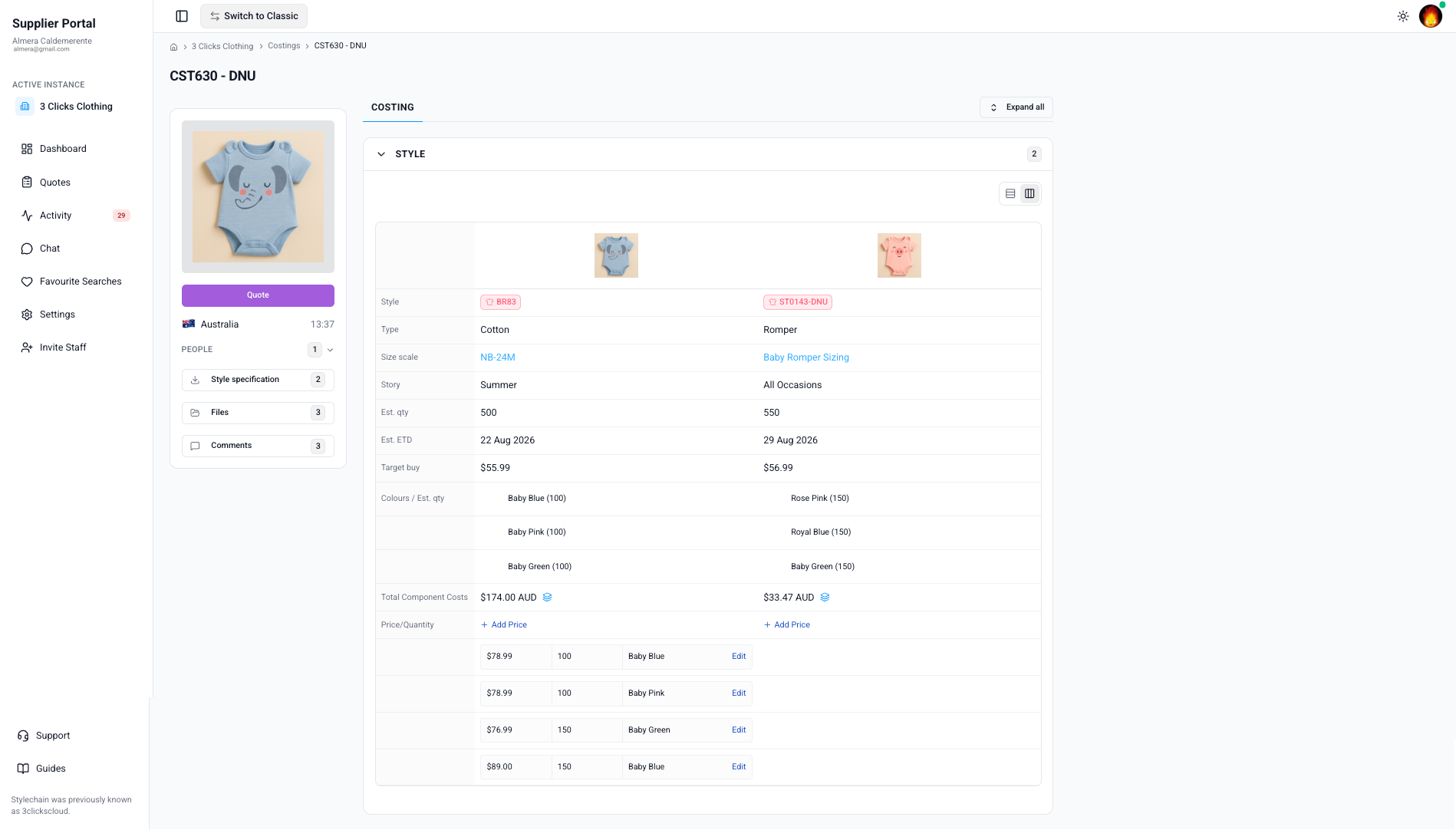
| Field | Description |
|---|---|
| Preview Image | The style preview image for quick visual identification. |
| Style Number | The style identifier. Clickable when that style is also shared with your supplier account on the same customer connection — opens the Supplier Portal › Style record. |
| Type | The product or style type. |
| Size Scale | The size scale used for sizing and grading on the style. |
| Story | The theme or story behind the style. |
| Est. Qty | The estimated quantity your customer expects you to quote against for the style. |
| Est. ETD | Estimated time of departure for the style on the costing. Use this to prioritise quote work against production timelines. |
| Target Buy | The target buy price your customer is working toward, when visible. |
| Colours / Est. Qty | Colourway rows with estimated quantities per colour — use this to confirm which colour options are in scope for the quote. |
| Total Component Costs | The rolled-up component cost for the style. When supplier editing is enabled, click to open the Components pop-up and update unit measures, unit prices, and quantities. Components Included, Price, and Total (with currency) are read-only and calculated from your entries. |
| Price / Quantity | The buy price and quantity entered for the style or colourway. When editing is enabled, click to open the Add Costing Price pop-up. |
Components Pop-up
When your customer enables supplier component editing, click Total Component Costs on a style row to open the Components pop-up.
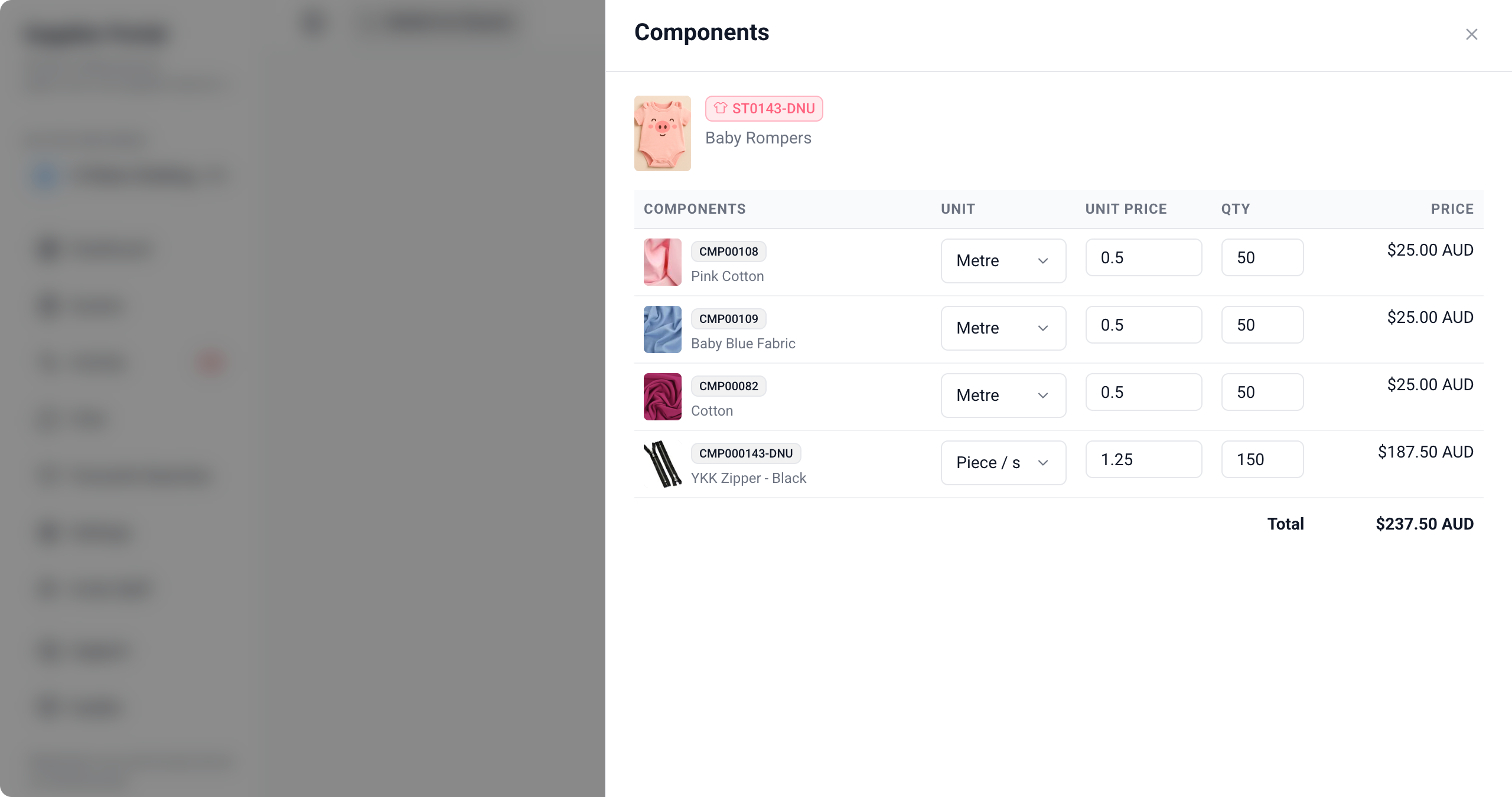
| Field | Description |
|---|---|
| Components Included | Lists the components on the costing style. This is view-only. |
| Unit | The unit of measure for the component. Editable when supplier component editing is enabled. |
| Unit Price | The price per unit for the component. Editable when supplier component editing is enabled. |
| Qty | The quantity applied to the component line. Editable when supplier component editing is enabled. |
| Price | The line price. Read-only — calculated from unit, unit price, and quantity. |
| Total | The total component cost for the style, shown with the costing Buy Currency. Read-only. |
Save your changes in the pop-up so the Total Component Costs column reflects your updated breakdown.
Add Costing Price Pop-up
When your customer enables supplier price entry on the costing record, click Price / Quantity on a style row to open the Add Costing Price pop-up.
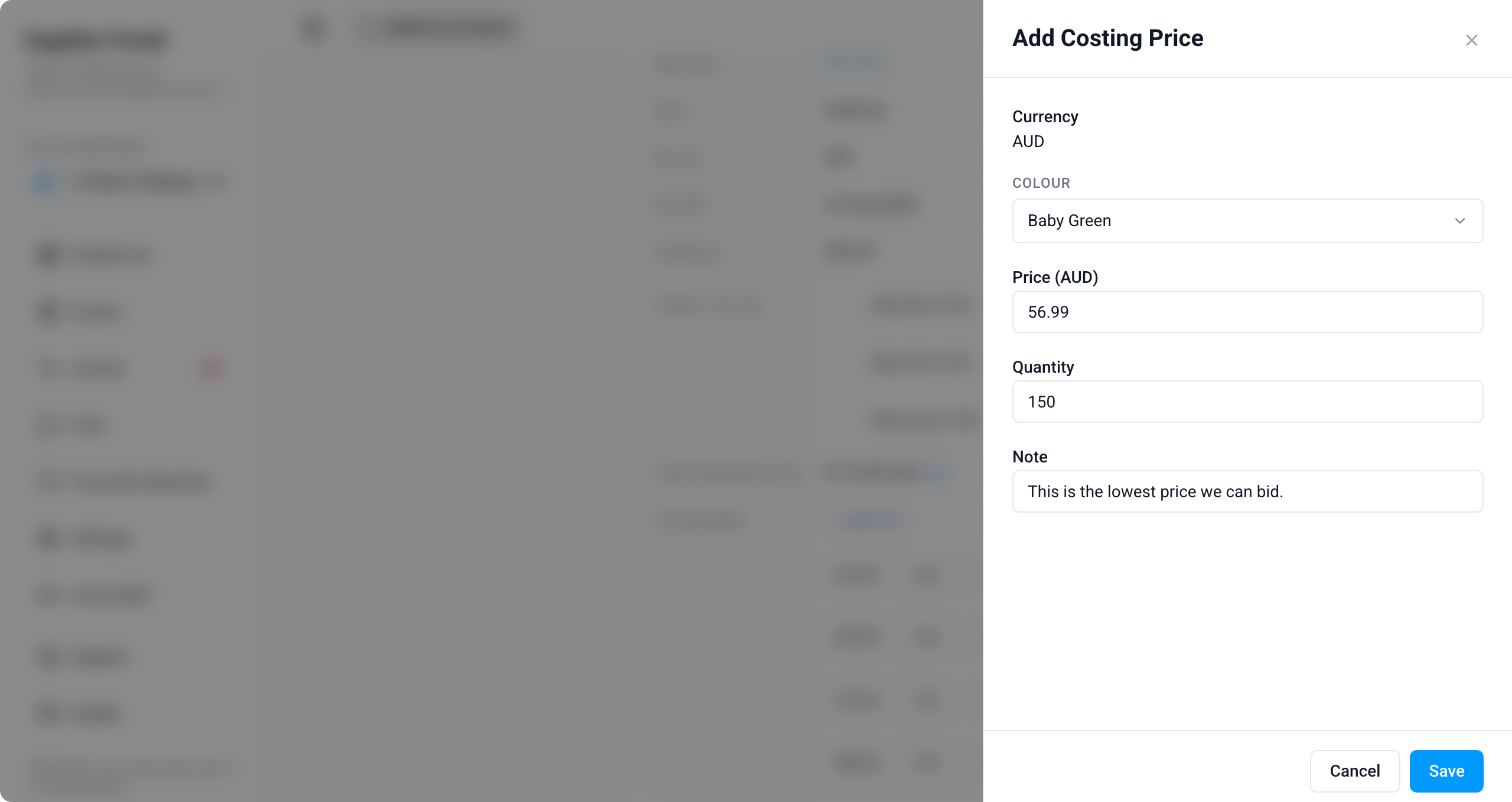
| Field | Description |
|---|---|
| Currency | The buy currency for the price — matches Buy Currency on Details. |
| Colour | Select the colourway the price and quantity apply to. |
| Price | Enter the buy price for the selected colourway. |
| Quantity | Enter the quantity the price applies to. |
| Note | Optional context for your customer's team (for example, MOQ assumptions or lead-time conditions). |
| Save / Cancel | Save stores the price and quantity on the costing. Cancel discards unsaved changes. |
Component and Price Editing Is Controlled by Your Customer
If component or price fields are missing or read-only, your customer may have disabled supplier editing in Site Settings › Costing › General Settings. Until editing is enabled, communicate pricing and component assumptions through Comments or Chat.
Notes
The Notes section displays messages your customer's production portal users have posted on the costing through the costing side widgets on the Production Portal. Notes are view-only in the Supplier Portal: you can read them but cannot reply, edit, or add new notes in this section.
This is different from Comments on the side widget, which supports two-way collaboration with your customer's team. Use Comments when you need to ask a question or respond to a message.
Supplier Portal > Costing > Notes 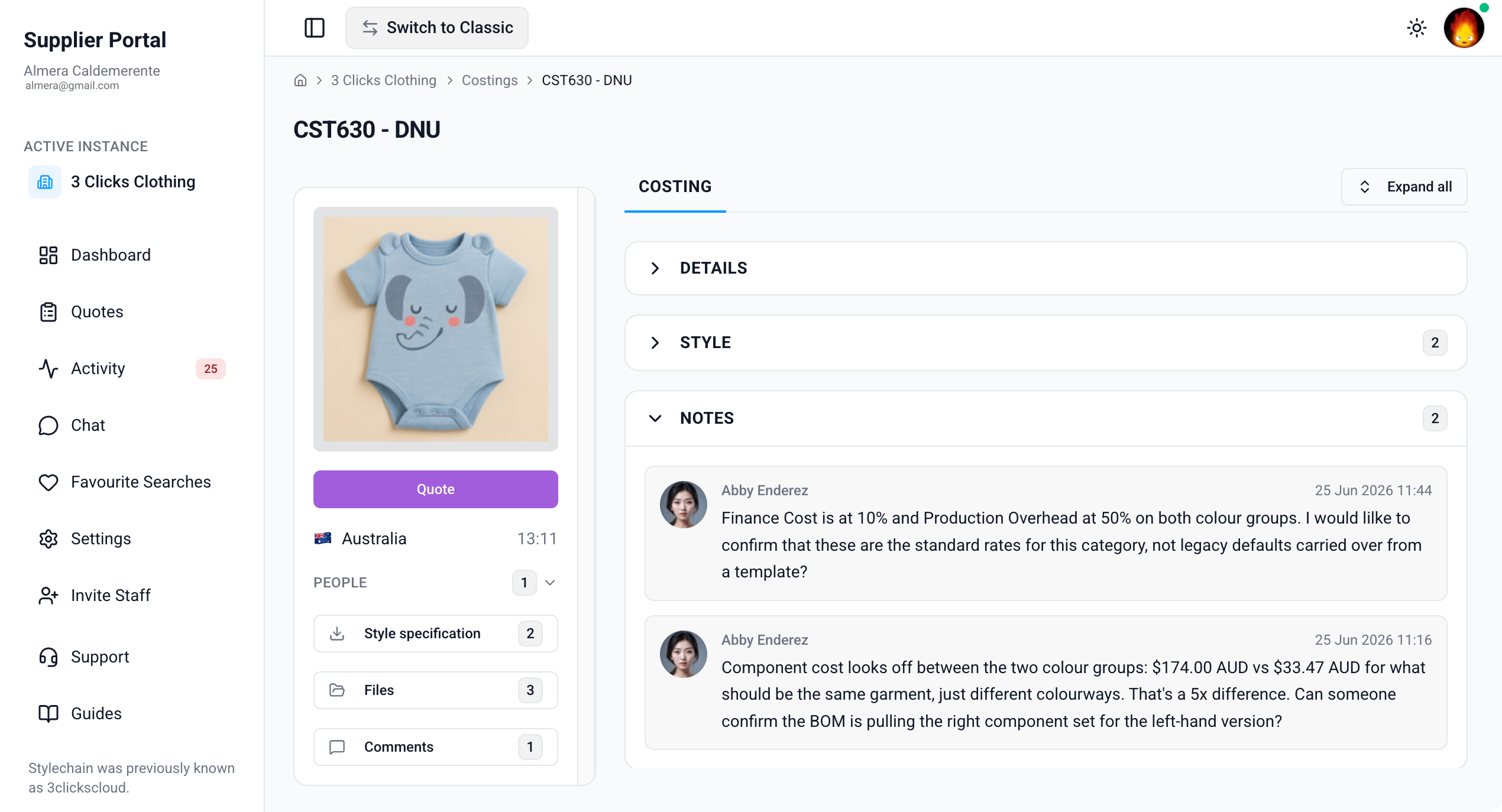
Sample Scenarios
Refer to these scenarios to understand how suppliers use the Costing record in the Supplier Portal. Each scenario links to related documentation in this portal.
Scenario 1: Commercial coordinator reviewing a new quote request
A commercial coordinator opens a shared costing to confirm style context and buy currency before entering prices.
| Step | What to do | Related documentation |
|---|---|---|
| 1 | Open the costing from Costings search or Activity and confirm the costing number and Status on the side widget. | Supplier Portal › Costings |
| 2 | Review Details for Factory, Agent, and Buy Currency. | Details |
| 3 | Check the Style section for Est. Qty, Est. ETD, Target Buy, and colourway quantities. | Style |
| 4 | Download the Style Specification from side widget Documents when available. | Side Widgets |
| 5 | Ask questions through Comments if the brief does not match the costing data. | Supplier Portal › Activity |
Scenario 2: Factory entering component costs and buy prices
A factory user updates component breakdowns and colourway buy prices on a costing when supplier editing is enabled.
| Step | What to do | Related documentation |
|---|---|---|
| 1 | Open the costing and go to Style in List or Grid view. | Style |
| 2 | Click Total Component Costs and update Unit, Unit Price, and Qty in the Components pop-up. | Components Pop-up |
| 3 | Click Price / Quantity and enter Price, Quantity, and an optional Note for each colourway. | Add Costing Price Pop-up |
| 4 | If fields are read-only, switch to Quotes to complete quote rows instead. | Supplier Portal › Quotes |
| 5 | Post a summary in Comments when your quote is ready for customer review. | Side Widgets |
Scenario 3: Merchandiser cross-checking a style before award
A merchandiser confirms linked style details and reads customer instructions before an internal sign-off.
| Step | What to do | Related documentation |
|---|---|---|
| 1 | Review Style rows for Type, Size Scale, Story, and Colours / Est. Qty. | Style |
| 2 | Open the linked style from Style Number when shared for fuller product context. | Supplier Portal › Style |
| 3 | Read Notes for instructions posted by your customer's team. | Notes |
| 4 | Compare entered Price / Quantity values with your internal worksheet. | Style |
| 5 | Download reference files from Files on the side widget for the meeting pack. | Side Widgets |
Next Steps
- Enter buy prices in the Quotes workspace
- Search and monitor shared costings
- Review linked styles
- Monitor costing activity and notifications
- Download shared files from the Dashboard
- Configure costing notifications
Related Settings
These Site Settings pages are maintained by your customer's administrators. Share them with your instance user contact if costing visibility, component editing, or price entry does not match expectations.
- Site Settings › Company › Suppliers
- Site Settings › Costing › General Settings
- Site Settings › Portal › General Settings
Troubleshooting
Why can I open a costing but not see Details, Style, or Notes?
Section visibility depends on your Supplier Portal role, portal display settings, and what your customer has shared on the costing record.
Steps to resolve:
- Confirm whether the section is missing entirely or visible but empty.
- Ask your instance user to verify your Supplier Portal role in Site Settings › Company › Suppliers includes Costing with View enabled.
- Ask them to confirm the costing is assigned to your factory or agent and that styles are linked on the Production Portal record.
- Click Refresh or reopen the costing from Activity after your customer confirms updates.
Why can I not edit component costs or buy prices on the Style section?
Component and price editing on the costing record is controlled by your customer in Site Settings › Costing › General Settings. When supplier editing is disabled, the Style section is read-only.
Steps to resolve:
- Confirm whether Total Component Costs and Price / Quantity are missing, greyed out, or open read-only pop-ups.
- Open Supplier Portal › Quotes — your customer may require quote entry there instead.
- Ask your instance user to verify Components supplier editing and price-entry settings if you are expected to update values on the costing.
- Until editing is enabled, communicate pricing through Comments or Chat.
Why is the Style Number not clickable?
Style Number links are only active when that style is also shared with your supplier account on the same customer connection.
Steps to resolve:
- Confirm the style number matches what your customer referenced on the costing.
- Ask your instance user to share the linked style with your factory or agent if you need the full style record.
- Use the Style section on the costing for read-only style context when the style record is not shared separately.
Why can I reply in Comments but not in Notes?
Comments and Notes serve different purposes on the costing. Comments support two-way collaboration with your customer's team. Notes are written by instance users on the Production Portal and are displayed read-only to suppliers.
Steps to resolve:
- Use Comments for questions, clarifications, and quote updates.
- Read Notes for instructions or context your customer has chosen to share with suppliers.
- If you expected a note to appear, ask your instance user to confirm it was posted as a supplier-visible note on the costing.
Why does Est. ETD or Target Buy not match what my customer sent by email?
Costing dates and target values are maintained by instance users on the Production Portal. Values may change after an earlier quote request was sent.
Steps to resolve:
- Refresh the costing record and review Activity for recent updates.
- Compare Est. ETD, Target Buy, and colourway quantities with your customer's latest communication.
- Contact the instance users listed under People on the costing card to confirm the current approved values.
Why can I not download the Style Specification or files?
Style Specification and Files only include outputs and uploads your customer has shared with your supplier account.
Steps to resolve:
- Confirm the document or folder exists on the costing — if it is missing, the specification may not have been generated or shared yet.
- Ask your instance user to generate the Style Specification on the Production Portal and confirm file sharing settings.
- Check the Dashboard for files shared at the customer level if the file is not attached to the individual costing.
Why do I not appear under People on the costing card?
People lists instance users — your customer's internal team members assigned to the costing — not supplier portal users.
Steps to resolve:
- Use Comments or Chat to reach your customer's team; supplier staff are not listed in People.
- Ask your instance user contact which internal owner manages the costing if you are unsure who to message.
- Ensure your own team has portal logins via Invite Staff so multiple supplier users can access the shared record.