Drive
Drive in the Supplier Portal is where you browse and download documentation, tech packs, manuals, and other files your customer has shared with your supplier account. It opens Files and Manuals from the Dashboard, giving you a central place to find customer-level folders without opening individual orders, styles, or costings.
Key features include:
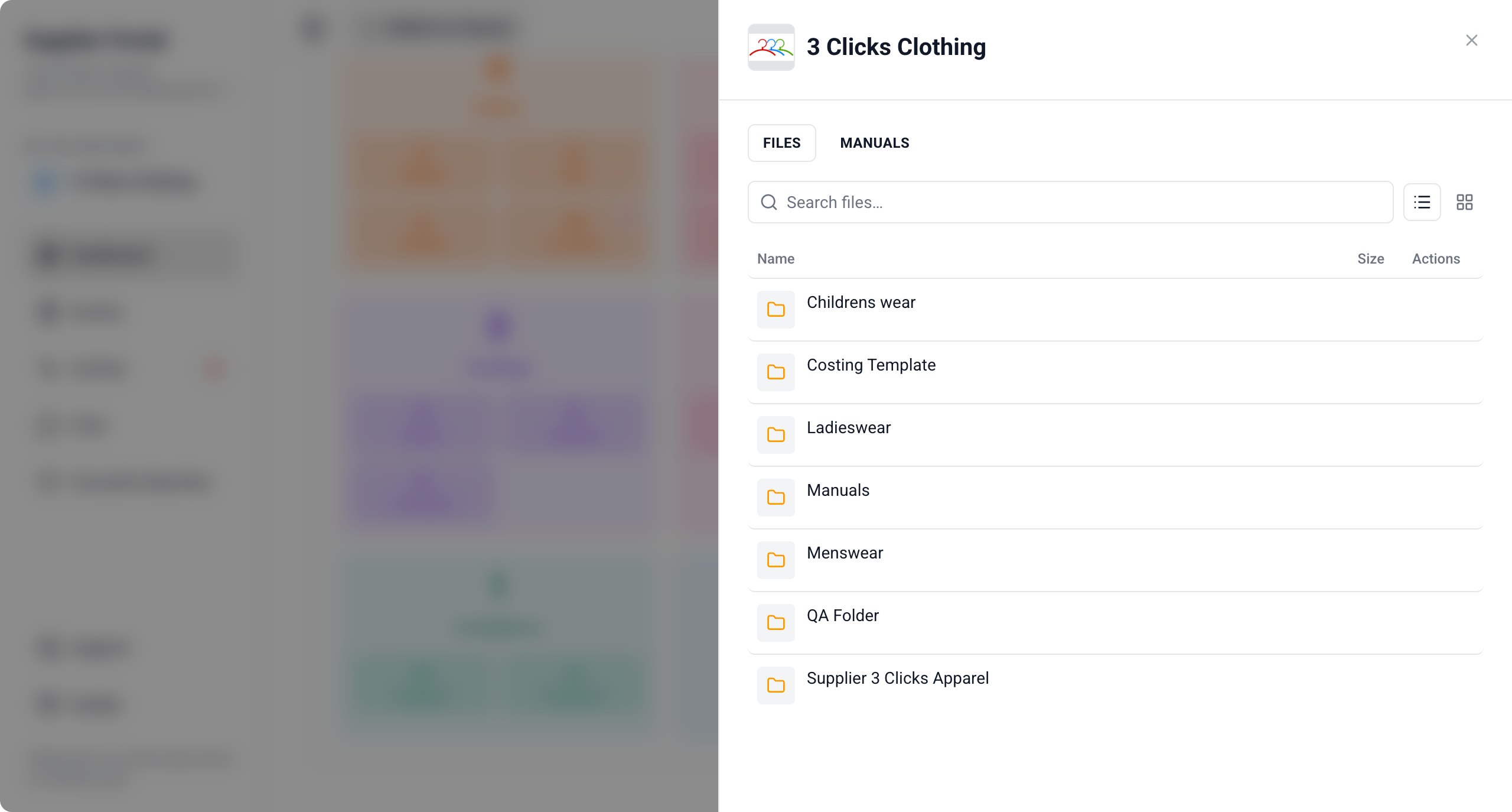
- Organised file browsing — Navigate Drive and Manuals folders your customer has shared with your supplier connection.
- Flexible file support — Preview and download documents, images, videos, spreadsheets, and other common formats.
- Grid and List views — Switch how shared files and folders are displayed to suit your workflow.
- Folder navigation — Open shared folders to see the files inside, including nested folder structures.
- Table customisation — Sort, pin, and resize columns in List view to find files faster.
View-Only Access
Drive in the Supplier Portal is view-only. You can browse and download shared content, but you cannot upload files, create folders, delete items, or change sharing settings. Your customer's instance users manage uploads and sharing from the Production Portal.
Quick Check - Before You Start
- Open Drive from the Drive card on the Dashboard — it opens Files and Manuals.
- Confirm you are on the correct customer connection in Active Instance if you work with more than one brand.
- If folders are empty or missing, ask your instance user to confirm the folder is shared with your supplier account and that an email invitation was sent.
- Record-level files may also appear in the Files side widget on shared orders, styles, costings, claims, and compliance records — use Drive for customer-level manuals and shared folder libraries.
Open Drive
- Log in to the Supplier Portal and open the Dashboard.
- Locate the Drive card in the application quick view area.
- Click the Drive card to open Files and Manuals.
The Files and Manuals workspace shows the folders and files your customer has shared at the connection level — separate from files attached to individual application records.
Browse Files and Manuals
Files and Manuals is organised into two main areas your customer maintains on the Production Portal:
| Area | Description |
|---|---|
| Drive | Shared folders for product documentation, tech packs, specifications, and other files your customer wants suppliers to access. |
| Manuals | Shared manuals, guides, and reference documents your customer has published to your supplier connection. |
To browse shared content:
- Open Files and Manuals from the Dashboard.
- Select a Drive or Manuals folder your customer has shared with your supplier account.
- Open subfolders as needed to reach the file you want.
- Click a file to preview or download it, depending on the file type and your browser.
Folder Invitations
Your customer shares folders from the Production Portal and may send an email invitation with a direct link to the shared folder. If you received an invitation email, use the link to open the folder — it should also appear in Files and Manuals once sharing is active.
Switch Between Grid and List View
Use the view controls in Files and Manuals to change how folders and files are displayed.
| View | Description |
|---|---|
| Grid | Displays folders and files as visual tiles — useful when preview thumbnails are available. |
| List | Displays folders and files in a table with sortable columns — useful for scanning names, sizes, and dates. |
Switch views at any time. Your preference applies to the current folder you are browsing.
Download Files
You can download shared files so you can work offline or attach them to your internal systems.
- Open Files and Manuals from the Dashboard.
- Navigate to the file in Drive or Manuals.
- Click the file to open a preview, or use your browser's download action for the file link.
- Save the file to your preferred location on your device.
Save Link As
Right-click on a file and use Save Link As to save it directly to your preferred location without opening a preview first. This option is available across Files and Manuals, record Files pop-ups, and other file sections in the Supplier Portal when your browser supports it.
File Size Limit
Files your customer uploads are subject to the platform's 500 MB maximum upload size. If a download fails or seems incomplete, confirm the file size with your instance user.
Table Flexibility in List View
When List view is active, you can customise the file table display using the following options:
- Sort by — Organise files by name, size, modified by, or other available columns.
- Pin Column — Keep key columns (for example, Name or Modified By) visible while scrolling.
- Autosize Column — Automatically adjust column width to fit content.
- Choose Columns to Display — Show or hide specific columns such as Size or Modified By.
- Reset Columns — Restore the table to its default layout.
These options help you scan large shared folders without changing any file content.
Drive vs Record Files
Your customer can share files in two ways. Use the right location depending on what you need.
| Location | When to use it |
|---|---|
| Drive (Files and Manuals on the Dashboard) | Customer-level manuals, brand guidelines, shared tech pack libraries, and folders shared across your supplier connection. |
| Files side widget on a record | Documents attached to a specific order, style, costing, claim, or compliance record — for example, a purchase order PDF, style specification export, or audit report. |
If you cannot find a document in Drive, open the relevant shared record and check the Files side widget before contacting your instance user.
Sample Scenarios
Refer to these scenarios to understand how suppliers use Drive in the Supplier Portal. Each scenario links to related documentation in this portal.
Scenario 1: Production planner downloading a shared tech pack library
A production planner needs the latest tech packs before starting bulk production on a shared order.
| Step | What to do | Related documentation |
|---|---|---|
| 1 | Open Files and Manuals from the Drive card on the Dashboard. | Open Drive |
| 2 | Browse the Drive folder your customer shared and open the relevant product or season subfolder. | Browse Files and Manuals |
| 3 | Switch to List view and sort by name or date to find the newest file quickly. | Switch Between Grid and List View |
| 4 | Download the tech pack PDF to your device. | Download Files |
| 5 | Cross-check the order record if you need order-specific documents not stored in the shared library. | Supplier Portal › Order |
Scenario 2: Quality manager finding brand manuals and compliance guides
A quality manager needs reference manuals before an audit or compliance review.
| Step | What to do | Related documentation |
|---|---|---|
| 1 | Open Files and Manuals from the Dashboard. | Open Drive |
| 2 | Open the Manuals area for guides and reference documents your customer published. | Browse Files and Manuals |
| 3 | Download the relevant manual or policy document. | Download Files |
| 4 | Open the shared compliance record if audit evidence is stored on the record rather than in Manuals. | Supplier Portal › Compliance |
| 5 | Ask your instance user through Comments or Chat if a required document is not yet shared. | Supplier Portal › Activity |
Scenario 3: Merchandiser using a folder invitation email
A merchandiser received an email invitation to a newly shared folder and wants to confirm access in the portal.
| Step | What to do | Related documentation |
|---|---|---|
| 1 | Click the link in the invitation email from your customer's team. | Browse Files and Manuals |
| 2 | Confirm the same folder appears when you open Files and Manuals from the Dashboard. | Open Drive |
| 3 | Open the folder and verify files inside subfolders are visible. | Browse Files and Manuals |
| 4 | Download the files you need or use Save Link As for direct saves. | Download Files |
| 5 | Contact your instance user if the folder opens but files inside shared subfolders do not appear. | Troubleshooting |
Next Steps
- Open Drive from the Dashboard
- Download files from a shared order record
- Download files from a shared style record
- Monitor file upload notifications in Activity
- Invite colleagues who need access to shared files
What to Ask Your Instance User
If Drive folders or files do not appear as expected, share these configuration areas with your customer's administrators. They manage these in Site Settings on the Production Portal:
- Site Settings › Company › Suppliers: Supplier Portal role and whether Drive View access is enabled for your supplier account
- Drive on the Production Portal: folder uploads, sharing to your supplier connection, and email invitations after each share
- Site Settings › Portal › General Settings: which files and document areas appear in the Supplier Portal
Troubleshooting
Why is Files and Manuals empty or missing folders?
Drive only shows folders your customer has explicitly shared with your supplier account on the active customer connection.
Steps to resolve:
- Confirm you are logged in to the correct Supplier Portal account and Active Instance connection.
- Open Files and Manuals from the Drive card on the Dashboard — not from a record Files widget, which shows record-level attachments only.
- Ask your instance user to confirm the folder is shared with your supplier and that they sent the Email invitation after saving share permissions.
- Check your email Spam or Junk folder for a folder invitation link from your customer's team.
Why can I see a shared folder but no files inside it?
Files inside shared folders depend on your customer uploading content and sharing the correct folder path with your supplier account.
Steps to resolve:
- Open each subfolder — files may be nested deeper than the top-level folder name suggests.
- Switch between Grid and List view and refresh the page.
- Ask your instance user to confirm files exist in the folder on the Production Portal and that the shared folder path includes the files you need.
- Retry after your customer re-sends the folder invitation if you originally opened the link before sharing was fully saved.
Why can I browse Drive but not download a file?
Download behaviour can depend on file type, browser settings, and whether the file is still available on your customer's instance.
Steps to resolve:
- Try Save Link As from the browser context menu on the file link.
- Allow downloads for your Supplier Portal site in your browser settings.
- Open the file in a new browser tab if preview mode blocks the download action.
- Ask your instance user to confirm the file uploaded successfully and was not removed or restricted after sharing.
Why is Save Link As missing or not working as expected?
Save Link As depends on browser support and the link target the file row exposes.
Steps to resolve:
- Right-click the file name or link in the file table and choose Save Link As from the browser menu.
- If the browser blocks downloads, allow downloads for your Supplier Portal site.
- Use the standard download or preview action on the file row if direct link save is disabled by your IT policy.
Why can I see files on an order or style but not in Drive?
Record Files and customer-level Drive folders are separate sharing paths. Your customer may attach documents to individual records without publishing them to a shared Drive library.
Steps to resolve:
- Open the shared order, style, costing, claim, or compliance record and check the Files side widget.
- Ask your instance user whether the document lives on the record or in a Drive folder shared at the connection level.
- Request that they share the folder through Drive on the Production Portal if you need ongoing access outside the individual record.
Why do I not have Upload, Add, or Delete options in Drive?
Drive in the Supplier Portal is view-only by design. Uploading, creating folders, deleting files, and changing sharing permissions are managed by instance users on the Production Portal.
Steps to resolve:
- Send updated documents or evidence to your instance user through Comments, Chat, or email according to your customer's process.
- Ask them to upload files to Drive or the relevant record Files section and share them with your supplier account.
- Confirm your Supplier Portal role includes Drive View if you cannot open Files and Manuals at all.
Why did a file notification appear in Activity but the file is not in Drive?
Activity file notifications may refer to uploads on a specific record rather than a customer-level Drive folder.
Steps to resolve:
- Click the activity item to open the linked order, style, costing, claim, or compliance record.
- Check the Files side widget on that record for the new upload.
- Open Files and Manuals from the Dashboard if your customer also publishes files to a shared Drive library.