Invite Staff
Use Invite Staff to add team members to your supplier organisation on 3 Clicks Cloud. Enter one or more email addresses and each person receives an email with instructions to register and access the Supplier Portal — including orders, styles, costing, and collaboration with your brand customers.
Quick Check - Before You Start
- Use email addresses that are not already registered to another active user in the platform
- If a staff member was removed from your supplier account, you can send a new invitation to the same email address
- Know that invitation links expire after 48 hours
Accessing Invite Staff
- Click Settings in the left navigation menu.
- Open the Staff tab.
The Invite Staff section appears below the staff list, where you can enter email addresses and send invitations.
Inviting Staff Members
| Step | Description |
|---|---|
| Email address | Enter the email address or addresses in the Email address field. Enter one or more email addresses. Separate multiple addresses with a comma, semicolon, or new line. Each address receives its own invitation email. |
| Invite | Click Invite |
Confirm the Invitation
Clicking Invite opens the Send invite pop-up. The pop-up lists each email address the invitation will be sent to.
| Action | Description |
|---|---|
| Confirm | Sends the invitation email to each listed address. |
| Cancel | Closes the pop-up without sending any invitations. |
After you confirm, each address appears in the staff invitation list with its status and expiration date.
Re-inviting a Removed Staff Member
When a staff member has been removed from your supplier account, you can invite them again using the same email address.
| Step | Description |
|---|---|
| 1 | Open Settings › Staff and confirm the staff member no longer appears in the active staff list. |
| 2 | Enter their email address in the Email address field in the Invite Staff section. |
| 3 | Click Invite, then Confirm in the Send invite pop-up. |
The removed staff member receives a new invitation email with a fresh registration link. This applies whether they were removed by an administrator or their access was revoked from your organisation.
Common Pitfall
Invitation links expire 48 hours after the email is sent. If a staff member does not register in time, cancel the expired invitation or resend it from the staff list so they receive a fresh link.
What the Invitee Receives
Each invited staff member receives an email with the following details:
| Element | Description |
|---|---|
| Subject | Staff invitation from the Supplier on 3 Clicks Cloud |
| Invited by | The name of the supplier staff member who sent the invitation. |
| Message | Instructions to create an account and access the Supplier Portal — including orders, styles, costing, and collaboration with brand customers. |
| Registration link | A secure link to complete account setup. |
| Expiry | The invitation link expires 48 hours after the email is sent. |
The recipient must follow the link in the email and complete registration before the link expires.
Supplier Portal Invite Staff confirmation pop-up 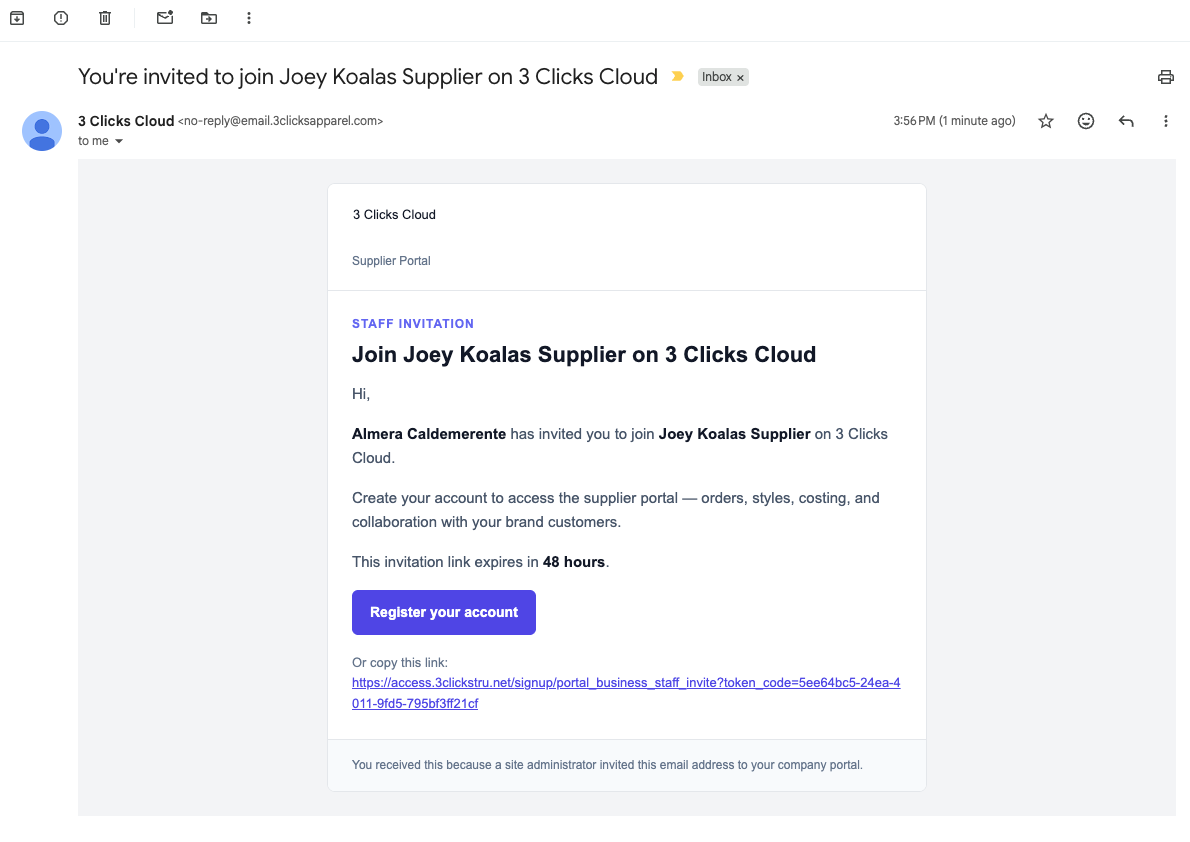
Related Actions
- Supplier Portal › Overview
- Supplier Portal › Settings
- Supplier Portal › Dashboard
- Supplier Portal › Guides
Troubleshooting
Why is the Invite option missing or disabled for me?
Staff invitations are limited to administrator users. Other roles cannot send invitations.
Steps to resolve:
- Confirm with your organisation that your account has admin access to the Supplier Portal
- Log out and back in after a role change
- If you should be an admin, ask an existing administrator to verify your role under Settings › Staff
The staff member did not receive the invitation email — what can I do?
Messages can be filtered as spam, sent to the wrong address, or blocked by the recipient's mail system.
Steps to resolve:
- Check the email address for typos in the invitation list
- Ask the recipient to check Spam or Junk folders
- Click the refresh icon in the staff list to resend the invitation
Why can't I invite this email address?
The platform rejects duplicate addresses when the email already belongs to an active staff member on your supplier account or to an existing user elsewhere in the platform.
Steps to resolve:
- If the person was previously on your staff list, confirm they were removed from Settings › Staff. You can then send a new invitation to the same email address
- Confirm whether that person already has a 3 Clicks account under a different company or role
- Use a unique work email that is not registered elsewhere in the system
- Cancel any expired pending invitation for the same address, then send a fresh invite if appropriate
The invitation link has expired — how do I send a new one?
Invitation links are valid for 48 hours from the time the email is sent.
Steps to resolve:
- Open Settings › Staff and locate the expired invitation in the staff list
- Cancel the expired invitation if it is still listed
- Enter the email address again and click Invite, then Confirm in the Send invite pop-up