Codes
The Codes tab on a shared order in the Supplier Portal is where you review product identification codes your customer has configured for the purchase order. It brings together Details, the Codes table, and Notes in one view so you can confirm SKUs, barcodes, keycodes, and TUN values per colour and size before labelling, packing, and dispatch.
Code rows and ticket description text come directly from Order › Codes on the Production Portal — the same record your customer's instance users maintain on the order. The Supplier Portal tab is read-only: you cannot add or edit codes, change which columns appear, or post notes from your supplier account.
Supplier Portal > Order > Codes 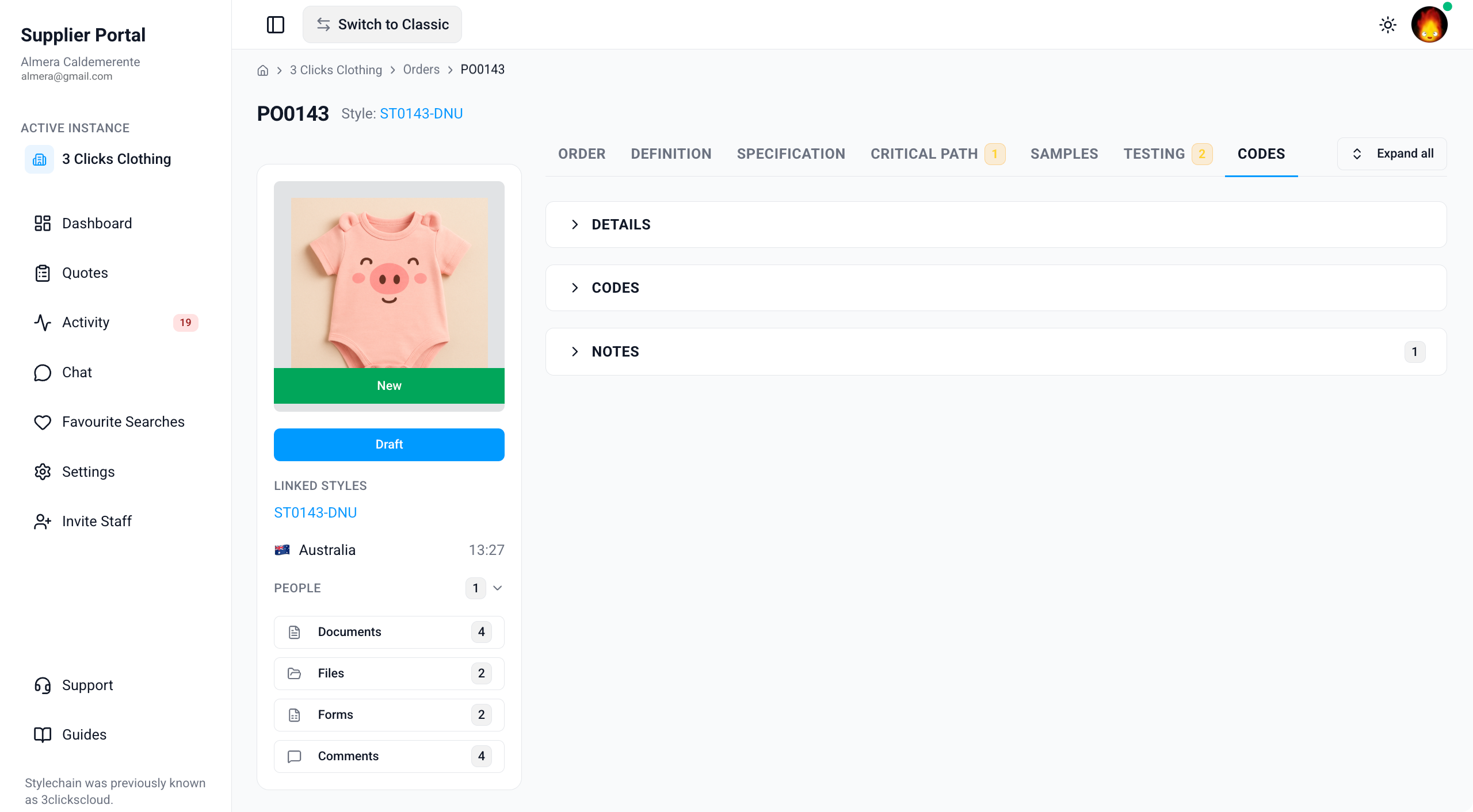
Quick Check - Before You Start
- Open the order from Supplier Portal › Orders and confirm the order number and linked style on the Order tab.
- If the Codes tab is missing or empty, ask your instance user to verify the order is shared with your factory or agent, that colourways are selected on the order, and that your Supplier Portal role includes Order View access.
- Cross-check colourways and size breakups on Quantity before you apply barcodes or SKUs to cartons and units.
- Download Ticket Codes or other code outputs from Documents on the order card when your customer has generated them — see Supplier Portal › Order.
View-Only Access
The Details, Codes, and Notes sections on this tab are read-only in the Supplier Portal. Instance users create and update code data on Order › Codes in the Production Portal. Use Comments on the order card or Chat if a code or ticket description does not match your brief.
Details
The Details section displays core order and ticket context at the top of the Codes tab. Values reflect what your customer's instance users have entered on Order › Codes in the Production Portal.
Use this section to confirm you are reviewing the correct purchase order and style before you work through the code table below.
Supplier Portal > Order > Codes > Details 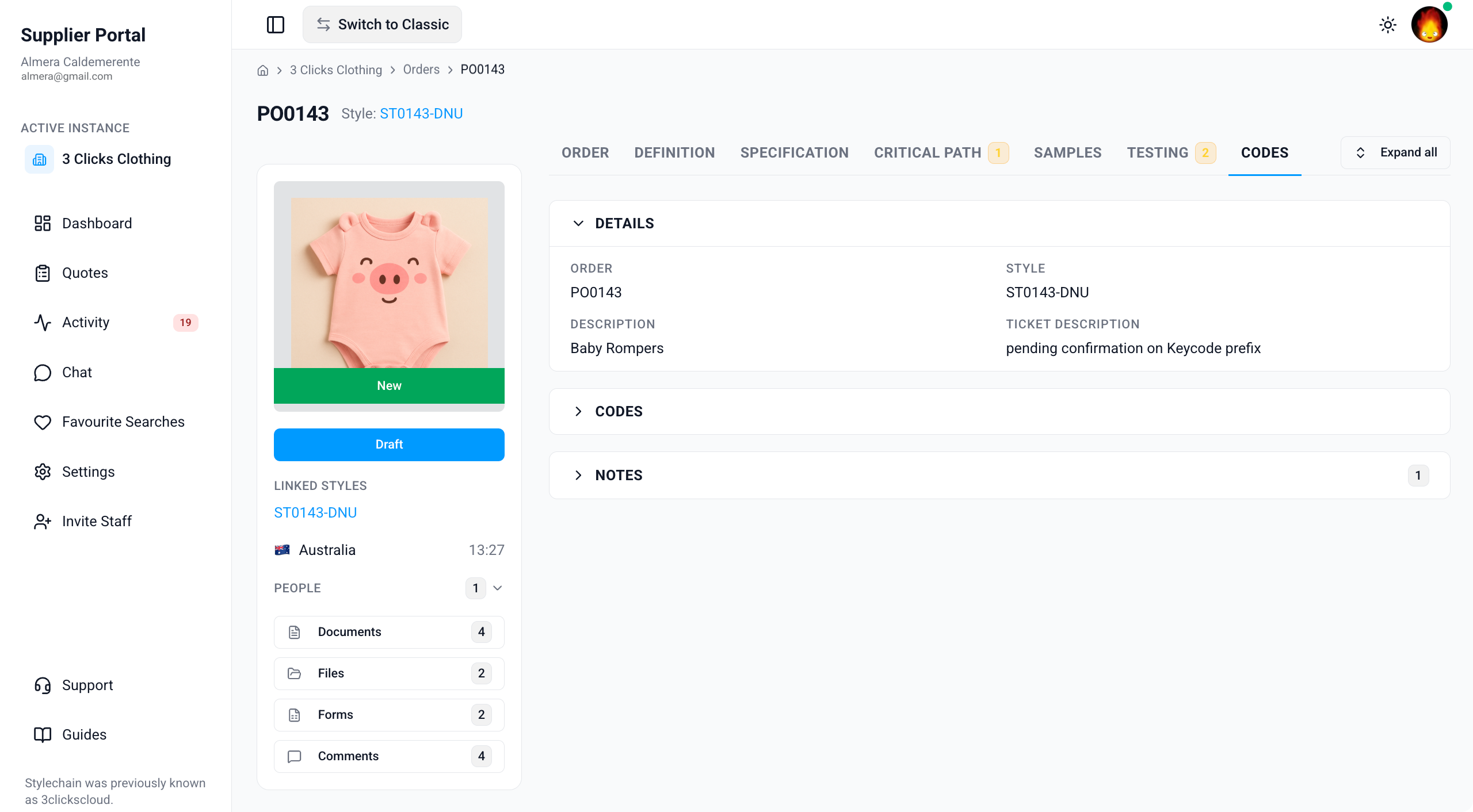
| Field | Description |
|---|---|
| Order No. | The unique order identifier assigned by your customer's system. |
| Description | A brief description of the order or product line. |
| Style No. | The style number linked to the order. |
| Ticket Description | The ticket description text maintained by instance users on Order › Codes › Ticket Description in the Production Portal. Use it to align price stickers, branding tickets, or carton labelling with your customer's ticket configuration. |
Confirm Against Your Purchase Order
Compare Order No., Style No., and Ticket Description with the purchase order or ticket brief your customer shared. If a value looks incorrect, contact your instance user because you cannot edit Details directly in the Supplier Portal.
Codes
The Codes section displays a view-only table of identification codes for each colour and size on the order. Instance users configure which code columns appear on Order › Codes in the Production Portal — the Supplier Portal reflects that same column layout and data.
Use this table when applying barcodes to units or cartons, reconciling keycodes with retailer systems, or confirming SKU and TUN values before dispatch.
| Column | Description |
|---|---|
| Colour | The colourway the code row applies to. |
| Size | The size within the colourway. |
| SKU | The Stock Keeping Unit that uniquely identifies the sellable product variant. SKU is always shown when codes exist for the row — instance users cannot hide this column on the order. |
| Barcode | A machine-readable, scannable identifier (for example, EAN or UPC) used for inventory, warehousing, shipping, and point-of-sale systems. |
| Keycode | An internal or retailer-specific reference code used to identify the product variant across design, costing, sampling, and retailer systems. Your customer may display one or more keycode columns when multiple keycodes are configured on the order. |
| TUN | A Trade Unit Number used in supply chain and operational workflows to track product units for production planning, packing, and distribution. |
Code types at a glance
| Code type | Typical use |
|---|---|
| SKU | Primary product reference across the platform and downstream systems. |
| Barcode | Scanning at warehouse, logistics, and retail touchpoints. |
| Keycode | Retailer or internal variant reference through the product lifecycle. |
| TUN | Internal traceability for production, packing, and distribution. |
Where Codes Come From
Code values are defined on the linked style and copied to the order when instance users select colourways and configure Order › Codes on the Production Portal. The Supplier Portal displays the resulting order-level rows — it does not regenerate or edit codes. If a column is missing or a cell is empty, ask your instance user to confirm the style defines that code type and that the colourway is active on the order.
Column Visibility Is Set by Your Customer
Instance users choose which code columns appear on Order › Codes in the Production Portal (for example, Barcode, Keycode, or TUN). SKU remains visible when code rows exist. You cannot add, remove, or hide columns from the Supplier Portal.
Notes
The Notes section displays comments instance users have posted on Order › Codes in the Production Portal. Notes may include labelling instructions, ticket handling guidance, or context that supports the code table above.
Supplier Portal > Order > Codes > Notes 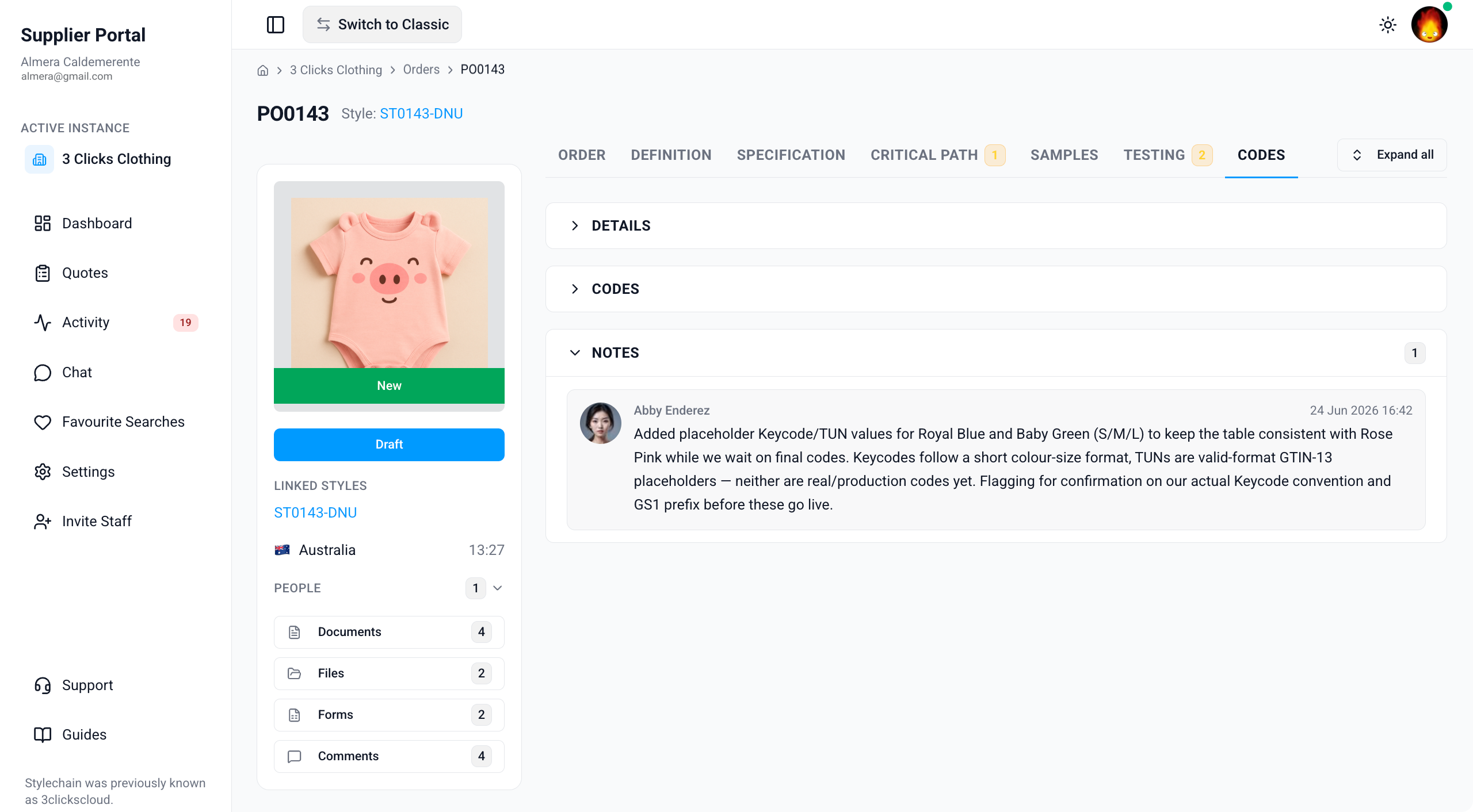
| Element | Description |
|---|---|
| Note thread | Read-only list of notes your customer's instance users have added on Order › Codes. Each entry shows who posted the note and when. |
| Attachments | Files linked to a note when your customer has attached supporting documents on the Production Portal. |
Suppliers Cannot Add Notes on This Tab
You cannot add notes or comments on the Codes tab from the Supplier Portal. Only instance users can post notes on Order › Codes in the Production Portal.
What to do instead:
- Use Comments on the order card for questions about barcodes, SKUs, or ticket descriptions — see Supplier Portal › Order.
- Message your customer's team through Chat when you need a quick clarification on labelling or code values.
- Ask your instance user to post an official note on Order › Codes when instructions should appear on this tab for all supplier users.
Sample Scenarios
Refer to these scenarios to understand how suppliers use the Codes tab in the Supplier Portal. Each scenario links to related documentation in this portal.
Scenario 1: Warehouse team confirming barcodes before carton labelling
A warehouse coordinator opens a shared order to verify barcode and SKU values per colour and size before printing labels.
| Step | What to do | Related documentation |
|---|---|---|
| 1 | Open the order from Orders search or Activity and go to the Codes tab. | Supplier Portal › Orders |
| 2 | Confirm Order No., Style No., and Ticket Description in Details. | Details |
| 3 | Work through the Codes table — check Colour, Size, SKU, and Barcode for each row you are labelling. | Codes |
| 4 | Cross-check quantities on Quantity so label counts match the order breakup. | Supplier Portal › Order |
| 5 | Read Notes for any ticket or labelling instructions from your customer's team. | Notes |
Scenario 2: Factory reconciling keycodes with a retailer packing list
A factory user compares keycode and TUN values on the order with a retailer-supplied packing list before sealing cartons.
| Step | What to do | Related documentation |
|---|---|---|
| 1 | Open the Codes tab and locate the relevant Colour and Size rows. | Codes |
| 2 | Compare Keycode and TUN values with the retailer's reference sheet. | Codes |
| 3 | If a value is missing or mismatched, post a Comment on the order card with the row details. | Supplier Portal › Order |
| 4 | Download Ticket Codes from Documents when your customer has generated an export for the order. | Supplier Portal › Order |
| 5 | Ask your instance user to update codes on the Production Portal if the approved values have changed. | Supplier Portal › Chat |
Scenario 3: Merchandiser gathering code context before a sign-off meeting
A merchandiser collects ticket description text and code notes from a shared order for an internal production review.
| Step | What to do | Related documentation |
|---|---|---|
| 1 | Review Ticket Description in Details for sticker or branding context. | Details |
| 2 | Scan the Codes table for SKU coverage across all colourways and sizes on the order. | Codes |
| 3 | Read Notes for instructions instance users posted on Order › Codes. | Notes |
| 4 | Compare colourways with Quantity and Specification on the same order. | Supplier Portal › Order › Specification |
| 5 | Use Activity to see recent order updates from your customer's team. | Supplier Portal › Activity |
Next Steps
- Review colourway quantities on Quantity
- Confirm sketches and measurements on Specification
- Review component tests on Testing
- Track production milestones on Critical Path
- Open the linked style when shared for style-level context
- Search and open shared orders
- Ask your customer's team about code or ticket questions
Related Settings
These Site Settings pages are maintained by your customer's administrators. Share them with your instance user contact if the Codes tab is missing or code columns do not match expectations.
- Site Settings › Company › Suppliers
- Site Settings › Order › General Settings
- Site Settings › Portal › General Settings
Troubleshooting
Why is the Codes tab missing from my order?
Tab visibility depends on your Supplier Portal role, portal display settings, and what your customer has shared on the order record.
Steps to resolve:
- Confirm whether the tab is missing entirely or visible but empty.
- Ask your instance user to verify your Supplier Portal role in Site Settings › Company › Suppliers includes Order with View enabled.
- Ask them to confirm the order is shared with your factory or agent and that Order › Codes is enabled in their order layout on the Production Portal.
- Click Refresh or reopen the order from Activity after your customer confirms updates.
Why is the Codes table empty?
Code rows usually appear only when colourways are selected on the order and the linked style defines the relevant code types.
Steps to resolve:
- Ask your instance user to confirm colourways are selected on Order › Colour Quantity & Pricing in the Production Portal.
- Ask them to verify unit codes exist on the linked style and have flowed through to Order › Codes.
- Cross-check Quantity — if no colourways or sizes are on the order, the code table may have no rows to display.
- Use Comments or Chat while your customer updates the order record.
Why is a Barcode, Keycode, or TUN column missing?
Instance users control which code columns are visible on Order › Codes in the Production Portal. SKU remains visible when code rows exist.
Steps to resolve:
- Confirm whether the column is missing entirely or present but empty for some rows.
- Ask your instance user to show the required column on Order › Codes using their column configuration on the Production Portal.
- Ask them to confirm the linked style defines that code type for the colourways on the order.
- Download Ticket Codes from Documents on the order card if your customer has generated a spreadsheet export with the full code set.
Why does a code value not match what my customer sent by email?
Code values are maintained by instance users on the Production Portal. Barcodes, keycodes, or SKUs may be updated after an earlier purchase order or brief was sent.
Steps to resolve:
- Refresh the order record and review Activity for recent code changes.
- Compare Colour, Size, and code columns with your customer's latest communication.
- Post a Comment on the order card and @ mention the relevant instance user listed under People to confirm the current approved values.
Why can I read Notes but not add a comment on the Codes tab?
Notes on the Codes tab are posted only by instance users on Order › Codes in the Production Portal. Supplier portal users cannot add notes or comments on this tab.
Steps to resolve:
- Read existing Notes for official instructions your customer has chosen to share.
- Use Comments on the order card for two-way questions about codes or ticket descriptions.
- Ask your instance user to post a note on Order › Codes when guidance should appear on this tab for all supplier users.
Why does Ticket Description not match my sticker brief?
Ticket Description reflects the text instance users maintain on Order › Codes › Ticket Description in the Production Portal, not free-text you enter in the Supplier Portal.
Steps to resolve:
- Compare Ticket Description with the sticker or branding brief your customer shared.
- Ask your instance user to update the ticket description on Order › Codes if the approved wording has changed.
- Check Notes for supplementary labelling instructions while the description is being corrected.