Critical Path
The Critical Path tab on a shared order in the Supplier Portal shows the production milestones your customer's instance users have assigned to the order. A progress bar at the top of the tab indicates how many activities are complete — for example, 2 of 5 complete — so you can see overall progress at a glance before drilling into individual due dates and notes.
Unlike Details, Quantity, and Pricing on the Order tab, Critical Path is interactive for supplier users when your customer has enabled portal activities. You can mark eligible activities as completed. You cannot add, remove, or resequence activities from your supplier account — instance users maintain the milestone list on the Production Portal. Open Notes on any activity to read comments, approvals, and attachments your customer or supplier team have posted against that milestone.
Supplier Portal > Order > Critical Path 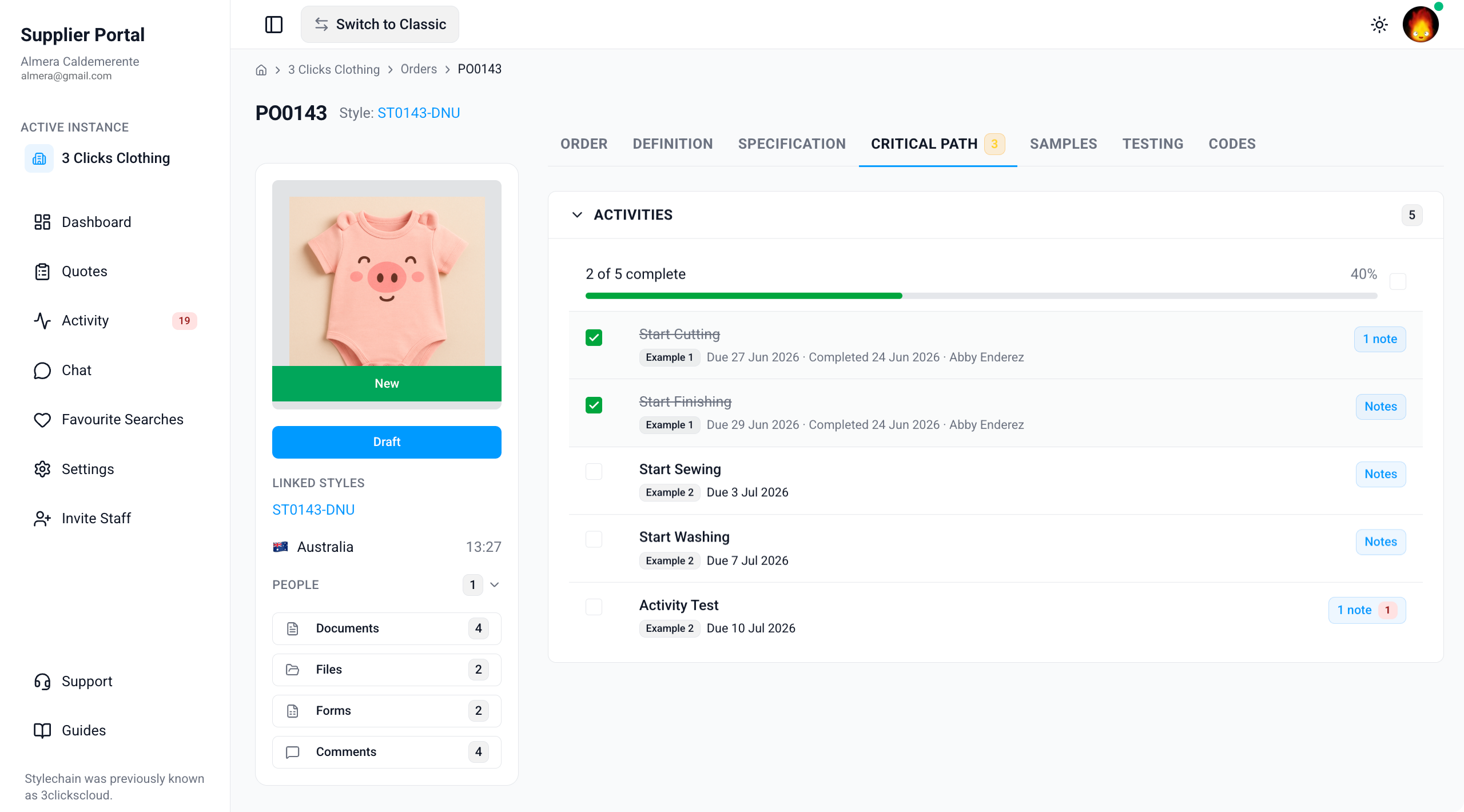
Quick Check - Before You Start
- Open the order from Supplier Portal › Orders and confirm the order number and linked style on the Order tab.
- If the Critical Path tab is missing or empty, ask your instance user to verify the order is shared with your factory or agent, that a critical path template is applied on the order, and that your Supplier Portal role includes Order View access.
- Enable Critical Path Activity notifications in Profile › Notification Preferences so you are alerted when instance users post updates or when activities need your attention.
- Cross-check due dates with Quantity, Specification, and Definition before you commit to ex-factory or production timelines.
Supplier Actions Depend on Your Customer's Configuration
Your customer controls which activities appear on the Supplier Portal and whether suppliers can complete them from the portal. If you can see an activity but cannot mark it complete, ask your instance user to confirm portal display and approval settings for that milestone.
Progress Overview
The progress bar at the top of the Critical Path tab summarises completion across all visible activities on the order. Use it to confirm how much of the production timeline is finished before you review individual rows.
| Element | Description |
|---|---|
| Progress bar | Visual indicator of how many activities are complete compared with the total number of activities displayed on the tab — for example, 2 of 5 complete with a percentage fill. |
| Activity sections | Activities are grouped into sections (for example, ACTIVITIES or template-defined groups such as Production or QA) that mirror your customer's critical path template. Expand or collapse each section to focus on the milestones relevant to your role. |
Activity Fields
Each activity row shows the milestone name, schedule, completion details, and whether notes have been posted.
| Field | Description |
|---|---|
| Activity name | The name of the milestone or task — for example, Start Cutting, Start Sewing, or PP Sample Approval. Completed activities may display with a strikethrough for quick visual identification. |
| Group | The group or category the activity belongs to within the template (for example, Example 1 or Example 2), when your customer has grouped activities on the order critical path. |
| Due date | The date by which the activity should be completed. Due dates may be calculated from reference dates your customer maintains on the Production Portal. |
| Completed | When the activity was marked complete, together with the name of the user who completed it — either a supplier portal user or an instance user, depending on who performed the action. |
| Notes | A control to open notes recorded against the activity. A badge — for example, 1 note — indicates how many notes exist. Open Notes to read the full thread and any attachments. |
Activity status
Status indicators help you spot overdue work and late completions without opening each activity individually.
| Indicator | Meaning |
|---|---|
| Green | Completed on or before the due date. |
| Red | Overdue — the due date has passed and the activity is not yet complete. |
| Orange | Completed after the due date. |
Confirm Against Your Production Brief
Compare Activity name and Due date values with the timeline your customer shared by email or in Comments on the order card — see Supplier Portal › Order. Critical path data is maintained on the Production Portal and may be updated after an earlier purchase order or brief was sent.
Marking Activities Complete
When your customer has enabled portal completion for an activity, you can mark it complete directly from the Critical Path tab.
- Locate the activity in the relevant section.
- Click the completion control for that row (the checkbox icon) to mark the activity as complete.
- The Completed column updates with the completion date and your user name.
- To undo a completion, clear the completion control on the row — the strikethrough on the activity name is removed and the progress bar recalculates.
You Cannot Add Activities from the Supplier Portal
Instance users add, remove, and resequence activities on Order › Critical Path in the Production Portal. If an expected milestone is missing from your view, ask your instance user to confirm the critical path template and portal display settings for that activity — you cannot create new activities from your supplier account.
Not Every Activity Can Be Completed from the Portal
Only activities your customer has configured for portal display and portal approval appear on the Supplier Portal. If you can see an activity but cannot mark it complete, ask your instance user to confirm Display on portal and Approve from portal settings for that milestone.
Notes
Use Notes on an activity to read decisions, supporting files, and @ mentions your customer's team or other supplier users have recorded against a milestone. Notes keep milestone communication attached to the activity instead of scattered across email.
| Feature | Description |
|---|---|
| View notes | Open Notes on any activity row to read the comment thread, approval or rejection outcomes, and file attachments posted for that milestone. |
| Note count | A badge on the row — for example, 1 note — shows how many notes exist without opening the activity. |
| @ Mentions | When an instance user mentions your supplier account or a colleague in a note, the mention appears in the message text when you open Notes. |
Read notes carefully before you mark an activity complete or commit to an ex-factory date. When you need to respond to your customer's team about a milestone — for example, to confirm cutting has started or flag a delay — use Comments on the order side widget so your message stays attached to the order record. Use Chat for broader production topics that are not tied to a single activity.
Reply on the Order Card, Not in Activity Notes
People on the order side widget lists your customer's internal instance users — not supplier staff. Activity Notes on this tab are maintained by instance users and supplier users who have posting access on the Production Portal. If you need to ask a question or send an update, post in Comments on the order card and @ mention the relevant contact when a due date or approval needs urgent clarification.
Where Critical Path Data Comes From
Instance users select a critical path template and maintain milestone schedules on Order › Critical Path in the Production Portal. Which activities you see, and whether you can complete them from the Supplier Portal, depends on your customer's template configuration and portal display rules.
Next Steps
- Review colourway quantities on Quantity
- Fulfil sample requirements on Samples
- Review component tests on Testing
- Confirm materials on Definition
- Review sketches and measurements on Specification
- Open the linked style for style-level milestones when it is also shared with your supplier account
- Search and open shared orders
- Track recent order changes in Activity
- Ask your customer's team about timeline changes
Related Settings
These Site Settings pages are maintained by your customer's administrators. Share them with your instance user contact if Critical Path activities or portal actions do not match expectations.
- Site Settings › Company › Suppliers
- Site Settings › Order › Critical Path
- Site Settings › Order › General Settings
Troubleshooting
Why is the Critical Path tab missing on an order I can otherwise open?
Tab visibility depends on your Supplier Portal role, portal display settings, and whether your customer has applied a critical path template to the order.
Steps to resolve:
- Confirm whether the tab is missing entirely or visible but empty.
- Ask your instance user to verify your Supplier Portal role in Site Settings › Company › Suppliers includes Order with View enabled.
- Ask them to confirm a critical path template is selected on the order and that at least one activity is configured to Display on portal.
- Click Refresh or reopen the order from Activity after your customer confirms updates.
Why is the Critical Path tab empty?
An empty tab usually means no critical path template has been applied to the order, or no activities are configured for portal display.
Steps to resolve:
- Ask your instance user to confirm a critical path template is assigned on the Production Portal order record.
- Ask them to verify activities in the template have Display on portal enabled where suppliers should see them.
- Check Activity for recent critical path changes after your customer updates the template.
- Use Chat to confirm expected milestones while the portal tab is being configured.
Why can I see an activity but not mark it complete?
Portal completion permissions are controlled per activity in your customer's critical path configuration. View access does not always include permission to complete an activity.
Steps to resolve:
- Confirm whether the activity row is read-only or missing the completion checkbox entirely.
- Ask your instance user to verify Display on portal and Approve from portal are enabled for that activity in their critical path template.
- Ask them to confirm your supplier role includes the access needed to complete portal activities.
- Post dispatch or production updates in Comments on the order card while portal permissions are being reviewed.
Why is an expected activity missing from the Critical Path tab?
Suppliers cannot add activities from the Supplier Portal. Missing milestones are usually due to template configuration, conditional activities, or portal display rules on the Production Portal.
Steps to resolve:
- Confirm the activity name with your customer's latest communication or purchase order.
- Ask your instance user to verify the activity exists on Order › Critical Path in the Production Portal and has Display on portal enabled.
- Ask whether the activity is conditional — some milestones only appear when related order or style fields are populated.
- Open Supplier Portal › Style › Critical Path when the linked style is shared if the milestone is tracked at style level instead of order level.
Why does a due date or activity not match what my customer sent by email?
Critical path schedules can be updated on the Production Portal after an earlier timeline was shared. Reference dates and offset rules may also recalculate due dates when order dates change.
Steps to resolve:
- Refresh the order record and review Activity for recent critical path changes.
- Compare Activity name and Due date with your customer's latest communication.
- Post a Comment on the order card and @ mention the relevant instance user listed under People to confirm the current approved timeline.
Why is an activity showing as red or orange?
Status colours reflect completion relative to the Due date: overdue activities show as red; activities completed after the due date show as orange once marked complete.
Steps to resolve:
- Check whether the activity is still open and past its Due date — if so, complete it or post a Comment explaining the delay.
- If the activity is already complete but shows orange, the work was finished after the original due date — confirm with your instance user whether the timeline needs updating on the Production Portal.
- Enable Critical Path Activity notifications in Profile so you receive alerts before milestones become overdue.
Why can I see a note badge but no notes when I open the activity?
Note visibility depends on what your customer and other users have posted on the Production Portal and whether notes are shared with supplier portal users.
Steps to resolve:
- Refresh the order record and reopen Notes on the activity row.
- Ask your instance user to confirm notes were saved on the correct activity and are intended for supplier visibility.
- Check Activity for recent critical path note updates.
- Use Comments on the order card if you need a response to a milestone question that is not visible in Notes.