Definition
The Definition tab on a shared order in the Supplier Portal is a view-only bill of materials for the linked style. It shows the fabric, trim, branding, labels, and other components your customer's instance users have assigned on the Production Portal, together with order-level total quantities where applicable. Use it to confirm materials, colourways, quantities, and sources against your purchase order and tech pack — without opening a separate style record.
Which sections and columns appear depends on your customer's configuration. Use the section filters to focus on Fabric, Trim, or other component types, and switch between List and Grid view to review components as a table or as visual cards.
Supplier Portal > Order > Definition 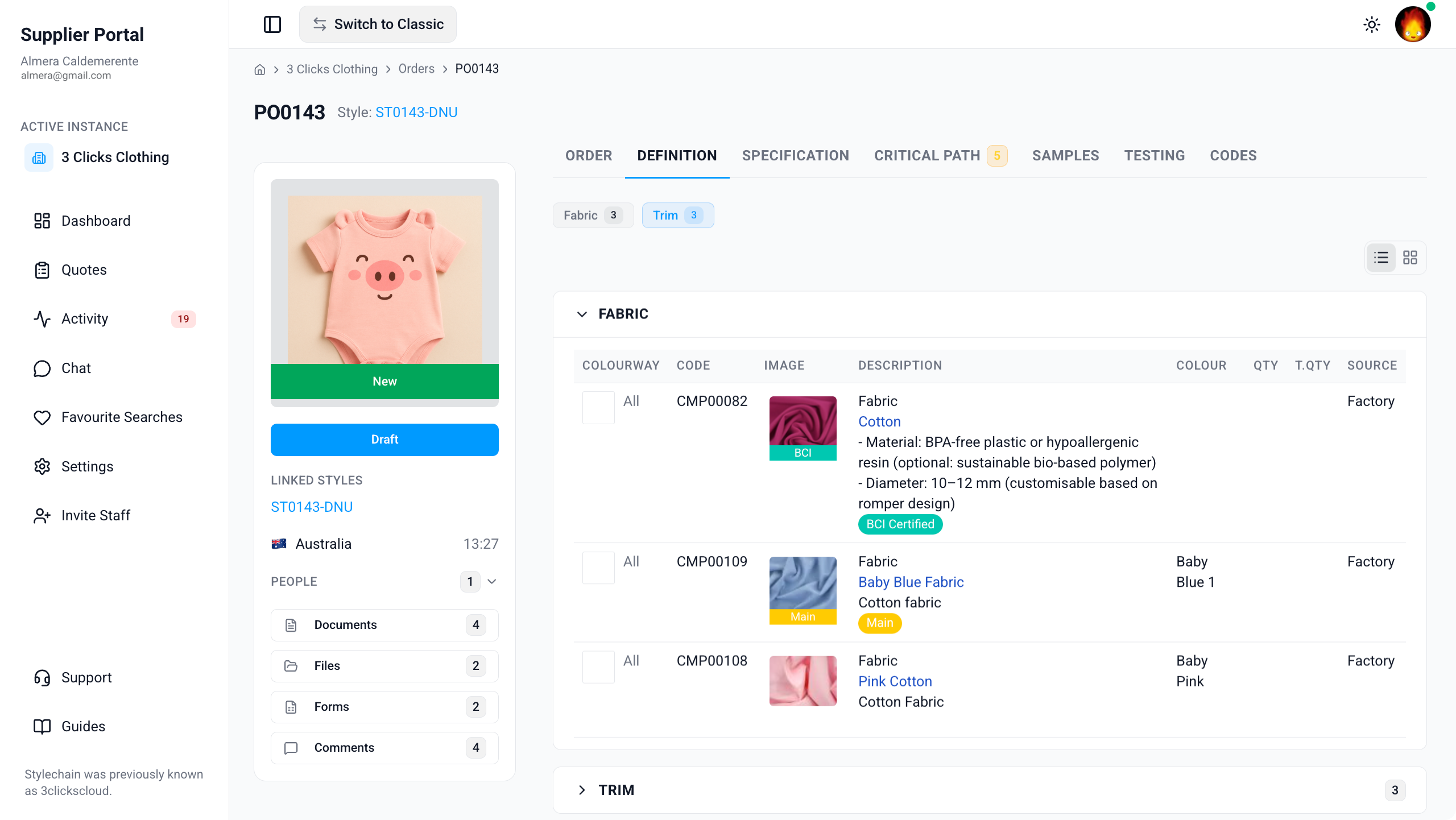
Quick Check - Before You Start
- Open the order from Supplier Portal › Orders and confirm the order number and linked style on the Order tab.
- If the Definition tab is missing or a section is empty, ask your instance user to verify the order is shared with your factory or agent and that your Supplier Portal role includes Order View access.
- The Definition tab reflects the linked style's bill of materials — use Grid view when you need to compare component images and swatches; use List view when you need to scan codes, quantities, and T.Qty across many rows.
- For colourway quantities that drive T.Qty, review the Quantity section on the Order tab.
View-Only Access
The Definition tab in the Supplier Portal is read-only. Instance users add, edit, reorder, and remove components on the linked style in the Production Portal. If a component or field does not match your brief, contact your customer's team through Comments or Chat.
Component Sections
Components are grouped into collapsible sections. Your customer chooses which sections are enabled — common defaults include Fabric, Trim, Branding, Labels, Details, Make, Production, Material, and Packaging.
| Section | Description |
|---|---|
| Fabric | Primary textile materials for the main body of the style. |
| Trim | Supplementary items such as zips, buttons, threads, and drawcords. |
| Branding | Logos, patches, and other elements that identify the brand. |
| Labels | Main labels, care labels, size labels, and related tag requirements. |
| Details | Design features or embellishments that form part of the style. |
| Make | Construction and assembly instructions or related components. |
| Production | Manufacturing, finishing, and production-related components. |
| Material | Raw materials used in the style that do not fit another section. |
| Packaging | Hangers, polybags, tissue paper, cartons, and other packing materials. |
Each section header shows how many components it contains. Expand or collapse a section to focus on the material type you are reviewing. Use the section filter pills above the component list — for example, Fabric or Trim — to jump directly to a component type without scrolling through every section.
If a section you expect is missing entirely, your customer may have hidden it in their style configuration — ask your instance user rather than assuming the order has no components in that category.
List and Grid View
Use the layout toggle in the Definition tab toolbar to switch how components are displayed.
| View | Best for |
|---|---|
| Grid | Visual review when component images or fabric swatches are available. Cards show the component image, code, description, colour, T.Qty, source, and badges at a glance. 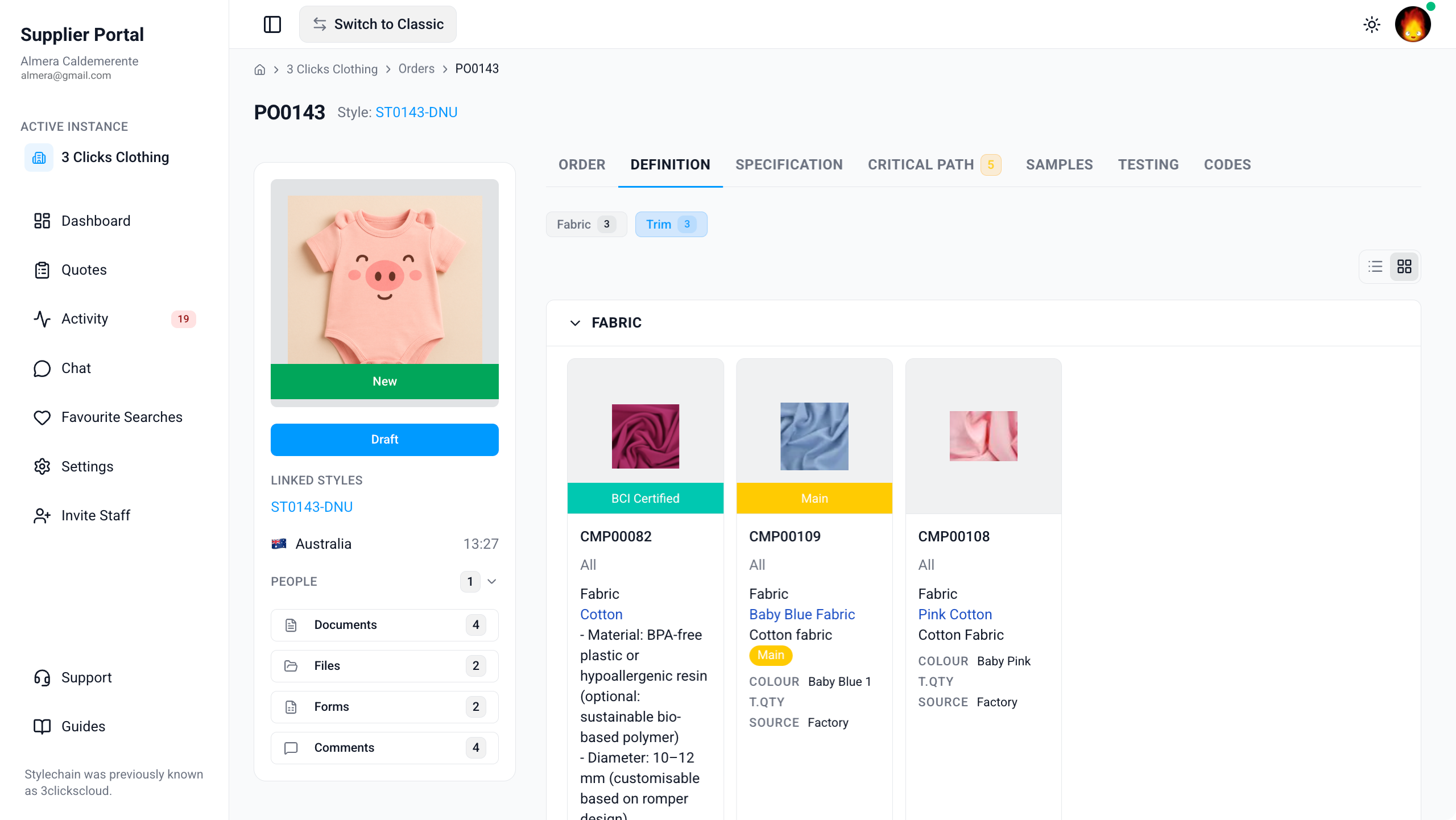 |
| List | Scanning many components quickly, comparing Code, Description, Colour, Qty, T.Qty, and Source in a compact table layout. |
Your selected layout applies to the current session on the order record.
Component Fields
Components in List view and on Grid cards show the following columns:
| Field | Description |
|---|---|
| Colourway | The product colour variant the component applies to, or All when it applies to every colourway on the order. |
| Code | The component identifier. Library-linked components use the customer's component number (for example, CMP00082). |
| Image | A visual reference or swatch for the component, when your customer has uploaded one. |
| Description | Detailed information about the component — composition, specifications, or usage notes. |
| Colour | The selected component colour name and swatch, when the row is linked to a colour in your customer's component library. |
| Qty | How many units of the component are required per garment. Decimal values may be used where applicable. |
| T.Qty | The total quantity required for the order, calculated from the component Qty and the colourway Total on the Quantity section of the Order tab. Decimal values are preserved when applicable. |
| Source | Where the component is sourced from (for example, Factory). |
Confirm Against Your Tech Pack
Compare Code, Description, Colour, Qty, and T.Qty with the tech pack or BOM your customer shared. Definition data is maintained on the Production Portal and may be updated after an earlier email or PDF was sent.
Where Definition Data Comes From
Instance users maintain the bill of materials on the linked style in the Production Portal. The order Definition tab mirrors that style definition and applies order colourway totals to calculate T.Qty. Components may be entered manually, added from the Component Library, or copied from another style. What you see in the Supplier Portal reflects the current shared record — you cannot add or edit rows from your supplier account.
Single-Style Orders
The Definition tab is available on single-style orders. It is not shown on bulk orders. If you need component detail for a bulk workflow, ask your instance user which per-style or per-order record to use.
Next Steps
- Review sketches, images, and measurements on Specification
- Review order Details, Quantity, and Pricing
- Track production milestones on Critical Path
- Open the linked style for fuller product context when it is also shared with your supplier account
- Search and open shared orders
- Download purchase order or specification documents from Documents
- Ask your customer's team about component changes
Related Settings
These Site Settings pages are maintained by your customer's administrators. Share them with your instance user contact if Definition sections or columns do not match expectations.
Troubleshooting
Why is the Definition tab missing on an order I can otherwise open?
Tab visibility depends on your Supplier Portal role, portal display settings, and the order type. The Definition tab is not available on bulk orders.
Steps to resolve:
- Confirm whether the tab is missing entirely or visible but empty.
- Check whether the order is a bulk order — bulk orders do not expose the Definition tab.
- Ask your instance user to verify your Supplier Portal role in Site Settings › Company › Suppliers includes Order with View enabled.
- Ask them to confirm Definition is included in the supplier portal layout for orders.
- Click Refresh or reopen the order from Activity after your customer confirms updates.
Why is a Fabric or Trim section empty or missing?
Visible sections are controlled by your customer's style configuration, not by individual supplier accounts. A missing section may be disabled in settings; an empty section means no components have been added there yet on the linked style.
Steps to resolve:
- Use the Fabric or Trim section filter pills to confirm you are not overlooking a collapsed section.
- Expand other sections on the Definition tab to confirm components exist elsewhere on the order.
- Ask your instance user whether the section is enabled for their organisation and populated on the linked style in the Production Portal.
- Request an updated tech pack or Specification document from Documents if you need formal BOM output while definition rows are still being built.
Why does a component on the Definition tab not match what my customer sent by email?
Component rows can be added, edited, reordered, or removed on the Production Portal after an earlier brief was sent. Order definition follows the linked style and may not reflect late changes until your customer updates the style record.
Steps to resolve:
- Refresh the order record and review Activity for recent definition or quantity changes.
- Compare Code, Description, Colour, Qty, and T.Qty with your customer's latest communication.
- Contact the instance users listed under People on the order card to confirm the current approved bill of materials.
Why can I only see components for some colourways?
Components can be assigned to a specific Colourway or to All colourways on the order. Section filters and layout may also limit what appears in a single view.
Steps to resolve:
- In List view, check the Colourway column for each row.
- Switch between List and Grid view and use the section filter pills to ensure you are not overlooking collapsed sections.
- Review Quantity on the Order tab to confirm which colourways are on the order.
- Ask your instance user to confirm colourway-specific BOM requirements if a colour option has no matching components.
Why is T.Qty blank or does not match my calculation?
T.Qty is derived from the component Qty on the definition row and the colourway Total on the Quantity section. If either value is missing or quantities change after you last reviewed the order, T.Qty may appear blank or out of date.
Steps to resolve:
- Open the Order tab and confirm colourway totals on Quantity.
- Check the component Qty on the Definition row in List view.
- Refresh the order record and review Activity for recent quantity updates.
- Ask your instance user to confirm the current approved quantities if T.Qty still does not match your internal planning.
Why are images or columns missing on the Definition tab?
Column visibility and images depend on your customer's style UI configuration and whether instance users have uploaded references for each component.
Steps to resolve:
- Switch to Grid view if you need to review component images or swatches.
- Ask your instance user to confirm the columns they expect suppliers to see are enabled in Site Settings › Style › General Settings.
- Check Files on the order card for additional reference imagery or CADs shared outside the definition grid.