Testing
The Testing tab on a shared order in the Supplier Portal is where you review quality assurance tests for components on the linked style, record test outcomes, and attach supporting documentation. It brings together Components, Files, and Notes in one view so you can approve or reject test activities, mark individual test items complete, and keep certificates and lab results with the order record.
Component rows and test items come directly from Order › Testing on the Production Portal — the same record your customer's instance users maintain on the order. You cannot add or remove components or test templates from your supplier account, as you work with the tests your customer has assigned on the order and update completion, report numbers, descriptions, files, and approval outcomes where portal actions are enabled.
Supplier Portal > Order > Testing 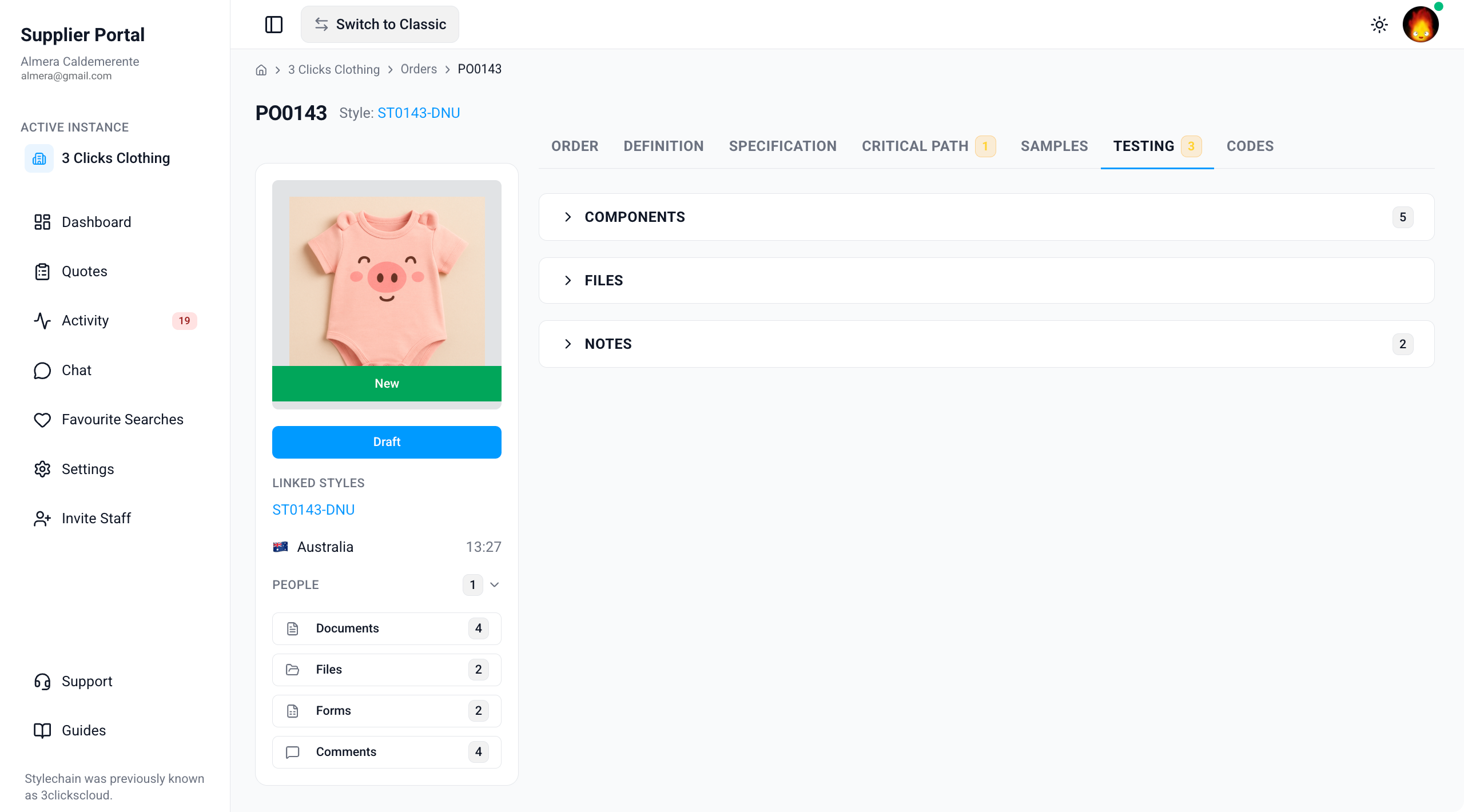
Quick Check - Before You Start
- Open the order from Supplier Portal › Orders and confirm the order number and linked style on the Order tab.
- If the Testing tab is missing or empty, ask your instance user to verify the order is shared with your factory or agent, that components and test items exist on Order › Testing on the Production Portal, and that your Supplier Portal role includes Order View access.
- Cross-check component codes and colourways on Definition before you approve a test or mark an item complete.
- Review Specification and Samples when test outcomes affect fit, construction, or material approvals on the same order.
What You Can Edit Depends on Your Customer
Component and test item rows are assigned by instance users on Order › Testing on the Production Portal. Your customer controls whether you can approve or reject tests, mark items complete, edit report numbers, upload files, and post notes from the Supplier Portal. If an action is missing or locked, contact your customer's team through Comments on the order card or Chat rather than assuming testing is not required.
Components
The Components section lists materials and parts on the order that have test requirements assigned by your customer's instance users on Order › Testing. Each row shows the component type, colourway, component number and description, and placement. Use the Actions column to approve or reject a component-level test activity when your customer has enabled portal actions.
Expand a component row to see nested Test Items — individual tests such as Colour fastness to rubbing or Colour Fastness. A progress bar at the top of the nested section shows how many test items are complete — for example, 1 of 2 complete.
Supplier Portal > Order > Testing > Components 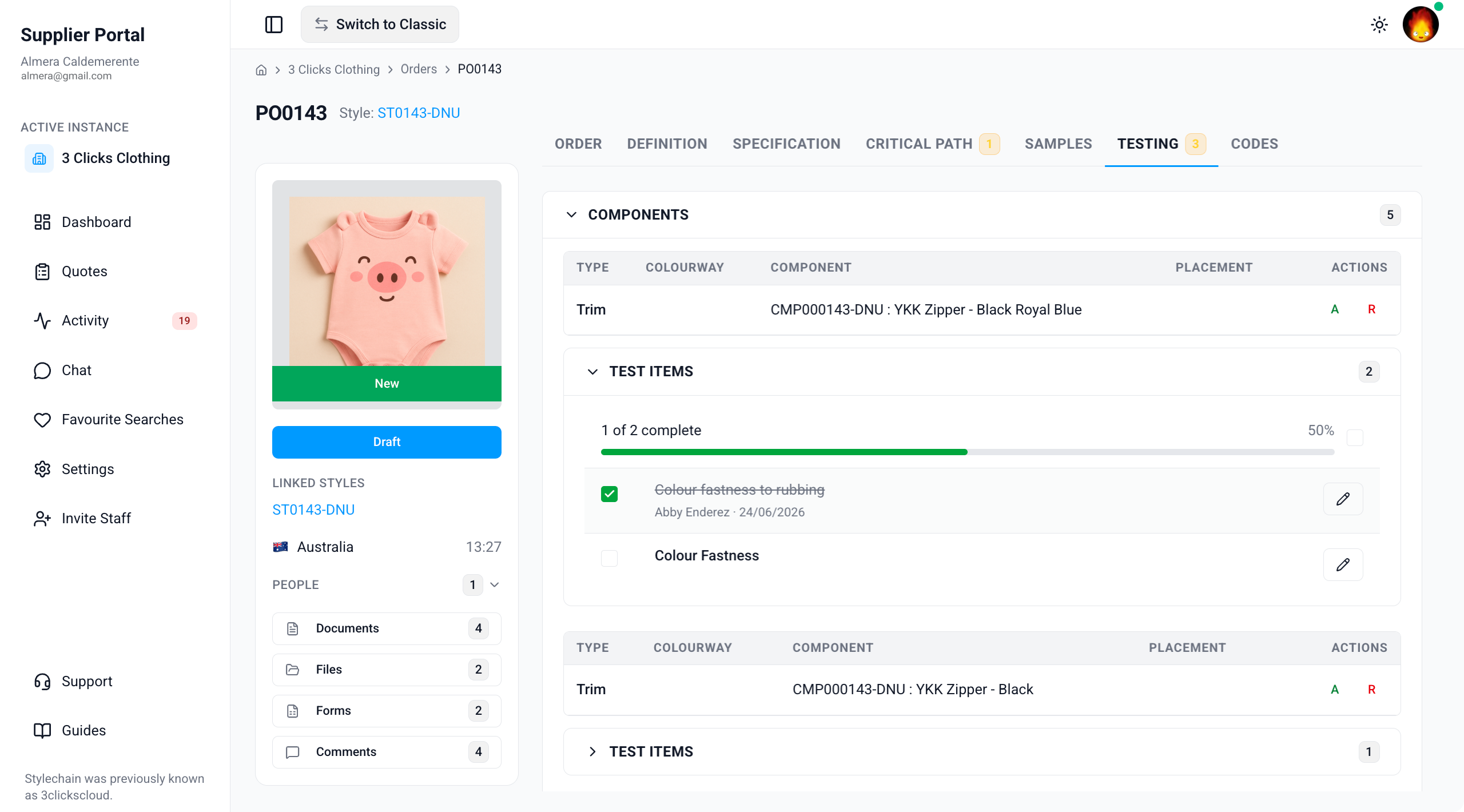
Component table columns
| Column | Description |
|---|---|
| Type | The component category — for example, Fabric, Trim, or Labels — matching the section the component belongs to on Definition. |
| Colourway | The product colour variant the test applies to, when the test is colourway-specific. |
| Component | The component number and description — for example, CMP000143-DNU : YKK Zipper - Black Royal Blue. |
| Placement | Where the component is used on the garment or product, when your customer has recorded placement on Order › Testing. |
| Actions | Approve (A) and Reject (R) controls that open the Activity Action pop-up for the selected component test. |
Test items
Each component can include one or more test items nested beneath the row.
| Field / Element | Description |
|---|---|
| Progress bar | Shows how many test items are complete compared with the total assigned to the component — for example, 1 of 2 complete with a percentage fill. |
| Test item name | The name of the test — for example, Colour fastness to rubbing. Test names come from your customer's QA test configuration on the Production Portal. |
| Complete | Mark an individual test item as complete when the test work is finished and documented. Completed items show a green checkmark. |
| Completed | When the test item was marked complete and by whom — for example, Abby Enderez on 24/06/2026. |
| Edit | Opens the Edit Test Item pop-up to update the Report Number and Description on a test item, including items already marked complete. |
Where Component Tests Come From
Instance users assign components and test items directly on Order › Testing on the Production Portal. The Supplier Portal Testing tab displays that same order data. If a component or test is missing, ask your instance user to confirm it was added on Order › Testing for this purchase order.
Approve or reject a test
Use Approve (A) or Reject (R) in the Actions column to open the Activity Action pop-up for a component test.
| Field / Feature | Description |
|---|---|
| Action | Select Approval or Rejection for the test activity. |
| Component | Displays the component number and description the action applies to. |
| Test | The type of test being approved or rejected. |
| Post to Conversation | When checked, posts the approval or rejection outcome to the order Comments side widget so your customer's team sees the decision on the order card. |
| Comment | Enter supporting notes about the approval or rejection. |
| Files | Attach supporting documents — add files, upload new files, or delete attachments before you save. |
- Locate the component row in the Components section.
- Click Approve (A) or Reject (R) in the Actions column.
- In the Activity Action pop-up, confirm the Component and Test details.
- Select Approval or Rejection as the Action.
- Optionally check Post to Conversation to share the outcome on the order Comments widget.
- Enter a Comment and attach any supporting Files.
- Click Save to record the action.
Approval and rejection notes posted from the Activity Action pop-up also appear in the Notes section on this tab — see Notes.
Mark a test item complete
When completion controls are enabled:
- Expand the component row to reveal Test Items.
- Click the completion control on the test item row when the test work is finished.
- The row updates with a green checkmark and the Completed field shows the date and your user name.
- To undo a completion, clear the completion control on the row — the progress bar recalculates.
Complete Before You Edit Report Details
Mark a test item complete when the physical test is finished, then use Edit to enter the Report Number and Description from the lab or internal QC record. This keeps completion status and report references aligned for your customer's audit trail.
Edit a test item
Click the Edit (pencil) icon on a test item row to open the Edit Test Item pop-up. You can edit items that are already marked complete.
Supplier Portal > Order > Testing > Edit Test Item 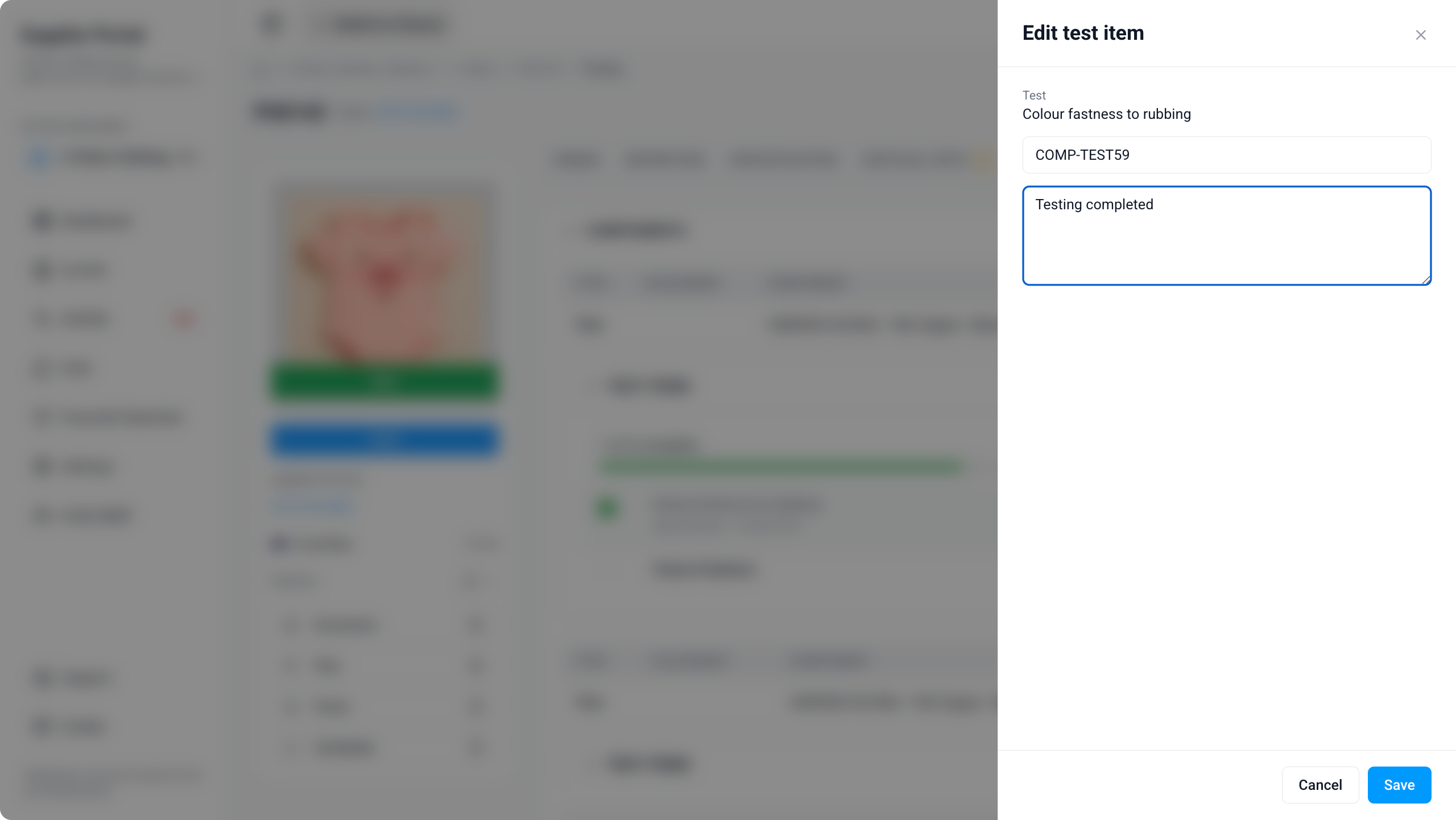
| Field | Description |
|---|---|
| Test | The test name — for example, Colour fastness to rubbing. View-only. |
| Report Number | The report or certificate reference for the test — for example, COMP-TEST59. Editable when your customer has enabled portal updates. |
| Description | Free-text notes about the test outcome — for example, Testing completed. Editable when portal updates are enabled. |
- Expand the component row and locate the test item.
- Click the Edit (pencil) icon on the test item row.
- Update Report Number and Description as required.
- Click Save to apply your changes, or Cancel to close without saving.
Components Appear Only When Assigned on the Order
The Components section is empty when your customer's instance users have not yet added components or test items on Order › Testing for this purchase order. An empty section usually means testing has not been set up on the order — not that testing is complete. Ask your instance user to confirm the order testing record before you proceed with production.
Files
The Files section lets you upload, search, and manage test-related documents on the order — for example, lab certificates, test reports, and supporting images. Files you add here may also appear in the Testing folder your customer maintains on the order record in the Production Portal, depending on their configuration.
Supplier Portal > Order > Testing > Files 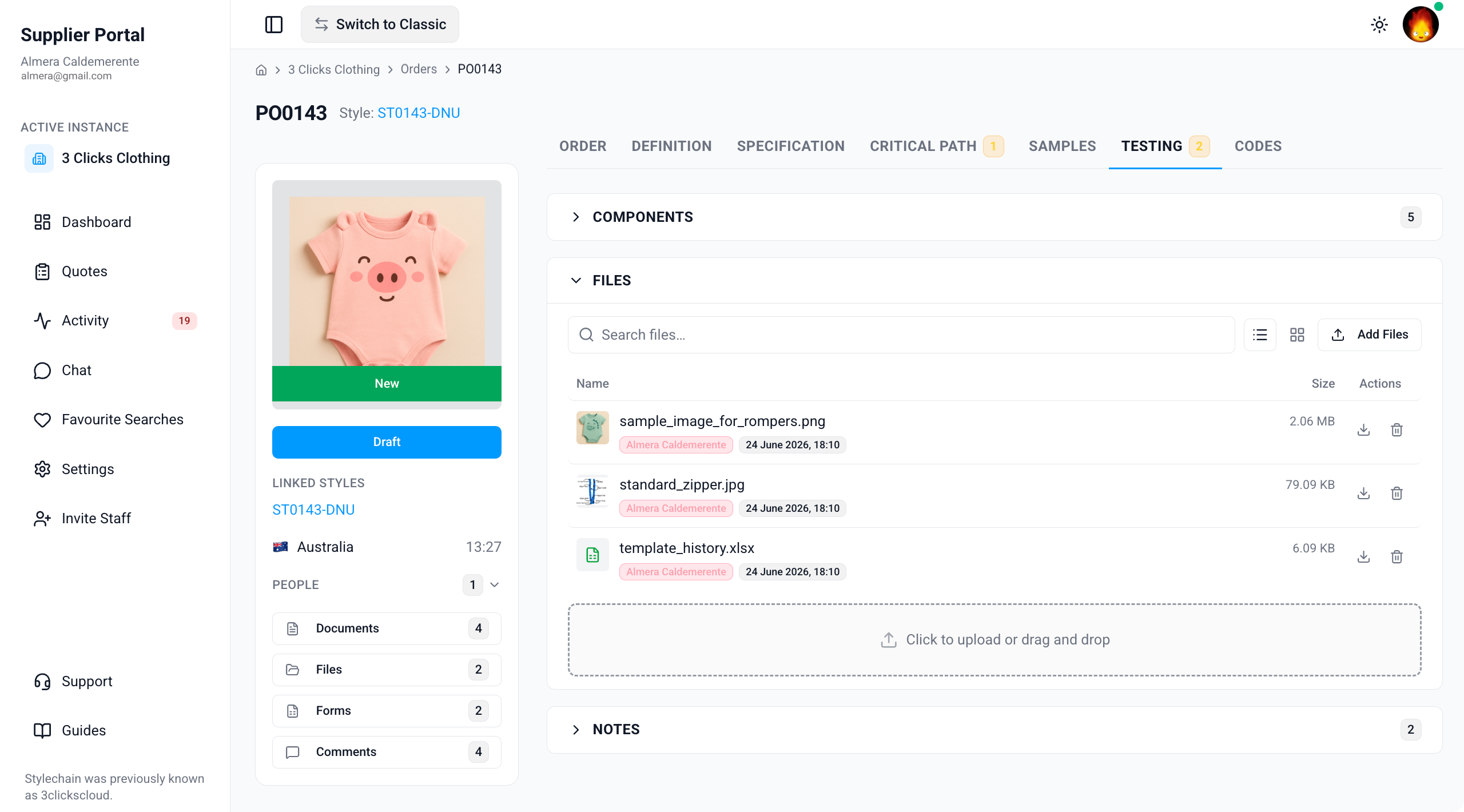
| Feature | Description |
|---|---|
| Search files | Find files in the Files section by keyword. |
| List / Grid view | Switch between list and grid layout to browse files as a table or as thumbnails. |
| Add Files | Upload individual files to the testing file area. |
| Upload area | Drag and drop files into the dashed upload zone, or click to browse and select files from your computer. |
| Download | Download a file to your device using the download action on the file row. |
| Delete | Remove a file you uploaded when it is no longer required. |
Files May Originate from Your Customer
Your customer's instance users can also add files to the order Testing folder from the Production Portal. If a file you expect is missing, ask your instance user to confirm it was uploaded and that the Testing folder is not locked on their side — a locked folder can prevent files from displaying in the Supplier Portal.
Notes
The Notes section collects test-related communication in one thread on the order. Notes added from the Activity Action pop-up when you approve or reject a test appear here automatically. You can also add a separate note directly in this section.
Supplier Portal > Order > Testing > Notes 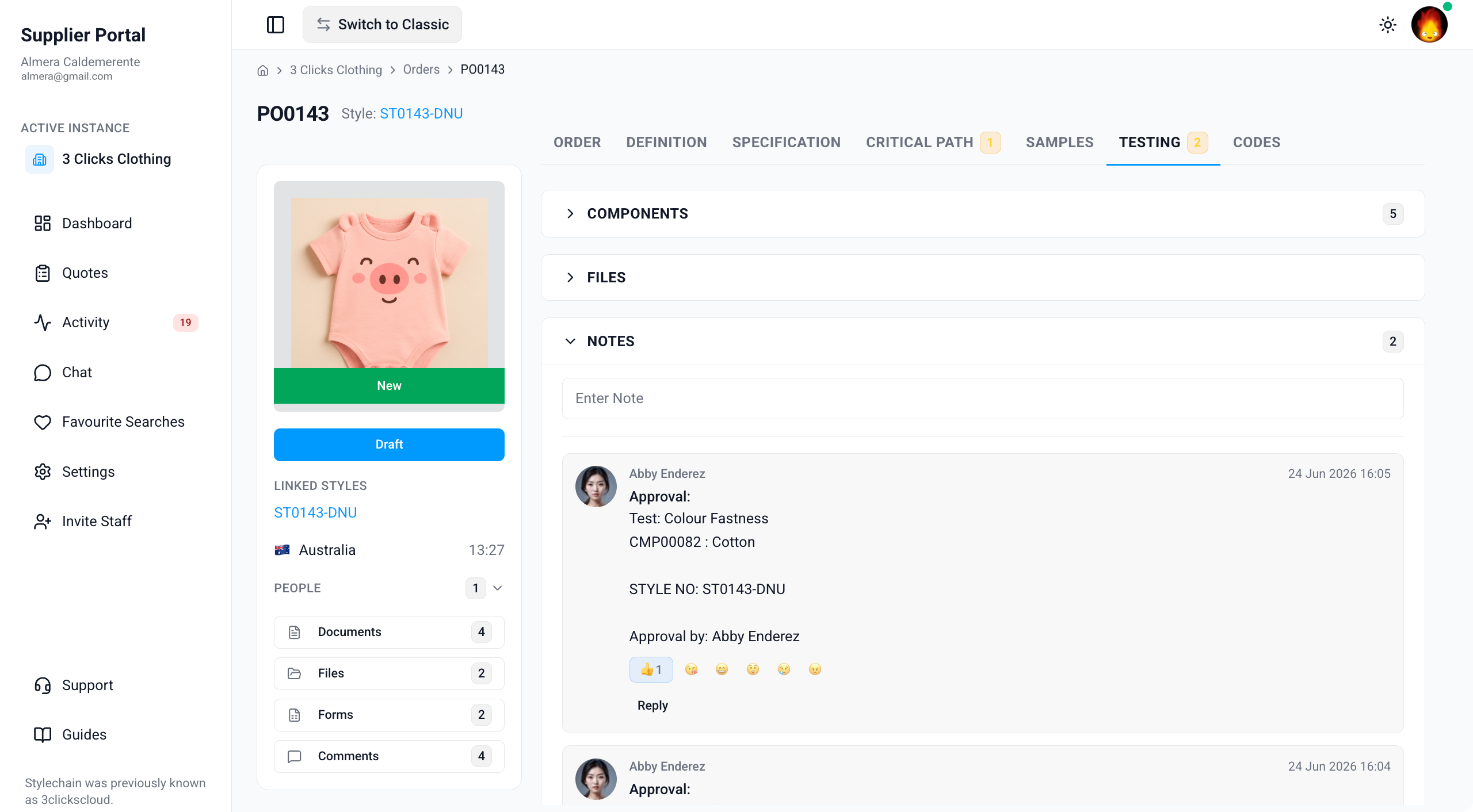
| Feature | Description |
|---|---|
| Enter Note | Add a new note about testing progress, outstanding results, or questions for your customer's team. |
| Approval / rejection notes | Structured notes posted from the Activity Action pop-up — for example, an Approval for Colour Fastness on a named component and style number. |
| Reactions | React to notes with emoji responses when enabled. |
| Reply | Reply to an existing note to continue the conversation on the same test topic. |
Keep test-specific updates in Notes on this tab so they stay linked to the testing record. Use Chat for broader production topics that are not tied to a single test item, and use Comments on the order side widget when you checked Post to Conversation on an approval or rejection.
Mention the Right Contact
People on the order side widget lists your customer's internal instance users — not supplier staff. When you need an urgent response about a failed test or missing certificate, post in Comments on the order card or use Chat and name the instance user who owns QA on the order.
Sample Scenarios
Refer to these scenarios to understand how suppliers use the Testing tab on a shared order in the Supplier Portal. Each scenario links to related documentation in this portal.
Scenario 1: Factory reviewing assigned tests before bulk production
A factory user opens a shared order to confirm which components require testing and which test items are still outstanding.
| Step | What to do | Related documentation |
|---|---|---|
| 1 | Open the order from Orders search or Activity and go to the Testing tab. | Supplier Portal › Orders |
| 2 | Expand Components and review Type, Colourway, and Component against Definition. | Definition |
| 3 | Check the Test Items progress bar on each component for incomplete tests. | Components |
| 4 | Download any existing certificates from Files before you commit to cutting or bulk production. | Files |
| 5 | Ask questions through Comments or Chat if a required test is missing. | Supplier Portal › Chat |
Scenario 2: QA coordinator marking tests complete and uploading certificates
A QA coordinator finishes lab testing, records report numbers, and uploads certificates to the order.
| Step | What to do | Related documentation |
|---|---|---|
| 1 | Expand the relevant component and mark each finished test item Complete. | Mark a test item complete |
| 2 | Click Edit on each completed item and enter the Report Number and Description from the lab report. | Edit a test item |
| 3 | Open Files, upload the certificate PDF or image, and confirm the file appears in the list. | Files |
| 4 | Click Approve (A) on the component row and attach the same certificate in the Activity Action pop-up if required. | Approve or reject a test |
| 5 | Check Notes to confirm the approval was recorded and optionally check Post to Conversation so your customer's team sees the outcome on Comments. | Notes |
Scenario 3: Merchandiser checking test approvals before a development meeting
A merchandiser reviews approval notes and open test items on an order before an internal hand-off with the factory team.
| Step | What to do | Related documentation |
|---|---|---|
| 1 | Open the order and expand Components to see how many test items remain incomplete. | Components |
| 2 | Open Notes and read recent Approval or Rejection entries for each component and test type. | Notes |
| 3 | Cross-check Critical Path for related QA milestones on the same order. | Supplier Portal › Order › Critical Path |
| 4 | Compare Samples progress if sample approvals depend on test outcomes. | Supplier Portal › Order › Samples |
| 5 | Use Activity to see recent testing updates posted by your customer's team. | Supplier Portal › Activity |
Next Steps
- Confirm materials and colourways on Definition
- Review sketches and measurements on Specification
- Track sample progress on Samples
- Monitor production milestones on Critical Path
- Search and open shared orders
- Ask your customer's team about test changes
Related Settings
These Site Settings pages are maintained by your customer's administrators. Share them with your instance user contact if Testing sections, components, or portal actions do not match expectations.
Troubleshooting
Why is the Testing tab missing on an order I can otherwise open?
Tab visibility depends on your Supplier Portal role, portal display settings, and what your customer has shared on the order record.
Steps to resolve:
- Confirm whether the tab is missing entirely or visible but empty.
- Ask your instance user to verify your Supplier Portal role in Site Settings › Company › Suppliers includes Order with View enabled.
- Ask them to confirm components and test items exist on Order › Testing for this purchase order and that the order is shared with your factory or agent.
- Click Refresh or reopen the order from Activity after your customer confirms updates.
Why is the Components section empty?
Components with test requirements come directly from Order › Testing on the Production Portal. If no tests are assigned on the order, the section has nothing to display.
Steps to resolve:
- Confirm with your instance user that components and test items exist on Order › Testing for this purchase order.
- Cross-check Definition — if components exist there but not on Testing, tests may not yet be assigned on the order.
- Refresh the order record and reopen the Testing tab.
- Use Chat to confirm expected test types while your customer sets up testing on the order.
Why can I see test items but not approve, reject, or mark them complete?
Portal actions on testing are controlled by your customer's configuration. View access does not always include permission to complete test items or post approvals.
Steps to resolve:
- Confirm whether Approve, Reject, and completion controls are hidden or read-only.
- Ask your instance user to verify supplier portal permissions for testing on the order.
- Send completion and approval updates through Comments or Chat while permissions are being reviewed.
Why can I not edit the Report Number or Description on a test item?
Edit access on test items is granted by your customer's portal configuration. The Edit icon may be visible but fields locked when updates are restricted.
Steps to resolve:
- Confirm whether the Edit Test Item pop-up opens but fields are read-only.
- Ask your instance user to verify supplier edit permissions for order testing.
- Send report numbers and outcomes through Notes or Chat until edit access is enabled.
Why are Files empty on the Testing tab?
Files may not yet be uploaded, or your customer may have locked the Testing folder on the Production Portal order record — which can prevent files from displaying in the Supplier Portal.
Steps to resolve:
- Confirm with your instance user whether a Testing folder exists on the order and whether it is locked.
- Ask them to upload required certificates on their side if supplier uploads are not expected.
- Upload files using Add Files or the drag-and-drop area when your role includes upload access.
- Refresh the order record after your customer confirms folder changes.
Why did my approval not appear in Notes or Comments?
Approvals only post to Notes when you save the Activity Action pop-up. They appear on the order Comments widget only when Post to Conversation was checked.
Steps to resolve:
- Reopen the component row and confirm the approval was saved — check Notes for a structured Approval entry.
- If your customer's team expected a Comments post, repeat the action with Post to Conversation checked.
- Add a manual note in Notes or post in Comments on the order card to confirm the outcome while you investigate.
Why does a test on the order not match Definition components?
Testing reflects test assignments on Order › Testing, while Definition shows the bill of materials. A component can appear on Definition without a test assigned on the order, or a test can reference a component that was updated after tests were configured.
Steps to resolve:
- Compare Component numbers on Testing with Code values on Definition.
- Ask your instance user whether Order › Testing needs updating after a BOM change.
- Post a Note or message in Chat if a component colourway or placement does not match your brief.