Outstanding Activities
Outstanding Activities is a calendar workspace in the Supplier Portal for Orders, Styles, and Compliance. It shows open critical path and related activity due dates across records your customer has shared with your supplier account, so you can see what is due today, what is overdue, and complete work without opening each record first.
From the Dashboard, click Activities on the Orders, Styles, or Compliance card to open that application's outstanding activities view.
Quick Check - Before You Start
- Confirm you are logged in to the correct Supplier Portal account and customer connection.
- Open Outstanding Activities from the Dashboard by clicking Activities on the Orders, Styles, or Compliance card.
- Enable Critical Path Activity notifications in Profile › Notification Preferences so you are alerted when activities need your attention.
- Your customer controls which activities appear in the Supplier Portal and whether suppliers can mark them complete — ask your instance user if an expected milestone is missing.
Accessing Outstanding Activities
| Application | How to open |
|---|---|
| Orders | On the Dashboard, click Activities on the Orders card. |
| Styles | On the Dashboard, click Activities on the Styles card. |
| Compliance | On the Dashboard, click Activities on the Compliance card. |
Each link opens the outstanding activities calendar scoped to that application. Only records shared with your supplier account and activities your customer has enabled for the portal are included.
Outstanding Activities vs Activity feed
Outstanding Activities is a calendar of due and overdue work items you can complete from the portal. Activity is a separate notification feed for comments, file uploads, status changes, and other updates from your customer's team.
Calendar View
The outstanding activities screen displays a calendar with the current day marked. Use it to scan which days have open work and select a date to review activities due on that day.
| Element | Description |
|---|---|
| Calendar | Month grid showing days with outstanding activities. The current day is highlighted so you can orient quickly. |
| Current day | Today's date is visually marked on the calendar. |
Filters and display options
Use the toolbar above the calendar to narrow what appears on the calendar and in the day panel.
| Control | Description |
|---|---|
| All open | Shows every open activity across the visible date range. |
| Due this week | Limits the calendar to activities due in the current week. |
| Overdue only | Shows only activities whose due date has passed and that are not yet complete. |
| Show completed | When ticked, includes completed activities in the calendar and day list. When cleared, only open items appear. |
| Today | Jumps the calendar to today's date and refreshes the day panel. |
| Week | Displays the calendar in a week-focused view. |
| Month | Displays the full month grid. |
Combine All open, Due this week, or Overdue only with Show completed and the Today, Week, or Month display options to focus on the work that matters most — for example, overdue items this week without completed rows cluttering the list.
Day Panel
Click a date on the calendar to open the day panel for that day. The panel summarises everything due on the selected date and groups activities under their parent record.
| Element | Description |
|---|---|
| Date | The selected calendar date displayed at the top of the day panel. |
| Activities | A count of activities scheduled for that day. |
| Day progress bar | Visual completion summary for the day — for example, 2 of 4 complete: 50%. |
Day panel filters
Filter the activity list within the day panel without changing the calendar selection.
| Filter | Description |
|---|---|
| All | Shows every activity for the selected day. |
| Overdue | Shows only activities that are past their due date and not yet complete. |
| Has Due | Shows activities that have a due date assigned. |
| No due date | Shows activities with no due date set. |
Activity rows
Each grouped section under a parent record shows:
| Element | Description |
|---|---|
| Record number and name | The order, style, or compliance number and description for the parent record. |
| Open record link | Open order, Open style, or Open compliance — opens the full record in the Supplier Portal. |
| Due status | The exact due date, an overdue indicator with the date it became overdue, or a No due date label when no due date is set. |
| Activities | Individual activity rows listed under the parent record. |
For each activity under an order, style, or compliance record, you can:
- Mark as completed — when your customer has enabled portal completion for that activity type (typically critical path milestones).
- View notes — read comments, approvals, and attachments recorded against the activity.
- Add activity notes — post updates, file attachments, or @ mentions so milestone progress stays on the record.
Sample report and test due dates
When your customer sets a Due Date on Order > Samples > Sample Reports, Style > Samples > Sample Reports, or Order > Testing > Components, those deadlines appear on the Outstanding Activities calendar next to critical path and sample requirement work. Sample report and test rows are for visibility — open the main record from Open order or Open style to complete the underlying work.
Completion depends on your customer's configuration
Your customer controls which activities suppliers can complete from the Supplier Portal. If you can see an activity but cannot mark it complete or add notes, ask your instance user to confirm portal display and approval settings for that milestone. See Supplier Portal › Order › Critical Path, Supplier Portal › Style › Critical Path, or the compliance record for record-level detail.
Orders
When you open outstanding activities from the Orders card on the Dashboard, the calendar lists open activities across shared orders — typically critical path milestones, sample requirements, sample reports, and test due dates your customer has assigned to those orders.
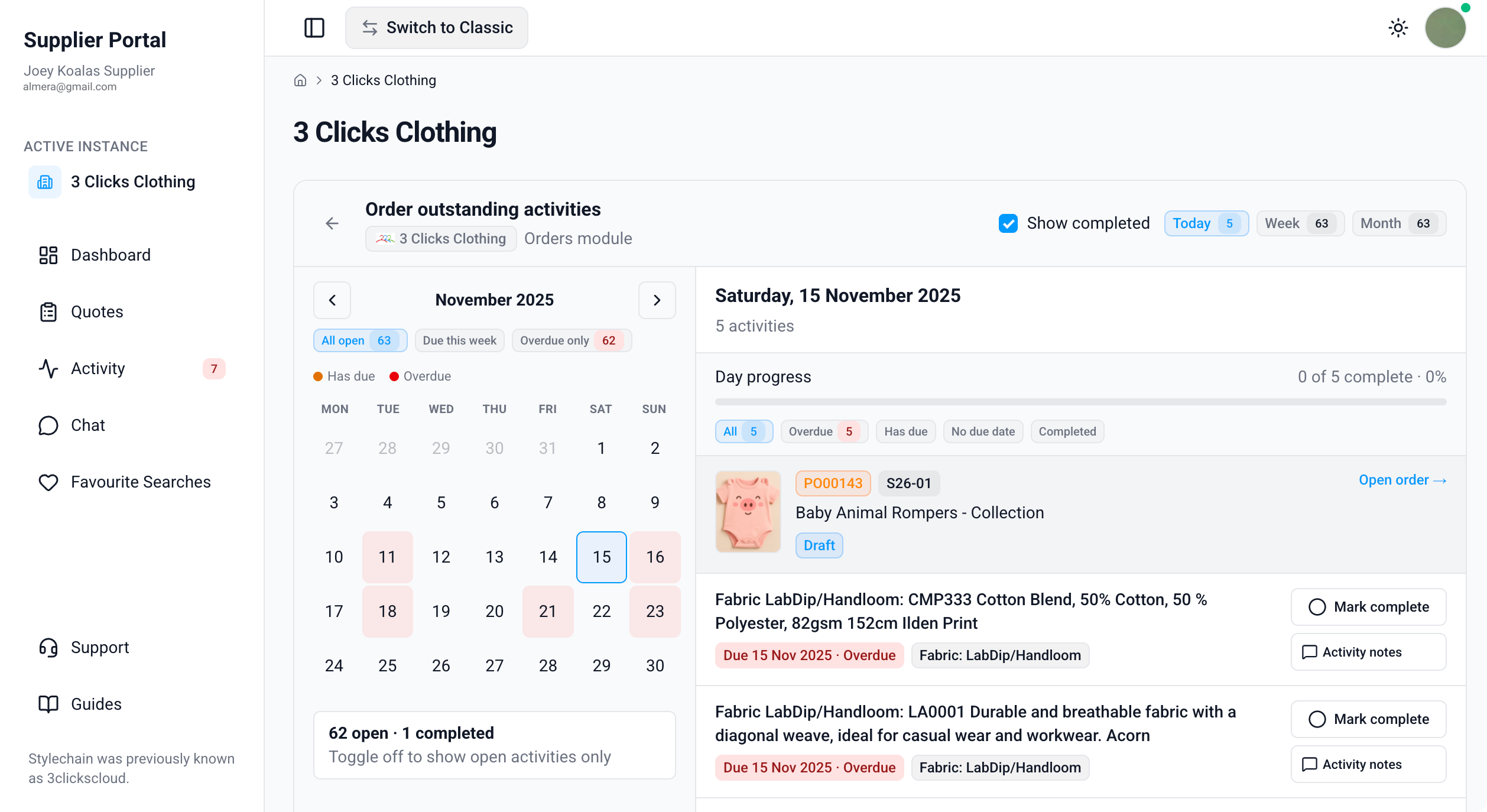
| Element | Description |
|---|---|
| Open order | Opens the shared order record so you can review quantities, specifications, samples, or testing in context. |
| Order number and name | Identifies which purchase order each activity group belongs to. |
| Activities | Milestones and due items on the order — including critical path activities, sample requirements, sample reports with due dates, and component tests with due dates. Mark eligible critical path activities complete and add notes from the day panel or from Critical Path on the order record. |
Styles
When you open outstanding activities from the Styles card on the Dashboard, the calendar lists open activities across shared styles — typically critical path milestones and sample requirement or sample report due dates on those development records.
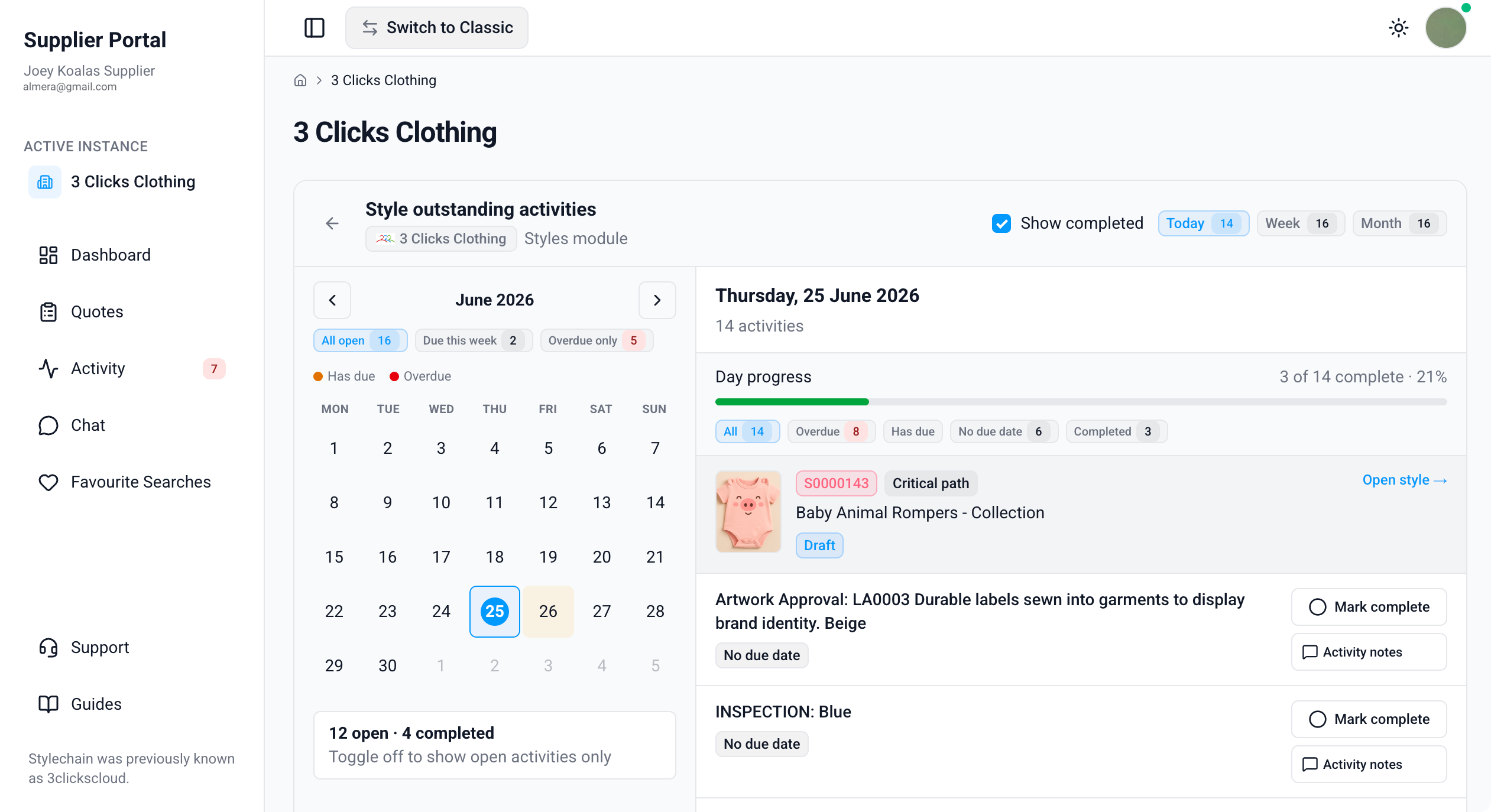
| Element | Description |
|---|---|
| Open style | Opens the shared style record so you can review details, colours, specifications, or samples in context. |
| Style number and name | Identifies which style each activity group belongs to. |
| Activities | Milestones and due items on the style — including critical path activities, sample requirements, and sample reports with due dates. Mark eligible critical path activities complete and add notes from the day panel or from Critical Path on the style record. |
Compliance
When you open outstanding activities from the Compliance card on the Dashboard, the calendar lists open activities across shared compliance records — for example, critical path milestones or remediation items your customer has assigned with due dates.
Compliance Outstanding Activities 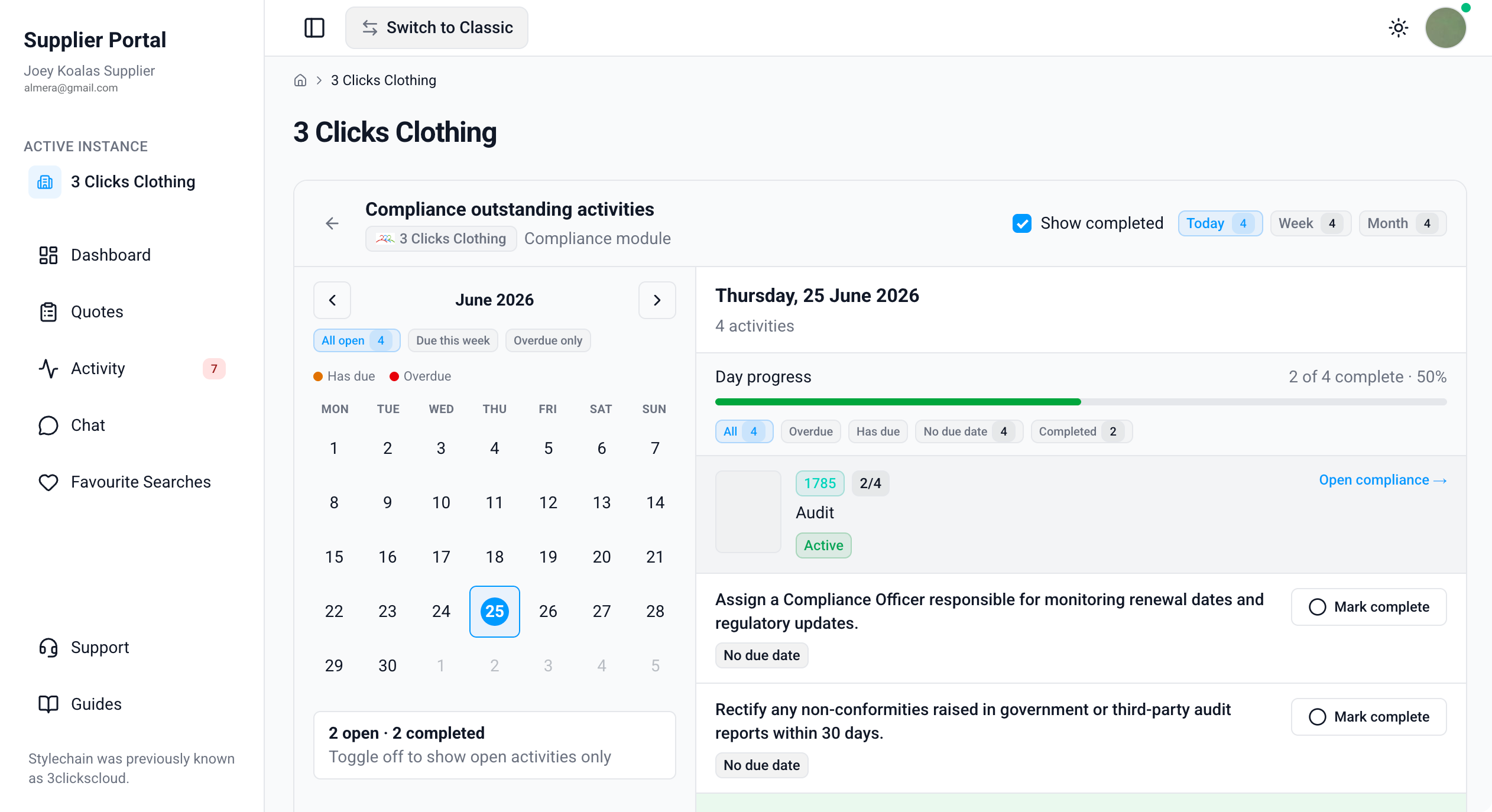
| Element | Description |
|---|---|
| Open compliance | Opens the shared compliance record so you can review Details, Audit, and Corrective Action Plan (CAP) in context. |
| Compliance number and name | Identifies which compliance record each activity group belongs to. |
| Activities | Milestones and due items on the compliance record. Mark eligible activities complete and add notes from the day panel or from the compliance record overview. |
Related Actions
- Dashboard
- Supplier Portal › Orders
- Supplier Portal › Styles
- Supplier Portal › Compliance
- Supplier Portal › Order › Critical Path
- Supplier Portal › Style › Critical Path
- Supplier Portal › Compliance
- Activity
- Order > Samples > Sample Reports
- Style > Samples > Sample Reports
- Order > Testing > Components
Troubleshooting
Why does number of Activities on the Dashboard show zero?
The counter reflects open activities on records shared with your supplier account. If your customer has not assigned critical path or other dated activities to shared records, the count may be zero.
Steps to resolve:
- Open Orders, Styles, or Compliance directly and confirm shared records exist.
- Open a record and check whether Critical Path or related sections contain activities with due dates.
- Ask your instance user to confirm activities are configured and enabled for the Supplier Portal.
Why is the calendar empty after I click Activities?
Activities only appear when your customer has shared records with due dates or open milestones assigned to your supplier account.
Steps to resolve:
- Clear restrictive filters — try All open and widen the display to Month.
- Tick Show completed if you expect to see recently closed items.
- Confirm you are on the correct customer connection in Active Instance.
- Ask your instance user to verify portal activity display settings for your Supplier Portal role.
Why can I see an activity but not mark it complete?
Not every activity type supports completion from Outstanding Activities. Your customer may restrict supplier completion to specific critical path milestones.
Steps to resolve:
- Open the parent record using Open order, Open style, or Open compliance and try completing the activity from the record's Critical Path tab.
- Post progress in Comments on the record if the activity is read-only in the portal.
- Ask your instance user to confirm portal completion settings for that activity type.
Why can I see a sample report or test due date but not mark it complete?
Sample report and component test due dates are shown on the calendar for visibility. Completion is managed on the order or style record — for example in Samples or Testing — not from Outstanding Activities.
Steps to resolve:
- Use Open order or Open style to open the parent record.
- Go to Samples > Sample Reports or Testing > Components and complete the work there.
- Ask your instance user if you expected to mark the item complete from the calendar.
Why does the day progress bar not match what I expect?
The day progress bar counts activities visible for the selected date after your current filters. Completed items are excluded unless Show completed is ticked.
Steps to resolve:
- Set the day panel filter to All and tick Show completed to see the full picture for that date.
- Check whether some activities use No due date and switch to the No due date filter to find them.
- Refresh the page if you completed activities on another device or tab.