Profile
Use Profile to manage your personal account in the Supplier Portal. Update how you appear to customers and colleagues, set display and language preferences, choose which email and browser notifications you receive, change your password, and manage multi-factor authentication (MFA).
Quick Check - Before You Start
- Click your profile image in the bottom-left corner of the screen, then select My Profile
- Use a clear PNG or JPG file if you plan to upload a profile photo
- Keep your email address current so password resets and notification emails reach you
Accessing Profile
- Click your profile image at the upper-right corner of the screen.
- Select My Profile.
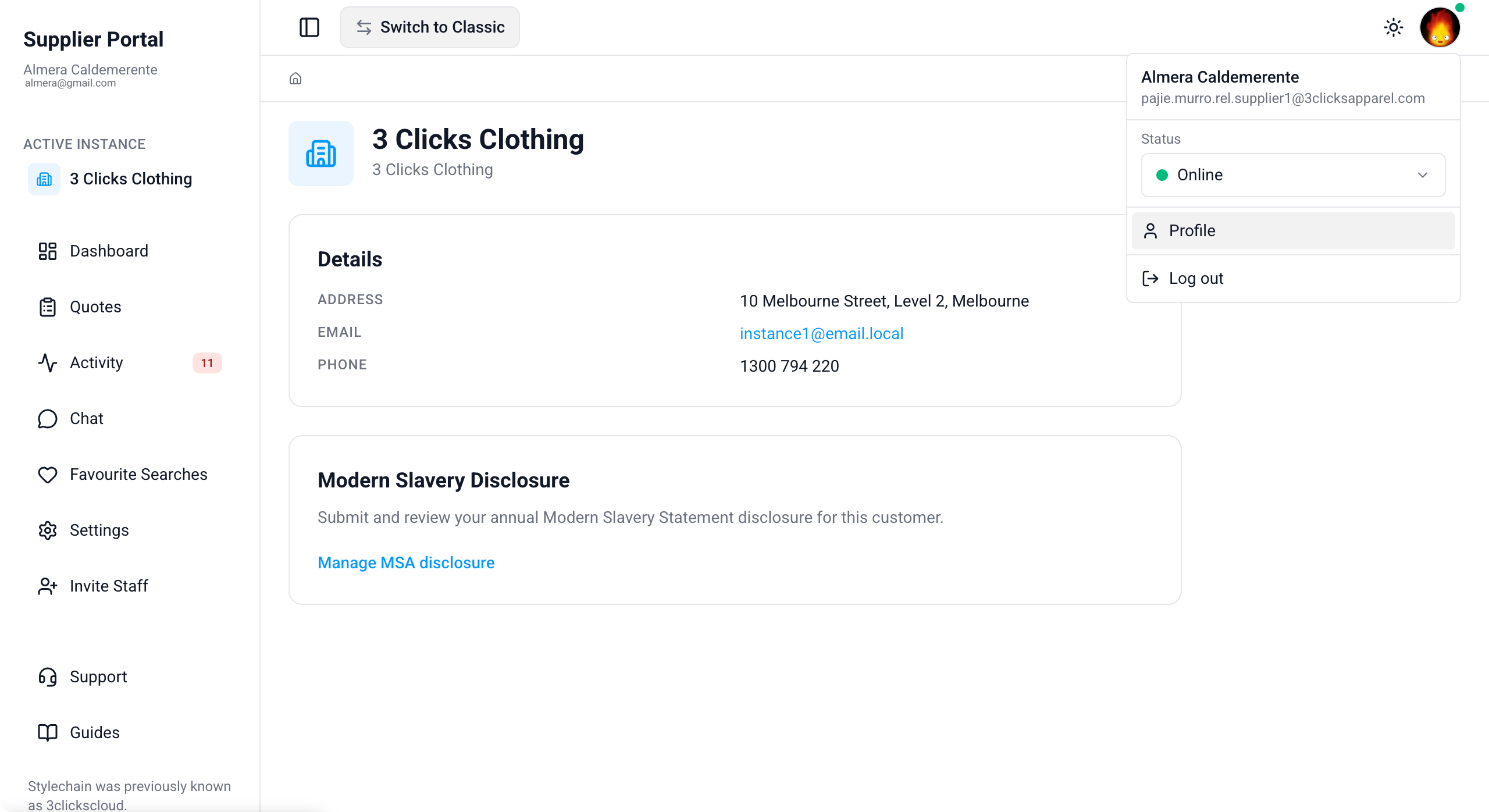
The profile area is organised into sections for Personal Details, Preferences, Notification Preferences, Change Your Password, and Multi-factor authentication.
Personal Details
Update the information shown on your account across the portal.
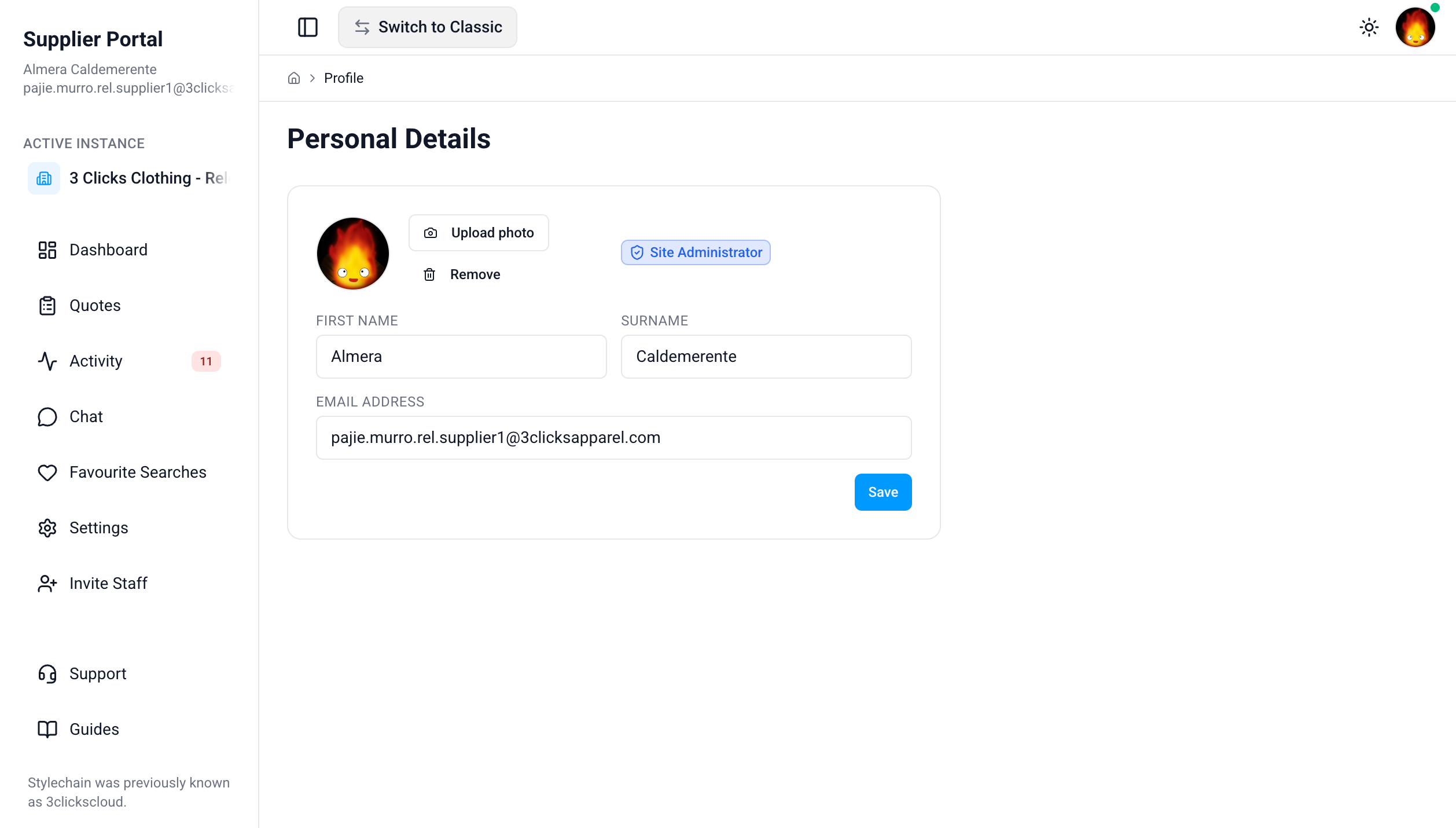
| Field | Description |
|---|---|
| Profile picture | Upload a photo or click Remove to clear the current image. Use a clear, professional image so customers and colleagues can identify you. |
| Profile Tags | Tags assigned to your account (for example, Site Administrator). Tags reflect your role and are managed by your administrator. |
| First name | Your given name as displayed in the portal. |
| Surname | Your family name as displayed in the portal. |
| Email address | Your login email and primary contact address for account-related messages. |
Profile Tags
Profile Tags are assigned by an administrator when your account is created or updated. If your role tag is missing or incorrect, ask a Site Administrator to review your account under Site Settings › Company › Staff.
Preferences
Configure how the Supplier Portal looks and behaves for your account.
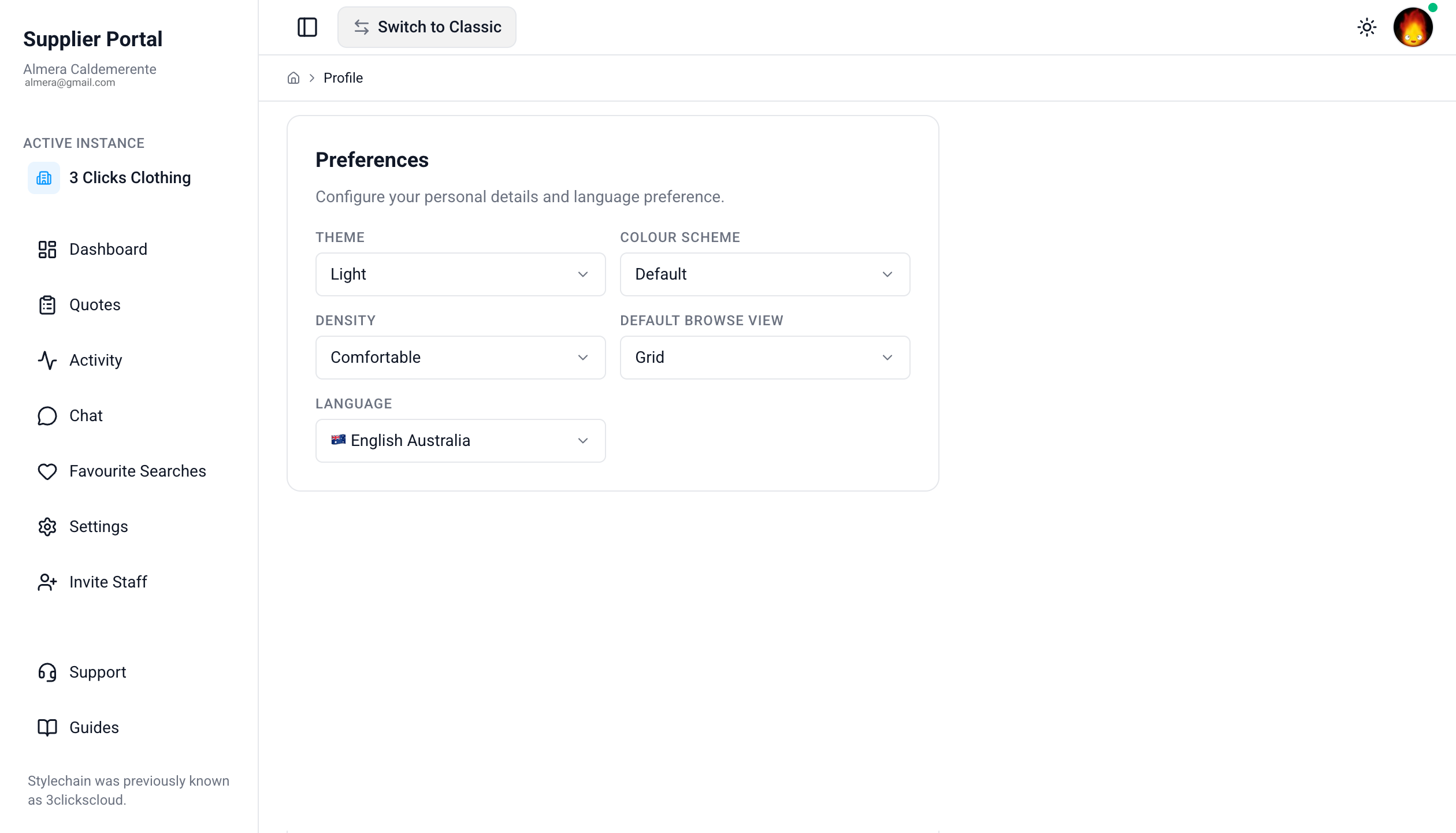
| Setting | Options | Description |
|---|---|---|
| Theme | Dark, Light, System | Choose the colour mode for the portal interface. System follows your device or browser setting. |
| Colour Scheme | Default, Christmas | Select the accent styling applied across the portal. |
| Density | Comfortable, Compact | Control spacing in lists and forms. Compact shows more content on screen. |
| Default Browse View | Grid, List | Set whether record lists open in a grid or list layout by default. |
| Language | See list below | Choose your preferred interface language. Labels and formatting may follow this selection after you save. |
Supported Languages
| Language | Country |
|---|---|
| English | Australia |
| Bengali | Bangladesh |
| Portuguese | Brazil |
| Simplified Chinese | China |
| Indonesian | Indonesia |
| Khmer | Cambodia |
| Korean | South Korea |
| Sinhala | Sri Lanka |
| Thai | Thailand |
| Traditional Chinese | Taiwan |
| English | United States of America |
| Vietnamese | Vietnam |
Common Pitfall
If you change Language and the interface does not update immediately, save your changes, refresh the browser, or sign out and back in. Some labels may depend on language packs enabled for your organisation.
Notification Preferences
Select which alerts you receive by email and in the browser. Notification checkboxes control updates for orders, styles, costings, claims, compliance, and collaboration activity.
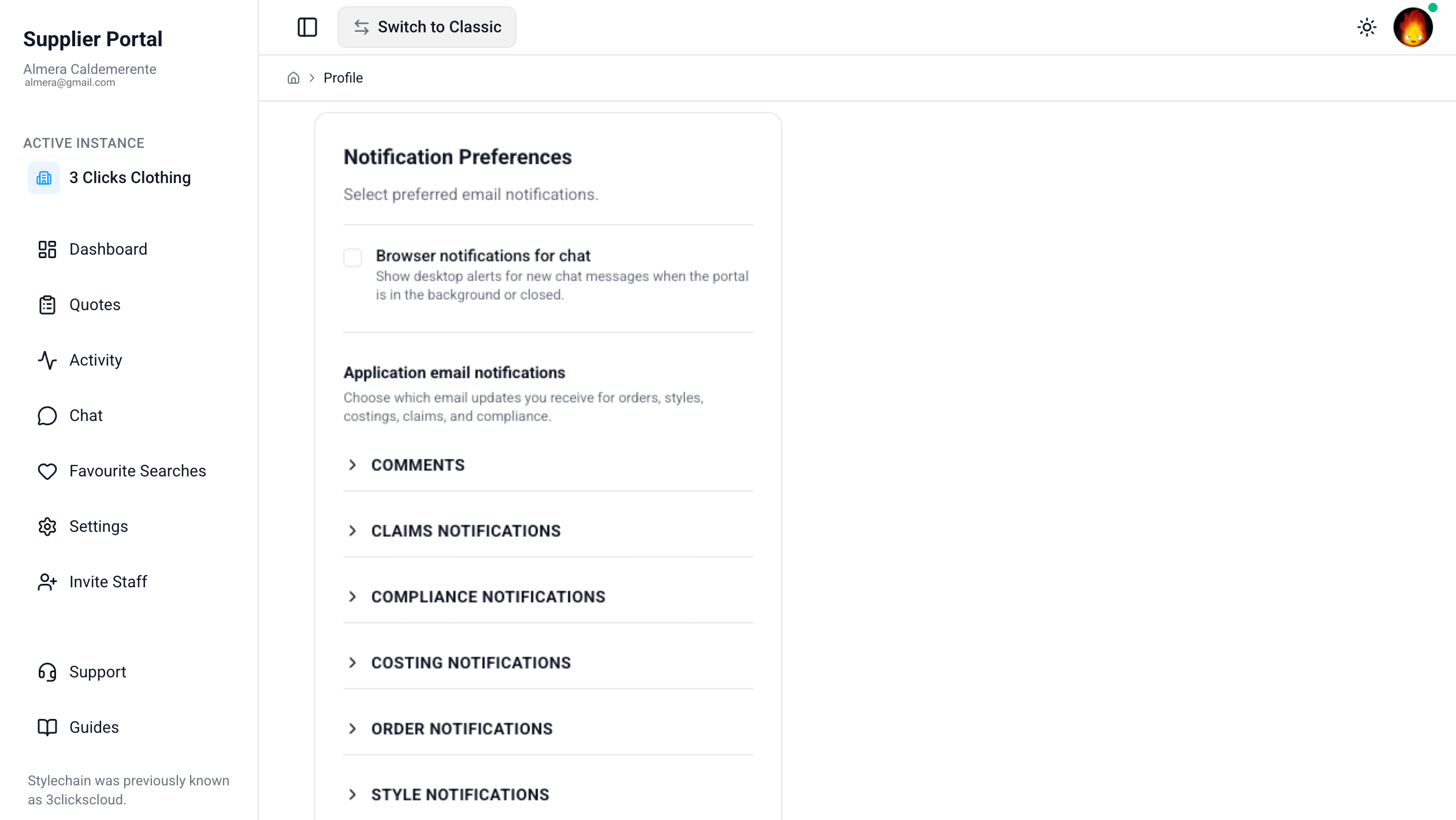
Browser Notifications
| Setting | Description |
|---|---|
| Browser notifications for chat | Show desktop alerts for new chat messages when the portal is in the background or closed. |
Application Email Notifications
Choose which email updates you receive for shared records and document changes.
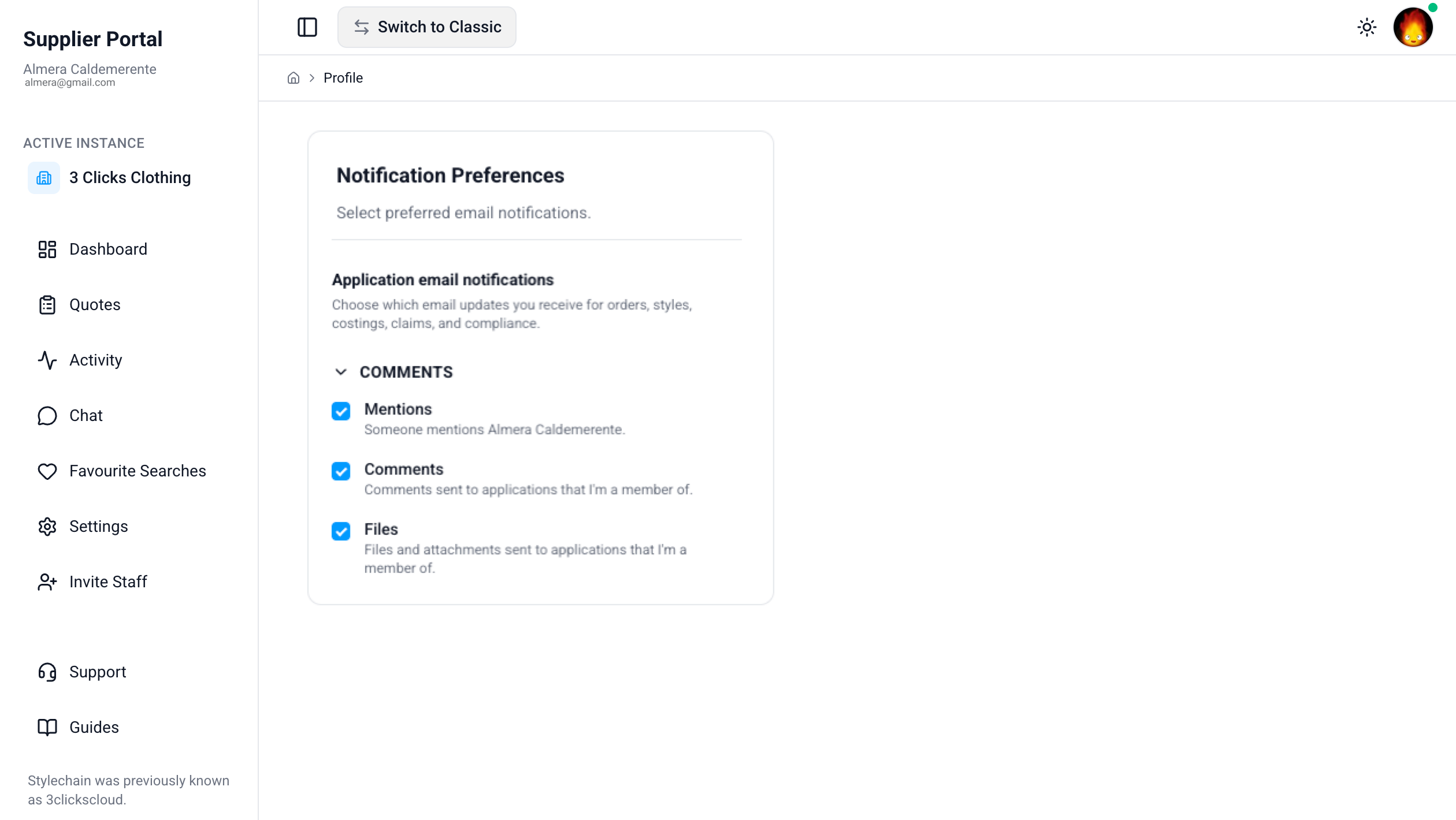
Comments
| Setting | Description |
|---|---|
| Mentions | Notified when someone mentions you in a comment (for example, @Your Name). |
| Comments | Comments sent to applications that you are a member of. |
| Files | Files and attachments sent to applications that you are a member of. |
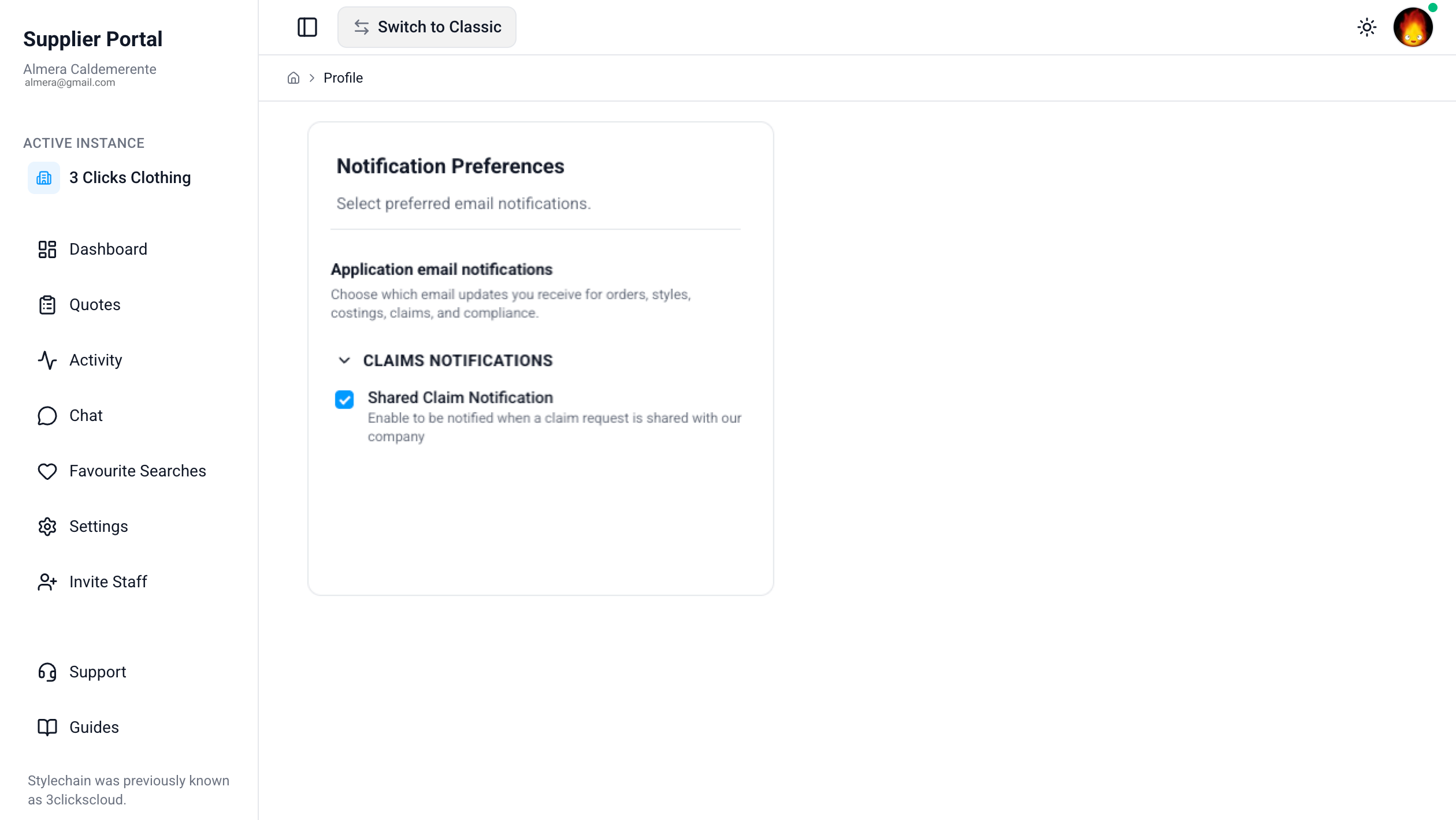
Claims Notifications
| Setting | Description |
|---|---|
| Shared Claim Notification | Notified when a claim request is shared with your company. |
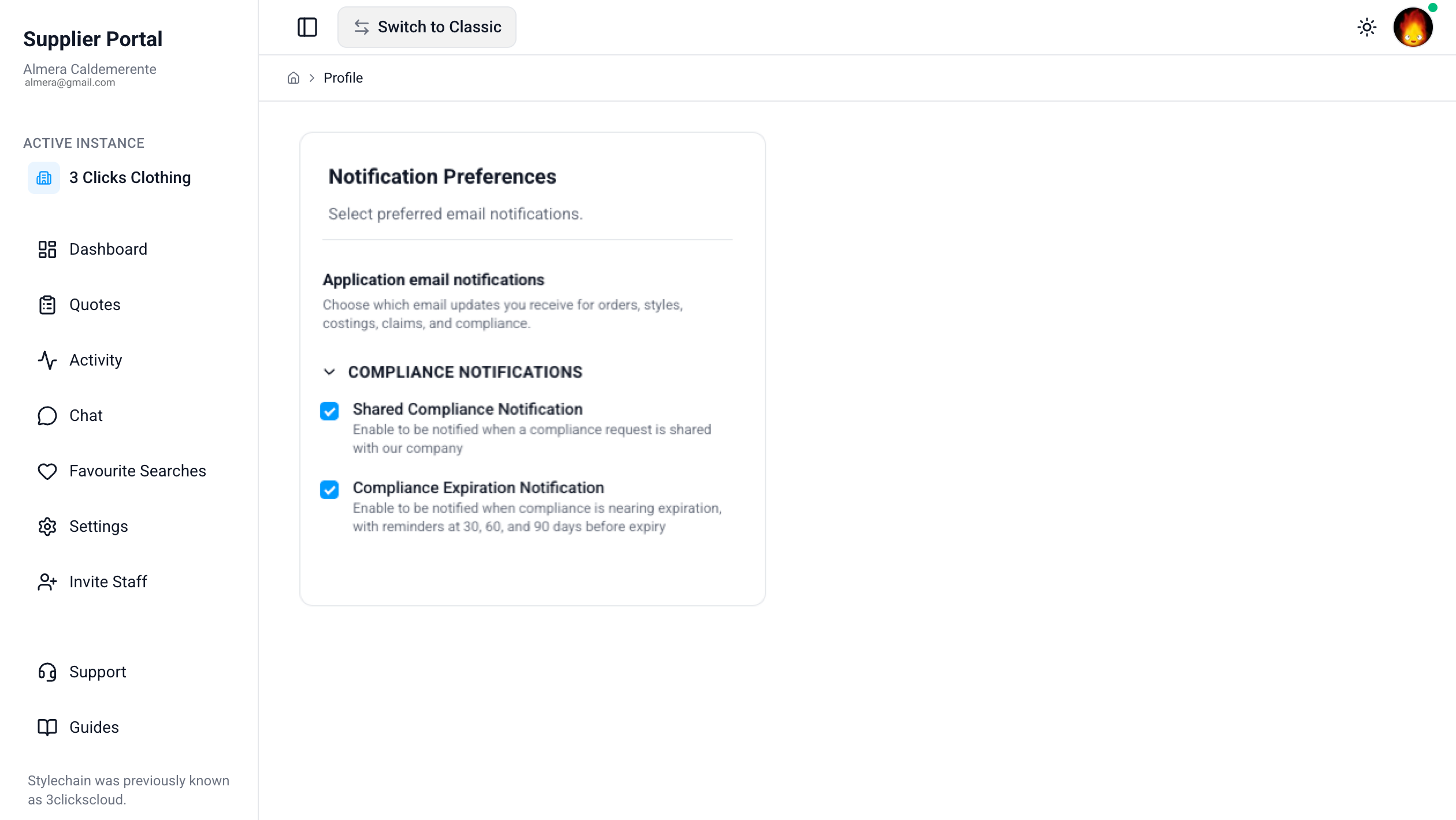
Compliance Notifications
| Setting | Description |
|---|---|
| Shared Compliance Notification | Notified when a compliance request is shared with your company. |
| Compliance Expiration Notification | Notified when compliance is nearing expiration, with reminders at 30, 60, and 90 days before expiry. |
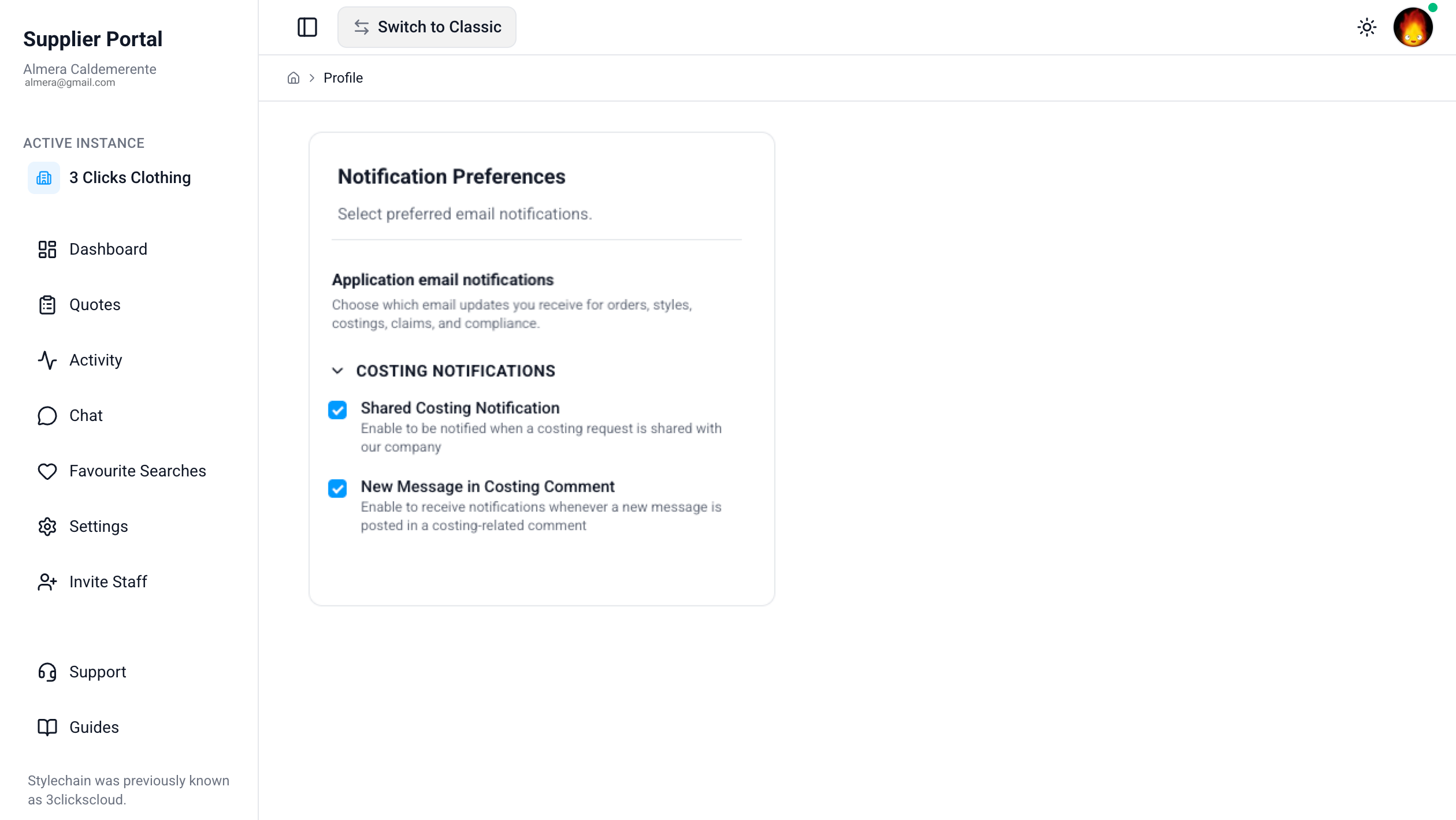
Costing Notifications
| Setting | Description |
|---|---|
| Shared Costing Notification | Notified when a costing request is shared with your company. |
| New Message in Costing Comment | Notified whenever a new message is posted in a costing-related comment. |
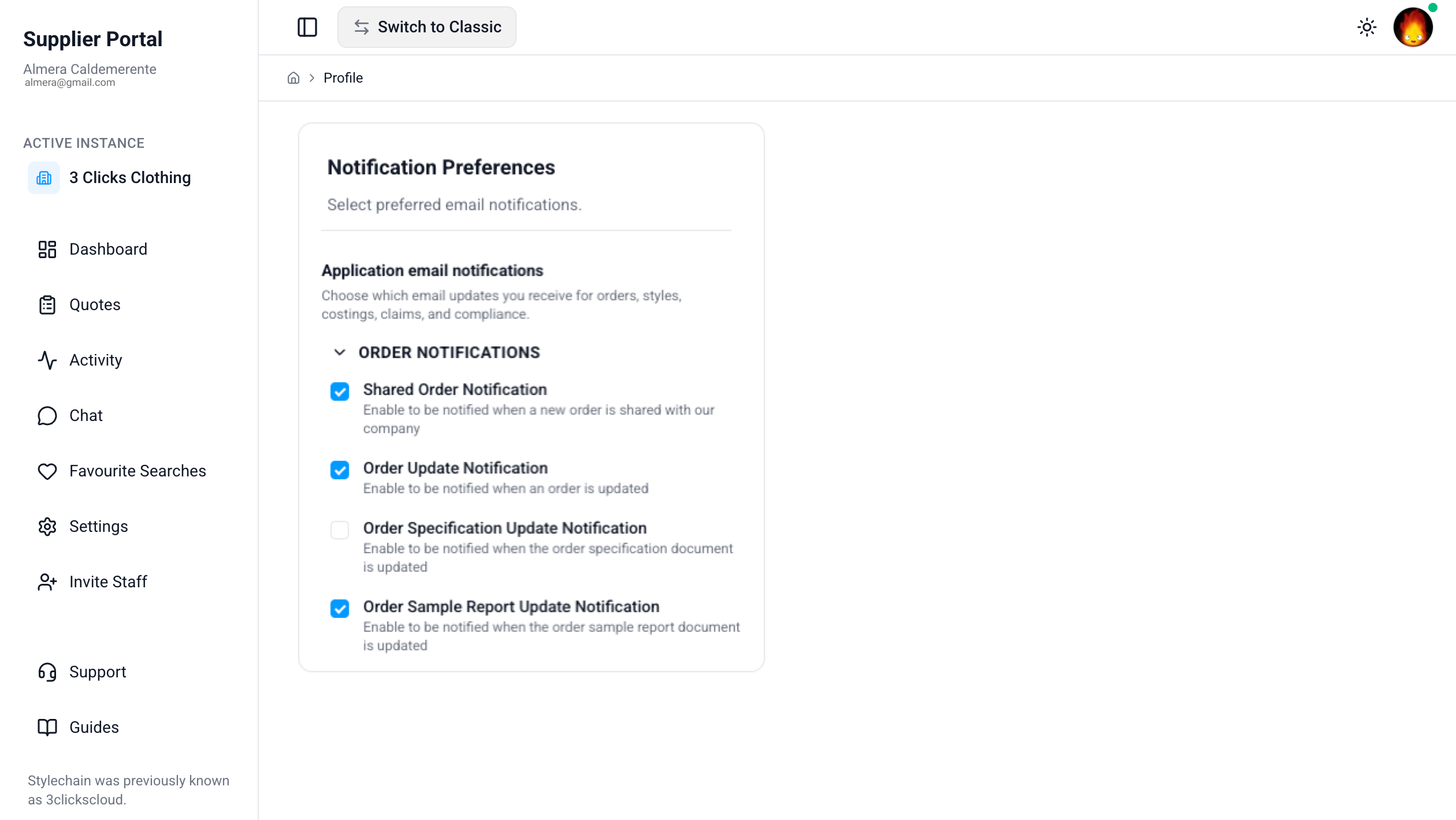
Order Notifications
| Setting | Description |
|---|---|
| Shared Order Notification | Notified when a new order is shared with your company. |
| Order Update Notification | Notified when an order is updated. |
| Order Specification Update Notification | Notified when the order specification document is updated. |
| Order Sample Report Update Notification | Notified when the order sample report document is updated. |
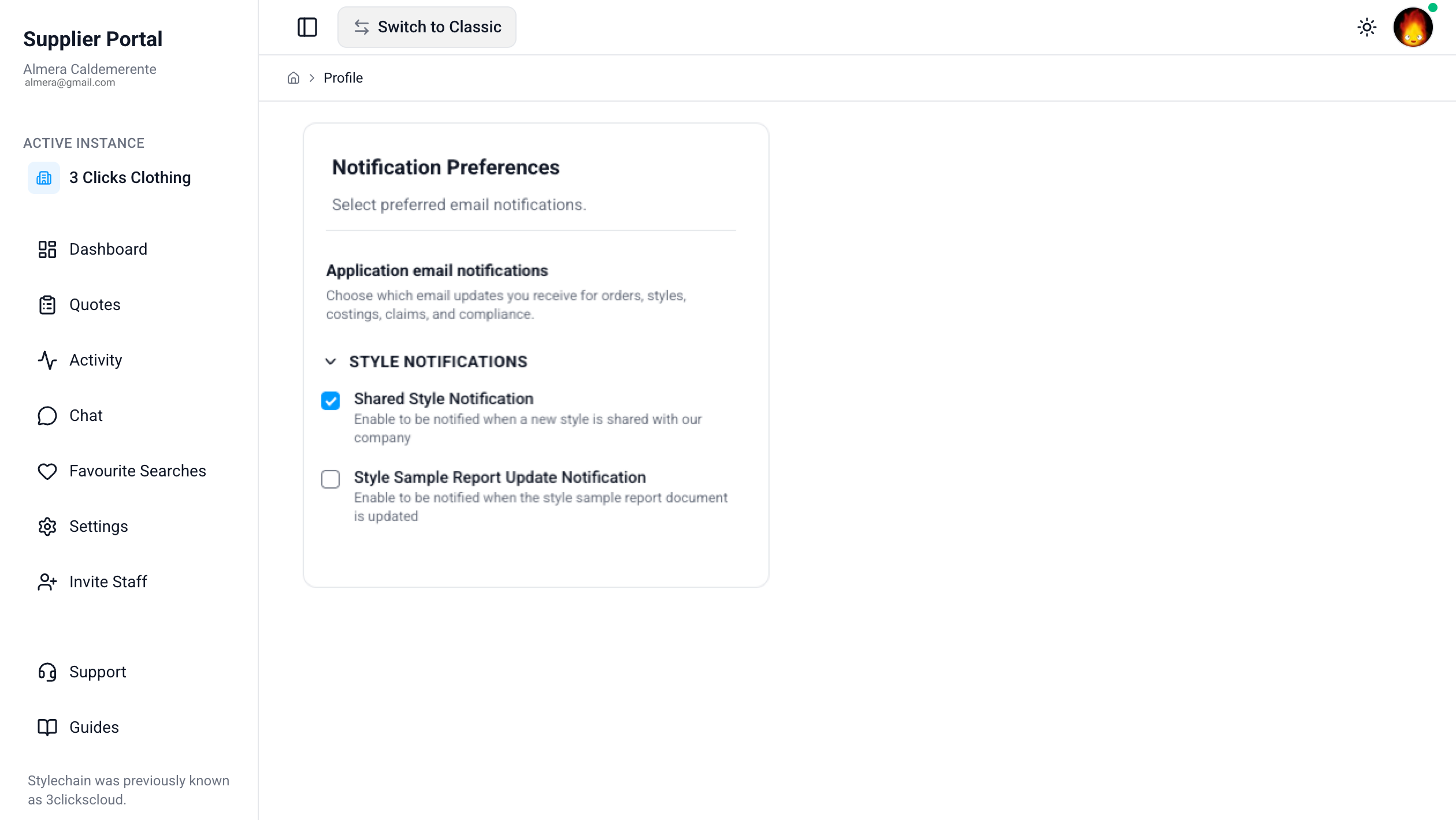
Style Notifications
| Setting | Description |
|---|---|
| Shared Style Notification | Notified when a new style is shared with your company. |
| Style Sample Report Update Notification | Notified when the style sample report document is updated. |
Keep Critical Alerts Enabled
Consider keeping high-priority items such as Order Update Notification, Compliance Expiration Notification, and Shared Order Notification enabled so you do not miss deadlines or new work shared with your company.
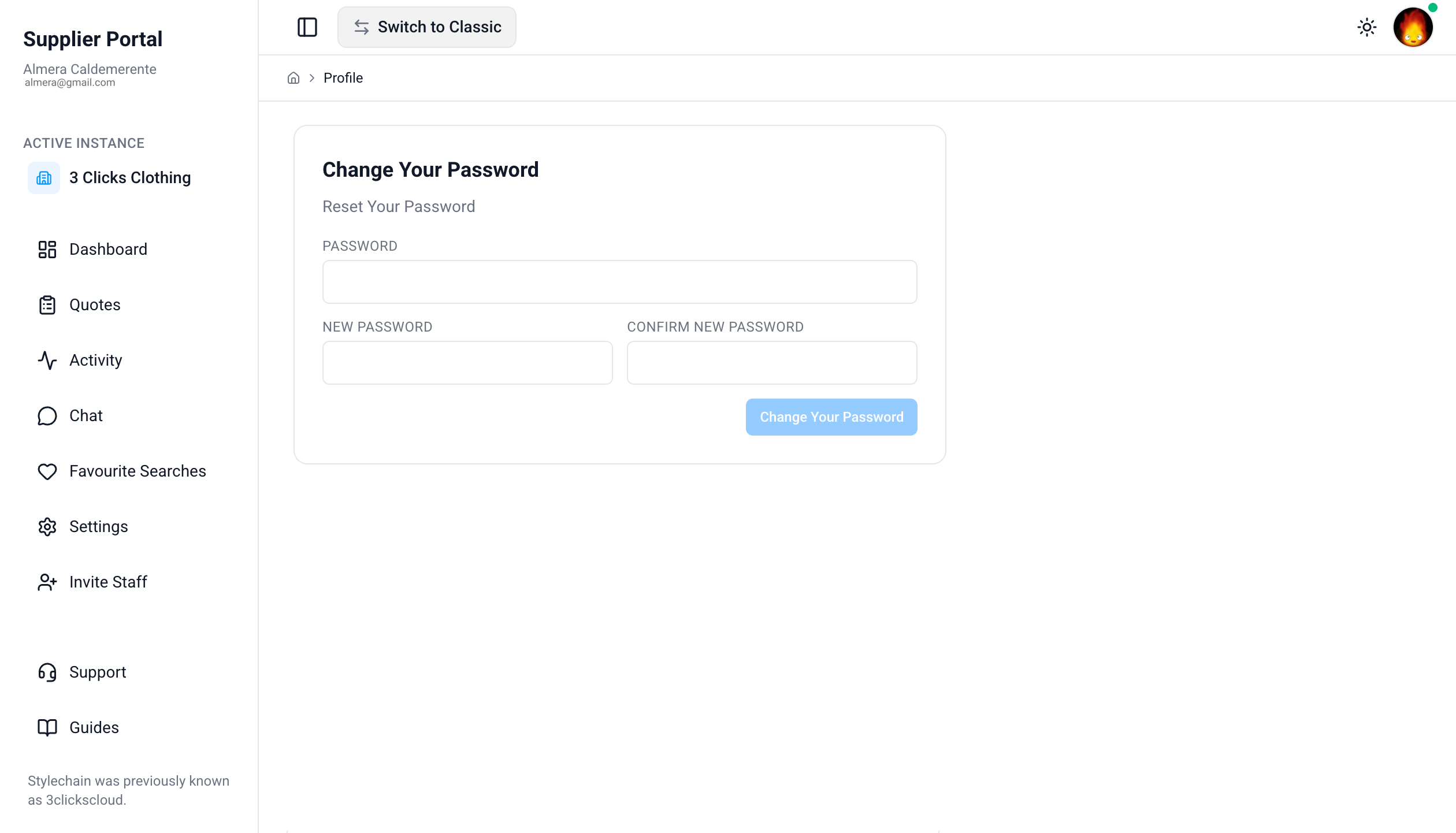
Change Your Password
Use this section when you need to set a new password from within the portal.
| Field | Description |
|---|---|
| Password | Enter your current password to confirm your identity. |
| New password | Enter the new password you want to use. |
| Confirm new password | Re-enter the new password to confirm it matches. |
Save your changes after all three fields are completed. You may need to sign in again on other devices or browsers.
Common Pitfall
Password reset and account messages are sent to the email address on your profile. If you are not receiving emails, confirm the address is correct before retrying a password change.
Multi-Factor Authentication
Add a second sign-in step using an authenticator app such as 1Password, Authy, or Google Authenticator.
| State | Description |
|---|---|
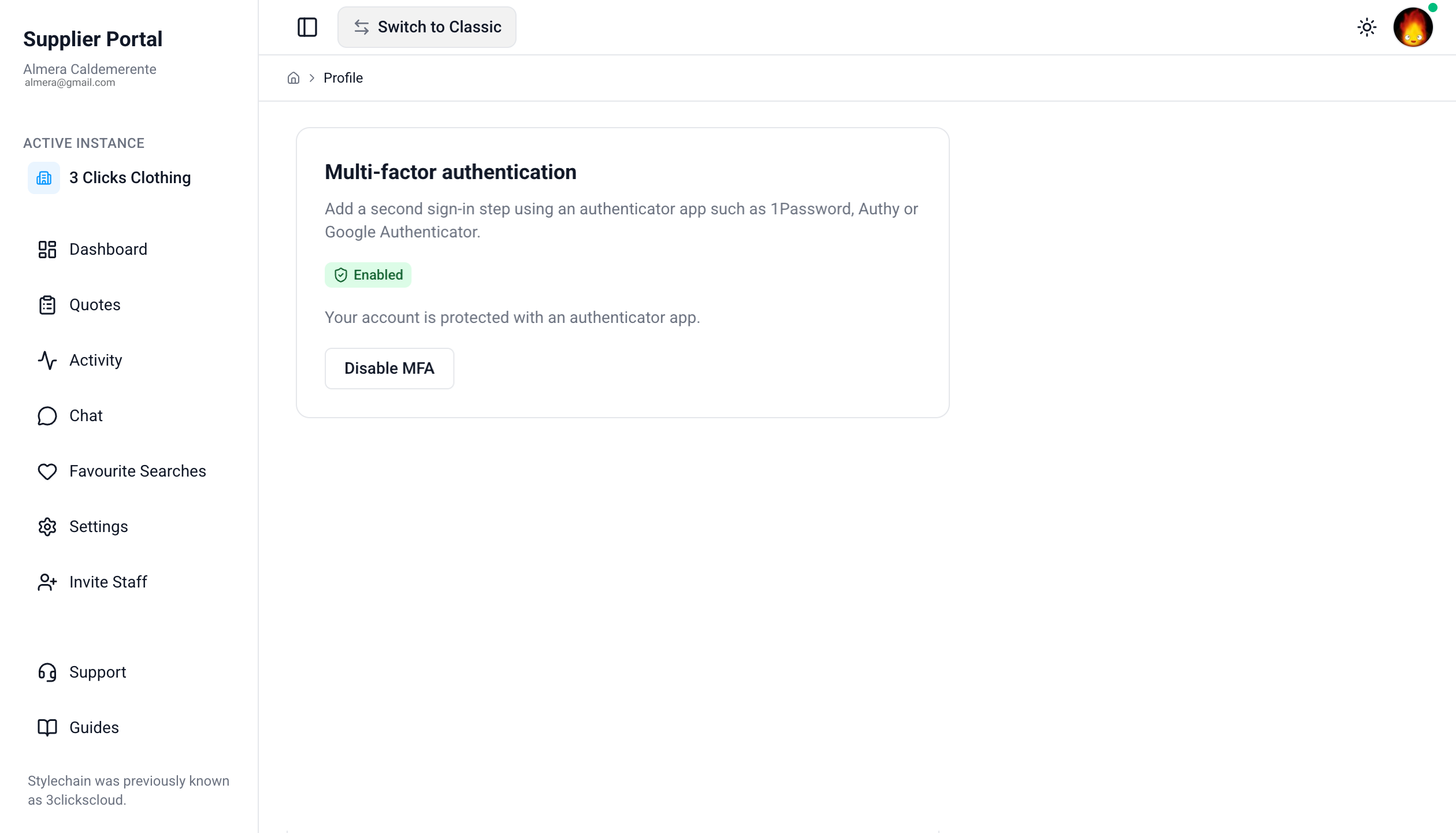
| Enabled | Your account is protected with an authenticator app. A one-time code is required at sign-in in addition to your password. |
| Disabled | MFA is not active. Follow the on-screen prompts to scan a QR code or enter a setup key in your authenticator app, then confirm with a one-time code. |
When MFA is enabled, use Disable MFA only when you need to remove it—for example, before changing devices—and follow your organisation's security policies.
Enabled MFA Account
This is the display when the MFA has been enabled in your account.
Quick Check - Before You Enable MFA
- Install an authenticator app on a device you control before starting setup
- Keep your password secure; MFA adds protection but does not replace a strong, unique password
Related Actions
- Supplier Portal › Overview
- Supplier Portal › Settings
- Supplier Portal › Invite Staff
- Supplier Portal › Dashboard
- Supplier Portal › Chat
- Manage Personal Details
- Manage Notifications
- Security
Troubleshooting
Why did my profile changes not appear straight away?
Some profile details may require a page refresh or a new session before they appear across the portal.
Steps to resolve:
- Confirm your changes were saved
- Refresh the page and check your profile menu again
- Log out and back in if the old details still appear
Why can I not upload my profile image?
The image may be an unsupported file type, too large, or blocked by the browser upload session.
Steps to resolve:
- Use a clear PNG or JPG file
- Resize very large images and try again
- Refresh the page and retry the upload
- Try another browser if the upload preview does not appear
Why am I not receiving email notifications?
Notification emails are sent to the address on your profile and can be filtered by mail systems.
Steps to resolve:
- Confirm the relevant checkboxes are enabled under Notification Preferences
- Verify your email address in Personal Details is correct
- Ask the recipient to check Spam or Junk folders
- Allowlist your organisation's 3 Clicks Cloud mail domain if your administrator provides one
Why am I not receiving password reset emails?
Password reset messages are sent to the email address recorded in your profile.
Steps to resolve:
- Confirm your email address is correct in Personal Details
- Check Spam or Junk folders for the reset email
- Retry the password change after updating your email or ask your administrator for help
How do I turn off or change multi-factor authentication?
MFA is managed from the Multi-factor authentication section in your profile.
Steps to resolve:
- Open My Profile and scroll to Multi-factor authentication
- To disable, click Disable MFA and follow the confirmation steps
- To set up on a new device, disable MFA on the old device first (if required by your organisation), then follow the enable prompts again
- If you lose access to your authenticator app, contact your Site Administrator or open a Support ticket