Settings
Use Settings to manage your company profile and staff members in the Supplier Portal. Company details appear on documents and in portal views shared with your customers. Staff members can log in and work on shared records, but only administrators can access Settings.
Quick Check - Before You Start
- Have your company logo, address, and contact details ready if you are completing your profile for the first time
- Review Monthly Capacity and Manufacturing items so customers can find and evaluate your production capability
Accessing Settings
Click Settings in the left navigation menu to open the settings area. The page is organised into tabs for Company Details, Staff, and Delete Account.
Administrator Access Required
Only users with administrator permissions can access Settings. Staff members can log in and action items across the portal, but they cannot manage site settings.
Company Details
The Company Details tab holds your organisation's business information. Details entered here are displayed on documents and in the portal for customers and suppliers.
Logo
Upload your company logo to display on documents and in the portal.
| Action | Description |
|---|---|
| Upload image | Click to browse and select an image file, or drag and drop a file into the upload area. |
Company Name and Timezone
| Field | Description |
|---|---|
| Company Name | The legal or trading name displayed on documents and portal views. |
| Timezone | The timezone for your account. Dates and times across the portal are shown relative to this selection. |
Address
Your main business address. Address details are displayed in documents and the portal.
| Field | Description |
|---|---|
| Address 1 | Primary street address. |
| Address 2 | Optional second line (suite, unit, or building). |
| Country/Region | Country or region for the address. |
| Town/Suburb | Town or suburb. |
| State | State or province. |
| Zip/Postcode | Postal or ZIP code. |
Shipping Address
Enter a separate shipping address if it differs from your main business address. These details are also displayed in documents and the portal.
| Field | Description |
|---|---|
| Address 1 | Primary street address for shipping. |
| Address 2 | Optional second line. |
| Country/Region | Country or region for the shipping address. |
| Town/Suburb | Town or suburb. |
| State | State or province. |
| Zip/Postcode | Postal or ZIP code. |
Contact
Contact details are displayed in documents and the portal and are used by customers to reach your team.
| Field | Description |
|---|---|
| Website | Your company's website URL. |
| Company Email Address | The primary email address for business enquiries. |
| Company Contact Number | The main phone number for your organisation. |
Profile
Include information about your company. Details in this section are displayed on the 3 Clicks internal company directory that businesses use to find and connect with your company.
| Field | Description |
|---|---|
| Profile | A description of your company, capabilities, and background. |
Monthly Capacity
Information provided here is displayed on the 3 Clicks public directory. Enter the number of units your company can manufacture per month so customers can evaluate your production capability.
| Field | Description |
|---|---|
| Monthly Capacity | The number of items your company can produce per month. |
Supplier Portal Monthly Capacity 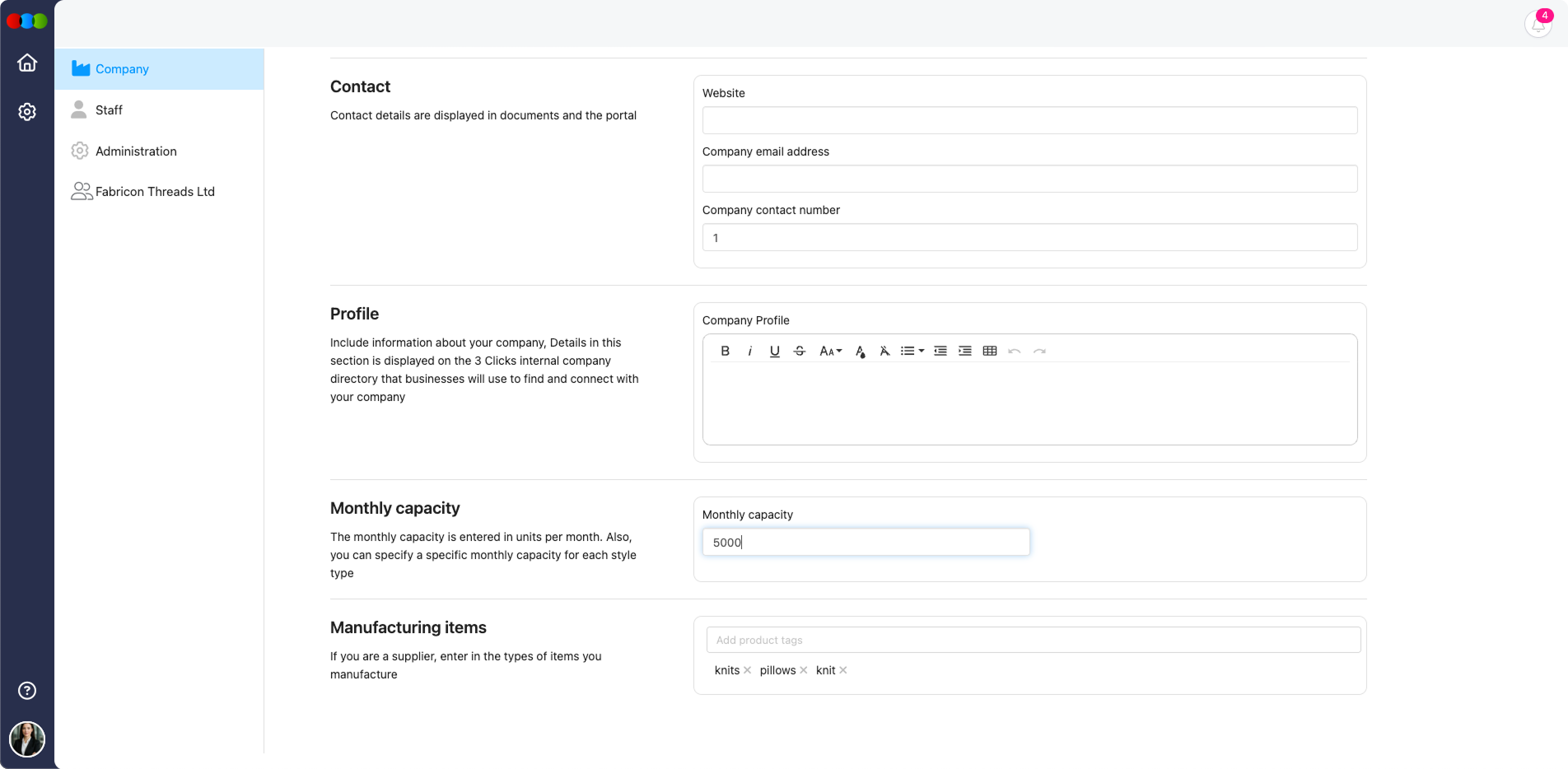
Manufacturing Items
If you are a supplier, enter the types of items you manufacture. Product tags help customers search and filter suppliers in the directory.
| Action | Description |
|---|---|
| Add product tags | Select product categories from the dropdown (for example, T-shirts, Activewear, or Denim). |
Keep Company Details Current
Review your company profile regularly. Outdated logos, addresses, or capacity figures can affect how customers find and work with your organisation.
Staff
The Staff tab lists everyone who can log in to your supplier account. Staff members can action items across the portal but cannot manage Settings. Customers can see staff names and contact details.
Staff List
| Column | Description |
|---|---|
| Name | The staff member's display name. |
| Tags | Tags assigned to the staff member, if any. |
| Action | Opens options to edit the staff member's details. |
Edit Staff Info
Click Action next to a staff member to open the edit options.
| Action | Description |
|---|---|
| Change picture | Replace the staff member's profile photo. |
| Upload photo | Browse and upload a new profile image. |
| Remove | Remove the current profile photo. |
| First Name | Update the staff member's first name. |
| Last Name | Update the staff member's last name. |
| Update the staff member's email address. | |
| Delete Staff | Remove the staff member's access to your supplier account. |
Remove a Staff Member
Administrators can remove a staff member when they no longer need portal access.
| Step | Description |
|---|---|
| 1 | Open Settings › Staff and locate the staff member in the list. |
| 2 | Click Delete account button. |
| 3 | Confirm when prompted. |
The staff member is removed from your supplier account and can no longer log in to your organisation's Supplier Portal. To restore access, send a new invitation to the same email address. See Supplier Portal › Invite Staff.
To invite new staff members, use the Invite Staff section on the Staff tab. See Supplier Portal › Invite Staff for the full invitation workflow.
Delete Account
The Delete Account section permanently removes your supplier portal account and all associated data.
Permanent and irreversible
It will be sad to see you go. Once your site is deleted, all information will be immediately removed from our servers and permanently deleted. This action cannot be undone.
| Action | Description |
|---|---|
| Delete my account | Starts the account deletion process. Complete any confirmation steps when prompted. |
Common Pitfall
Export or save anything you must keep before deleting your account. Recovery is not possible after deletion is confirmed.
Related Actions
- Supplier Portal › Overview
- Supplier Portal › Invite Staff
- Supplier Portal › Dashboard
- Supplier Portal › Guides
- Set Up Company Profile
- Manage Staff Accounts
Troubleshooting
Why can I not see or edit Settings?
Settings is restricted to administrator users. Staff members can work on shared records but cannot open site settings.
Steps to resolve:
- Confirm with your organisation that your account has admin access to the Supplier Portal
- Log out and back in after a role change
- If you should be an admin, ask the current Site Administrator to verify your role under Settings › Staff
Where do my company details appear after I save them?
Company details are used across the platform in several places.
Steps to resolve:
- Check documents generated from shared orders and costings for your Logo, Company Name, and Address
- Review the Profile section on the internal company directory
- Confirm Monthly Capacity and Manufacturing items on the public supplier directory
How do I invite a new staff member?
New staff are invited from the Staff tab in Settings.
Steps to resolve:
- Open Settings › Staff
- Scroll to the Invite Staff section
- Enter the email address and click Invite
- See Supplier Portal › Invite Staff for confirmation, expiry, and resend steps
A staff member's details are wrong — how do I update them?
Administrators can edit staff information from the staff list.
Steps to resolve:
- Open Settings › Staff
- Locate the staff member in the list
- Click Action and update First Name, Last Name, Email, or the profile photo
- Save your changes
What happens when I delete my account?
Account deletion is immediate and permanent.
Steps to resolve:
- Export or save any data you need before starting deletion
- Open Settings › Delete Account
- Click Delete my account and complete the confirmation steps
- Understand that all supplier portal data associated with your account is permanently removed and cannot be recovered