Style
The Style record in the Supplier Portal is where you review product development information your customer has shared with your supplier account. It brings together the Details, Colours, and Pricing sections in one view so you can confirm style attributes, available colourways and sizes, and market-based pricing before sampling, quoting, or production.
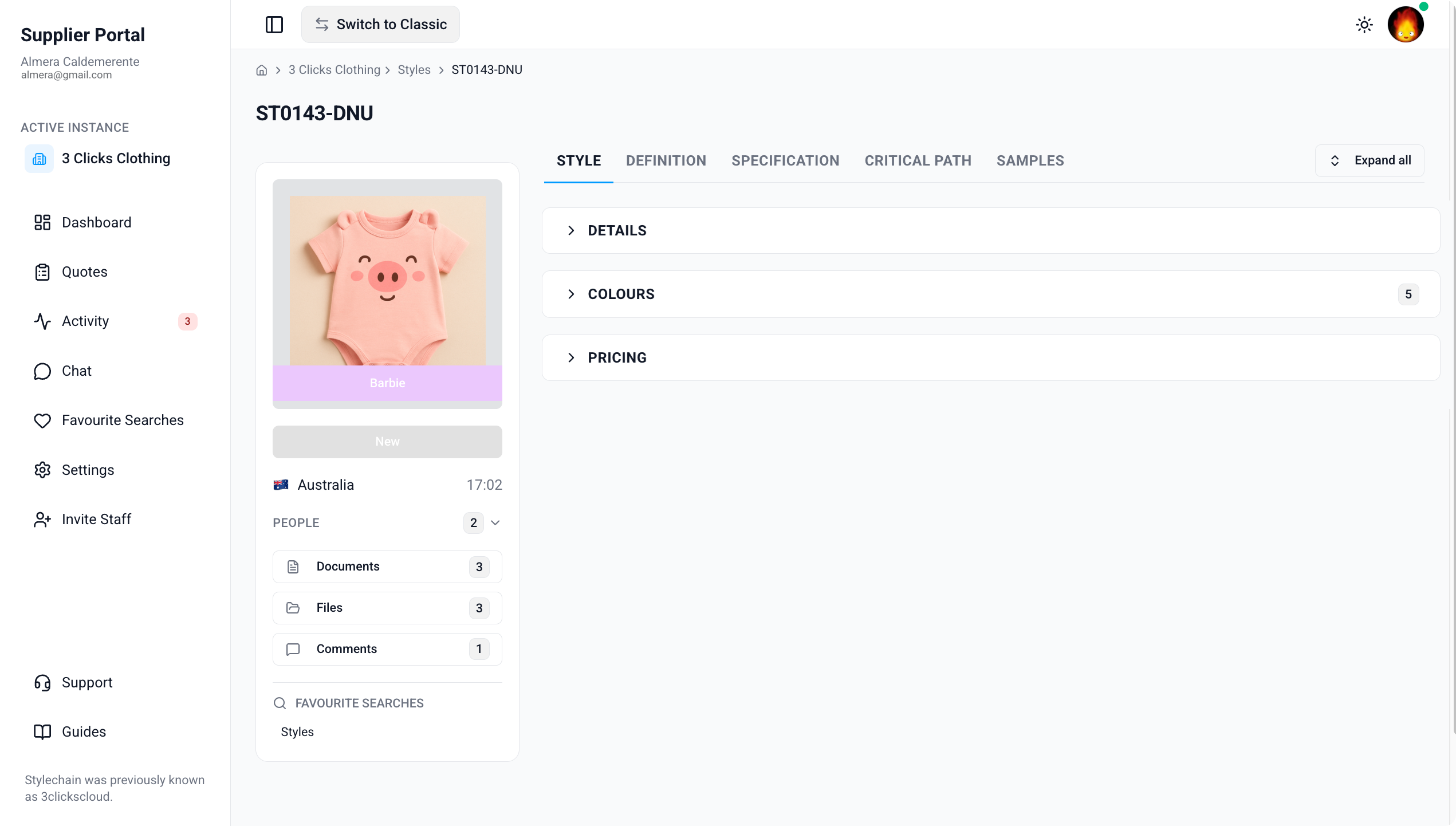
The style card also includes side widgets for preview images, status, documents, files, and collaboration context. The fields in these sections are view-only.
Quick Check - Before You Start
- See Supplier Portal › Styles for search, filters, and export.
- Confirm you are on the correct customer connection in Active Instance if you work with more than one brand.
- If Details, Colours, or Pricing is missing or empty, ask your instance user to verify the style is shared with your factory or agent and that your Supplier Portal role includes Style View access.
- Pricing visibility is controlled separately in Site Settings › Portal › General Settings › Style Pricing — some price types may be hidden by design.
View-Only Access by Default
The Details, Colours, and Pricing sections in the Supplier Portal are read-only. Instance users create and update style data in the Production Portal.
Side Widgets
The style includes side widgets that give quick context and access to shared files.
| Widget | Description |
|---|---|
| Preview Image | Displays the style preview image uploaded by your customer's team. Use it to identify the product at a glance. |
| Label | Shows labels your customer has applied to the style for filtering and visual identification. |
| Status | Displays the current style status (for example, Draft, Approved, or Cancelled). |
| Country and Time | Shows the country of the instance user viewing or managing the style, together with their current local time in their own timezone. Use this when coordinating sample deadlines or hand-offs across regions. |
| People | Lists the instance users who are members of this style. These are your customer's internal contacts assigned to the record — not supplier staff accounts. |
| Documents | Provides downloadable copies of formal style outputs, including Style Specification, Sample Request, and Licensor Approval documents generated from the Production Portal. |
| Files | Opens the Files pop-up, where you can browse uploaded files and folders for the style. Files here are downloadable when your customer has shared them with your supplier account. |
| Favourite Searches | Displays the name of any saved favourite search in which this style was included when you opened it from that search view. See Supplier Portal › Favourite Searches for managing saved searches. |
Details
The Details section is view-only. It displays core product information your customer's instance users maintain in the Style › Details on the Production Portal.
At the top of the section, the style number, Created By, and creation date stamp help you confirm you are reviewing the correct record.
Supplier Portal > Style > Details 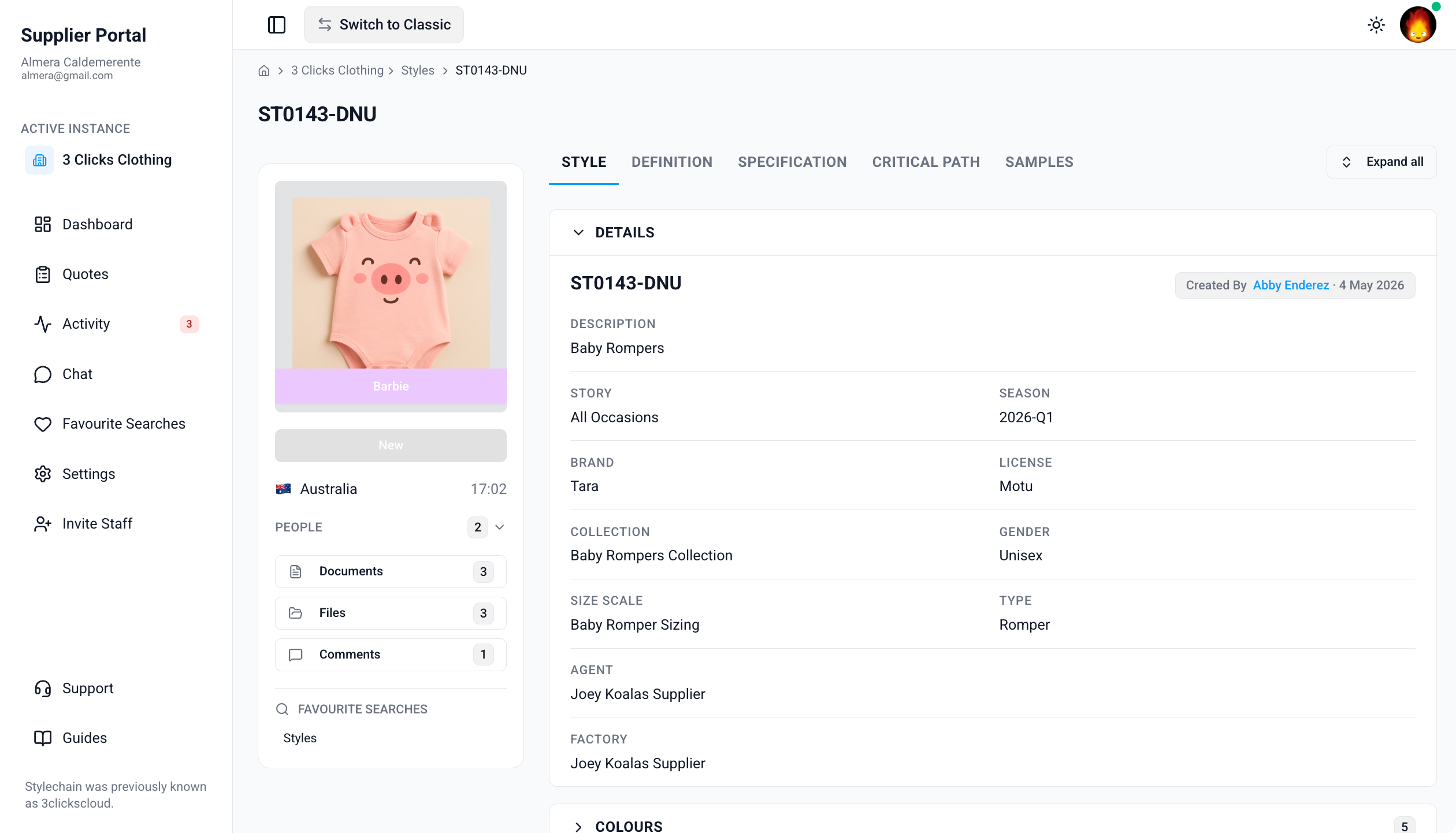
| Field | Description |
|---|---|
| Style Description | A brief description of the style or product. |
| Story | The theme or story behind the style. |
| Season | The fashion season assigned to the style. |
| Brand | The brand the style belongs to. |
| License | Any licence associated with the style. |
| Collection | The collection the style is grouped under. |
| Gender | The target gender for the style. |
| Size Scale | The size scale used for sizing and grading. |
| Type | The product or style type. |
| Agent | The agent supplier assigned to help produce the style. |
| Factory | The factory supplier assigned to manufacture the style. |
Confirm Your Assignment
You only see styles your customer has shared with your supplier account and assigned to your organisation as the Factory or Agent. If a field looks incorrect, contact your instance user because you cannot edit Details directly in the Supplier Portal.
Colours
The Colours section displays a view-only table of colourways available on the style and the sizes enabled for each colour. Instance users configure this data in Style › Colours & Pricing on the Production Portal.
Use this table to confirm which colour options are in scope for sampling, quoting, or production before you commit to timelines or MOQs.
Supplier Portal > Style > Colours 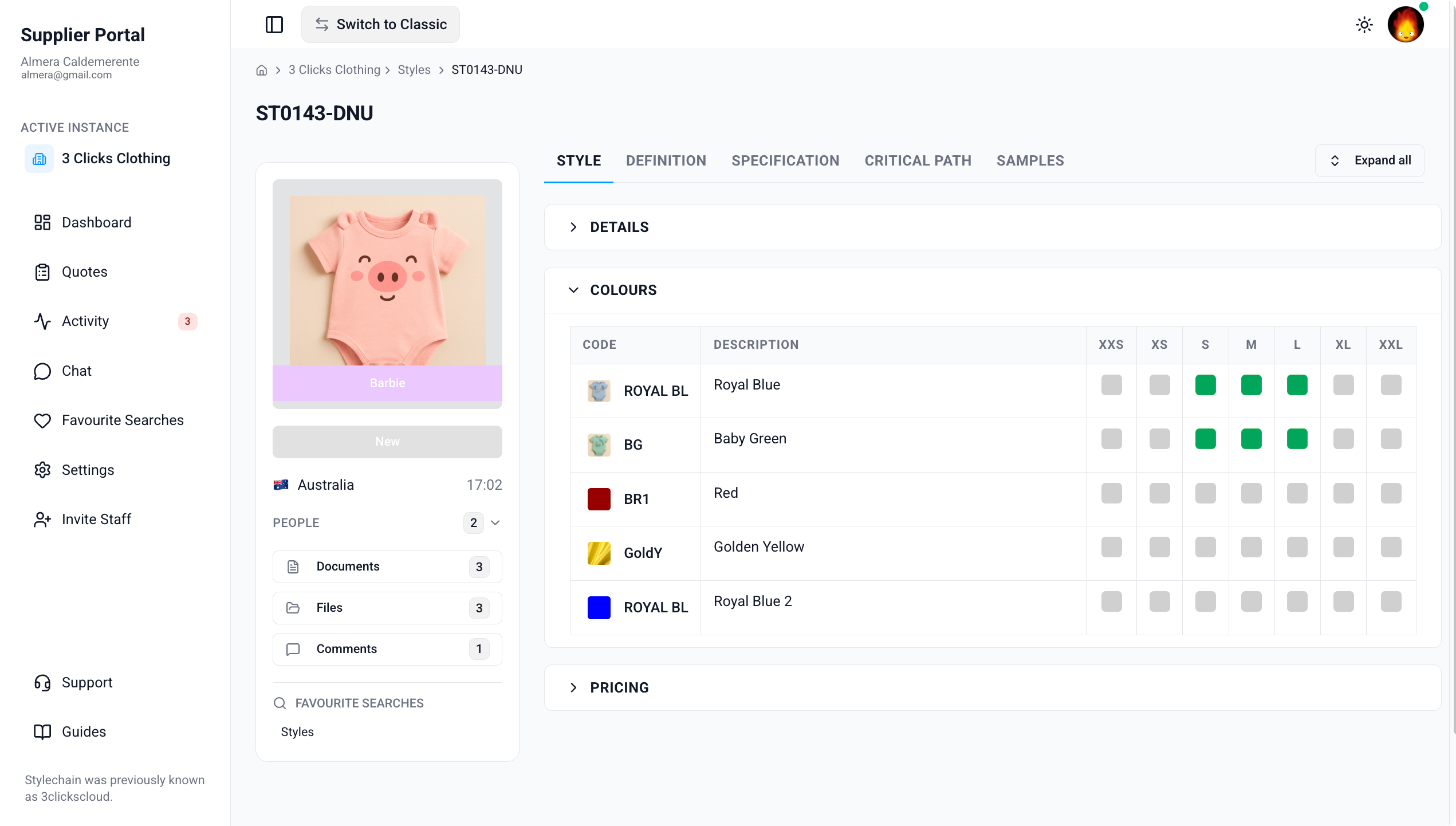
| Column | Description |
|---|---|
| Code | The colour code for the colourway, as defined in your customer's colour list. |
| Description | The colour description for the colourway. |
| Sizes | The sizes available for that colourway. Disabled sizes configured by instance users do not appear as available options. |
Colour Changes on the Customer Side
Instance users can add, edit, disable, or remove colourways in the Production Portal. If a colourway disappears or a size is no longer listed, raise a query with your customer's team through Chat.
Pricing
The Pricing section displays market-based pricing in a table format. Values reflect what your customer's instance users have entered in Style › Colours & Pricing, including market configuration under Markets and Order Pricing.
Which price types you can see depends on your customer's configuration. Some customers restrict buy, sell, or retail values to protect margin information.
Supplier Portal > Style > Pricing 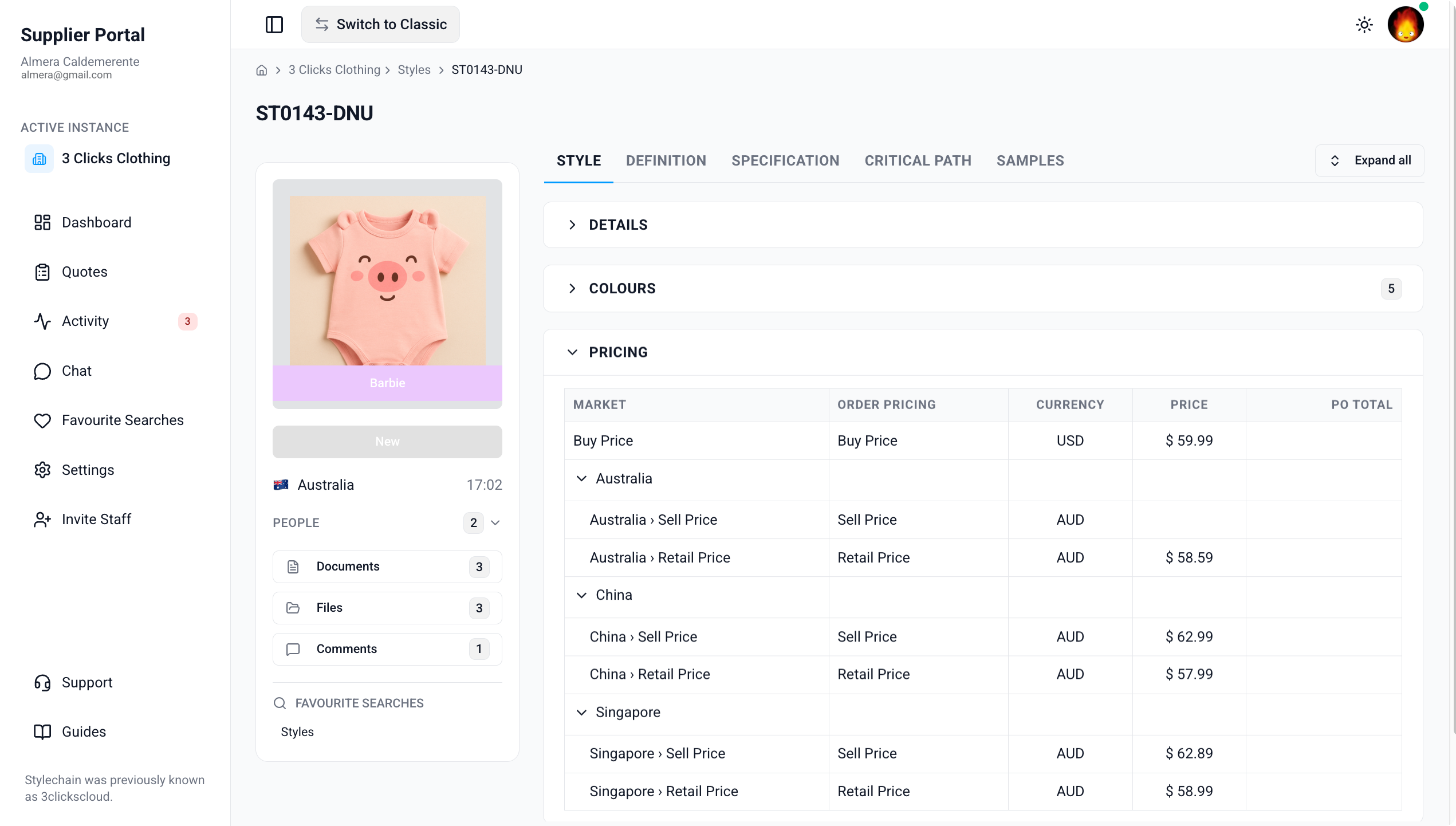
| Column | Description |
|---|---|
| Market | The name of the market (region) the pricing row applies to. Markets are configured by instance users in Style › Details › Additional Markets and maintained in Style › Colours & Pricing › Markets. |
| Order Pricing | The order pricing method applied to the style (for example, One Price, Price by Size, or Price by Colour). |
| Currency | The currency for the price shown on the row. |
| Price | The price value for the market. When visible, this reflects the Buy Price as configured by instance users in Style › Colours & Pricing. Your customer may also expose Retail Price (or other price types) on the row when those fields are enabled in Style Pricing portal settings. |
| PO Total | The purchase order total associated with the market pricing row, where applicable. |
Pricing Visibility Is Controlled by Your Customer
If the Pricing section is empty or specific columns are missing, your customer may have restricted pricing in Site Settings › Portal › General Settings › Style Pricing. Use Costings and Quotes for buy-price entry when your customer shares costings separately. See Supplier Portal › Costings and Supplier Portal › Quotes.
Where Pricing Comes From
Instance users maintain master pricing in Style › Colours & Pricing on the Production Portal. Market names, buy prices, sell prices, and retail prices flow from that section according to your customer's portal display rules.
Sample Scenarios
Refer to these scenarios to understand how suppliers use the Style record in the Supplier Portal. Each scenario links to related documentation in this portal.
Scenario 1: Sample coordinator confirming colourways and sizes
A sample coordinator opens a shared style to verify which colourways and sizes are approved before arranging lab dips or proto samples.
| Step | What to do | Related documentation |
|---|---|---|
| 1 | Open the style from Styles search or Activity and confirm the style number and Status on the side widget. | Supplier Portal › Styles |
| 2 | Review Details for Season, Brand, Size Scale, and Factory assignment. | Details |
| 3 | Check the Colours table for each required Code, Description, and enabled Sizes. | Colours |
| 4 | Download the Sample Request from Documents if your customer has generated one. | Side Widgets |
| 5 | Ask questions through Comments or Chat if a colourway or size does not match the brief. | Supplier Portal › Activity |
Scenario 2: Factory reviewing pricing before a quote
A factory user checks market pricing on a shared style before entering buy prices on a linked costing in Quotes.
| Step | What to do | Related documentation |
|---|---|---|
| 1 | Open the style and go to Pricing to review Market, Currency, and Price rows. | Pricing |
| 2 | Compare visible buy or retail values with your internal costing assumptions. | --- |
| 3 | If pricing is hidden, open the shared costing in Quotes instead of the style record. | Supplier Portal › Quotes |
| 4 | Confirm Agent and Factory on Details match your supplier assignment. | Details |
| 5 | Reply in Comments if market or currency values do not match the costing brief. | Supplier Portal › Costings |
Scenario 3: Merchandiser gathering tech packs and specifications
A merchandiser collects specification documents and reference files from a shared style for an internal development meeting.
| Step | What to do | Related documentation |
|---|---|---|
| 1 | Download Style Specification and Licensor Approval from Documents when available. | Side Widgets |
| 2 | Open Files to browse folders and download reference imagery, CADs, or tech packs shared by your customer. | --- |
| 3 | Note People on the side widget to identify which instance users own the style. | Side Widgets |
| 4 | Review Preview Image and Label for quick visual identification in follow-up emails. | Side Widgets |
| 5 | Use Favourite Searches to return to the same filtered style list after the meeting. | Supplier Portal › Favourite Searches |
Next Steps
- Fulfil sample requirements and reports on Samples
- Search and open shared styles
- Enter buy prices on shared costings
- Download shared files from Drive
- Configure style notifications
Related Settings
These Site Settings pages are maintained by your customer's administrators. Share them with your instance user contact if style visibility or pricing does not match expectations.
- Site Settings › Company › Suppliers
- Site Settings › Portal › General Settings
- Site Settings › Style › General Settings
Troubleshooting
Why can I open a style but not see Details, Colours, or Pricing?
Tab and section visibility depends on your Supplier Portal role, portal display settings, and what your customer has shared on the style record.
Steps to resolve:
- Confirm whether the section is missing entirely or visible but empty.
- Ask your instance user to verify your Supplier Portal role in Site Settings › Company › Suppliers includes Style with View enabled.
- Ask them to confirm the style is assigned to your factory or agent and that colourways and pricing exist on the Production Portal record.
- Click Refresh or reopen the style from Activity after your customer confirms updates.
Why is the Pricing section empty or missing price columns?
Style Pricing visibility is controlled by your customer in Site Settings › Portal › General Settings. Restricted pricing is intentional in many workflows.
Steps to resolve:
- Confirm with your instance user whether pricing should be visible to your supplier role.
- Ask them to review Style Pricing toggles in Site Settings › Portal › General Settings.
- Check whether buy prices are entered on Style › Colours & Pricing on the Production Portal.
- Use Costings and Quotes for buy-price entry when costings are shared separately from style records.
Why does a colourway or size not match what my customer sent by email?
Colour and size data is maintained by instance users in Style › Colours & Pricing. A colourway may have been disabled, or sizes may have been turned off after your customer sent an earlier brief.
Steps to resolve:
- Refresh the style record and review Activity for recent colour or size changes.
- Compare the Colours table Code, Description, and Sizes columns with your customer's latest communication.
- Contact the instance users listed under People on the style card to confirm the current approved colourways.
Why can I not download a document or file from the style?
Documents and Files only include outputs and uploads your customer has shared with your supplier account.
Steps to resolve:
- Confirm the Documents row or Files folder exists on the style — if it is missing, the document may not have been generated or shared yet.
- Ask your instance user to generate the Style Specification or Sample Request on the Production Portal and confirm file sharing settings.
- Check Supplier Portal › Drive for tech packs shared at the customer level if the file is not attached to the individual style.
Why do I not appear under People on the style card?
People lists instance users — your customer's internal team members assigned to the style — not supplier portal users.
Steps to resolve:
- Use Comments or Chat to reach your customer's team; supplier staff are not listed in People.
- Ask your instance user contact which internal owner manages the style if you are unsure who to message.
- Ensure your own team has portal logins via Invite Staff so multiple supplier users can access the shared record.