Samples
The Samples tab on a shared style in the Supplier Portal is where you review sample planning, fulfil sample requirements your customer has shared, and document sample reports when edit access is enabled. It brings together Colour, Sample Requirements, and Sample Reports in one view so you can confirm which colourways are in scope, track deadlines and completion, enter sample costs, and submit fit or construction feedback without relying on email alone.
Unlike Details, Colours, and Pricing, parts of the Samples tab are interactive when your customer has shared requirements or reports with your supplier account. You can mark requirements complete, enter Sample Cost and Currency, and — where permitted — edit sample report measurements, upload files, and post notes.
Supplier Portal > Style > Samples 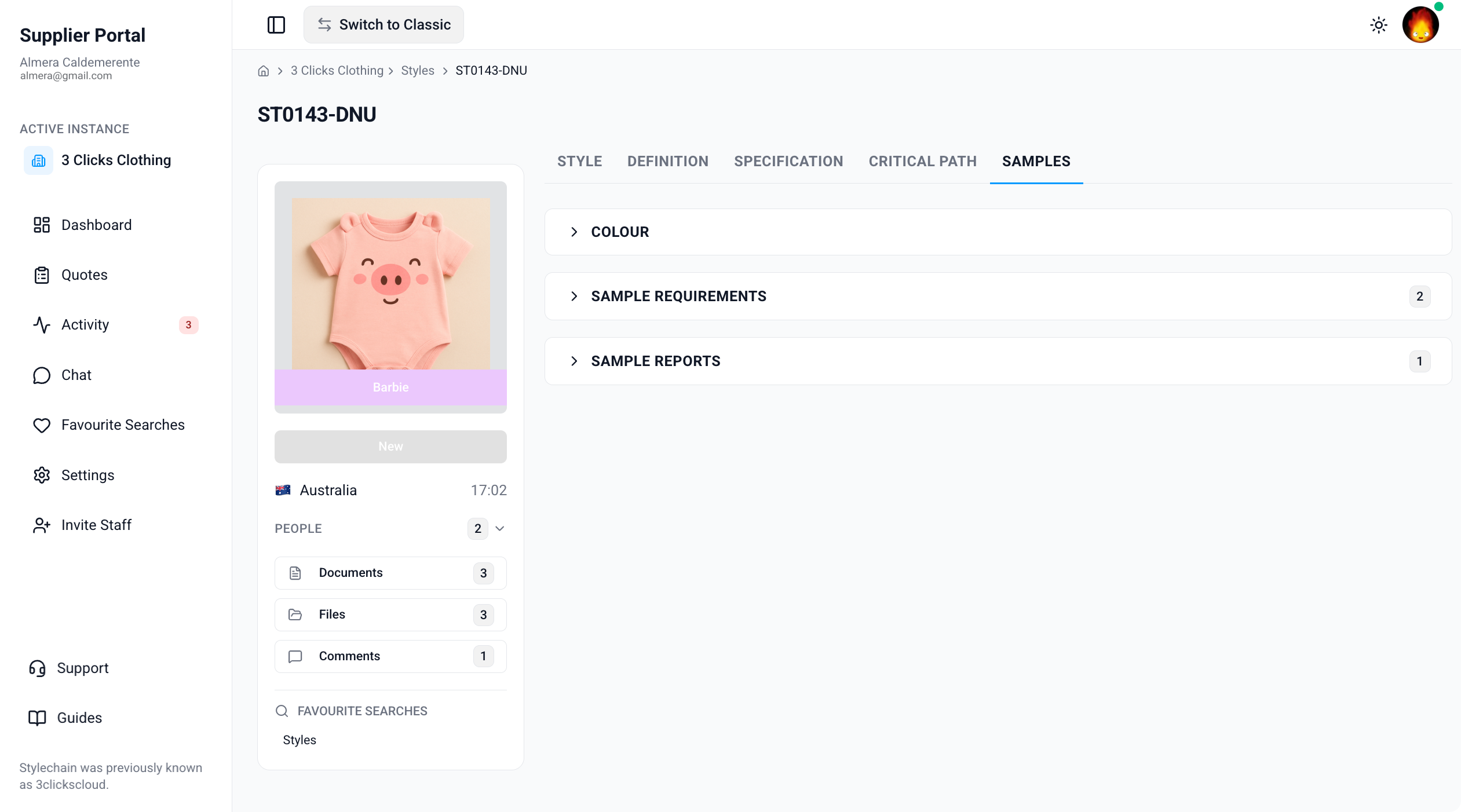
Quick Check - Before You Start
- See Supplier Portal › Styles for search, filters, and export.
- Confirm you are on the correct customer connection in Active Instance if you work with more than one brand.
- If the Samples tab is missing or empty, ask your instance user to verify the style is shared with your factory or agent, that sample requirements or reports have been shared to the portal, and that your Supplier Portal role includes Style View access.
- Enable Style Sample Report Update Notification in Profile › Notification Preferences so you are alerted when instance users update a shared sample report.
- Cross-check colourways and sizes on Colours and Specification before you commit to sample quantities or measurement revisions.
What You Can Edit Depends on Your Customer
Colour is view-only in the Supplier Portal. Sample Requirements and Sample Reports may be read-only or editable depending on what your customer has shared and your portal permissions. Instance users create and maintain master sample data on the Production Portal. If a field is missing or locked, contact your customer's team through Chat rather than assuming the sample work is not required.
Colour
The Colour section displays a view-only summary of colourways on the style that are designated for sampling. It reflects colour selections your customer's instance users maintain on the Production Portal — you cannot add or remove colourways from this section.
Use this table to confirm which colour options are in scope and how many units your customer has estimated for each colourway before you arrange lab dips, protos, or fit samples.
Supplier Portal > Style > Samples > Colour 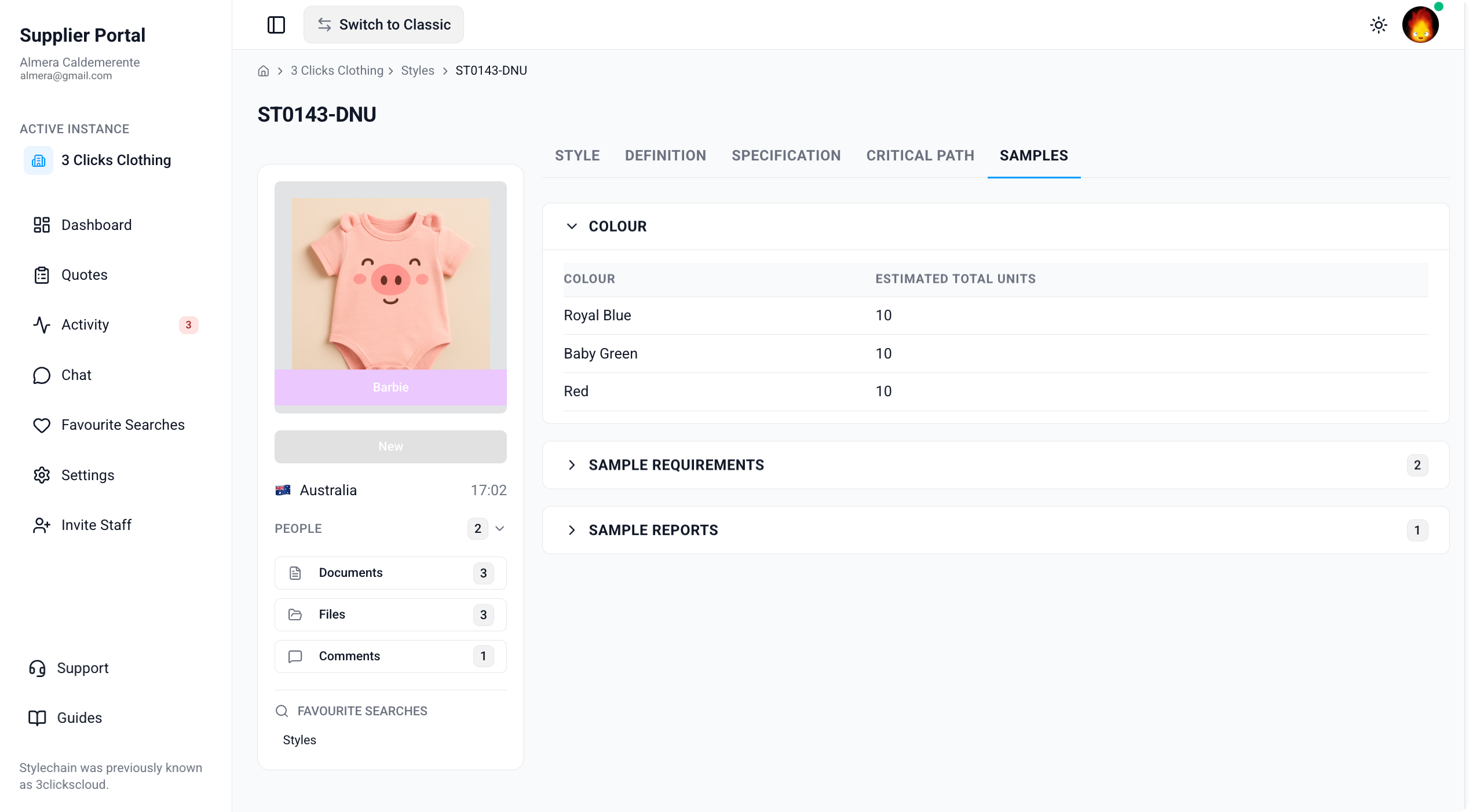
| Column | Description |
|---|---|
| Colour | The colourway name and visual swatch, as defined on the style record. |
| Estimated Total Units | The estimated number of sample units planned for that colourway. Instance users maintain this value on the Production Portal; it is shown here for planning context only. |
Colour Changes on the Customer Side
Instance users can add, edit, disable, or remove colourways on the Production Portal. If a colourway disappears or no longer matches your brief, raise a query with your customer's team through Chat or compare against Colours on the same style record.
Sample Requirements
The Sample Requirements section lists individual sample requests your customer has shared with your supplier account. Each row defines what type of sample is needed, for which sizes and colourways, how many units are required, and when the work is due.
When your customer has enabled portal actions, you can mark requirements complete, enter Sample Cost and Currency, and use the bulk complete or uncomplete control at the top of the section to update multiple rows at once. A progress bar shows overall completion across visible requirements.
Supplier Portal > Style > Samples > Sample Requirements 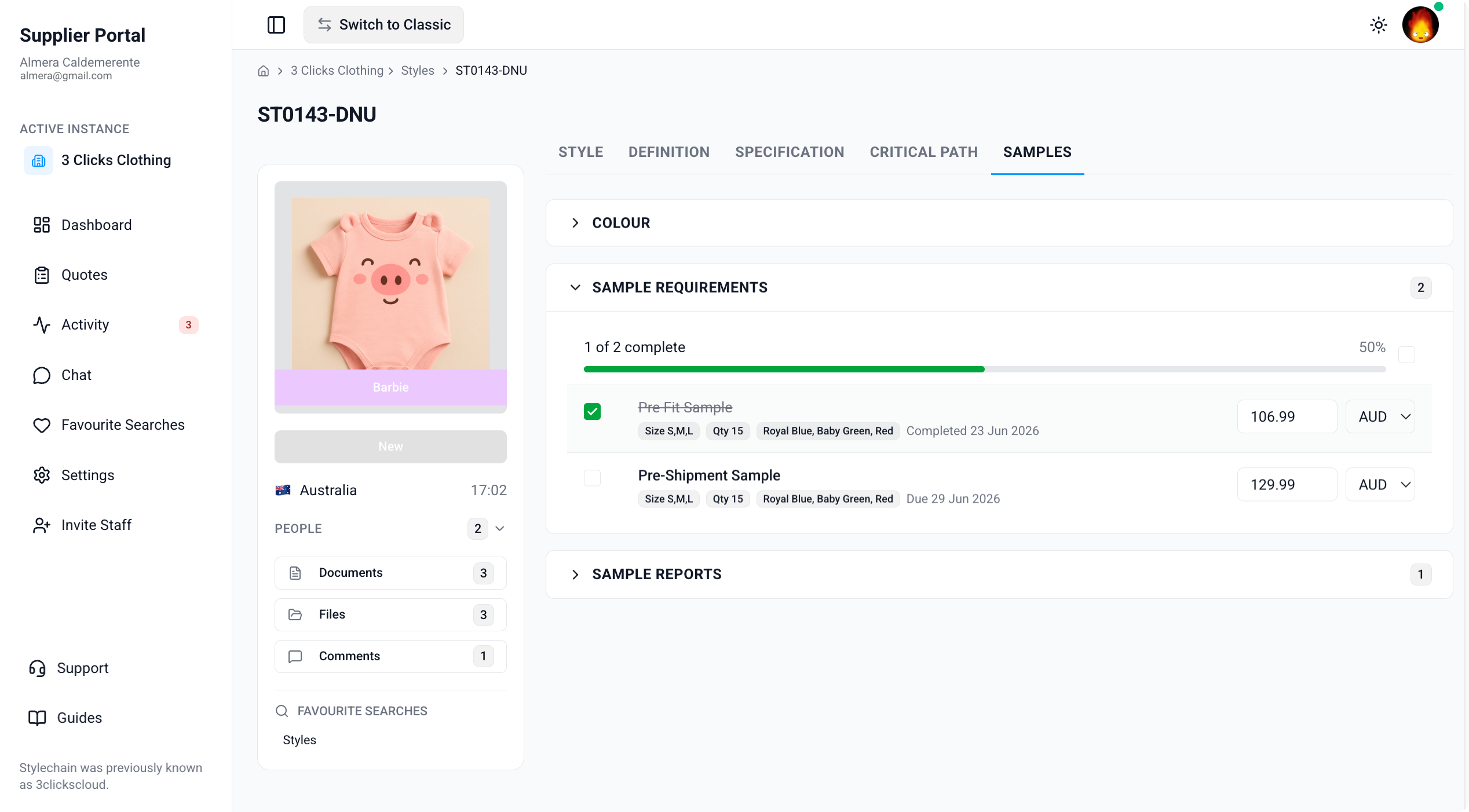
| Field / Element | Description |
|---|---|
| Progress bar | Shows how many sample requirements are complete compared with the total number shared on the tab. |
| Bulk complete / uncomplete | Checkbox control at the top of the section to mark all eligible requirements complete or incomplete in one action. |
| Sample requirement name | The sample type or category for the request (for example, Fit, Salesman, or Pre-Production). |
| Sizes | The size or sizes requested for the sample. |
| Quantity | The number of units required for the sample. |
| Colours | The colourway or colourways the sample applies to. |
| Due date | The date by which the sample should be completed or delivered. |
| Completed | When the requirement was marked complete and by whom, if it has been finished. Status indicators may show green (on time), red (overdue), or orange (completed after the due date). |
| Complete | Mark an individual requirement as complete when the sample work is finished. |
| Sample Cost | Enter the cost of the sample when your customer has enabled cost entry for suppliers. |
| Currency | Select the currency for the Sample Cost from the options your customer has configured. |
Mark a sample requirement complete
- Locate the requirement in the Sample Requirements section.
- Click the completion control for that row to mark it as complete.
- The Completed field updates with the completion date and your user name.
- To undo a completion, clear the completion control on the row.
Enter sample cost and currency
- Click the Sample Cost field on the requirement row and enter your quoted cost.
- Select the appropriate Currency from the dropdown.
- Save or click away from the field so the value syncs back to your customer's style record.
Enter Costs Promptly
Sample Cost and Currency entered in the Supplier Portal flow back to your customer's Production Portal record. Enter values as soon as requirements are shared so budgeting and approval workflows are not delayed.
Requirements Appear Only When Shared
Sample requirements are visible only after your instance user creates them on the Production Portal and shares them with your supplier account. An empty Sample Requirements section usually means nothing has been published to the portal yet — not that sampling is complete.
Sample Reports
The Sample Reports section displays a table of sample documentation your customer has created or shared for the style. Each report is organised by size and colourway and tracks status through the sample review process.
Supplier Portal > Style > Samples > Sample Reports 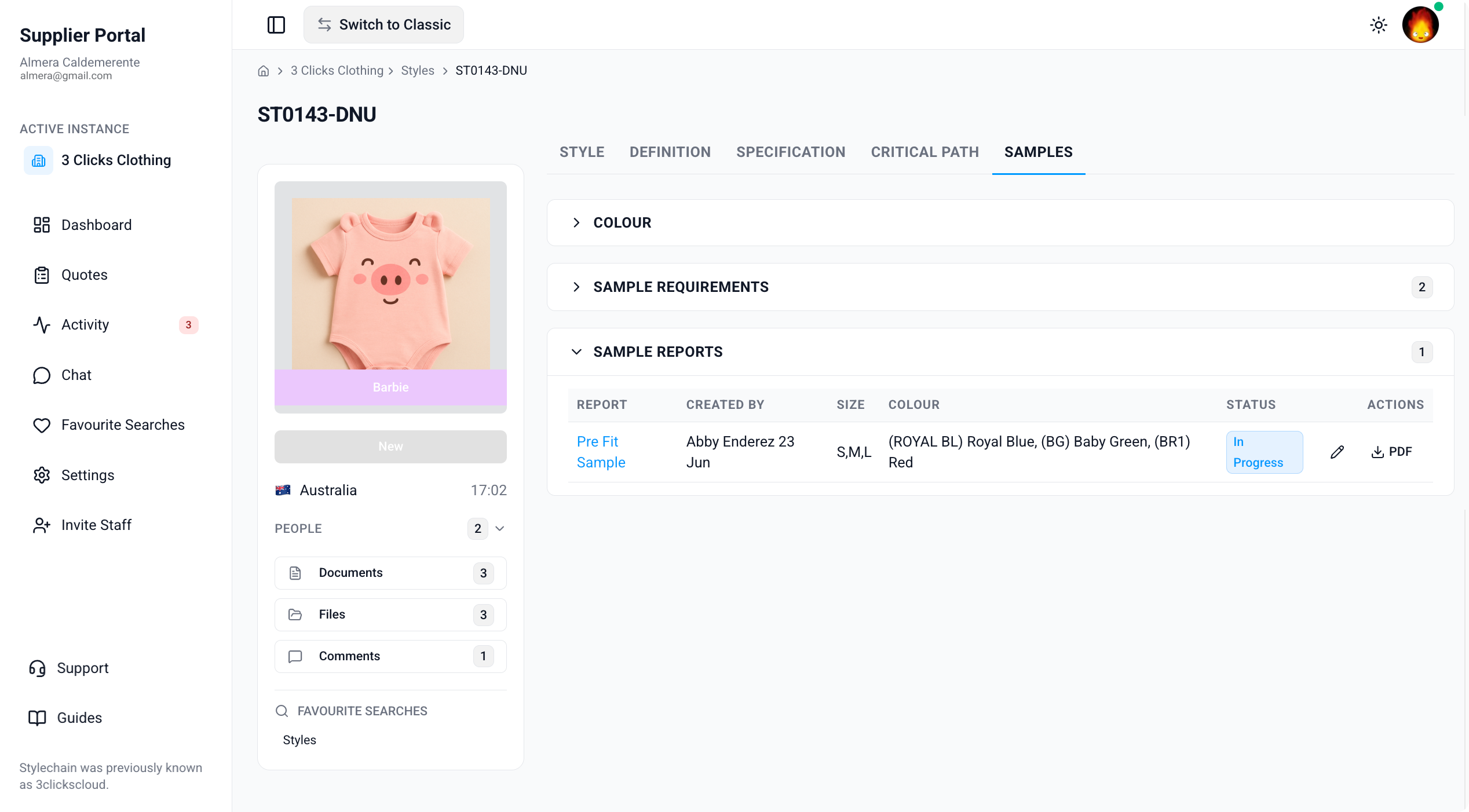
| Column | Description |
|---|---|
| Report name | The sample report type or title (for example, Fit Sample or Pre-Production Sample). |
| Created by | The username of the person who created the report, together with the creation date. |
| Size | The size or sizes covered by the report. |
| Colour | The colourway linked to the report. |
| Status | The current report status (for example, In Progress or Send). Status options are configured by your customer. |
| Edit | Opens the sample report in the detailed editing view when your customer has granted edit access. If Edit is not available, you have view-only access to that report. |
| Download PDF | Download the PDF copy of the sample report. |
View-Only vs Edit Access
Your customer controls whether you can edit a sample report from the Supplier Portal. When Edit is visible, you can update permitted fields in the report detail view. When it is hidden, review the report content and use Chat or report Notes (if readable) to send feedback.
Edit Sample Report
Click Edit on a sample report row to open the detailed report view. This interface is where you document measurements, attach files, and collaborate with your customer's team when edit access is enabled.
The sections available in the report mirror the technical data on Specification where applicable. Measurements are initially based on the style specification; values you enter in the report do not change the master specification on the Production Portal.
Style > Samples > Sample Reports > Edit Sample Report 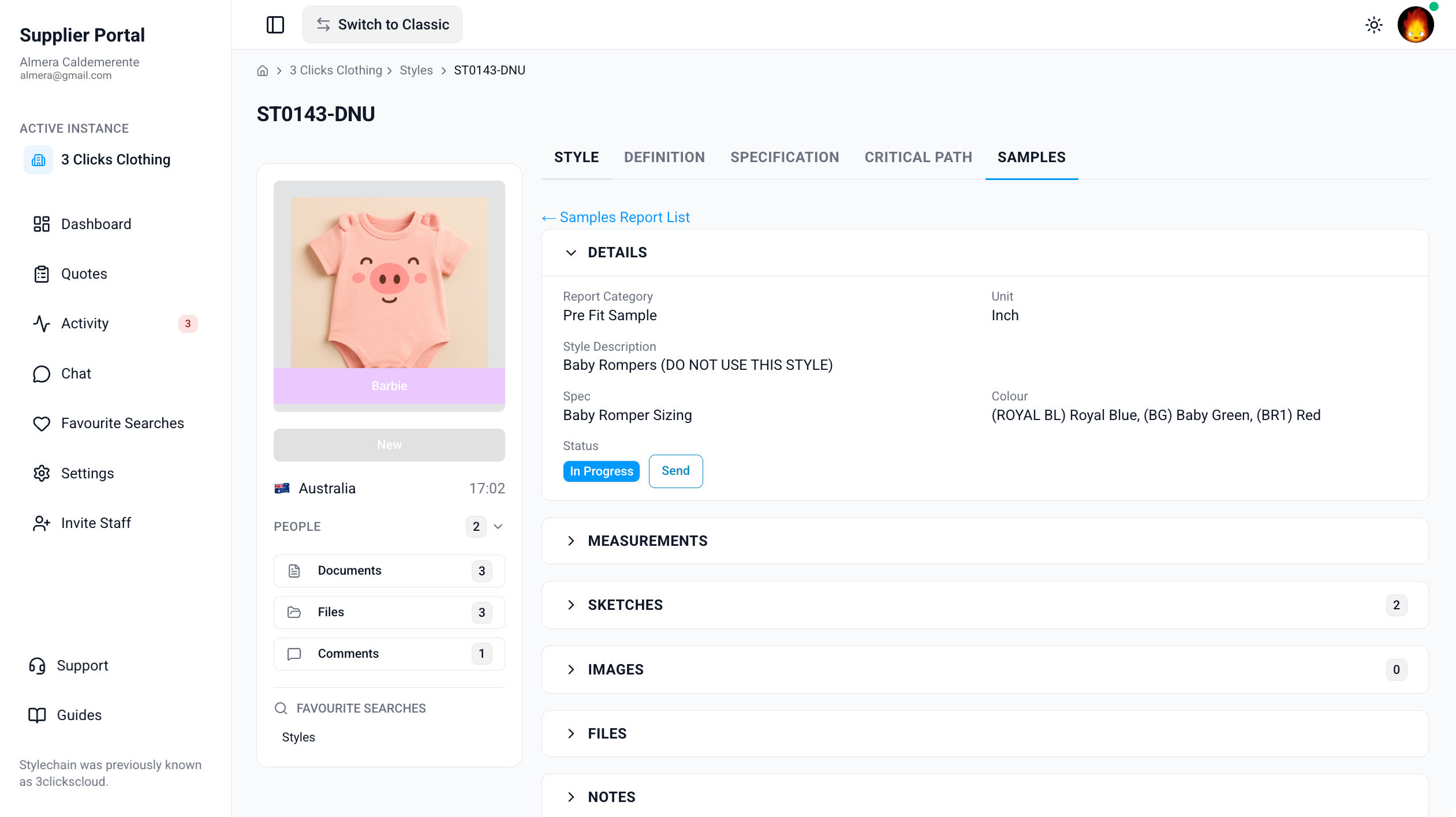
Details
| Field | Description |
|---|---|
| Report Category | The type or category of sample report. |
| Style Description | The style description from the shared style record. View-only. |
| Spec | The specification template linked to the style. View-only. |
| Status | The current report status. Update this when you are ready to submit — for example, from In Progress to Send — according to your customer's workflow. |
| Unit | The unit of measure for the style (for example, pieces or pairs). View-only. |
| Colour | The colourway covered by the report. May be locked after other sections are edited. |
Measurements
The Measurements table shows Points of Measurement (POM) imported from the style specification. When edit access is enabled, you can record sample-specific values without changing the master specification.
| Column | Description |
|---|---|
| POM | Point of Measurement — the code or label for the measurement point. |
| Description | What is being measured at that POM. |
| Sizes | The measurement value for each applicable size. |
| V | The measured value recorded for the sample. |
| Rev | Revised measurement data after inspection or correction. |
| Tol + / Tol − | Acceptable tolerance above and below the specified measurement, when shown. |
If your customer has changed specification measurements after the report was created, a warning may appear when you open the report. Ask your instance user whether to refresh measurement data from the specification before you continue editing.
Sketches
The Sketches section displays technical sketches from the style specification. This section is view-only — use it as a visual reference when taking or reviewing measurements.
Switch between small and large icon views to inspect sketch detail at the level you need.
Images
The Images section shows reference or sample images attached to the report. Depending on your permissions, you may be able to upload images from your customer's image library or annotate images with comments and markup.
Files
The Files section lets you upload, search, and organise documents related to the sample report when edit access is enabled.
| Feature | Description |
|---|---|
| Upload | Attach supporting files such as test results, QC reports, or certificates. |
| Search | Find files within the report file area by keyword. |
| Grid / List view | Switch layout to browse files as thumbnails or in a list. |
Notes
Use Notes to record fit feedback, construction observations, and questions for your customer's team. When enabled, you can add comments, @ mention instance users or supplier colleagues, and attach files to your note before you post.
| Feature | Description |
|---|---|
| Comments | Add or reply to notes on the sample report. |
| @ Mentions | Mention contacts by clicking the @ icon or typing @ while composing your message. Mentioned users receive a notification. |
| File attachments | Attach supporting files to your note before you post. |
Keep sample-specific questions in Notes on the report so they stay linked to the record. Use Chat for broader production topics that are not tied to a single report.
Mention the Right Contact
People on the style side widget lists your customer's internal instance users — not supplier staff. Use @ mentions in Notes to notify the instance user who owns the sample review.
Sample Scenarios
Refer to these scenarios to understand how suppliers use the Samples tab in the Supplier Portal. Each scenario links to related documentation in this portal.
Scenario 1: Sample coordinator fulfilling shared requirements
A sample coordinator opens a shared style to review due dates, mark completed work, and enter sample costs for each requirement.
| Step | What to do | Related documentation |
|---|---|---|
| 1 | Open the style from Styles search or Activity and go to the Samples tab. | Supplier Portal › Styles |
| 2 | Review Colour to confirm which colourways and estimated units are in scope. | Colour |
| 3 | Work through Sample Requirements — enter Sample Cost and Currency, then mark each row complete when the sample is finished. | Sample Requirements |
| 4 | Cross-check sizes and colourways against Colours if a requirement does not match your brief. | Supplier Portal › Style |
| 5 | Ask questions through Chat if a requirement is missing or a due date has changed. | Supplier Portal › Chat |
Scenario 2: Factory completing a fit sample report
A factory user documents measurements and uploads QC files on a shared sample report, then updates status to Send for customer review.
| Step | What to do | Related documentation |
|---|---|---|
| 1 | Open the style, go to Samples, and click Edit on the relevant Sample Reports row. | Sample Reports |
| 2 | Review Details and confirm Report Category, Colour, and Status. | Edit Sample Report > Details |
| 3 | Enter measured values in V and revised values in Rev on the Measurements table. | Edit Sample Report > Measurements |
| 4 | Upload supporting documents in Files and add context in Notes with an @ mention to the instance user who owns the review. | Edit Sample Report > Files |
| 5 | Change Status from In Progress to Send when the report is ready for your customer's team. | Edit Sample Report > Details |
Scenario 3: Merchandiser checking sample progress before a development meeting
A merchandiser reviews sample completion and open reports before an internal hand-off with the factory team.
| Step | What to do | Related documentation |
|---|---|---|
| 1 | Open the style and check the Sample Requirements progress bar for overall completion. | Sample Requirements |
| 2 | Review Sample Reports for status and any reports still In Progress. | Sample Reports |
| 3 | Compare specification data on Specification with measurement targets in an open report. | Supplier Portal › Style › Specification |
| 4 | Check Critical Path for related milestone due dates. | Supplier Portal › Style › Critical Path |
| 5 | Use Activity to see recent sample updates posted by your customer's team. | Supplier Portal › Activity |
Next Steps
- Review enabled colourways and sizes on Colours
- Confirm sketches and measurements on Specification
- Track development milestones on Critical Path
- Search and open shared styles
- Configure sample report notifications
- Ask your customer's team about sample changes
Troubleshooting
Why is the Samples tab missing on a style I can otherwise open?
Tab visibility depends on your Supplier Portal role, portal display settings, and what your customer has shared on the style record.
Steps to resolve:
- Confirm whether the tab is missing entirely or visible but empty.
- Ask your instance user to verify your Supplier Portal role includes Style with View enabled.
- Ask them to confirm sample requirements or reports have been shared to the portal for that style.
- Click Refresh or reopen the style from Activity after your customer confirms updates.
Why is the Sample Requirements section empty?
Requirements appear only after your instance user creates them on the Production Portal and shares them with your supplier account.
Steps to resolve:
- Confirm with your instance user that sample requests were published to your portal account.
- Refresh the style record and reopen the Samples tab.
- Check Activity for recent sample-related notifications.
- Use Chat to confirm expected sample types, sizes, and due dates while requirements are being set up.
Why can I see a sample requirement but not mark it complete or enter a cost?
Portal actions on sample requirements are controlled by your customer's configuration. View access does not always include permission to complete rows or enter Sample Cost.
Steps to resolve:
- Confirm whether completion controls and cost fields are hidden or read-only.
- Ask your instance user to verify supplier portal permissions for sample requirements on the style.
- Send cost and completion updates through Chat while permissions are being reviewed.
Why is the Currency I need missing from the dropdown?
Currency options are defined by your customer on the Production Portal. Only configured currencies appear in the Supplier Portal dropdown.
Steps to resolve:
- Ask your instance user to add the required currency code on their side.
- Do not select a substitute currency unless your customer explicitly approves it.
- Enter narrative context in Chat if you cannot save the cost in the expected currency yet.
Why can I see a sample report but not click Edit?
Edit access on sample reports is granted per report by your customer. View-only access hides the Edit action.
Steps to resolve:
- Confirm you are on the correct style and Samples tab.
- Ask your instance user to grant edit access for sample reports shared with your supplier account.
- Use Notes (if readable) or Chat to send feedback while edit access is being arranged.
Why do measurements in a sample report not match Specification?
Sample report measurements are imported from the style specification when the report is created. Specification data may be updated on the Production Portal after the report was generated.
Steps to resolve:
- Compare the report Measurements table with Specification on the same style.
- Ask your instance user whether measurement data should be refreshed in the report.
- Post a Note with an @ mention if a POM, tolerance, or size value does not match the current approved specification.
Why did my Sample Cost save but my customer still sees an old value?
Cost data should sync back to your customer's style record. A stale browser tab on either side can mask recent updates.
Steps to resolve:
- Re-enter Sample Cost and Currency, then click away from the field to save.
- Refresh the style record and confirm the values on the requirement row.
- Ask your instance user to hard-refresh their view if they still see outdated figures.