Specification
The Specification tab on a shared style in the Supplier Portal is where you review technical product information your customer's instance users maintain on the Production Portal. Use it to confirm sketches, reference images, available sizes, and measurement tables before sampling, pattern making, or production — without relying on email attachments alone.
Most sections on this tab are view-only. The Comments section is where you can reply to your customer's team, mention instance users, and attach supporting files.
Supplier Portal > Style > Specification 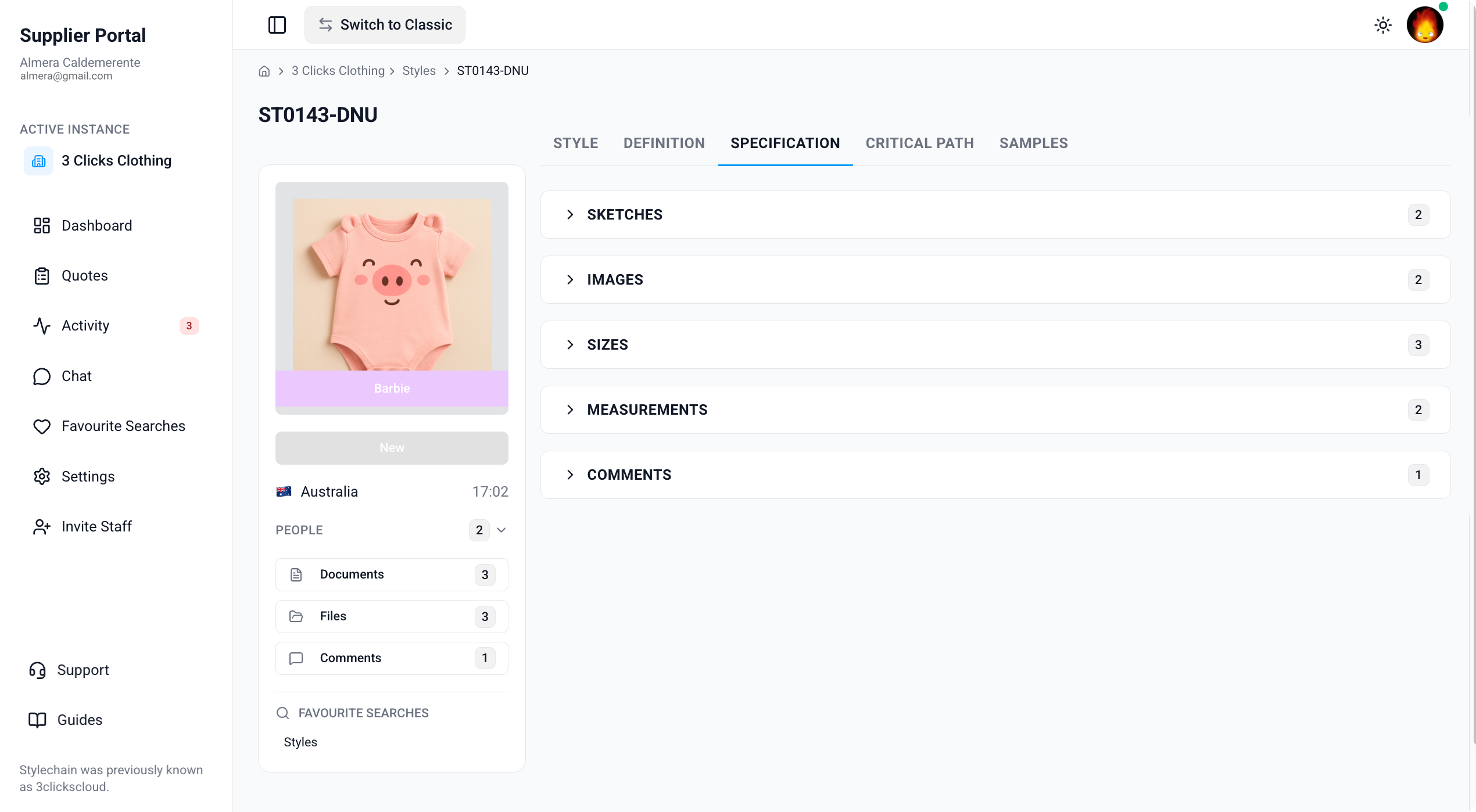
Quick Check - Before You Start
- Confirm you are on the correct customer connection in Active Instance if you work with more than one brand.
- If the Specification tab is missing or a section is empty, ask your instance user to verify the style is shared with your factory or agent and that your Supplier Portal role includes Style View access.
- Cross-check Sizes here with the enabled sizes listed for each colourway on Colours before you cut or measure samples.
- Enable Comments and Mentions notifications in Profile › Notification Preferences so you are alerted when instance users post specification questions.
View-Only Sections
Sketches, Images, Sizes, and Measurements are read-only in the Supplier Portal. Instance users add and update specification data on the Production Portal. If a sketch, measurement, or tolerance does not match your brief, use Comments on this tab or Chat to reach your customer's team.
Sketches
The Sketches section displays technical or fashion sketches your customer has uploaded for the style. Sketches help explain construction details, measurement reference points, artwork placement, and design intent.
Supplier Portal > Style > Specification > Sketches 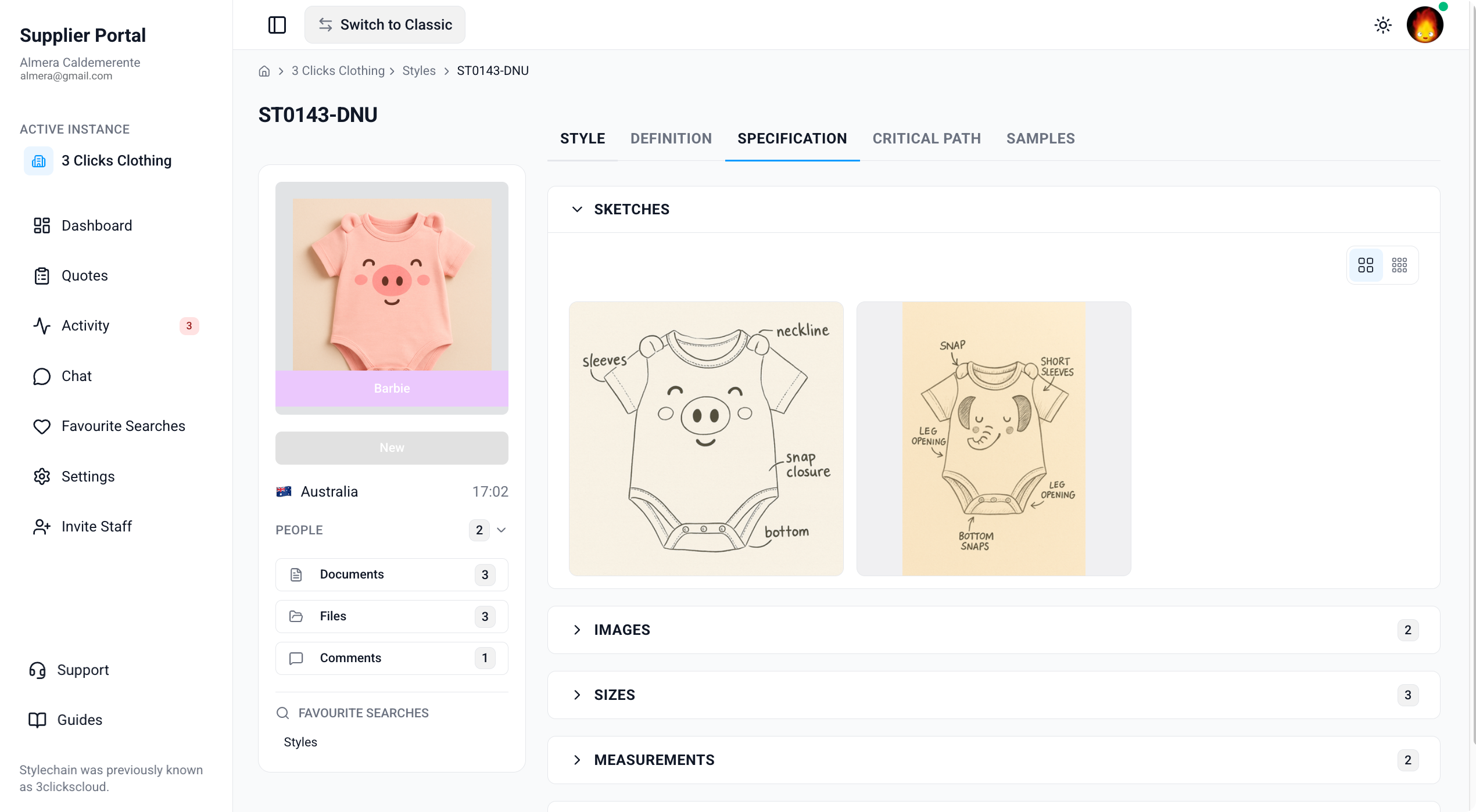
| Element | Description |
|---|---|
| Sketch images | Visual drawings or annotated images uploaded by instance users. |
| View options | Switch between small and large icon views to inspect sketches at the level of detail you need. |
Use sketches alongside the Measurements table to understand where each Point of Measurement (POM) should be taken. If a sketch is missing or unclear, ask your instance user to upload an updated reference through Comments or check whether a Style Specification document is available under Documents on the style card — see Supplier Portal › Style.
Images
The Images section shows additional reference or product images your customer has added to the specification. These support tech pack review and give visual context for construction, trims, labels, and measurement points.
Supplier Portal > Style > Specification > Images 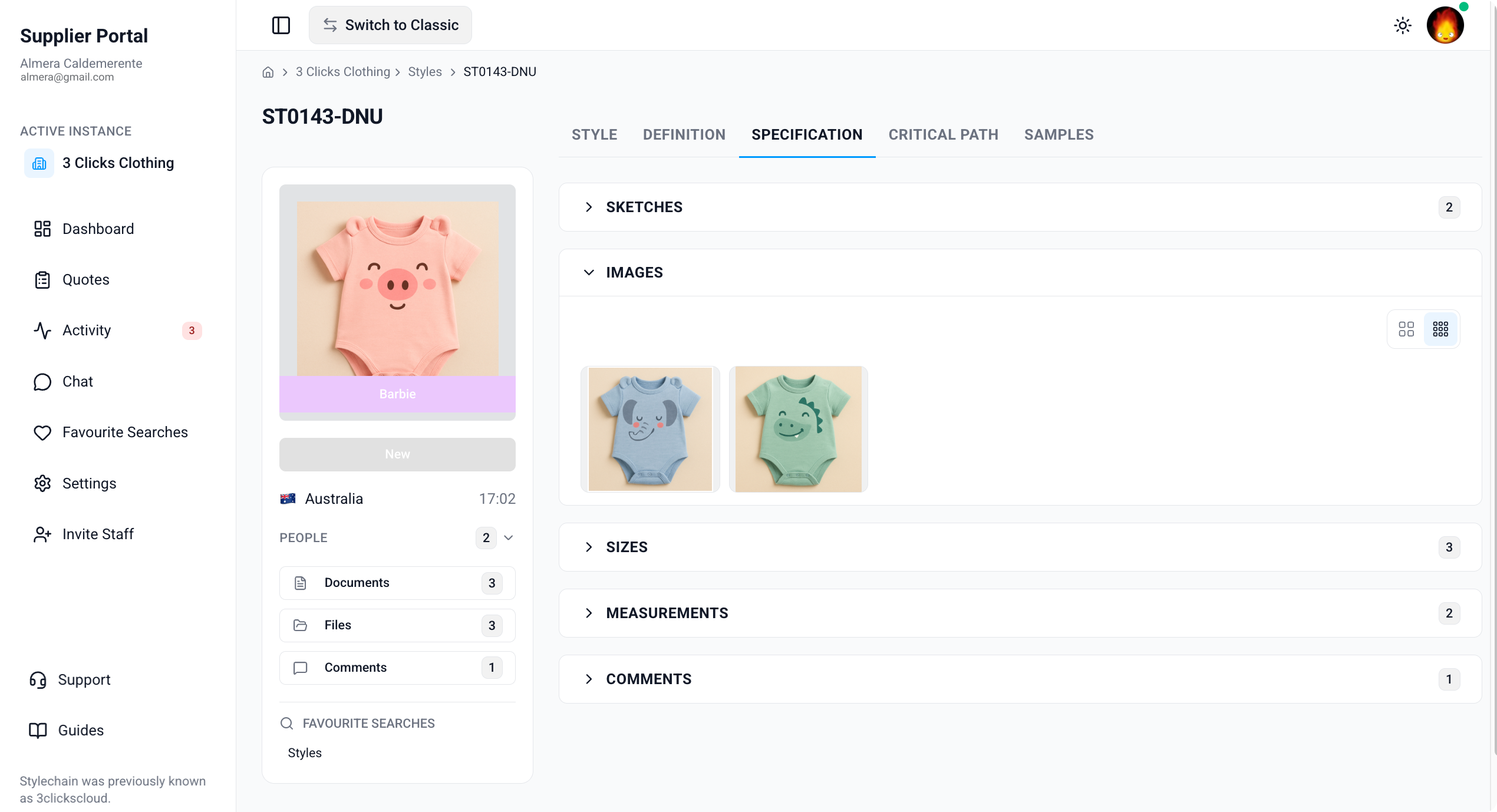
| Element | Description |
|---|---|
| Reference images | Product photos, CADs, artwork references, or other visuals uploaded by instance users. |
| View options | Switch between small and large icon views to review images at a comfortable size. |
Images here are separate from the style Preview Image on the side widget and from files in Files. If you need CADs or tech packs that are not shown in Images, ask your instance user to share them through Files or Drive — see Supplier Portal › Drive.
Sizes
The Sizes section lists the sizes available for this style's specification. It reflects the size scale and enabled sizes your customer has configured — not every size in a master size scale appears if it has been turned off for the style.
Supplier Portal > Style > Specification > Sizes 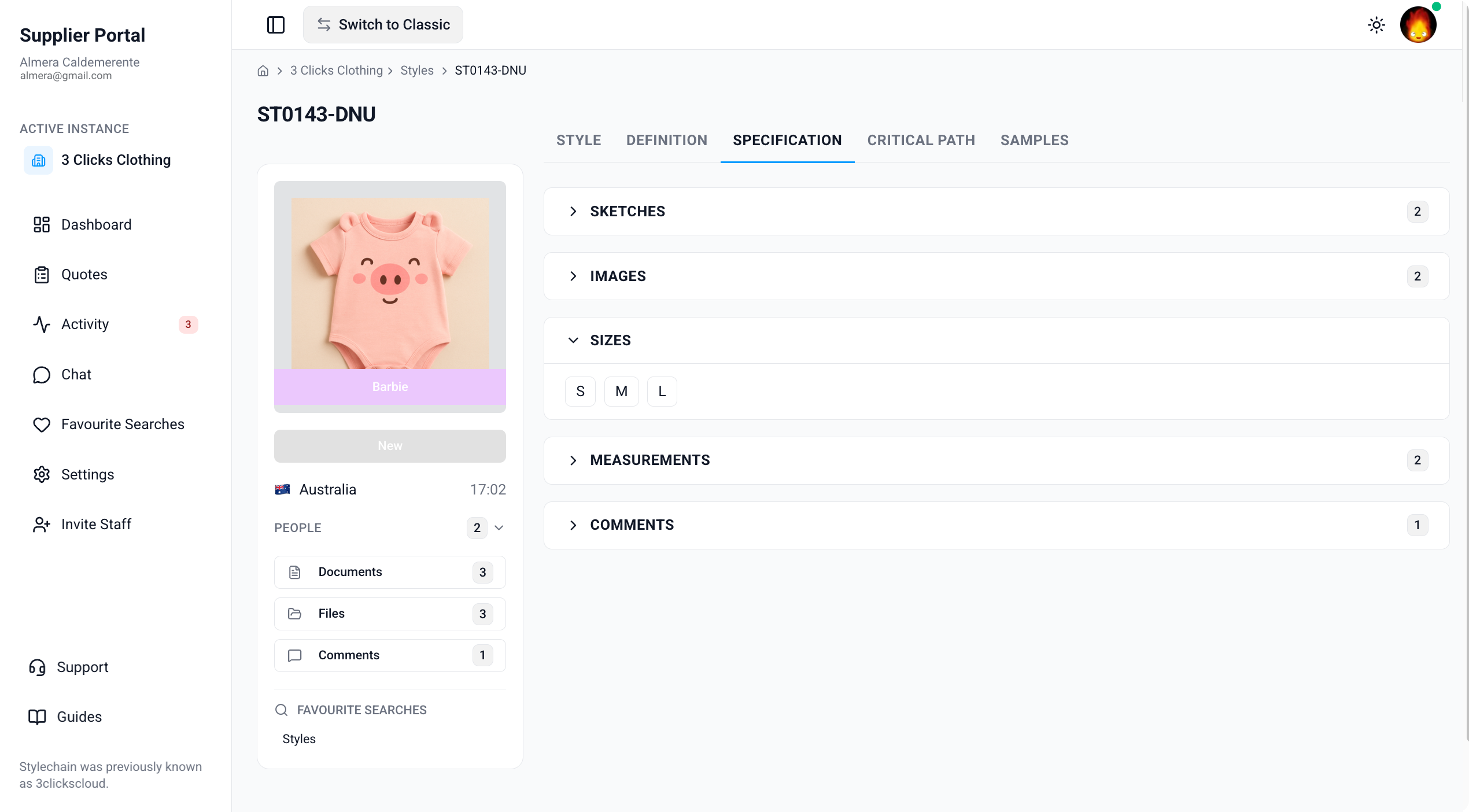
| Element | Description |
|---|---|
| Available sizes | The size range in scope for measurements and grading on this specification (for example, XS through XL). |
Compare Sizes with the Sizes column on Colours to confirm which colourways include each size before sampling or production. Disabled sizes configured by instance users do not appear as available options.
Confirm Size Scope Before Sampling
A size listed on the specification does not always mean every colourway is offered in that size. Check Colours for colour-specific size availability and raise a query in Comments if the brief and the portal data do not align.
Measurements
The Measurements section displays the garment measurement grid your customer has built for the style. Use it as the source of truth for POM values, tolerances, and grade rules before cutting, measuring samples, or starting bulk production.
Supplier Portal > Style > Specification > Measurements
Measurement table columns
| Column | Description |
|---|---|
| POM | Point of Measurement — the code or label for the measurement point (for example, Chest, Waist, Sleeve Length). |
| Description | A brief explanation of what is being measured at that POM. |
| Sizes | The measurement value for each available size in the grid. |
| Tol + | The acceptable tolerance above the specified measurement. |
| Tol − | The acceptable tolerance below the specified measurement. |
Your customer may also expose a How to Measure column when that option is enabled in their organisation settings. When present, it provides detailed instructions for how each POM should be taken.
Measurement and grade display
Use the display control in the Measurements section toolbar to switch how values are shown:
| Display option | Description |
|---|---|
| Measurement | Shows the actual measurement value for each size. |
| Grade | Shows grade increments between sizes, based on your customer's grade configuration. |
| Both | Shows measurement and grade values together when you need to review fit rules and absolute dimensions in one view. |
Switch views to confirm grade rules match your pattern or sample block before production. Headings and grouped rows your customer has added in the Production Portal appear in the same order here to keep related POMs together.
Where Measurement Data Comes From
Instance users maintain specification templates, POMs, measurements, and tolerances on the Production Portal. What you see in the Supplier Portal reflects the current shared record — you cannot add, edit, or delete measurement rows from your supplier account.
Comments
The Comments section on the Specification tab is where you collaborate with your customer's team about sketches, measurements, tolerances, and fit questions. Unlike the other sections on this tab, Comments is interactive — you can post replies, mention instance users, and attach files.
Supplier Portal > Style > Specification > Comments 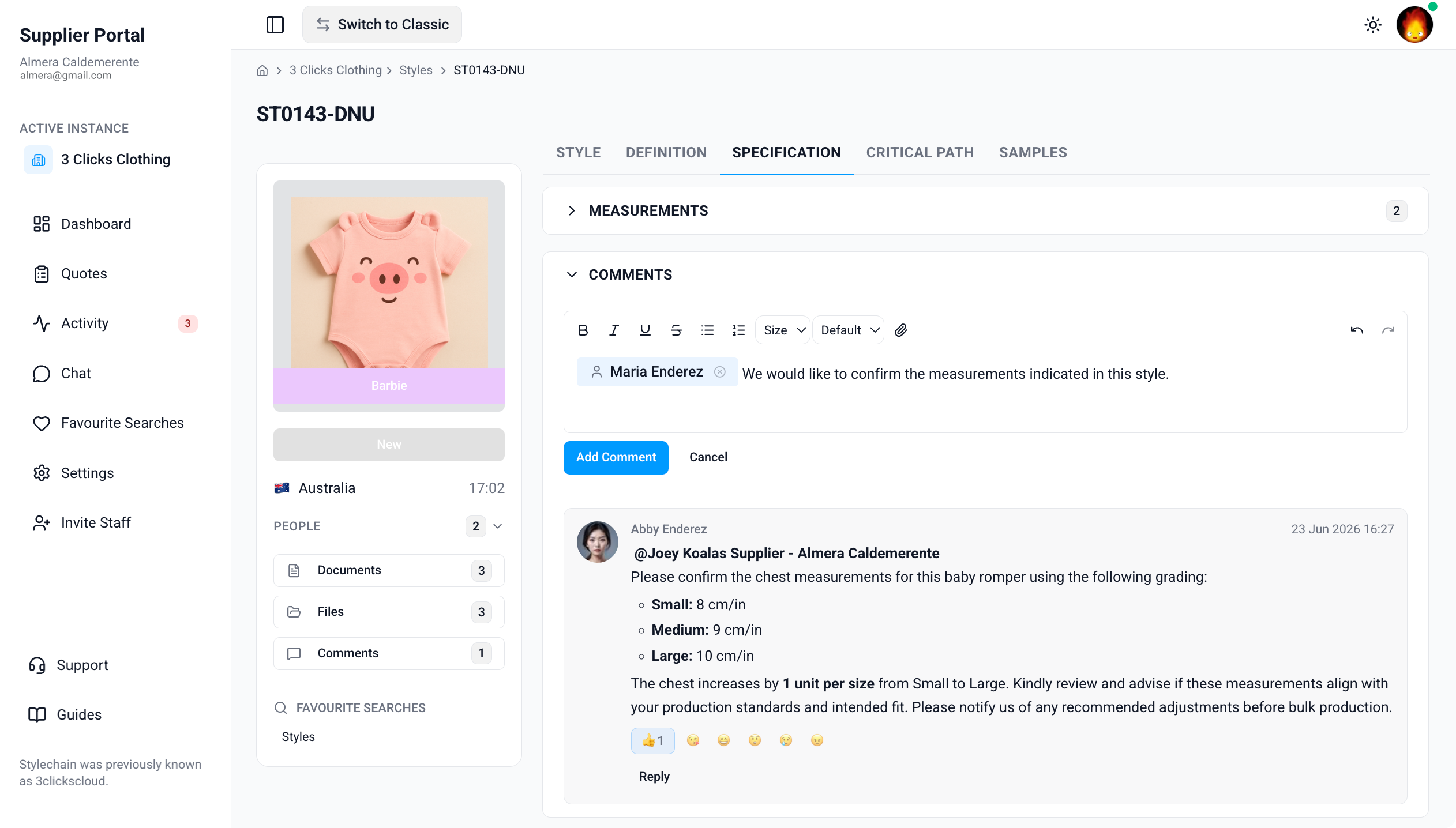
| Feature | Description |
|---|---|
| Reply | Respond to an existing thread or start a new comment about the specification. |
| @ Mentions | Mention instance users or supplier colleagues by clicking the @ icon in the comment toolbar or typing @ while composing your message. Mentioned users receive a notification. |
| File attachments | Attach supporting files — for example, annotated photos, revised measurement charts, or fit notes — to your comment before you post. |
| Edit and delete | Update or remove your own comments when you need to correct a message. |
Keep specification questions in Comments on this tab so they stay attached to the style record. Use Chat for broader production topics that are not tied to a single measurement or sketch.
Mention the Right Contact
People on the style side widget lists your customer's internal instance users — not supplier staff. Use @ mentions in Comments to notify the instance user who owns the specification, especially when a tolerance, POM, or sketch needs urgent clarification.
Next Steps
- Review enabled colourways and sizes on Colours
- Confirm materials on Definition
- Fulfil sample requirements and reports on Samples
- Track development milestones on Critical Path
- Download Style Specification from Documents
- Search and open shared styles
- Ask your customer's team about specification changes
Related Settings
These Site Settings pages are maintained by your customer's administrators. Share them with your instance user contact if Specification sections or columns do not match expectations.
Troubleshooting
Why is the Specification tab missing on a style I can otherwise open?
Tab visibility depends on your Supplier Portal role, portal display settings, and what your customer has shared on the style record.
Steps to resolve:
- Confirm whether the tab is missing entirely or visible but empty.
- Ask your instance user to verify your Supplier Portal role in Site Settings › Company › Suppliers includes Style with View enabled.
- Ask them to confirm Specification is included in the supplier portal layout for styles.
- Click Refresh or reopen the style from Activity after your customer confirms updates.
Why are Sketches, Images, or Measurements empty?
Specification content is built and maintained by instance users on the Production Portal. An empty section usually means nothing has been added yet, or the style specification template has not been applied.
Steps to resolve:
- Check whether other sections on the tab contain data. For example, Sizes without Measurements may indicate the measurement grid is still being built.
- Ask your instance user to confirm the specification template, sketches, and measurements are saved on the Production Portal record.
- Download Style Specification from Documents on the style card if your customer has generated a formal document while the online tab is still in progress.
Why does a measurement or tolerance not match what my customer sent by email?
Specification data can be updated on the Production Portal after an earlier brief or PDF was sent.
Steps to resolve:
- Refresh the style record and review Activity for recent specification changes.
- Compare POM, Description, Sizes, and tolerance values with your customer's latest communication.
- Post a Comment and @ mention the relevant instance user listed under People on the style card to confirm the current approved measurements.
Why can I not see every size I expected in the Measurements grid?
The Sizes section and measurement columns only show sizes that are enabled for the style. Colour-specific size availability is configured separately on Colours.
Steps to resolve:
- Review Sizes on this tab and the Sizes column on Colours for each colourway you are producing.
- Switch the Measurements display between Measurement, Grade, and Both to ensure you are not overlooking grade-only rows.
- Ask your instance user to confirm disabled sizes or size-scale changes on the Production Portal record.
Why can I read specification data but not post Comments or attach files?
Comment permissions depend on your Supplier Portal role and your customer's portal configuration. View access to Specification does not always include permission to post comments.
Steps to resolve:
- Confirm whether the Comments section is hidden or visible but read-only.
- Ask your instance user to verify your supplier role includes comment access for Style records.
- Use Chat to send files and questions while comment permissions are being updated.