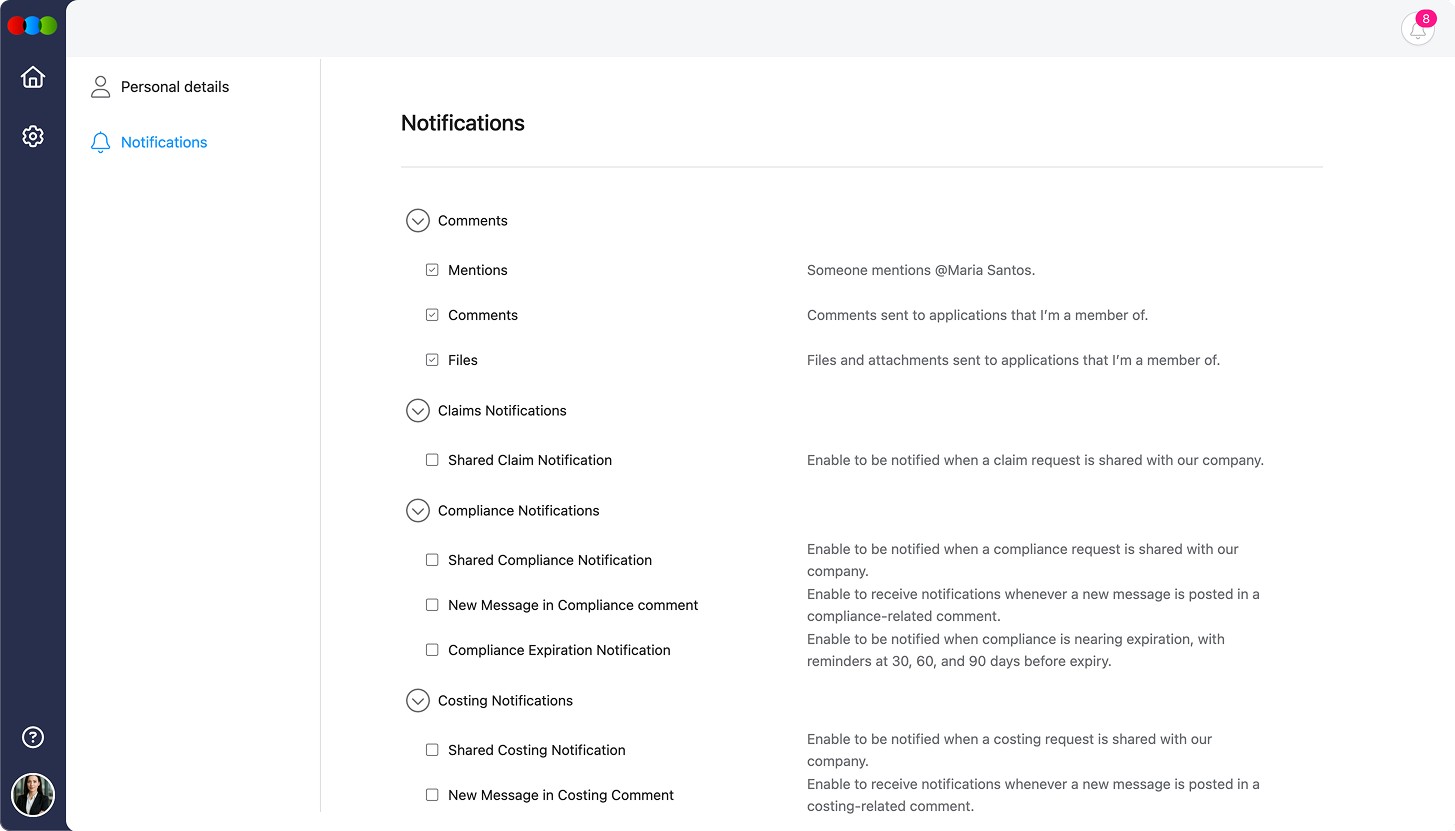
The Notification settings in the Supplier Portal allow each user to control which alerts they receive for different application modules. Notifications are enabled by default to ensure visibility across shared orders, claims, costings, compliance, and more—but they can be personalised as needed.
Accessing Notifications
There are two ways to view and manage notifications:
1. Real-Time Notifications
Accessible from the notification bell icon at the top-right corner of the portal home page.
Displays a list of all recent alerts across applications.
2. Notification Settings
To manage notification preferences:
Click the profile image at the bottom-left corner of the screen.
Select My Profile.
Go to the Notifications tab.
Manage Your Notification Preferences
From the Notifications tab, you can customise your alerts by checking or unchecking each item. Changes are saved automatically. Tick or untick each checkbox to enable or disable individual notification types.
Comments
Setting
Description
Mentions
Notified when someone mentions you (for example, @Your Name).
Comments
Comments sent to applications that you are a member of.
Files
Files and attachments sent to applications that you are a member of.
Claims Notifications
Setting
Description
Shared Claim Notification
Notified when a claim request is shared with your company.
Compliance Notifications
Setting
Description
Shared Compliance Notification
Notified when a compliance request is shared with your company.
New Message in Compliance comment
Notified whenever a new message is posted in a compliance-related comment.
Compliance Expiration Notification
Notified when compliance is nearing expiration, with reminders at 30, 60, and 90 days before expiry.
Costing Notifications
Setting
Description
Shared Costing Notification
Notified when a costing request is shared with your company.
New Message in Costing Comment
Notified whenever a new message is posted in a costing-related comment.
Order Notifications
Setting
Description
Shared Order Notification
Notified when a new order is shared with your company.
New Message in Order Comment
Notified whenever a new message is posted in an order-related comment.
Order Update Notification
Notified when an order is updated.
Order Specification Update Notification
Notified when the order specification document is updated.
Order Ticket Codes Update Notification
Notified when the order ticket codes document is updated.
Order Sample Report Update Notification
Notified when the order sample report document is updated.
Style Notifications
Setting
Description
Shared Style Notification
Notified when a new style is shared with your company.
Style Sample Report Update Notification
Notified when the style sample report document is updated.
Best Practices
Keep high-priority items (like Order Update Notification and Compliance Expiration Notification) enabled to avoid missing critical deadlines.
Review notification preferences regularly to match current responsibilities.
Disable alerts for sections that do not apply to your role to minimise distractions.