Security
The Security section in your profile lets you manage multi-factor authentication (MFA) for your Supplier Portal account. Turning on MFA means a second step is required at sign-in—usually a code from an authenticator app—which greatly reduces the risk of unauthorised access if your password is ever compromised.
Supplier Portal Security settings showing Two-Factor Authentication 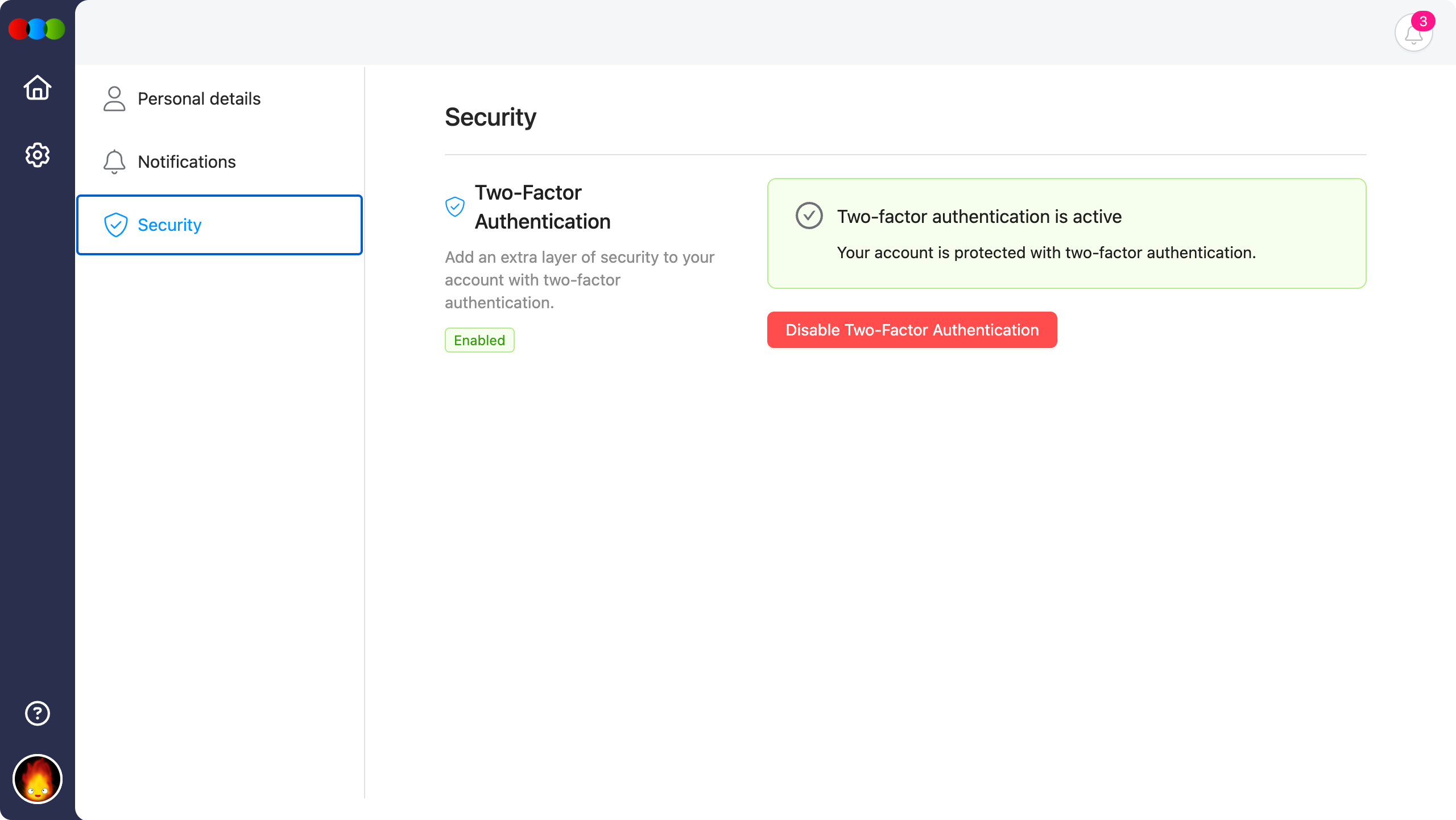
Accessing Security Settings
- Click the profile image at the bottom-left corner of the screen.
- Select My Profile.
- Open the Security section.
The Security section sits alongside Personal details and Notifications in your profile.
Quick Check - Before You Start
- To enable, have an authenticator app installed on a device you control (for example, Microsoft Authenticator or Google Authenticator).
- Keep your password secure; MFA adds protection but does not replace a strong, unique password.
Two-Factor Authentication
Add an extra layer of security to your account with two-factor authentication.
From the Two-Factor Authentication section you can set up, review, or turn off MFA. The page shows whether MFA is currently Enabled or not, and the actions available match that state.
When two-factor authentication is enabled
If MFA is active, you will see confirmation that two-factor authentication is on and that your account is protected. A Disable Two-Factor Authentication control is available when you need to remove MFA from your account (for example, before changing devices—follow your organisation’s security policies).
When two-factor authentication is disabled
If MFA is not yet enabled, use the on-screen prompts to complete setup (typically scanning a QR code or entering a setup key in your authenticator app, then confirming with a one-time code). Exact steps follow the labels and fields shown in the portal.
Best Practices
- Enable two-factor authentication for every account that supports it, especially if you access shared orders, compliance, or commercial data.
- Do not share authenticator codes or backup codes with others.
- If you lose access to your authenticator app, contact your organisation’s administrator or support using your company’s process before removing MFA from a device you no longer control.